PHP Tools

Install some PHP tools:

  1. PHP Coding Standards Fixer (http://cs.sensiolabs.org/)
    Installation: (Globally (Composer))

    Then make sure you have ~/.composer/vendor/bin in your PATH and you’re good to go:

    To find out the location of php-cs-fixer

    I can use the location for the netbeans plugins needed.
    Another reference: https://mattstauffer.co/blog/using-php-cs-fixer-to-fix-up-your-php-code
  2. PHP CodeSniffer
    Ref: http://purencool.com/install-and-test-phpcodesniffer-on-ubuntu
    http://askubuntu.com/questions/572956/adding-a-standard-to-php-codesniffer
    Installation:

    To find out the location

    To verify PHP_CodeSniffer is already installed, check like this:

    Ref: https://wisdmlabs.com/blog/how-to-format-php-code-to-wordpress-coding-standards-in-netbeans/
    To use it in netbeans, click: Source > Inspect…
  3. PHP Mess Detector & PDepend
    Ref: https://phpmd.org/download/index.html
    http://stackoverflow.com/questions/27958289/what-is-phpmd-and-how-to-use-it
    Installation: (Same way with php cs fixer to use composer globally)

    To find out the location for PHPMD and PDepend:


  4. PHP Copy/Paste Detector (PHPCPD)
    Ref: https://github.com/sebastianbergmann/phpcpd
    NOTE: DONT INSTALL FROM PEAR!
    Installation: (Use composer globally)

    To find out the location:

    Please read this: Installation of PHP Code Review Tools
    For integrating all the above tools in Netbeans!

Laravel Homestead VirtualBox Vagrant

Url: https://laravel.com/docs/5.3/homestead
       Quick Tip: Get a Homestead Vagrant VM Up and Running
       Getting Started with Laravel Homestead

Introduction
Laravel strives to make the entire PHP development experience delightful, including your local development environment. Vagrant provides a simple, elegant way to manage and provision Virtual Machines.

Laravel Homestead is an official, pre-packaged Vagrant box that provides you a wonderful development environment without requiring you to install PHP, a web server, and any other server software on your local machine. No more worrying about messing up your operating system! Vagrant boxes are completely disposable. If something goes wrong, you can destroy and re-create the box in minutes!

Homestead runs on any Windows, Mac, or Linux system, and includes the Nginx web server, PHP 7.0, MySQL, Postgres, Redis, Memcached, Node, and all of the other goodies you need to develop amazing Laravel applications.

Installation:

  1. Install VirtualBox (https://www.virtualbox.org/wiki/Linux_Downloads)
  2. Install Vagrant (https://www.vagrantup.com/downloads.html)
  3. Installing The Homestead Vagrant Box

     
  4. Installing Homestead

    Please check ‘Homestead’ directory at Home (/home/teddy)
  5. Once you have cloned the Homestead repository, run the bash init.sh command from the Homestead directory to create the Homestead.yaml configuration file. The Homestead.yaml file will be placed in the ~/.homestead hidden directory:


  6. Configuring Homestead. Setting Your Provider
    The provider key in your ~/.homestead/Homestead.yaml file indicates which Vagrant provider should be used: virtualbox, vmware_fusion, or vmware_workstation. You may set this to the provider you prefer:

    Here is the file content looks like:

     
  7. Configuring Shared Folders
    I prefer to let it as is (please see ‘folders’ in ~.homestead/Homestead.yaml file above) –> DON’T DO THIS, IF ‘map’ VALUE STILL ‘~/Code’, PLEASE MODIFY IT (CHECK YOUR WEB DIRECTORY IS BETTER) BECAUSE I GOT THIS ERROR:

    MODIFY IT TO ‘~/Documents/works/laravel’ LIKE THIS:
  8. Configuring Nginx Sites
    I prefer to let it as is (please see ‘sites’ in ~.homestead/Homestead.yaml file above)
    If you change the sites property after provisioning the Homestead box, you should re-run vagrant reload –provision to update the Nginx configuration on the virtual machine.
  9. Configure SSH Key (IF NOT EXIST IN /home/teddy/.ssh/)
  10. The Hosts File
    You must add the “domains” for your Nginx sites to the hosts file on your machine. The hosts file will redirect requests for your Homestead sites into your Homestead machine. On Mac and Linux, this file is located at /etc/hosts.

    Add this line in the file:

    Make sure the IP address listed is the one set in your ~/.homestead/Homestead.yaml file. Once you have added the domain to your hosts file and launched the Vagrant box you will be able to access the site via your web browser:
  11. Launching The Vagrant Box
    Once you have edited the Homestead.yaml to your liking, run the vagrant up command from your Homestead directory. Vagrant will boot the virtual machine and automatically configure your shared folders and Nginx sites.

    BUT I GOT THIS ERROR:

    SOLUTION: (ref: Problem launching vagrant on Homestead)
    From this error

    I didn’t find ‘id_rsa’ file in /home/teddy/.ssh/ directory. I need to configure my SSH location like this:

    SEE MY MODIFICATION AT #9.
    Then I run ‘vagrant up’ again. BUT GOT ANOTHER ERROR:

    SOLUTION: (ref: Vagrant: The host path of the shared folder is missing)
    SEE MY MODIFICATION AT #7 ABOVE!
    RUN ‘vagrant up’ again! SUCCESS:

    WE CAN SEE VAGRANT INSTALLED ALSO PHP, NGINX, MYSQL, POSTGRESQL,ETC.
    Or you can see it from VirtualBox (Open Applications -> System Tools -> Oracle VM VirtualBox)vagrant-vmTHIS GUI MORE CONVENIENT. I CAN ‘START’, ‘PAUSE’ OR ‘CLOSE->POWER OFF’ THE VIRTUAL MACHINE!
    NOTE: START MUST BE FROM TERMINAL BY TYPING ‘vagrant up’. I CAN USE GUI TO START IT UP BECAUSE IT’S ALWAYS ASK FOR LOGIN AND PASSWORD THAT I DONT KNOW!
    USE ‘vagrant provision’ TO RELOAD/REFRESH VM!
    TO SHUTDOWN THE VM (NO! USE SUSPEND INSTEAD. SEE BELOW), PLEASE TYPE ‘vagrant destroy –force’
    READ (https://www.vagrantup.com/docs/cli/destroy.html): “The destroy command does not remove a box that may have been installed on your computer during vagrant up. Thus, even if you run vagrant destroy, the box installed in the system will still be present on the hard drive. To return your computer to the state as it was before vagrant up command, you need to use vagrant box remove.”
    USE SUSPEND INSTEAD OF SHUTDOWN (ref:https://scotch.io/tutorials/getting-started-with-laravel-homestead)

    SOMETIMES I FORGOT TO SUSPEND THE VM BEFORE HIBERNATING MY LAPTOP. IT’D MAKE MY LAPTOP VERY SLOW. THE TERMINAL WOULD NOT RESPOND ANYMORE FOR ANYKEY BUT I CAN OPEN THE NEW ONE OR NEW TAB. USUALLY THE VM STATUS IS PAUSED.

    I HAVE TO OPEN THE VirtualBox GUI AND DO Close -> Save State MANUALLY TO STOP THE CURRENT PROCESS!

     
  12. Use SSH to get into the VM (ref: https://www.sitepoint.com/quick-tip-get-homestead-vagrant-vm-running/)

    It seems vagrant INSTALLED ubuntu 16.04 AS VM!
    I can check the PHP version like this:

    I can browse the files and directories in it:
  13. Run http://homestead.app
    But before we do this, WE NEED TO ADD A FEW DIRECTORIES AND FILE. BECAUSE WE KNOW THE WEB ROOT FOR OUR VM IS ‘/home/vagrant/Code’ IS MAPPED TO ‘~/Documents/works/laravel’ (SEE ~/.homestead/Homestead.yaml). FOR ‘homestead.app’ (IS MAPPED TO ‘/home/vagrant/Code/Laravel/public’), ADD A NEW DIRECTORY ‘Laravel’ in /Documents/works/laravel/, THEN ADD ‘public’ DIRECTORY IN IT. THEN ADD A NEW FILE ‘index.php’ IN IT. SO THE FULL PATH IS ‘/Documents/works/laravel/Laravel/public/index.php’. In the PHP file, just add a line of code:

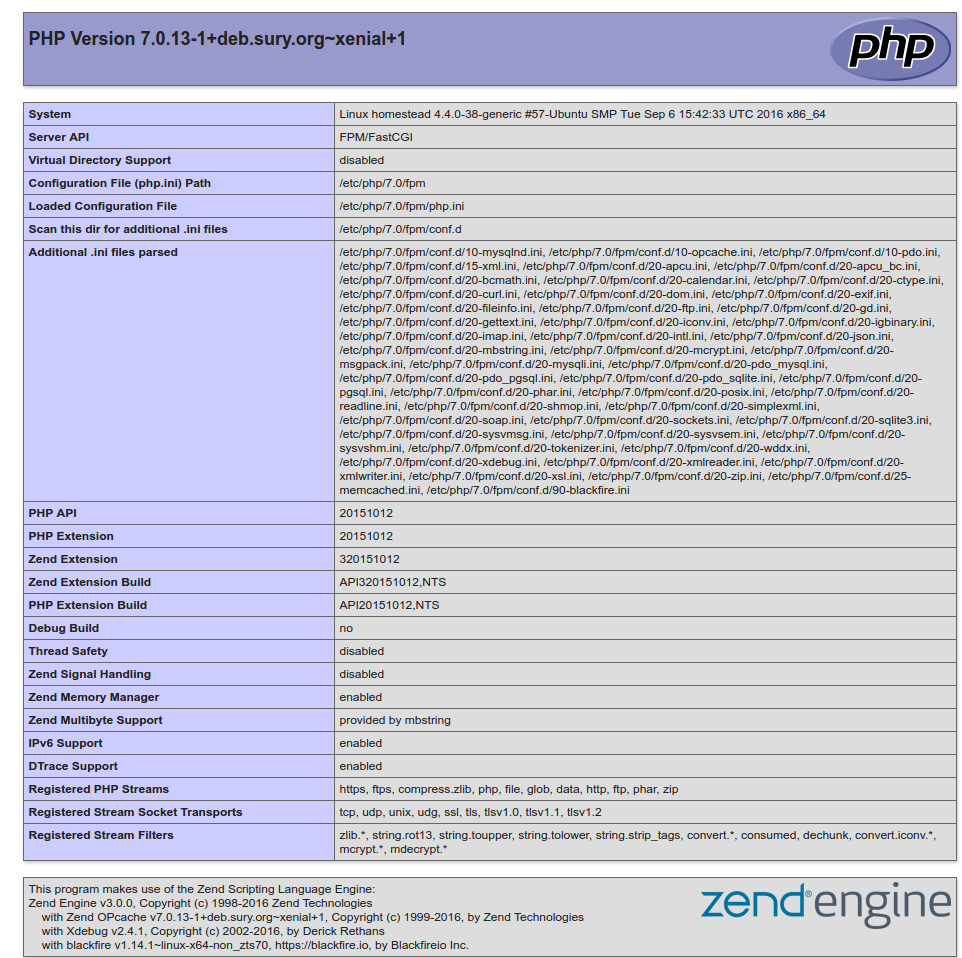
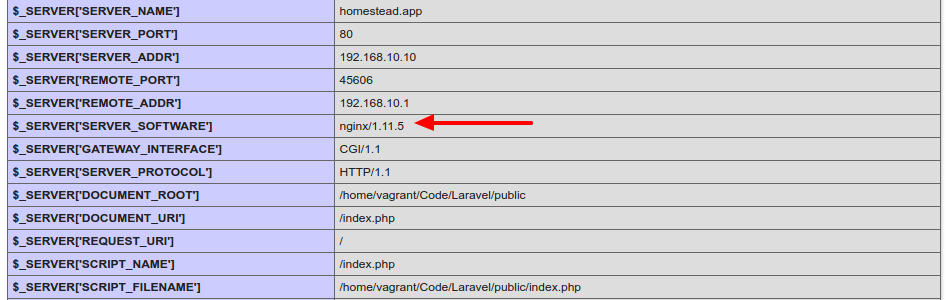
    THEN RUN http://homestead.app/ IN OUR BROWSER!vagrant-phpinfoI can see I’m using NGINX as a webserver instead of Apache
    vagrant-nginx
    HOW TO RUN MYSQL DATABASE???
    SOLUTION:
    REMEMBER: VAGRANT MUST BE IN ‘UP’ MODE FOR THIS SITUATION!
    Login to ssh (‘vagrant ssh’) then check the mysql location with ‘which mysql’

    From ~/.homestead/Homestead.yaml, here is the databases:

    To connect to mysql server at VM, use default user:


    So MYSQL Server version is 5.7.16
    For better for myself to connect to the mysql server, I tried to install the latest mysql client ‘MySQL Workbench’ from https://dev.mysql.com/downloads/workbench/.
    <OLD>
    Currently the version is 6.3.8. But when I installed it, I got dependenci error “Dependency is not satisfiable: libatkmm-1.6-1v5 (>=2.24.0)”. I checked again the downloaded file (mysql-workbench-community-6.3.8-1ubu1604-amd64.deb), IT’S APPARENTLY FOR UBUNTU 16.04!
    </OLD>
    <NEW>
    Ref: http://elementaryos.stackexchange.com/questions/6779/cant-install-mysql-workbench-dependency-is-not-satisfiable
    Download MySQL Workbench for Ubuntu 14.04 here http://cdn.mysql.com//archives/mysql-workbench/mysql-workbench-community-6.3.6-1ubu1404-amd64.deb THEN INSTALL. SUCCESS!
    </NEW>
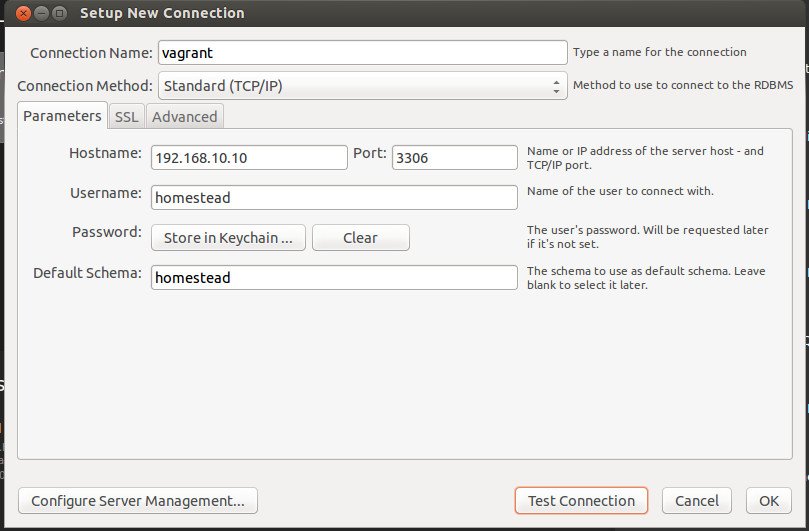
    CONFIGURE MySQL Worbench TO CONNECT MySQL Server AT VM:

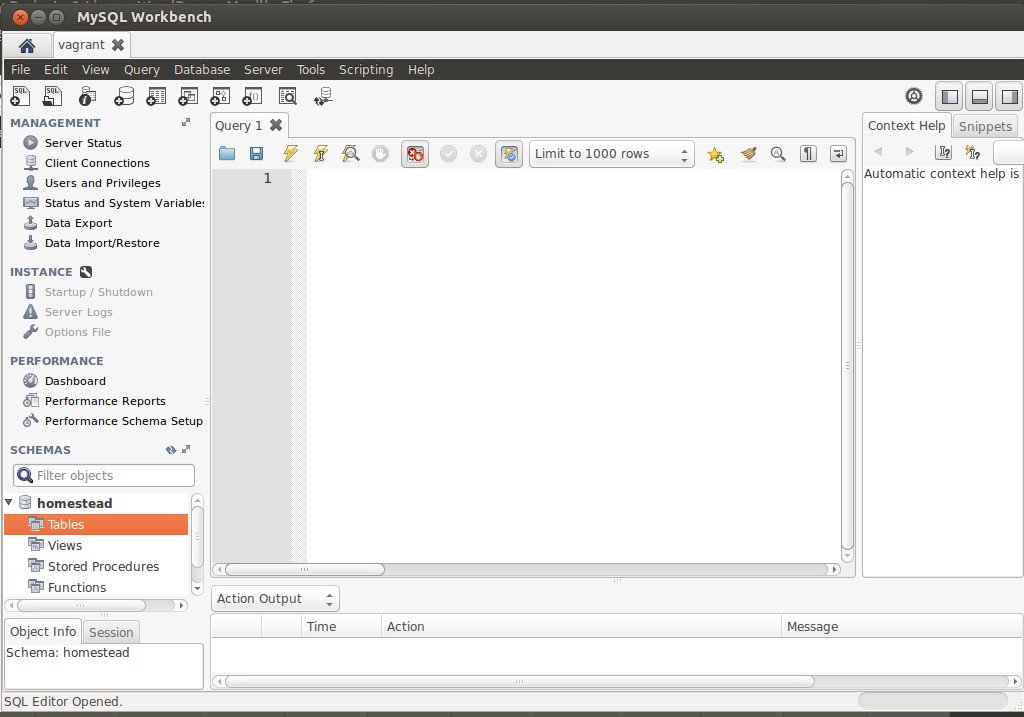
    vagrant-mysql-connectionvagrant-mysql-openNow I can see the database ‘homestead’. I also can create any table!

    WHERE IS NGINX CONFIGURATION FILE???
    SOLUTION:
    Use ‘vagrant ssh’ TO GET INTO THE HOME DIRECTORY OF VM. THEN GO TO THE ROOT DIRECTORY


    THE NGINX CONF FILE IN /etc/nginx/nginx.conf

    USE ‘nano’ TO OPEN/EDIT THE FILE

    Here is the file content:

    TIPS FOR USING NANO:
    TO ‘COPY’ THE TEXT AT THE TERMINAL, JUST USE MOUSE & DRAG THEN Edit->Copy
    TO ‘EXIT’  THE TERMINAL, PRESS ‘Ctrl+X’
    use CTRL-O to Save/overwrite the changes then ENTER
  14.  HOW TO CREATE NEW PROJECT ON VAGRANT???
    OK!. Make sure to run the VM (‘vagrant up’) and go to the ssh (‘vagrant ssh’). I want to clone the laravel 5 project here (Please read Install Laravel 5 On Ubuntu 14.04) For the first time, check our git and composer:

    GO TO ‘/Code’ DIRECTORY FIRST!

    NOTE: THIS IS A REMAINDER! I MADE A MISTAKE FOR THE FIRST TIME SO I HAVE TO MOVE THE LARAVEL PROJECT INTO ‘/Code’ DIRECTORY!

    OK. Create the Laravel project with name ‘laravelvagrant’

    CHECK THE NEW PROJECT ‘laravelvagrant’!

    We want to run this new project, BUT we need to modify ‘Homestead.yaml’ file first to map ‘homestead.app’ to our new project ‘laravelvagrant’. Here is the modification:

    We changed from ‘/home/vagrant/Code/Laravel/public’ to ‘/home/vagrant/Code/laravelvagrant/public’
    THEN WE NEED TO REFRESH OUR VM WITH ‘vagrant provision’! (exit from ssh first!). Then IT’S READY TO RUN homestead.app (http://homestead.app/) ON OUR BROWSER! HERE IS THE WELCOME SCREENvagrant-laravel
  15. I have a test from interviewed.com (https://upwork.interviewed.com/candidate/interviews/905600) from upwork.com about my understanding for PHP things to go into the enterprise level!. Here is the description:
    “This project assumes your computer is already set up with minimal development tools including Git, Vagrant, Composer, etc. If you don’t already have these installed, you may want to switch to the computer that you normally develop on or follow these instructions.This project uses Laravel 5.3, PHP 7.0, and SQLite (so that database is portable without seeds).Download the project and start your server:
    https://github.com/prehire/php-23093023909ad09a09
    View the project in your browser and click around: http://homestead.appMost people allocate about 1 hour to this project, but you can invest up to 4 hours if you want to. Because the project has a time limit, you can’t pause once you’ve started.”
    OK! I already setup vagrant and virtualbox
    Run the VM and go into the ssh
    Then clone the project ‘https://github.com/prehire/php-23093023909ad09a09.git’

    Go into the project ‘php-23093023909ad09a09’ then install the dependencies via composer

    Now we want to test it on our browser BUT REMEMBER TO MODIFY ‘Homestead.yaml’ FIRST!

    THEN EXIT FROM SSH & REFRESH OUR VM WITH ‘vagrant provision’!
    REFRESH OUR BROWSER (http://homestead.app/). HERE IS THE HOMEPAGE SCREEN!vagrant-project-testThe App with 4 top menu: Homework (http://homestead.app/booking OR http://homestead.app/ –> HOMEPAGE), Booking (http://homestead.app/booking), Customer (http://homestead.app/customer) and Cleaner (http://homestead.app/cleaner). Here are the screens for each of them:
    Bookingproject-test-bookingCustomerproject-test-customerCleanerproject-test-cleanerOK. THE SETUP IS OKAY. WHAT IS THE TASK FOR THIS PROJECT???
    USE PDO INSTEAD OF MYSQL!!! SETUP IT FIRST OR TRY THE AVAILABLE PROJECT IN http://myprojects.advchaweb.com/index.php/2017/01/11/cleaner-booking/ TO MAKE SURE PDO WORK IN HOMESTEAD!

Another My Ubuntu 14.04 Installation, Problem and Solutions

When I want to update my system,

I got this error on my terminal

Solution:
For

from “GPG error:The following signatures were invalid: KEYEXPIRED”, It’s safe to IGNORE the GPG error. From this How can I fix a 404 Error when using a PPA or updating my package lists?, I CAN LEARN ABOUT THE PPA, HOW TO HANDLE THE ERROR AND DELETE/REMOVE PPA.
For

from “GPG error: Release: The following signatures were invalid: BADSIG” and How can i rebuild my ubuntu package lists??, It said to backup my current ppa list then do clean update??? BUT I HAVEN’T DONE IT YET!!! BUSY WITH ANOTHER THING

PHP/Apache error??
I got this message when I’m trying to repair the software update (I got my linux package broken in order to make upwork time tracker software working)

I got this error

when trying to access another disk (sdb3).
Solution: Start to windows 10 then restart/shutdown it. It took a few minutes to completely restart/shutdown windows 10. If I didn’t patient enough, the above error would be displayed again when I use ubuntu and try to access another partition. If I dont want to do the above (restart to windows again), I can use a trick from this http://askubuntu.com/questions/462381/cant-mount-ntfs-drive-the-disk-contains-an-unclean-file-system. but i never try it!

Installation of Cinnamon 2.8 Linux Desktop Environment (DE)
I need to install this DE because I see my screen pixel has black horizontal line and it’s growing everyday. I suspected it’s caused by the bottom panel bar of my Gnome classic DE can’t be hidden (auto hide) so the panel always appear and the black  line precisely at the border between the panel and the rest of screen.–> I DECIDED TO NOT INSTALL THIS DE RIGHT NOW, MAY BE SOMEDAY LATER. I FOUND A WAY TO AUTO HIDE THE BOTTOM (AND THE TOP) PANEL OF GNOME BY SELECTING ‘GNOME FLASHBACK (METACITY)’ INSTEAD OF ‘GNOME FLASHBACK (COMPIZ)’ I OFTEN TO USE WHEN I LOG IN MY UBUNTU MACHINE. BASED ON THIS LINK auto-hide bottom panel using classic gnome ?, I CAN USE ‘Alt + right click or Super Key + Alt + right click in an open panel area.’ THEN CLICK ‘Properties’ THEN CHECK ‘Autohide’. DONE!

When I update my system via ‘sudo apt-get update’ or via Software Updater, I got this error:

Solution: (ref: https://chrisjean.com/fix-apt-get-update-the-following-signatures-couldnt-be-verified-because-the-public-key-is-not-available/)
So add the key ’37BBEE3F7AD95B3F’ like this: