Setup Sendmail on Ubuntu 20.04 Localhost and Use Gmail SMTP

READ: https://linuxconfig.org/configuring-gmail-as-sendmail-email-relay

SET APP PASSWORD ON GMAIL:
https://wpmailsmtp.com/gmail-less-secure-apps/#:~:text=What%20Is%20Less%20Secure%20Apps,with%20this%20setting%20turned%20on.

SORRY, ONLY ADMIN CAN SHOW THIS!
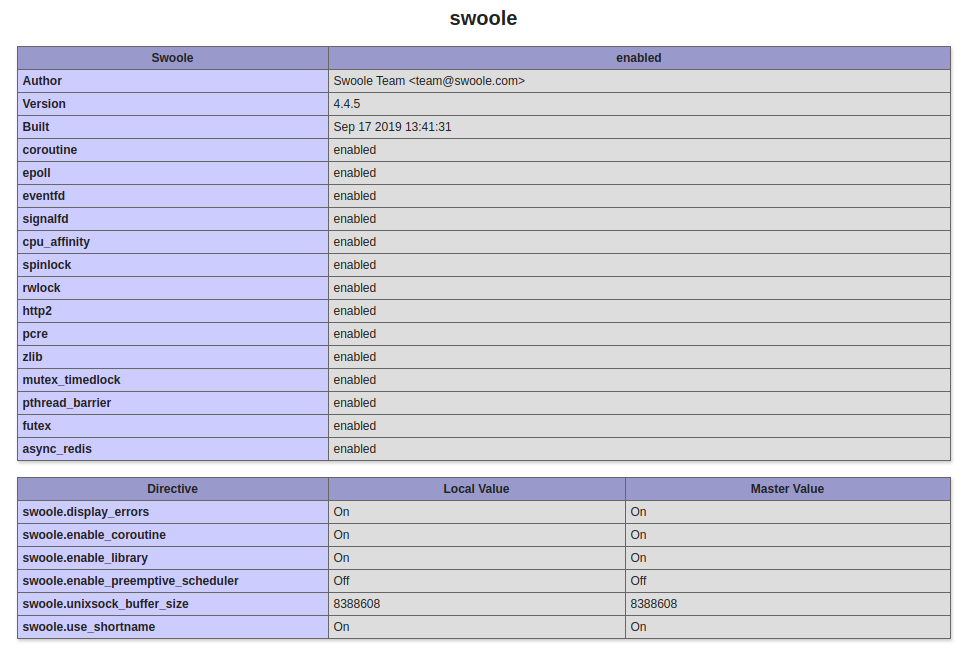
Modified php.ini in /etc/php/7.4/apache2

RESTART APACHE2

THE SEND EMAIL TOOK A LONG TIME ON LOCAL.
STOP SENDMAIL SERVICE IF NEEDED

Mate Ubuntu Tips and Tricks

1. The mate menu is freeze on the toolbar bottom. Can’t click the menu
Solution:
Read: https://www.addictivetips.com/ubuntu-linux-tips/fix-a-frozen-mate-linux-desktop/
RUN TERMINAL THEN

it’d SHOW THE PID. FOR EXAMPLE 3004

THEN KILL THE PROCESS LIKE THIS

THEN THE MENU WOULD BE CLICKABLE AGAIN

GRsynch

Before run this software, need to enable read-write mode for the backup directory. if not i’d get the error message: ‘Read-only file system’ and we can’t read and write the files.

SO on the terminal, run this :
sudo mount -o rw,remount /media/satria/Backup/

Then run the backup.
ALSO IF FOUND ANY ERROR ON THE BACKUP. PLS RUN THE ABOVE COMMAND THEN RUN THE BACKUP AGAIN!

Install Magento 2.4.0 on Ubuntu 18.04

Ref: https://www.rosehosting.com/blog/how-to-install-magento-2-4-with-lemp-stack-on-ubuntu-20-04/

Requirements: PHP7.4, Nginx/Apache2, MySQL, ElasticSearch

CHECK PHP VERSION. IF NOT PHP7.4, INSTALL/CHANGE IT TO 7.4

FIND OUT IF THERE IS PHP7.4 INSTALLED OR NOT

IT SEEMS I HAVEN’T INSTALLED PHP7.4 YET (BUT I FOUND IT ON /etc/php/7.4). IT MEANS IT ALREADY INSTALLED BUT IT DIDN’T HAVE THE OTHERS MODULES (PHP-FPM, ETC). SO INSTALL THEM

NOTE: I HAVE TO INSTALL THEM VIA TELKOMSEL FLASH BECAUSE INDIHOME CAN’T INSTALL THEM!
CHECK AGAIN THE AVAILABLE PHP AND MAKE SURE PHP7.4 IS INSTALLED THEN SELECT IT

NOW

THEN CHANGE PHP7.4-FPM SETTING:

CHANGE THE CONTENT:

THEN RESTART PHP7.4-FPM SERVICE:

CHECK NGINX SYNTAX: sudo nginx -t
RESTART NGINX: sudo systemctl restart nginx
OPEN IT: http://localhost/phpinfo.php (NEED TO CLEAR THE BROWSER CACHE FIRST)
IF YOU CAN’T OPEN http://localhost/phpinfo.php PROPERLY, PLS MAKE SURE THE NGINX CONFIGURATION FILE IS CORRECT

MAKE SURE THE ‘DEFAULT’ PORT IS 80 NOT 8080 AND THE PHP-FPM POINT TO PHP7.4

OKAY. DON’T FORGET TO RESTART NGINX SERVICE

THE CURRENT PHP VERSION FOR FPM IS 7.4.12

CHECK STATUS ELASTICSEARCH

IF IT’S NOT ACTIVE OR DISABLED, THE START THE SERVICE

THEN CHECK THE ELASTICSEARCH VERSION BY OPENING THE PORT 9200 ON THE BROWSER: http://localhost:9200/
HERE IS THE FINE RESULT

INSTALL MAGENTO 2.4 VIA COMMAND LINE — AVOID THIS BECAUSE SOMEHOW I GOT THE ‘DEV’ VERSION NOT STABLE VERSION. SO IT’D BE BETTER TO DOWNLOAD THE ARCHIVE HERE https://magento.com/tech-resources/download
CREATE A NEW DIR ‘magento24’ THEN USE GIT CLONE TO GET THE MAGENTO CODE (NOTE: IT TOOK A WHILE)

RUN ‘composer install’

BUT I GOT THIS ERROR

IT SEEMED I FORGOT TO INSTALL php-soap (THERE IS NO php7.4-soap). INSTALL IT

THEN ENABLE IT IN ‘/etc/php/7.4/cli/php.ini’ AND ‘/etc/php/7.4/fpm/php.ini’. FOR EXAMPLE

THEN UNCOMMENT

DON’T FORGET TO RESTART NGINX
CHECK IT

ALSO CHECK IT ON http://localhost/phpinfo.php
IF EVERYTHING ALRIGHT, RERUN ‘composer install’
IF EVERYTHING ALRIGHT, THEN CREATE A NEW DATABASE ‘magento24’ WITH COLLATION ‘utf8mb4_unicode_520_ci’ THEN RUN THIS:

MAKE SURE EVEYTHING IS FINE

Change the ownership of the magento2 directory to www-data with the following command:

THEN CREATE NGINX CONFIG FILE

The content:

Then

Then

Then insert

CHECK THE NGINX AND RESTART

IF NEEDED SET THE FILE PERMISSION and ownership

COMPILE

BUT WHEN I OPENED IT ON THE BROWSER http://magento24.test/
I GOT 404 ERROR.
FROM THE /var/log/nginx/error, I FOUND

I TRIED TO COPY index.php FILE INTO THE magento24 DIR. IT’S WORKING BUT IT FAILED TO LOAD THE STATIC FILES (CSS, JS, ETC) SO I THINK I’LL INSTALL IT VIA FILE DOWNLOADED ON https://magento.com/tech-resources/download
IT SEEMS THE COMMAND LINE INSTALLED THE DEV VERSION


INSTALL FROM THE DOWNLOADED FILE (ALSO READ http://myprojects.advchaweb.com/index.php/2019/02/26/install-magento-2-3-on-ubuntu-16-04-and-nginx/)
BUT STUCK ON http://magento24.test/setup/#/landing
CAN’T FIND ANY BUTTON TO CONTINUE!!!

Install Printer HP Deskjet 2135 on Ubuntu 16.04

REF: https://martianuswb.com/?p=5378
AT FIRST I TRIED TO USE AUTOMATIC INSTALLATION INSTEAD OF THE CUSTOM ONE AND IT FAILED:

Running ‘sudo apt-get install –assume-yes libcupsimage2-dev’
Please wait, this may take several minutes…
error: Package install command failed with error code 100

error: A required dependency ‘cups (CUPS – Common Unix Printing System)’ is still missing.
error: A required dependency ‘cups-image (CUPS image – CUPS image development files)’ is still missing.
error: Installation cannot continue without these dependencies.
error: Please manually install this dependency and re-run this installer.

sudo apt-get install –reinstall libpng12-0=1.2.54-1ubuntu1.1 libpng-dev libcupsimage2-dev

Running ‘sudo apt-get install –assume-yes libcups2’
Please wait, this may take several minutes…
|Gtk-Message: Failed to load module “topmenu-gtk-module”
error: A required dependency ‘cups (CUPS – Common Unix Printing System)’ is still missing.

error: A required dependency ‘pyqt5 (PyQt 5- Qt interface for Python (for Qt version 4.x))’ is still missing.
error: Installation cannot continue without this dependency.
error: Please manually install this dependency and re-run this installer.

SOLUTION: USE CUSTOM INSTALLATION:
ALSO TRIED TO ENABLE CUPS SERVICE ???
teddy@teddy:~/Documents/HP_deskjet_2135$ sh hplip-3.20.3.run
Creating directory hplip-3.20.3
Verifying archive integrity… All good.
Uncompressing HPLIP 3.20.3 Self Extracting Archive……………………………………………………………………………………………………………………………………………………………………………………………………………………………………………………………………………………………………………………………………………………………………………………………………………………………………………………………………………………………………………………………………………………………………………………………………………………………………………………………………………………………………………………………………………………………………………………………………………………………………………………………………………………………………………………………………………………………………………………………………………………………………………………………………………………………………………………………………………………………………………………………………………………………………………………………………………………………………………………………………………………………………………………………………………………………………………………………………………………………………………………………………………………………………………………………………………………………………………………………………………………………………………………………………………………………………………………………………………………………………………………………………………………………………………………………………………………………………………………………………………………………………………………………………………………………………………………………………………………………………………………………………………………………………………………………………………………………………………………………………………………………………………………………………………………

HP Linux Imaging and Printing System (ver. 3.20.3)
HPLIP Installer ver. 5.1

Copyright (c) 2001-18 HP Development Company, LP
This software comes with ABSOLUTELY NO WARRANTY.
This is free software, and you are welcome to distribute it
under certain conditions. See COPYING file for more details.

Installer log saved in: hplip-install_Sun-10-May-2020_14:43:23.log

\
note: Defaults for each question are maked with a ‘*’. Press <enter> to accept the default.
/Gtk-Message: Failed to load module “topmenu-gtk-module”
-Gtk-Message: Failed to load module “topmenu-gtk-module”

INSTALLATION MODE
—————–
Automatic mode will install the full HPLIP solution with the most common options.
Custom mode allows you to choose installation options to fit specific requirements.

Please choose the installation mode (a=automatic*, c=custom, q=quit) : c

INTRODUCTION
————
This installer will install HPLIP version 3.20.3 on your computer.
Please close any running package management systems now (YaST, Adept, Synaptic, Up2date, etc).

DISTRO/OS CONFIRMATION
———————-
Distro appears to be Ubuntu 16.04.

Is “Ubuntu 16.04” your correct distro/OS and version (y=yes*, n=no, q=quit) ? y

DRIVER OPTIONS
————–
Would you like to install Custom Discrete Drivers or Class Drivers ( ‘d’= Discrete Drivers*,’c’= Class Drivers,’q’= Quit)? : d

Initializing. Please wait…

SELECT HPLIP OPTIONS
——————–
You can select which HPLIP options to enable. Some options require extra dependencies.

Do you wish to enable ‘Network/JetDirect I/O’ (y=yes*, n=no, q=quit) ? y
Do you wish to enable ‘Graphical User Interfaces (Qt4)’ (y=yes*, n=no, q=quit) ? y
Do you wish to enable ‘Graphical User Interfaces (Qt5)’ (y=yes, n=no*, q=quit) ? n
Do you wish to enable ‘PC Send Fax support’ (y=yes*, n=no, q=quit) ? n
Do you wish to enable ‘Scanning support’ (y=yes*, n=no, q=quit) ? y
Do you wish to enable ‘HPLIP documentation (HTML)’ (y=yes*, n=no, q=quit) ? y

ENTER USER PASSWORD
——————-
Please enter the sudoer (teddy)’s password:

INSTALLATION NOTES
——————
Enable the universe/multiverse repositories. Also be sure you are using the Ubuntu “Main” Repositories. See: https://help.ubuntu.com/community/Repositories/Ubuntu for more information. Disable the CD-ROM/DVD source if you do not have the Ubuntu installation media inserted in the drive.

Please read the installation notes. Press <enter> to continue or ‘q’ to quit:

SECURITY PACKAGES
—————–
AppArmor is installed.
AppArmor protects the application from external intrusion attempts making the application secure

Would you like to have this installer install the hplip specific policy/profile (y=yes*, n=no, q=quit) ? y

RUNNING PRE-INSTALL COMMANDS
—————————-
OK

CHECKING FOR NETWORK CONNECTION
——————————-
Network connection present.

RUNNING PRE-PACKAGE COMMANDS
—————————-
sudo dpkg –configure -a (Pre-depend step 1)
sudo apt-get install –yes –force-yes -f (Pre-depend step 2)
warning: An error occurred running ‘sudo apt-get update’
sudo apt-get update (Pre-depend step 3)
OK

DEPENDENCY AND CONFLICT RESOLUTION
———————————-
\Gtk-Message: Failed to load module “topmenu-gtk-module”
HPLIP-3.16.3 exists, this may conflict with the new one being installed.
Do you want to (‘i’= Remove and Install*, ‘q’= Quit)? :i
Starting uninstallation…
HPLIP uninstallation is completed

RUNNING POST-PACKAGE COMMANDS
—————————–
OK

RE-CHECKING DEPENDENCIES
————————
/Gtk-Message: Failed to load module “topmenu-gtk-module”
OK

RUNNING SCANJET DEPENDENCY COMMANDS
———————————–
sudo apt-get install –assume-yes python-pip (Scanjet-depend step 1)
sudo pip install –upgrade pip (Scanjet-depend step 2)
sudo apt-get install –assume-yes libleptonica-dev (Scanjet-depend step 3)
sudo apt-get install –assume-yes tesseract-ocr (Scanjet-depend step 4)
sudo apt-get install –assume-yes libtesseract-dev (Scanjet-depend step 5)
sudo -H pip install tesserocr (Scanjet-depend step 6)
sudo apt-get install –assume-yes libzbar-dev (Scanjet-depend step 7)
warning: Failed to install this Scanjet dependency package. Some Scanjet features will not work.
sudo apt-get install –assume-yes python-zbar (Scanjet-depend step 8)
sudo apt-get install –assume-yes python-opencv (Scanjet-depend step 9)
sudo apt-get install –assume-yes python-pypdf2 (Scanjet-depend step 10)
sudo -H pip install imutils (Scanjet-depend step 11)
sudo -H pip install pypdfocr (Scanjet-depend step 12)
warning: Failed to install this Scanjet dependency package. Some Scanjet features will not work.
sudo -H pip install scikit-image (Scanjet-depend step 13)
/
sudo -H pip install scipy (Scanjet-depend step 14)
OK

READY TO BUILD AND INSTALL
————————–
Ready to perform build and install. Press <enter> to continue or ‘q’ to quit:

PRE-BUILD COMMANDS
——————
OK

BUILD AND INSTALL
—————–
Running ‘./configure –with-hpppddir=/usr/share/ppd/HP –libdir=/usr/lib –prefix=/usr –enable-qt4 –disable-qt5 –enable-doc-build –disable-cups-ppd-install –disable-foomatic-drv-install –disable-libusb01_build –disable-foomatic-ppd-install –disable-hpijs-install –disable-class-driver –disable-udev_sysfs_rules –disable-policykit –enable-cups-drv-install –enable-hpcups-install –enable-network-build –enable-dbus-build –enable-scan-build –disable-fax-build –enable-apparmor_build’
Please wait, this may take several minutes…
Command completed successfully.

Running ‘make clean’
Please wait, this may take several minutes…
Command completed successfully.

Running ‘make’
Please wait, this may take several minutes…
Command completed successfully.

Running ‘sudo make install’
Please wait, this may take several minutes…
Command completed successfully.

Build complete.

POST-BUILD COMMANDS
——————-

CLOSE HP_SYSTRAY
—————-
Sending close message to hp-systray (if it is currently running)…
OK

HPLIP UPDATE NOTIFICATION
————————-
Do you want to check for HPLIP updates?. (y=yes*, n=no) : y

RESTART OR RE-PLUG IS REQUIRED
——————————
If you are installing a USB connected printer, and the printer was plugged in
when you started this installer, you will need to either restart your PC or
unplug and re-plug in your printer (USB cable only). If you choose to restart,
run this command after restarting: hp-setup (Note: If you are using a parallel
connection, you will have to restart your PC. If you are using network/wireless,
you can ignore and continue).

Restart or re-plug in your printer (r=restart, p=re-plug in*, i=ignore/continue, q=quit) : i

PRINTER SETUP
————-
Would you like to setup a printer now (y=yes*, n=no, q=quit) ? y
Please make sure your printer is connected and powered on at this time.
Do you want to setup printer in GUI mode? (u=GUI mode*, i=Interactive mode) : u

HP Linux Imaging and Printing System (ver. 3.20.3)
Printer/Fax Setup Utility ver. 9.0

Copyright (c) 2001-18 HP Development Company, LP
This software comes with ABSOLUTELY NO WARRANTY.
This is free software, and you are welcome to distribute it
under certain conditions. See COPYING file for more details.

warning: Fax setup disabled – Python 2.3+ required.
Gtk-Message: Failed to load module “topmenu-gtk-module”
Searching… (bus=usb, search=(None), desc=0)

Done.

RE-STARTING HP_SYSTRAY
———————-

HP Linux Imaging and Printing System (ver. 3.20.3)
System Tray Status Service ver. 2.0

Copyright (c) 2001-18 HP Development Company, LP
This software comes with ABSOLUTELY NO WARRANTY.
This is free software, and you are welcome to distribute it
under certain conditions. See COPYING file for more details.

Gtk-Message: Failed to load module “topmenu-gtk-module”
/usr/lib/python2.7/dist-packages/gtk-2.0/gtk/__init__.py:127: RuntimeWarning: PyOS_InputHook is not available for interactive use of PyGTK
set_interactive(1)
“sni-qt/11952” WARN 15:11:38.490 void StatusNotifierItemFactory::connectToSnw() Invalid interface to SNW_SERVICE
teddy@teddy:~/Documents/HP_deskjet_2135$
HP Linux Imaging and Printing System (ver. 3.20.3)
HP Device Manager ver. 15.0

Copyright (c) 2001-18 HP Development Company, LP
This software comes with ABSOLUTELY NO WARRANTY.
This is free software, and you are welcome to distribute it
under certain conditions. See COPYING file for more details.

warning: Fax disabled.
warning: Please install version 2.0+ of Reportlab for coverpage support.
error: Fax address book disabled – Python 2.3+ required.
Gtk-Message: Failed to load module “topmenu-gtk-module”
\warning: Supplies information not available for this device.
warning: Supplies information not available for this device.
Gtk-Message: Failed to load module “topmenu-gtk-module”

WHEN COMPUTER IS RESTARTED, I NEED TO START CUPS SERVICE

SO COMPUTER CAN RECOGNIZE THE PRINTER!!!
Install VTiger 7 Open Source On Ubuntu 16.04

Download from https://sourceforge.net/projects/vtigercrm/
Extract the downloaded file.

My environment: PHP 7.3 FPM, MySQL 5.7, Nginx

SETUP LOCAL WITH NGINX

content:

  • Enable file config
  • Register the host on my system

    Like this:
  • CHECK THE NGINX SETTING AND RESTART IT:


  • Set file permission and owner:

    CREATE A NEW DATABASE: vtigercrm COLLATION utf8mb4_general_ci

    Test: http://vtigercrm.test/ –> INSTALLATION WORKING. THE INSTALLATION TOOK SAME TIME

    Admin
    username: admin
    password: Admtiger

    BUT I GOT THIS ERROR:


    DEBUG STEP:
    /vtigercrm/languages/en_us/Install.php:

    /vtigercrm/modules/Install/models/Utils.php:

    SOLUTION: MODIFY THE MYSQL SETTING IN /etc/mysql/my.cnf

    MODIFY THE ‘sql_mode’ VALUES: –> PLS READ: https://www.percona.com/blog/2016/10/18/upgrading-to-mysql-5-7-beware-of-the-new-strict-mode/

    SAVE AND THE RESTART MYSQL SERVICE


Swoolec Loader

Use PHP7.3
Install it if not exist

Use php7.3 as default php

Check

TO ENABLE PHP 7.3 ON NGINX SERVER, PLS DO (MAKE SURE APACHE2 IS STOPPED IF IT’S RUNNING AND START NGINX):

IMPORTANT! ALSO NEED TO INSTALL php7.3-dev. THIS IS NEEDED WHEN I NEED TO COMPILE swoole SOURCE

CHECK php-config SOULD POINT TO php7.3

THE NGINX MAIN CONFIG IN /etc/nginx/nginx.conf
THE DEFAULT VIRTUALHOST IN /etc/nginx/sites-available/default
EDIT IT TO ENABLE PARSING PHP FILE:

Use php7.3-fpm for fastcgi_pass

THEN CHANGE PHP7.3-FPM SETTING:

CHANGE THE CONTENT:

THEN RESTART PHP7.3-FPM SERVICE:

CHECK NGINX SYNTAX: sudo nginx -t
RESTART NGINX: sudo service nginx restart
OPEN IT: http://localhost:8080/phpinfo.php (NEED TO CLEAR THE BROWSER CACHE FIRST)

INSTALL swoole FOR PHP7.3
IF YOU ALREADY INSTALLED IT FOR PHP7.2, YOU NEED TO REMOVE/UNINSTALL IT.
NOTE: TO UNINSTAL IT, USE PHP7.2 VERSION ON TERMINAL NOT PHP7.3
FIRST COMMENT IT from the cli php.ini and php-fpm php.ini files.

THEN

THEN DO THE SAME FOR php-fpm php.ini file (sudo gedit /etc/php/7.2/fpm/php.ini).
USE pecl TO UNINSTALL IT

NOTE: IT’S ALSO IMPORTANT TO DELETE/REMOVE swoole.so FILE IN /usr/lib/php/20170718/swoole.so MANUALLY. BECAUSE PHP7.3 USE EXTENSION DIR IN /usr/lib/php/20180731, MAKE SURE IF ALREADY EXIST swoole.so IN IT. REMOVE IT MANUALLY AS WELL!
NOTE: I TRIED TO INSTALL swoole 4.4.5 FROM SOURCE & COMPILE IT (READ: https://github.com/swoole/swoole-src) BUT ALWAYS FAILED AND GOT THIS ERROR

I THINK THIS IS BECAUSE I MIXED THE INSTALLATION (FROM pecl AND FROM SOURCE) THEN FORGOT TO INSTALL php7.3-dev AND FORGOT TO REMOVE swoole.so MANUALLY IN /usr/lib/php/20180731/swoole.so

THEN INSTALL SWOOLE ON PHP7.3 TERMINAL
MAKE SURE THE PHP API VERSION FOR PHP7.3 IS ‘20180731’ NOT ‘20170718’

Then include the extension “extension=swoole.so” in php.ini file. For php-fpm, the php.ini file in “/etc/php/7.3/fpm/php.ini”

then add this new line:

Save then restart php7.3-fpm service

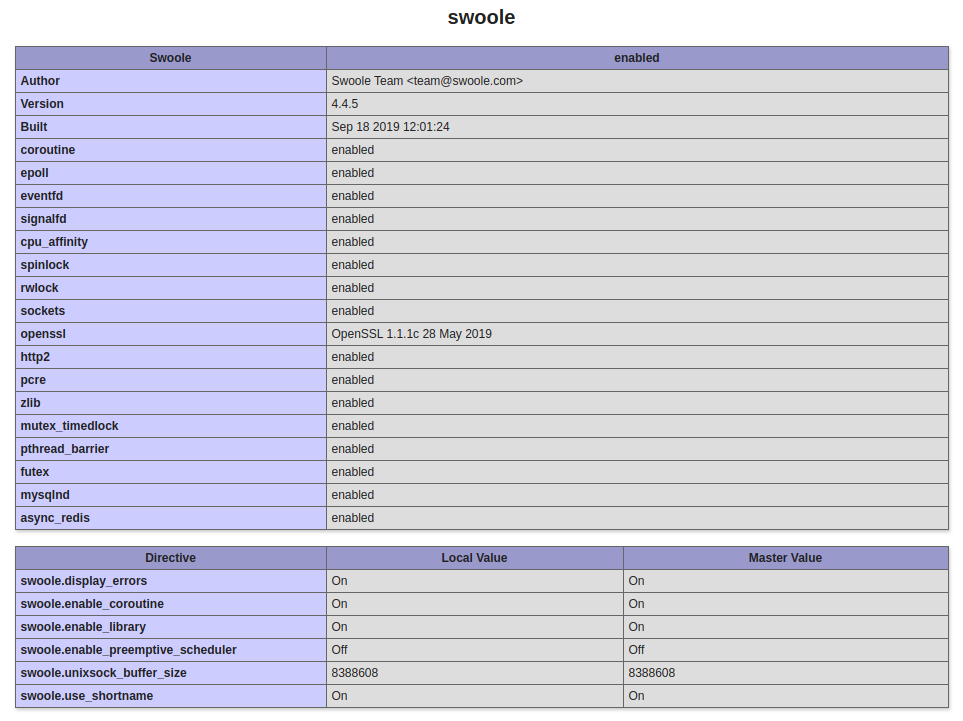
look it up phpinfo() result. It should show like this:THEN IN CLI

ADD loader73.so FILE.
Copy it manually (USE SUDO) TO php7.3 EXTENSION DIR (IN /usr/lib/php/20180731)

THEN ADD THE EXTENSION ‘loader73.so’ IN php.ini FILE. For php-fpm, the php.ini file in “/etc/php/7.3/fpm/php.ini”

THEN ADD:

PLS DO THE SAME IN php.ini FOR CLI IN /etc/php/7.3/cli/php.ini
THEN RESTART php7.3-fpm SERVICE

CHECK THE EXTENSION IN phpinfo (http://localhost:8080/phpinfo.php)
IT SHOULD SHOW LIKE THISCHECK IN CLI

WE ALSO NEED TO DISABLE xdebug EXTENSION. CHECK IF xdebug IS ENABLED

THEN I NEED TO DISABLE IT.

THEN DISABLE xdebug BY ADDING ‘;’ IN FRONT OF THE LINE LIKE THIS:

THEN RESTART php7.3-fpm SERVICE

MAKE THERE IS NO MORE WARNING ABOUT xdebug

SAMPLE FILES IN /home/teddy/Downloads/Ptcms_V4.2.8 DIR
IN THE DIR, COPY ‘env.example.php’ TO ‘env.php’ FILE
RUN FROM TERMINAL

THEN I GOT ERROR ABOUT MEMCACHE

MAKE SURE memcached SERVICE IS RUNNING

OR

ALSO CHECK IF memcached EXTENSION IS INSTALLED

IF THERE IS NO OUTPUT, THEN INSTALL IT (REF: https://serverpilot.io/docs/how-to-install-the-php-memcache-extension)

HERE IS THE PROCESS

THEN MODIFY /etc/php/7.3/fpm/php.ini AND /etc/php/7.3/cli/php.ini FILE THEN ADD THE EXTENSION extension=memcached.so
THEN RESTART THE SERVICES


Install Swoole on Ubuntu 16.04

Ref: https://github.com/swoole/swoole-docs/blob/master/get-started/installation.md
Install from pecl

Then include the extension “extension=swoole.so” in php.ini file. For php-fpm, the php.ini file in “/etc/php/7.2/fpm/php.ini”

then add this new line:

Save then restart php7.2-fpm service

look it up phpinfo() result. It should show like this:Pls do the same thing for php cli. the php.ini file for php cli in “/etc/php/7.2/cli/php.ini”. So edit the file and add a new line for the extension “extension=swoole.so”. Check the extension is loaded on the terminal:

Note: I tried to do this via terminal

But it didn’t work. The extension is not loaded so I put it manually in the php.ini for cli.
NOTE: IT NEED TO DISABLE ‘xdebug’ EXTENSION. CHECK IF xdebug IS ACTIVE/ENABLED:

IF IT IS ENABLED, THEN MODIFY ‘/etc/php/7.2/cli/conf.d/20-xdebug.ini’ FILE TO DISABLE xdebug BY ADDING ‘;’ IN FRONT OF THE LINE LIKE THIS:

IF xdebug IS ENABLED WHEN THE SERVER IS RUNNING, IT’D SPIT THIS WARNING:

TEST SWOOLE
ref: https://github.com/swoole/swoole-docs/blob/master/get-started/examples/tcp_server.md
Create a new file server.php

Run the php in a terminal

then open another terminal and type ‘telnet 127.0.0.1 9501’

The first terminal would print ‘Client : Connect’

You can connect with another new terminal.
To close the connection in the second terminal, press Ctrl + ] then type close in telnet>

The first terminal would give response like this:

Create web server
ref: https://github.com/swoole/swoole-docs/blob/master/get-started/examples/http_server.md
create a new file ‘http_server.php’

then run the server via terminal

Open it via web browser: http://127.0.0.1:9503/
It should show this message:


Install Microsoft Sql Server 2017 And The PHP Extension On Ubuntu 16.04

Ref: https://www.microsoft.com/en-us/sql-server/developer-get-started/php/ubuntu

1. Register the Microsoft Linux repositories and add their keys.
Note: it’d be better to use ‘sudo su’ first!

2. Install SQL Server.
NOTE: I USE ‘sudo apt-get install mssql-server=14.0.3192.2-2’ INSTEAD OF ‘sudo apt-get install mssql-server’ BECAUSE I GOT AN ERROR FOR SQLCMD ‘Sqlcmd: Error: Microsoft ODBC Driver 17 for SQL Server : TCP Provider: Error code 0x2746.’
REF: https://stackoverflow.com/questions/57265913/error-tcp-provider-error-code-0x2746-during-the-sql-setup-in-linux-through-te

3. Setup your SQL Server.
Note: I choose ‘Developer’ edition.

SORRY, ONLY ADMIN CAN SHOW THIS!
Check the mssql-server service status

NOTE: ERROR LOG IN /var/opt/mssql/log/error
MUST OPEN THE DIR WITH ‘sudo su’
4. Install the ODBC Driver and SQL Command Line Utility for SQL Server (SQLCMD)

After installing SQLCMD, you can connect to SQL Server using the following command: sqlcmd -S localhost -U sa -P Yourpassword
SORRY, ONLY ADMIN CAN SHOW THIS!

Install the PHP Driver for SQL Server

THEN

THEN

NOTE: IT’D COPY THE FILES ’20-sqlsrv.ini’ AND ’30-pdo_sqlsrv.ini’ TO DIR /etc/php/7.2/cli/conf.d/
THEN
MODIFY ‘php.ini’ file for php7.2 fpm and (cli NO NEED???)

THEN INSERT THESE TWO LINES:

NO NEED –>PLS DO THE SAME FOR ‘cli’: sudo gedit /etc/php/7.2/cli/php.ini

THEN COPY THE TWO INI FILES FROM ‘cli’ TO ‘fpm’

THEN RESTART PHP FPM

CHECK THEM IN phpinfo: http://localhost:8080/phpinfo.php

Create a database ‘SampleDB’ for your application

The DB will be exist in /var/opt/mssql/data/SampleDB.mdf and the log file.

Create a PHP app that connects to SQL Server and executes queries

Create a new file ‘connect.php’

RUN ON CLI:

NOTE: ON CLI I GOT THIS WARNING:

SOLUTION: REMOVE/COMMENT THE EXTENSIONS ‘sqlsvr’ AND ‘pdo_sqlsvr’ IN /etc/php/7.2/cli/php.ini FILES!
CHECK THE LOADED MODULE WITH: php -m
IT SHOULD BE ALREADY LOADED FOR CLI SO NO NEED TO INCLUDE THEM IN CLI php.ini BUT IT NEED TO INCLUDE FOR FPM php.ini !

ALSO RUN VIA WEB: http://localhost:8080/works/SqlServerSample/connect.php


UNINSTALL MS SQL SERVER
REF: https://dba.stackexchange.com/questions/174175/how-do-i-totally-remove-sql-server-2017-on-ubuntu

Uninstalling SQL Server on Ubuntu


Setup Postfix on Ubuntu 16.04 Localhost and Use Gmail SMTP

READ: https://devanswers.co/configure-postfix-to-use-gmail-smtp-on-ubuntu-16-04-digitalocean-droplet/

Prerequisites
If your Gmail account uses 2-Step Verification, you must create an application specific password.

If you’re not using 2-Step Verification, please ensure that your Gmail account is configured to allow less secures apps.

Remove sendmail

1. Install Postfix

Let’s update the package database first. On the first Postfix configuration screen, select OK by pressing TAB and ENTER. Select Internet Site and press ENTER. System mail name should be your domain name eg. example.com, press ENTER.
My mail name is teddy@teddy.localdomain
<NOTE>
PROBABLY THESE BELOW COMMAND NOT NEEDED:
I also need to install php-mail and php7.2-mail

modify php ini IN

OR FOR APACHE2 WEB SERVER

UNCOMMENT ‘sendmail_path’ THEN CHANGE TO

modify

like this:

Restart services

OR FOR APACHE2 WEB SERVER

</NOTE>

Configure Postfix
Edit the Postfix configuration file.

Add the following to the end of the file.

Save file and exit.

Create Password and DB Files
Create the sasl_passwd file which will store our credentials.

Insert the following:

SORRY, ONLY ADMIN CAN SHOW THIS!
Replace username and password with your own. Save file and exit. (Press CTRL + X, press Y and then press ENTER)

Create a hash database file for Postfix with the postmap command.

There should now be a file called sasl_passwd.db in the /etc/postfix/ directory.

For added security, we will only allow root user to read and write to sasl_passwd and sasl_passwd.db

Sign Certificate
Now we are going to create the certificate.

There should now be a certificate file called cacert.pem in /etc/postfix

Send a Test Mail
We’ll now send a test email message. Make sure to replace test@example.com with your own email address.

Don’t forget to check your spam folder.

If you still haven’t received any mail, check the mail error log.

NOTE:
TO USE GMAIL SMPT, YOU NEED TO ACTIVATE (SET IT ON) ‘Less Secure app’ ON YOUR GMAIL ACCOUNT. LOGIN TO YOUR GMAIL THEN OPEN THIS LINK: https://www.google.com/settings/u/2/security/lesssecureapps
IT’D REDIRECT YOU THE ‘Less Secure app’ SETTING.