Install Ollama and DeepSeek On Ubuntu 22.04

Ref: https://ollama.com/download

Select the linux then Install on your terminal with this command:
curl -fsSL https://ollama.com/install.sh | sh

[codesyntax lang=”bash”]

[/codesyntax]

on the search model text box, select ‘deepseek-r1’ or go to https://ollama.com/library/deepseek-r1
Okay. I just choose ‘1.5b’ model as a test. then install it on your terminal with this command:
ollama run deepseek-r1:1.5b

[codesyntax lang=”bash”]

[/codesyntax]

Integrate it with VSCode:
Watch : https://www.youtube.com/watch?v=cqFRE9c8048&ab_channel=ChaooCharles

the problem:
1. it’ll take your disk space. For just 1.5b model, it’ll take 1.1 GB disk space
2. If you don’t have GPU, it’ll use your CPU resource and it took 100% CPU resources on my Ubuntu machine
You can stop and disable the ollama services on your machine
[codesyntax lang=”bash”]

[/codesyntax]

Install osTicket

Ref: https://www.rosehosting.com/blog/how-to-install-osticket-on-ubuntu-22-04/

Download

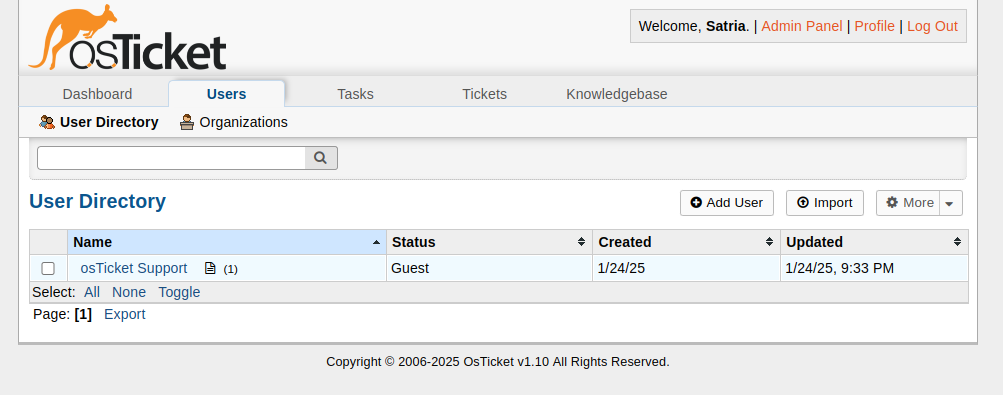
Install osTicket 1.10

LOCAL SETUP (I uses PHP 7.4)

I tried to setup a virtualhost:

sudo gedit /etc/apache2/sites-available/osticket-v1.10.test.conf

Here is the file osticket-v1.10.test.conf:

[codesyntax lang=”text”]

[/codesyntax]

activate it:

sudo a2ensite osticket-v1.10.test

Restart/reload the server:

sudo systemctl reload apache2

Insert osticket-v1.10.test in my local host:

sudo gedit /etc/hosts

Here is the entry that need to be put in:

127.0.0.1 osticket-v1.10.test

Restart/reload the server:

sudo systemctl reload apache2

Change the files & dir permission:
satria@teddy:~/Documents/projects/osticket-v1.10$ sudo chmod -R 777 .

I need to install some php 7.4 extensions missing:
sudo apt install php7.4-imap && sudo apt install php7.4-apcu

Now the site is http://osticket-v1.10.test
SETUP:
rename/copy
from:
/home/satria/Documents/projects/osticket-v1.10/upload/include/ost-sampleconfig.php
to:
/home/satria/Documents/projects/osticket-v1.10/upload/include/ost-config.php

create a new database : osticket_110

set user account
username: adminOT
password: adminOT

after the successful installation:
satria@teddy:~/Documents/projects/osticket-v1.10$ sudo chmod 0644 upload/include/ost-config.php

Your osTicket URL:
http://osticket-v1.10.test/

Your Staff Control Panel or admin:
http://osticket-v1.10.test/scp

after the admin login, I got ‘Valid CSRF Token Required’
SOLUTION:
REF: https://stackoverflow.com/questions/41542268/valid-csrf-token-required-in-osticket-after-login
in include/class.ostsession.php

Just add this line:

$this->data->session_data = “”;
After:

catch (DoesNotExist $e) {
$this->data = new SessionData([‘session_id’ => $id]);
}

So it will be:

catch (DoesNotExist $e) {
$this->data = new SessionData([‘session_id’ => $id]);
$this->data->session_data = “”;
}

Then try to login from scratch, don’t just refresh the submission.
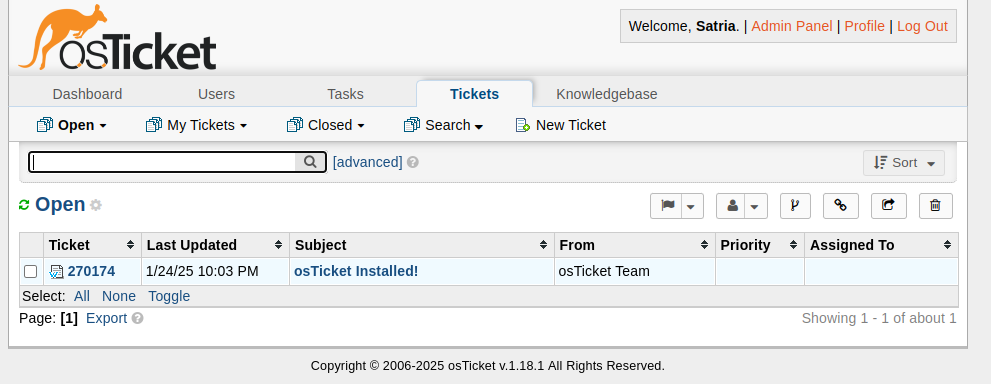
Install osTicket 1.18.1

LOCAL SETUP (I uses PHP 8.2)
[codesyntax lang=”bash”]

[/codesyntax]

I tried to setup a virtualhost:

sudo gedit /etc/apache2/sites-available/osticket-v1.18.1.test.conf

Here is the file osticket-v1.18.1.test.conf:

[codesyntax lang=”text”]

[/codesyntax]

activate it:

sudo a2ensite osticket-v1.18.1.test

Restart/reload the server:

sudo systemctl reload apache2

Insert osticket-v1.18.1.test in my local host:

sudo gedit /etc/hosts

Here is the entry that need to be put in:

127.0.0.1 osticket-v1.18.1.test

Restart/reload the server:

sudo systemctl reload apache2

Change the files & dir permission:
satria@teddy:~/Documents/projects/osticket-v1.18.1$ sudo chmod -R 777 .

I need to install some php 8.2 extensions missing (if not exist):
sudo apt install php8.2-imap && sudo apt install php8.2-apcu

Now the site is http://osticket-v1.18.1.test
SETUP:
rename/copy
from:
/home/satria/Documents/projects/osticket-v1.18.1/osticket-v1.18.1/upload/include/ost-sampleconfig.php
to:
/home/satria/Documents/projects/osticket-v1.18.1/osticket-v1.18.1/upload/include/ost-config.php

create a new database : osticket_1181

set user account
username: adminOT
password: adminOT

after the successful installation:
satria@teddy:~/Documents/projects/osticket-v1.18.1/osticket-v1.18.1/$ sudo chmod 0644 upload/include/ost-config.php

Your osTicket URL:
http://osticket-v1.18.1.test/

Your Staff Control Panel or admin:
http://osticket-v1.18.1.test/scp
THE EMAIL SETTING:

configure emails setting (http://osticket-v1.18.1.test/scp/emails.php)
Note: Create a few emails alias for satria@advchaweb.com on the hostinger like osticket1@advchaweb.com, osticket2@advchaweb.com, osticket3@advchaweb.com

Create a new email ->

Account Tab:
Email Address: osticket1@advchaweb.com
Email Name: osticket1@advchaweb.com
Department:
Priority: Normal
Help Topic:
Auto Response: (unchecked)

Remote Mailbox Tab:
Mailbox Setting:
Hostname: imap.hostinger.com
Port Number: 993
Mail Folder: INBOX
Protocol: IMAP
Authentication: Basic Authentication -> Click ‘Config’ button
–>
Email Address: satria@advchaweb.com
password: +PL5x8mQ

Email Fetching:
Status: Enable  –> to fetch the incoming email
Fetch Frequency: 15 minutes
Emails Per Fetch: 50
Fetched Emails: Archive – move to folder -> 2023OstFetched

Outgoing (SMTP) Tab:
Status: Enable –> MUST BE
Hostname: smtp.hostinger.com –> NO. USE THE smtp-relay.brevo.com SETTING BELOW
Port Number: 465
Authentication: Same as Remote Mailbox
Header Spoofing: (checked) Allow for this email

SORRY, ONLY ADMIN CAN SHOW THIS!
Create a Login App with ASP.NET on Ubuntu 22.04

Here’s a step-by-step guide to create a simple login form using ASP.NET Core (C#) and MS SQL Server with VS Code and Linux:

  1. Install .NET SDK If you haven’t already, install the .NET SDK for your Linux distribution. You can find instructions on the official Microsoft website.check your dotnet version
    [codesyntax lang=”bash”]

    [/codesyntax]
  2. Create a new ASP.NET Core project Open a terminal and run:

    [codesyntax lang=”bash”]

    [/codesyntax]

    Go to the project directory ‘LoginApp’ with ‘cd LoginApp’

  3. Install required NuGet packages Run the following commands:
    [codesyntax lang=”bash”]

    [/codesyntax]

    Make sure the version is match in LoginApp.csproj
    [codesyntax lang=”csharp”]

    [/codesyntax]

  4. Set up the database connection Open appsettings.json and add the connection string:
    [codesyntax lang=”text”]

    [/codesyntax]
    Note: I need to add ‘TrustServerCertificate=True;’

  5. Create ApplicationDbContext Create a new file ApplicationDbContext.cs
    [codesyntax lang=”csharp”]

    [/codesyntax]

  6. Update Program.cs Replace the content of Program.cs:
    [codesyntax lang=”csharp”]

    [/codesyntax]

  7. Create Login Model Create Models/LoginModel.cs:
    [codesyntax lang=”csharp”]

    [/codesyntax]

  8. Create Account Controller Create Controllers/AccountController.cs:
    [codesyntax lang=”csharp”]

    [/codesyntax]

  9. Create Login View Create Views/Account/Login.cshtml:
    [codesyntax lang=”html4strict”]

    [/codesyntax]

  10. Set up the database. Create a new database ‘LoginApp’
  11. Add a test user Create DbInitializer.cs:
    [codesyntax lang=”csharp”]

    [/codesyntax]
    Note: it’ll create a new dummy user with
    email: admin@example.com
    password: Admin123!

  12. Run the application Execute:

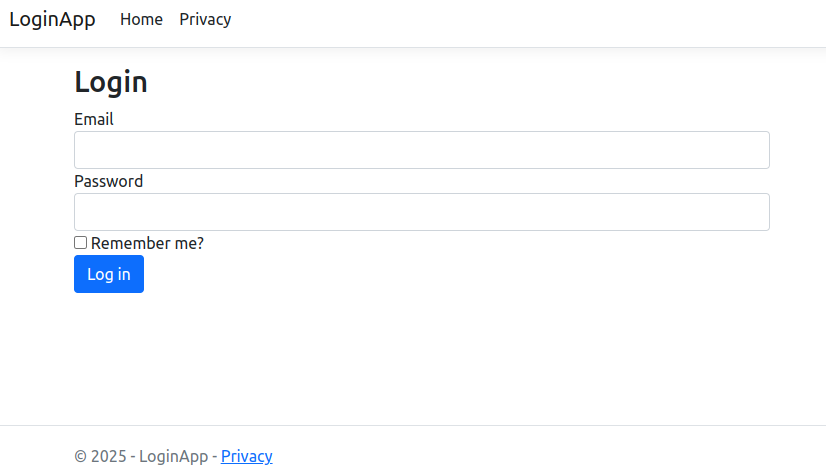
  13. Navigate to http://localhost:5000/Account/Login in your browser.
  14. create some navigation menus (login, logout, etc) on the homepage
    Create a new file called _NavBar.cshtml in the Views/Shared folder with the following content:
    [codesyntax lang=”html4strict”]

    [/codesyntax]

    Now, let’s include this partial view in your layout file. Open the Views/Shared/_Layout.cshtml file and add the following line just after the opening <body> tag:
    [codesyntax lang=”html4strict”]

    [/codesyntax]
    Note: I need to remove the default <header> tag to use the new partial navbar

  15. create controller for account logout
    modify Controllers/AccountController.cs
    [codesyntax lang=”csharp”]

    [/codesyntax]

    Now, let’s update the _NavBar.cshtml partial view to use a form for the logout action, as it should be a POST request. Update the logout link in the _NavBar.cshtml file like this:
    [codesyntax lang=”html4strict”]


    [/codesyntax]
    at the end of this file, add this javascript
    [codesyntax lang=”html4strict”]

    [/codesyntax]
  16. Add controller for registration and forgot password?

Install Microsoft SQL Server 2022 On Ubuntu 22.04

Ref: https://learn.microsoft.com/en-us/sql/linux/quickstart-install-connect-ubuntu?view=sql-server-ver16&tabs=ubuntu2204

1. Update and upgrade the packages on ubuntu 22.04
[codesyntax lang=”bash”]

[/codesyntax]

2. Download the public key, convert from ASCII to GPG format, and write it to the required location:
[codesyntax lang=”bash”]

[/codesyntax]

3. Manually download and register the SQL Server Ubuntu repository:
[codesyntax lang=”bash”]

[/codesyntax]

4. Run the following commands to install SQL Server:
[codesyntax lang=”bash”]

[/codesyntax]

5. After the package installation finishes, run mssql-conf setup and follow the prompts to set the sa password and choose your edition.
Just choose ‘Developer’ version. type 2. My local sa password is {my-nick-name-first-uppercase}@123
[codesyntax lang=”bash”]

[/codesyntax]

6. Once the configuration is done, verify that the service is running:
[codesyntax lang=”bash”]

[/codesyntax]

Install the SQL Server command-line tools (sqlcmd)

1. Import the public repository GPG keys.
[codesyntax lang=”bash”]

[/codesyntax]

2. Register the Microsoft Ubuntu repository. For Ubuntu 22.04, use the following command:
[codesyntax lang=”bash”]

[/codesyntax]

3. Update the sources list and run the installation command with the unixODBC developer package.
[codesyntax lang=”bash”]

[/codesyntax]

To update to the latest version of mssql-tools, run the following commands:
[codesyntax lang=”bash”]

[/codesyntax]

4. Add /opt/mssql-tools18/bin/ to your PATH environment variable in a bash shell.

To make sqlcmd and bcp accessible from the bash shell for login sessions, modify your PATH in the ~/.bash_profile file with the following command:
[codesyntax lang=”bash”]

[/codesyntax]

5. Test sqlcmd with ‘sqlcmd -?’
[codesyntax lang=”bash”]

[/codesyntax]

Connect locally. I tried to use : sqlcmd -S localhost -U sa -P your_password
but it showed up this error
[codesyntax lang=”bash”]

[/codesyntax]

it turned out I need to add -C parameter at the end like this
[codesyntax lang=”bash”]

[/codesyntax]

Create a new database

For example create a new database TestDB from sqlcmd
[codesyntax lang=”bash”]

[/codesyntax]

Create a new table dbo.Inventory and Insert data
[codesyntax lang=”bash”]

[/codesyntax]

Install DBeaver (https://dbeaver.io/)
This is Database GUI for many databases including MS SQL Server

Download it https://dbeaver.io/download/
I used Ubuntu PPA
[codesyntax lang=”bash”]

[/codesyntax]

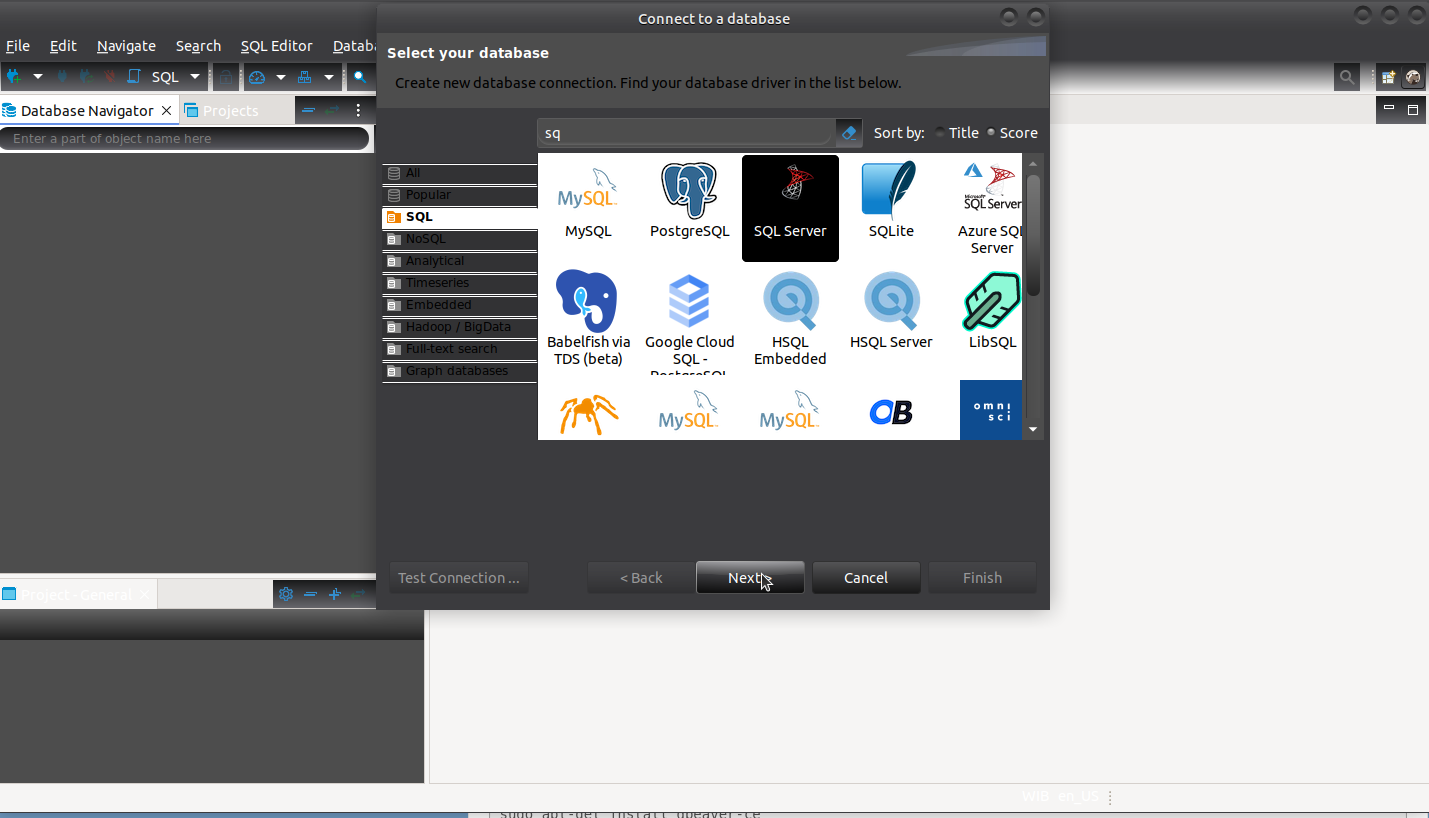
Open DBeaver CE and select to the MS SQL Server

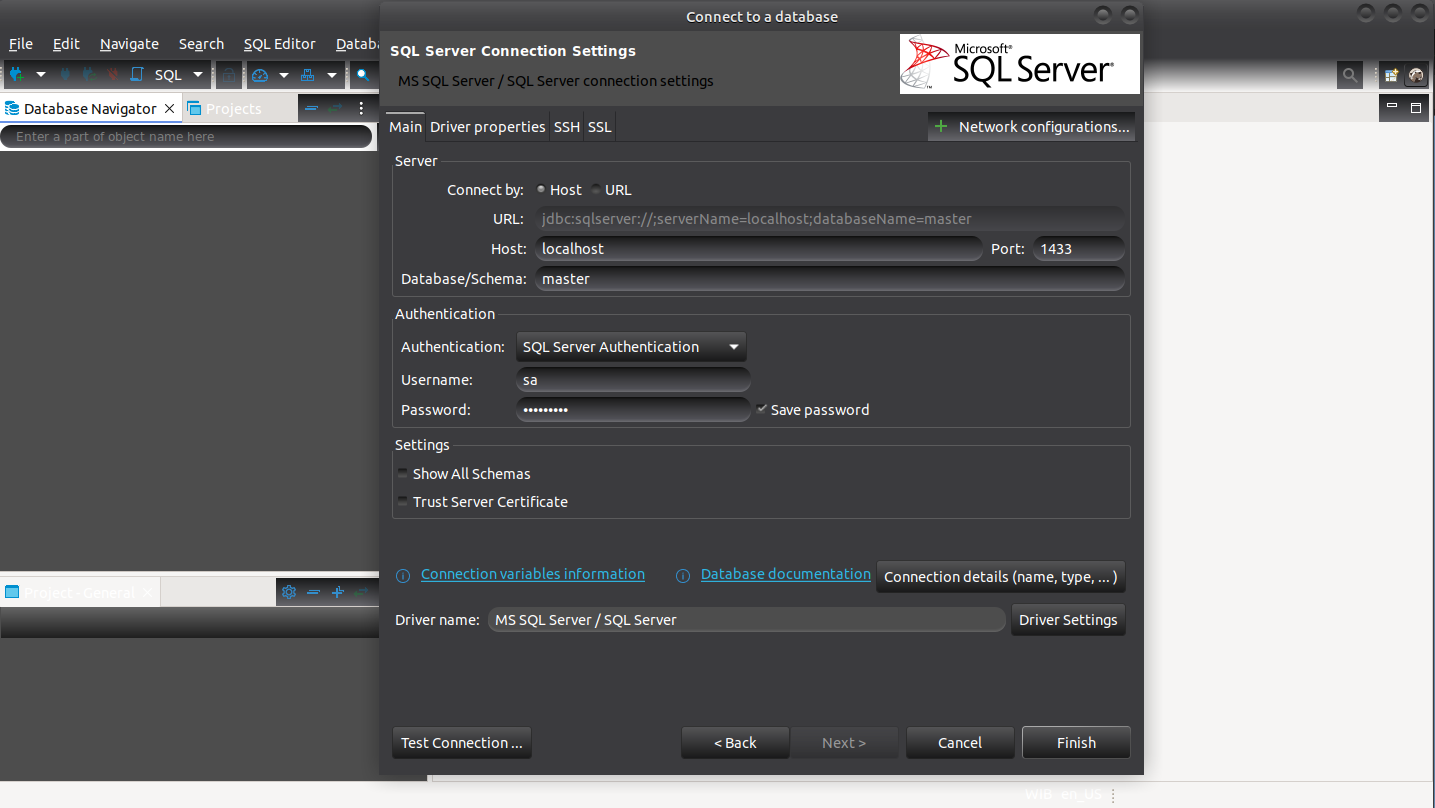
Connect to the MS SQL Server but it needs to use JDBC driver. Install it directly from the DBeaver

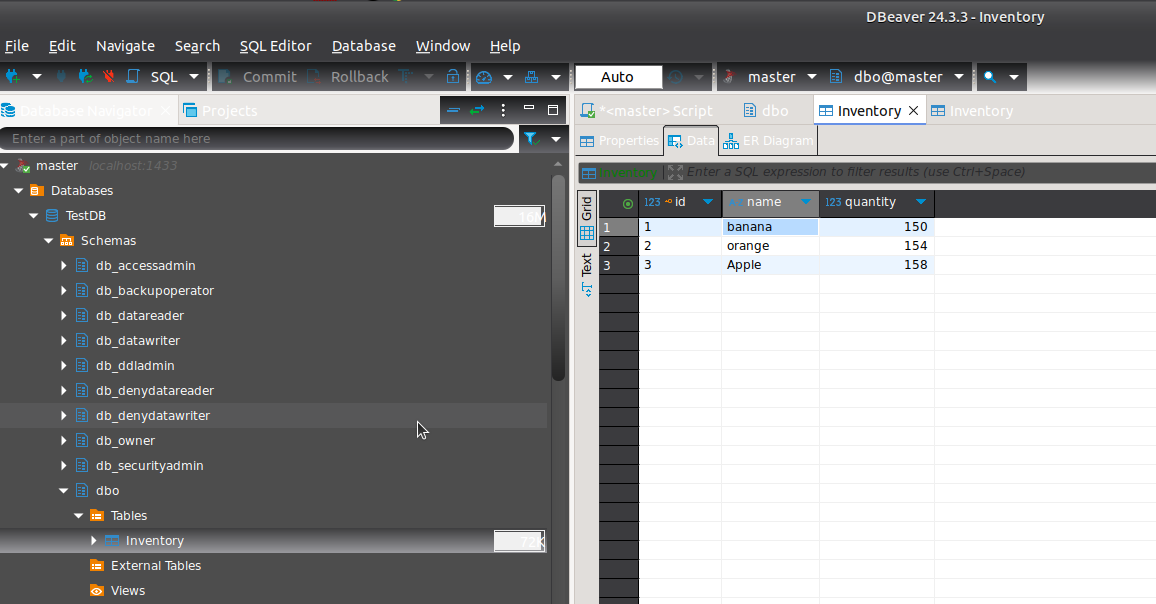
If everything is okay, it’ll look like this

on the DBeaver GUI you can add a new row. for example add a new row
ID: 3
Name: Apple
Quantity: 158
Then save

on the sqlcmd should reflect the changes
[codesyntax lang=”bash”]

[/codesyntax]

Install Payload CMS

Ref: https://payloadcms.com/docs/getting-started/installation

Check current node version
[codesyntax lang=”bash”]

[/codesyntax]

Use node version 20.9.0+
Check available node version
[codesyntax lang=”bash”]

[/codesyntax]

So use node stable 20.15.1
[codesyntax lang=”bash”]

[/codesyntax]

Create a new dir ‘PayloadCMS’
[codesyntax lang=”bash”]

[/codesyntax]
Install the Payload CMS (blank)
[codesyntax lang=”bash”]

[/codesyntax]

Launch the App
[codesyntax lang=”bash”]

[/codesyntax]

Open it on the browser: http://localhost:3000/
Because it’s blank, so it’ll display a message

404

This page could not be found.

Go to the admin page http://localhost:3000/admin
Note: Make sure the mongod service is already started. If not, pls start it
[codesyntax lang=”bash”]

[/codesyntax]

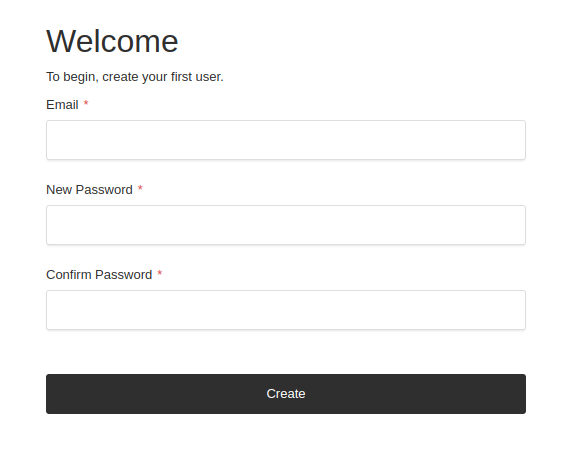
For the first/empty user, it’ll be redirected to http://localhost:3000/admin/create-first-user
with this form

So fill the form with your user.
for example:
email: advcha@yahoo.com
password: Admin@123

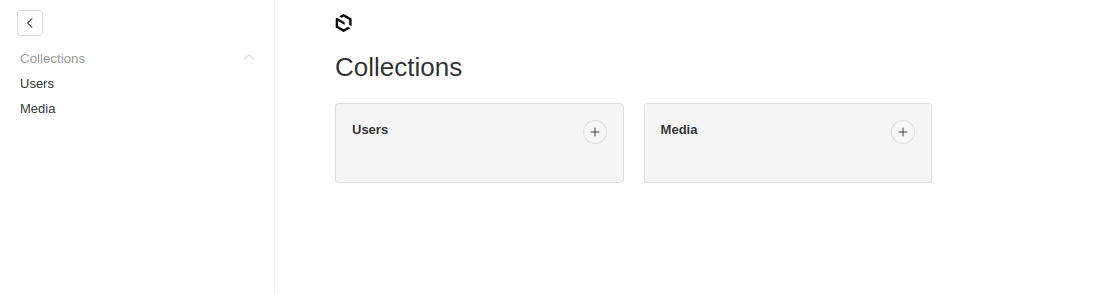
So the admin dashboard will be like this

You can add any new user and media

The Code
The config in src/payload.config.ts

Add Payload Visual Editor –> DO THIS ON THE PAYLOAD WEB TEMPLATE
Ref: https://www.npmjs.com/package/payload-visual-editor

Payload Web Template
The same steps:
[codesyntax lang=”bash”]

[/codesyntax]

Go to the dir ‘payload-web’ then run!
[codesyntax lang=”bash”]

[/codesyntax]

Open it in your browser: http://localhost:3000

The admin : http://localhost:3000/admin
For the first/empty user, it’ll be redirected to http://localhost:3000/admin/create-first-user
So fill the form with your user.
for example:
email: advcha@yahoo.com
password: Admin@123
Name: Admin

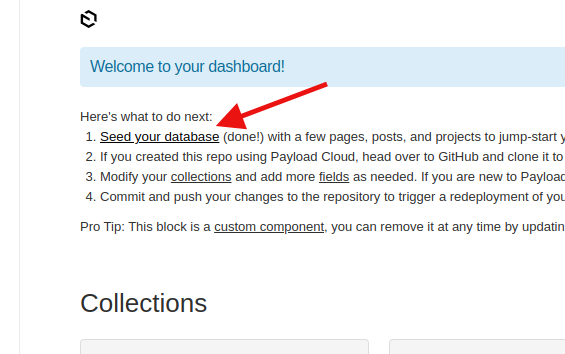
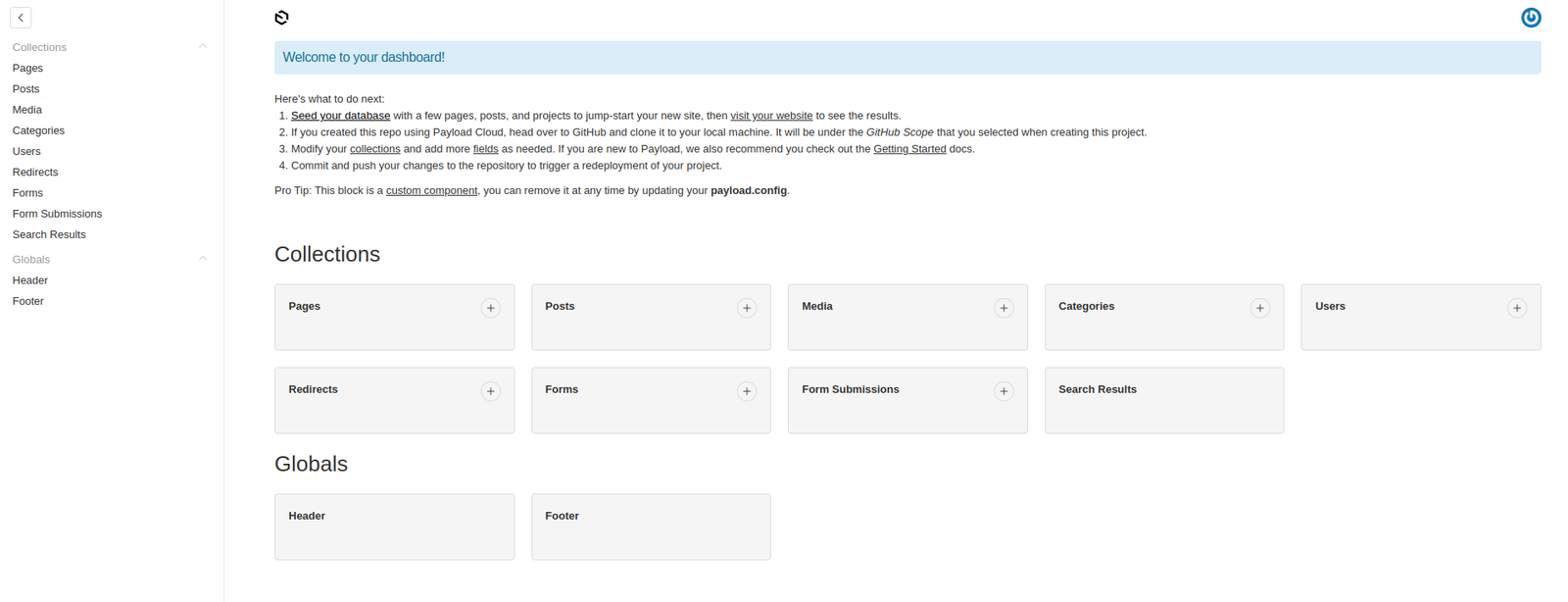
So it’ll be like this

We can generate the example content by clicking ‘Seed your database’ –> ONLY ONCE
on the admin dashboard http://localhost:3000/admin

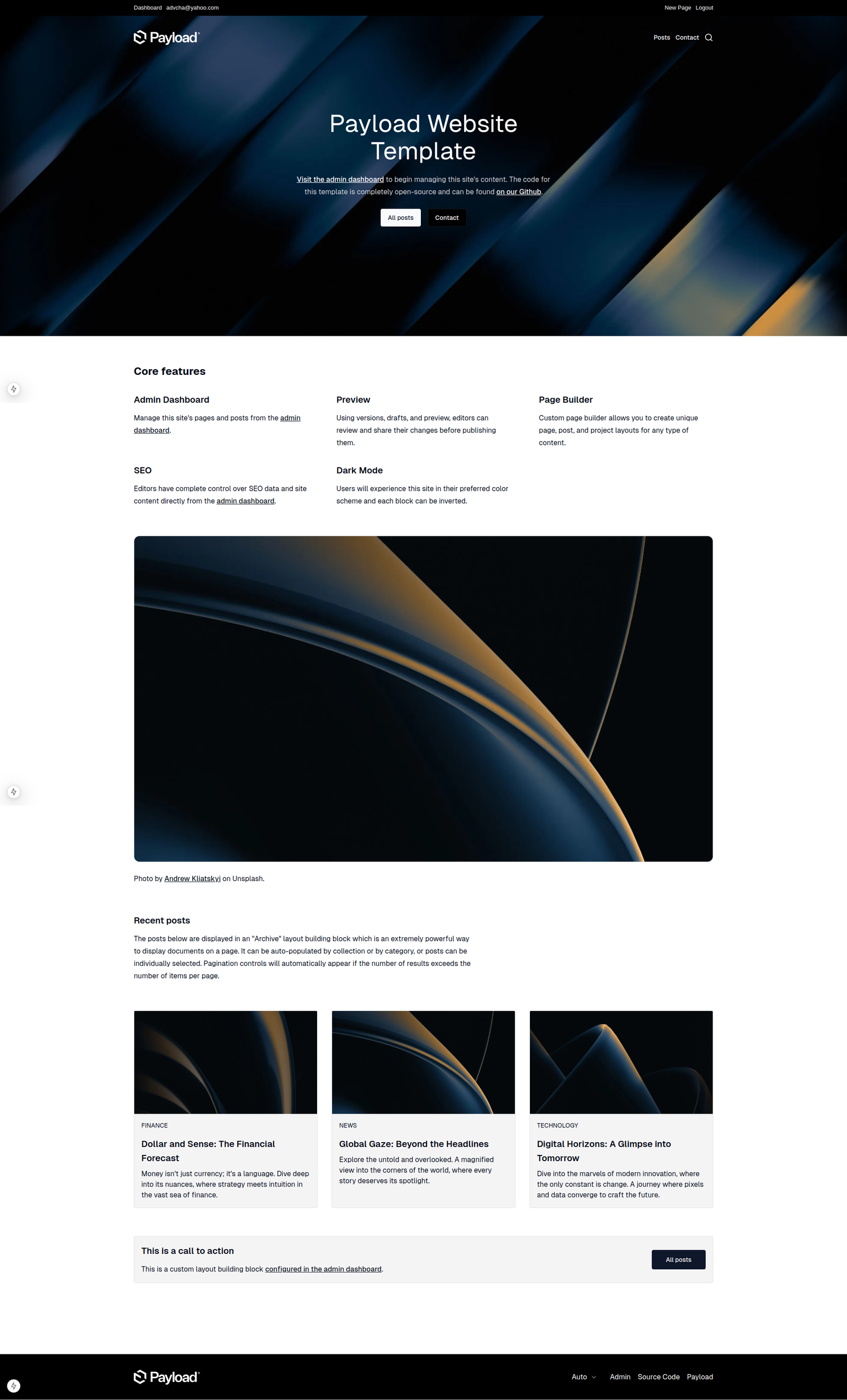
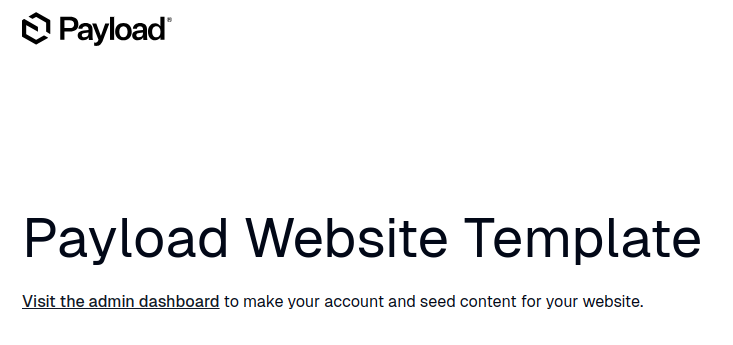
So the homepage will be like this


Add Payload Visual Editor
Ref: https://www.npmjs.com/package/payload-visual-editor
Install
[codesyntax lang=”bash”]

[/codesyntax]
then modify the plugin config (NOT IN src/payload.config.ts BECAUSE IT’S ALREADY LINKED TO src/plugins/index.ts
like this:
[codesyntax lang=”javascript”]

[/codesyntax]

But when I opened http://localhost:3000/admin, it showed this error
Failed to compile
[codesyntax lang=”text”]

[/codesyntax]

it seems visual editor can’t work with payload cms version 3.x

INSTALL Payload CMS version 2
Ref: https://payloadcms.com/docs/v2/getting-started/installation
To find out the payload cms package for npx, pls see https://www.npmjs.com/package/create-payload-app?activeTab=versions
actually there is no the package written for 2.x but there is a another package not 3.x. it’s 1.1.0. So use this
[codesyntax lang=”bash”]

[/codesyntax]

note: this is actually payload cms version 2. you can see it in the dependencies in  package.json file
[codesyntax lang=”javascript”]

[/codesyntax]

then go to the dir and run!
Note: don’t forget to start mongod service if it’s not a;ready started!
sudo service mongod start
if you need pnpm instead of npm, install it like this
npm install -g pnpm

[codesyntax lang=”bash”]

[/codesyntax]

We can generate the example content by clicking ‘Seed your database’ –> ONLY ONCE
on the admin dashboard http://localhost:3000/admin

Add Payload Visual Editor
Ref: https://www.npmjs.com/package/payload-visual-editor
[codesyntax lang=”bash”]

[/codesyntax]

modify src/payload/payload.config.ts
[codesyntax lang=”javascript”]

[/codesyntax]
note: can’t use [COLLECTION_SLUG] and [GLOBAL_SLUG] because they are defined. So add ‘pages’ and ‘posts’ (probably ‘projects’ as well)
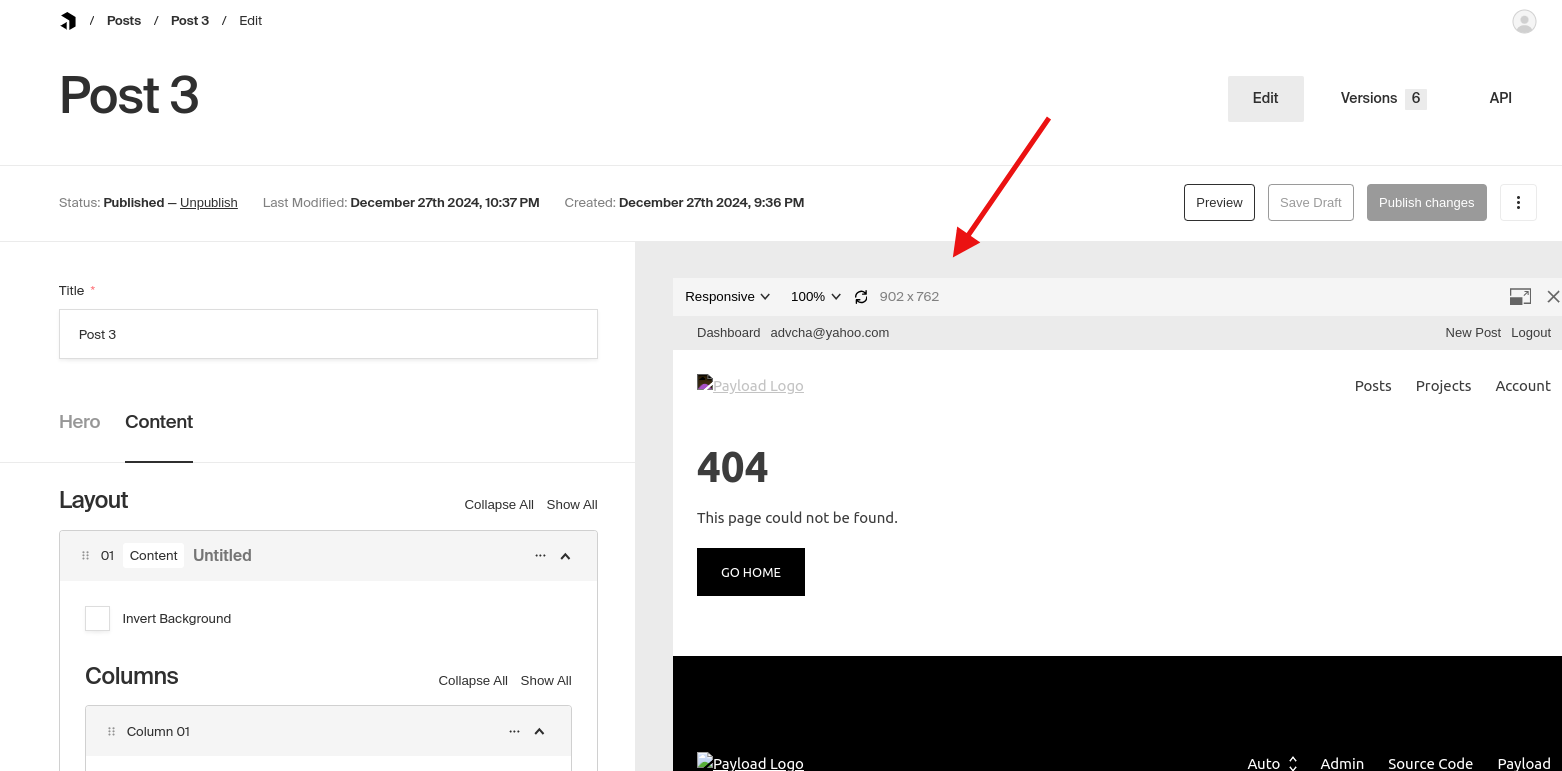
but the previewUrl() still show 404 on the admin visual editor

Create a Self-Signed SSL Certificate for Apache in Ubuntu 22.04

Ref: https://www.digitalocean.com/community/tutorials/how-to-create-a-self-signed-ssl-certificate-for-apache-in-ubuntu-22-04

1. open up the firewall ufw for the http and https ports:
[codesyntax lang=”bash”]

[/codesyntax]

2. enable mod_ssl
[codesyntax lang=”bash”]

[/codesyntax]

3. Creating the TLS Certificate
[codesyntax lang=”bash”]

[/codesyntax]

4. Configuring Apache to Use TLS
[codesyntax lang=”bash”]

[/codesyntax]

the config file like this
[codesyntax lang=”php”]

[/codesyntax]
don’t forget to reload/restart apache2 service

5. Now load your site in a browser, being sure to use https:// at the beginning.

You should see an error. This is normal for a self-signed certificate! The browser is warning you that it can’t verify the identity of the server, because our certificate is not signed by any of its known certificate authorities. For testing purposes and personal use this can be fine. You should be able to click through to advanced or more information and choose to proceed.

Install xdebug with PHP 8.2 on Ubuntu 22.04

<OLD>Ref: https://gist.github.com/henryonsoftware/066d8282daaf8c2ae281ce010e3e5404

1. Download xdebug source code from https://github.com/xdebug/xdebug/releases
for example the xdebug 3.3.2 from https://github.com/xdebug/xdebug/archive/refs/tags/3.3.2.tar.gz

2. extract the downloaded file
satria@teddy:~$ cd Downloads/
satria@teddy:~/Downloads$ tar -xvzf xdebug-3.3.2.tar.gz

3. run ‘phpize’
satria@teddy:~/Downloads$ cd xdebug-3.3.2/
satria@teddy:~/Downloads/xdebug-3.3.2$ phpize
Configuring for:
PHP Api Version: 20210902
Zend Module Api No: 20210902
Zend Extension Api No: 420210902
configure.ac:165: warning: The macro `AC_PROG_LIBTOOL’ is obsolete.
configure.ac:165: You should run autoupdate.
build/libtool.m4:99: AC_PROG_LIBTOOL is expanded from…
configure.ac:165: the top level

4. run ‘./configure’
satria@teddy:~/Downloads/xdebug-3.3.2$ ./configure

5. run ‘make’
satria@teddy:~/Downloads/xdebug-3.3.2$ make

6. copy the module xdebug.so to php lib 20210902
</OLD>
<NEW>

Use php from repository ppa:ondrej/php
then install php8.2-dev
[codesyntax lang=”php”]

[/codesyntax]

then install php8.2-xdebug
[codesyntax lang=”php”]

[/codesyntax]

check the php version
[codesyntax lang=”php”]

[/codesyntax]

if not php8.2, you can select it by using
[codesyntax lang=”php”]

[/codesyntax]

CONFIG XDEBUG

SETTING


Install Flutter and Android Studio on Ubuntu 22.04

Ref: https://docs.flutter.dev/get-started/install/linux/android

Development tools

To develop Flutter on Linux:

1. Verify that you have the following tools installed: bash, file, mkdir, rm, which

2. Install the following packages: curl, git, unzip, xz-utils, zip, libglu1-mesa

3. To develop Android apps:
a. Install the following prerequisite packages for Android Studio.

b. Install Android Studio 2023.3.1 (Jellyfish) or later to debug and compile Java or Kotlin code for Android. Flutter requires the full version of Android Studio.
download and install the latest android studio from https://developer.android.com/studio

If you are running a 64-bit version of Ubuntu, you need to install some 32-bit libraries with the following command:

read the installation note on https://developer.android.com/studio/install#linux

Extract the downloaded file:

Move to the android-studio directory:

Run Android Studio:
Navigate to the bin directory and run the installer:

Use VS Code to install Flutter

To install Flutter using these instructions, verify that you have installed Visual Studio Code 1.77 or later and the Flutter extension for VS Code.

Prompt VS Code to install Flutter
#
Launch VS Code.
To open the Command Palette, press Control + Shift + P.
In the Command Palette, type flutter.
Select Flutter: New Project.
VS Code prompts you to locate the Flutter SDK on your computer.


If you have the Flutter SDK installed, click Locate SDK.
If you do not have the Flutter SDK installed, click Download SDK.

This option sends you the Flutter install page if you have not installed Git as directed in the development tools prerequisites.
When prompted Which Flutter template?, ignore it. Press Esc. You can create a test project after checking your development setup.

INSTALL CMAKE (ALSO FOR LINUX APP)
sudo apt install cmake

Launching lib/main.dart on Linux in debug mode…

CMake Error: CMake was unable to find a build program corresponding to “Ninja”. CMAKE_MAKE_PROGRAM is not set. You probably need to select a different build tool.

CMake Error: CMAKE_CXX_COMPILER not set, after EnableLanguage

Error: Unable to generate build files

INSTALL NINJA BUILD
sudo apt install ninja-build

Launching lib/main.dart on Linux in debug mode…

CMake Error at /usr/share/cmake-3.22/Modules/CMakeDetermineCXXCompiler.cmake:48 (message):

Could not find compiler set in environment variable CXX:

clang++.

Call Stack (most recent call first):

CMakeLists.txt:3 (project)

2

CMake Error: CMAKE_CXX_COMPILER not set, after EnableLanguage

Error: Unable to generate build files

ALSO
satria@teddy:/opt/android-studio/bin$ sudo apt-get install \
clang cmake git \
ninja-build pkg-config \
libgtk-3-dev liblzma-dev \
libstdc++-12-dev
BUT GOT

libbrotli-dev : Depends: libbrotli1 (= 1.0.9-2build6)
SOLUTION:

THEN RE-RUN:
satria@teddy:/opt/android-studio/bin$ sudo apt-get install \
clang cmake git \
ninja-build pkg-config \
libgtk-3-dev liblzma-dev \
libstdc++-12-dev

Install Java and Tomcat on Ubuntu 22.04

READ: https://tecadmin.net/how-to-install-tomcat-on-ubuntu-22-04/
ALSO READ: https://myprojects.advchaweb.com/index.php/2021/09/27/install-tomcat-on-ubuntu-20-04/

INSTALL OPENJDK 11

CHECK JAVA VERSION

CREATE A TOMCAT USER

DOWNLOAD TOMCAT 10
AT THE TIME, THE LATEST STABLE VERSION IS 10.1.19. DOWNLOAD THE BINARY (https://dlcdn.apache.org/tomcat/tomcat-10/v10.1.19/bin/apache-tomcat-10.1.19.tar.gz)

EXTRACT IT TO /opt/tomcat DIR

SET THE PERMISSION
First, we’ll change the directory ownership to tomcat.

Next, make all scripts within the bin directory executable.

Create Tomcat Application Accounts
Now, configure your tomcat with user accounts to secure access of admin/manager pages. To do this, edit conf/tomcat-users.xml file in your editor and paste the following code inside <tomcat-users> </tomcat-users> tags. We recommend changing the password in the below configuration with high secured password.

ADD THE ROLES

Allow Remote Hosts to Access Tomcat
The default Tomcat manager and host-manager applications are accessible for localhost only. To allow access to these pages from the remote system, you need to modify the following configuration files.

You can either allow a specific remote system or allow all. Edit the context.xml file for manager and host manager application:

Comment out the section added for IP address restriction to allow connections from anywhere.

Similarly edit context.xml for host manager application in text editor:

Create a Systemd Service File
We’ll now create a systemd service file to manage the Tomcat service. Open a new service file in a text editor:

Paste in the following configuration:

Start and Enable Tomcat
After creating the service file, reload the systemd daemon to read the new file:

Next, start the Tomcat service with:

CHECK Tomcat service status

If everything went well, enable Tomcat to start on boot:

Open the Firewall
You also need to check if the firewall is not blocking the incoming connections to Tomcat’s port (default is 8080). This depends on what firewall you are using:

For UFW (Uncomplicated Firewall) in Ubuntu:

Test the Installation
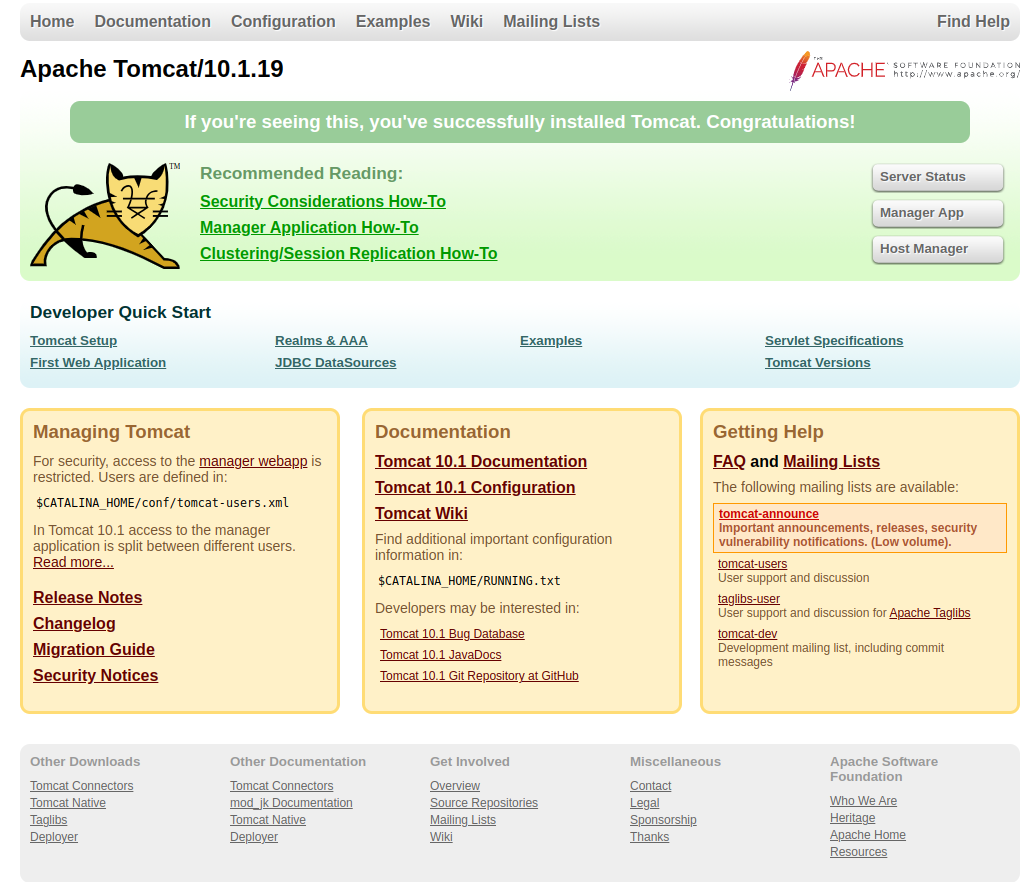
The default Tomcat server runs on port 8080. As you have configured Tomcat on your system, you can access web interface from your system. You can access tomcat interfaces by entering your server’s IP address or a domain name pointed to that server, followed by port 8080 in your browser:

http://localhost:8080/

Tomcat Manager App is a web application packaged with the Tomcat server application. The Manager interface provides us with the basic functionality we need to manage our deployed web applications.

Click the Manager App button home page or directly type /manager in the browser URL of the main Tomcat server to access it.
http://localhost:8080/manager/html
user: admin
pass: Admin@123

TOMCAT LOG
THE DEFAULT LOG FILE IS IN /opt/tomcat/apache-tomcat-10.1.19/logs/ DIR!
THE LOG FILE IS /opt/tomcat/apache-tomcat-10.1.19/logs/catalina.out
To change the default location of the log file, edit the startup.sh file and locate the entry:

Setup Postfix on Ubuntu 20.04 Localhost and Use Sendinblue/Brevo SMTP

Ref: https://www.linuxbabe.com/mail-server/postfix-smtp-relay-ubuntu-sendinblue
https://oastic.com/posts/configure-postfix-to-send-email-using-sendinblue-as-smtp-server/

Setup Postfix on Ubuntu 16.04 Localhost and Use Gmail SMTP

Create the Brevo account (https://www.sendinblue.com/)
choose the free plan

FOLLOW THE SETUP IN THE ABOVE REFS
ONLY THE WORKING SETTING FOR ME (localhost) IN /etc/postfix/main.cf

AND THE SETTING SMTP FOR /etc/postfix/sasl_passwd you can find IN https://app.brevo.com/settings/keys/smtp LIKE

NOW:
[smtp-relay.brevo.com]:587 smtp_username:smtp_password

SORRY, ONLY ADMIN CAN SHOW THIS!
NOW:

SORRY, ONLY ADMIN CAN SHOW THIS!
TLS = Port 587

THEN TEST

CHECK IN sudo tail /var/log/mail.log
THE WORKING SMTP WOULD BE LIKE THIS