Install Flarum on Ubuntu 16.04

Ref: https://flarum.org/
https://flarum.org/docs/install.html

Install via composer:

SETUP NGINX

NGINX SETUP:

CONTENT:


Enable file config


Register the host on my system

Like this:


CHECK THE NGINX SETTING AND RESTART IT:

Change the file permissions

CREATE A NEW DATABASE: flarum COLLATION utf8mb4_unicode_ci
Open it on your browser then install : http://flarum.test
Setting admin:
username: admin
password: Admin@123

User
username: teddy
password: teddy123

WordPress and Woocommerce

WordPress and Woocommerce

Download the latest from wordpress.org. I got version 5.2.3

SETUP LOCAL WITH NGINX

content:

  • Enable file config
  • Register the host on my system

    Like this:
  • CHECK THE NGINX SETTING AND RESTART IT:

CREATE A NEW DATABASE: wp523_commerce COLLATION utf8_general_ci
Open it on your browser and install : http://wp523_commerce.test
setting:
username: admin
password: xA**EbXJ4UNw96u0wI

Download theme ‘futurio’ from https://futuriowp.com/free-woocommerce-theme/
then extract and put it in theme dir. install
Then download plugin futurio extra from https://wordpress.org/plugins/futurio-extra/
Then download plugin wordpress-importer from https://wordpress.org/plugins/wordpress-importer/
Then download plugin elementor from https://wordpress.org/plugins/elementor/
Then download plugin WooCommerce
from https://wordpress.org/plugins/woocommerce/
Then download plugin Ajax Search for WooCommerce
from https://wordpress.org/plugins/ajax-search-for-woocommerce/
extract and put these plugins into plugins dir then install

Then download the sample data from https://futuriowp.com/docs/futurio/importing-the-sample-data/. Follow the instructions to import the sample data. NOTE: I can’t import the data from the local site. I have to import it manually!

TEST: http://wp523_commerce.test
ADMIN: http://wp523_commerce.test/wp-admin
WOOCOMMERCE SHOP: http://wp523_commerce.test/shop

Setup Postfix on Ubuntu 16.04 Localhost and Use Gmail SMTP

READ: https://devanswers.co/configure-postfix-to-use-gmail-smtp-on-ubuntu-16-04-digitalocean-droplet/

Prerequisites
If your Gmail account uses 2-Step Verification, you must create an application specific password.

If you’re not using 2-Step Verification, please ensure that your Gmail account is configured to allow less secures apps.

Remove sendmail

1. Install Postfix

Let’s update the package database first. On the first Postfix configuration screen, select OK by pressing TAB and ENTER. Select Internet Site and press ENTER. System mail name should be your domain name eg. example.com, press ENTER.
My mail name is teddy@teddy.localdomain
<NOTE>
PROBABLY THESE BELOW COMMAND NOT NEEDED:
I also need to install php-mail and php7.2-mail

modify php ini IN

OR FOR APACHE2 WEB SERVER

UNCOMMENT ‘sendmail_path’ THEN CHANGE TO

modify

like this:

Restart services

OR FOR APACHE2 WEB SERVER

</NOTE>

Configure Postfix
Edit the Postfix configuration file.

Add the following to the end of the file.

Save file and exit.

Create Password and DB Files
Create the sasl_passwd file which will store our credentials.

Insert the following:

SORRY, ONLY ADMIN CAN SHOW THIS!
Replace username and password with your own. Save file and exit. (Press CTRL + X, press Y and then press ENTER)

Create a hash database file for Postfix with the postmap command.

There should now be a file called sasl_passwd.db in the /etc/postfix/ directory.

For added security, we will only allow root user to read and write to sasl_passwd and sasl_passwd.db

Sign Certificate
Now we are going to create the certificate.

There should now be a certificate file called cacert.pem in /etc/postfix

Send a Test Mail
We’ll now send a test email message. Make sure to replace test@example.com with your own email address.

Don’t forget to check your spam folder.

If you still haven’t received any mail, check the mail error log.

NOTE:
TO USE GMAIL SMPT, YOU NEED TO ACTIVATE (SET IT ON) ‘Less Secure app’ ON YOUR GMAIL ACCOUNT. LOGIN TO YOUR GMAIL THEN OPEN THIS LINK: https://www.google.com/settings/u/2/security/lesssecureapps
IT’D REDIRECT YOU THE ‘Less Secure app’ SETTING.

Create a Frontend Form

Read: https://magento.stackexchange.com/questions/222423/how-to-create-a-form-and-save-that-data-in-database-in-magento-2/222427
Create a directory Advcha/MyForm in your magento root project/app/code
Then create a new file registration.php:

Then in etc/module.xml:

Then do this to make sure it’s okay.

Create a frontend router in etc/frontend/routes.xml:

I want the url to show the form is /myform/myform/index
So create a dir and file in Controller/MyForm/Index.php. But I need to create a layout first in view/frontend/layout/myform_myform_index.xml:

Then create a block in Block/MyForm.php:

Then create the template in view/frontend/templates/myform.phtml:

Then here is the controller in Controller/MyForm/Index.php:

DONE! PLS RUN

CHECK THE PAGE IN URL LIKE: http://scm.test/myform/myform/index
PLS TRY TO FILL THE FORM THEN PRESS THE SUBMIT BUTTON!

Magento 2 – Create Module API

CREATE A MODULE TO USE API TO PULL PRODUCTS DATA FROM SINOGOODIES (SG) WEBSITE
I PUT THE CODE IN app/code/advcha/SGApi DIRECTORY
Create registration.php

Create etc/module.xml

ENABLE THE MODULE

Create etc/webapi.xml

Create the API interface Api/SGInterface.php

Create a dependency injection di.xml for the SGInterface to the implementation in Model directory.
etc/di.xml

Create the implementation in Model/SG.php (FOR EXAMPLE)

SETUP UPGRADE AND COMPILE DI

TEST THE API CALL: http://ayoimport-dev.test/rest/V1/sgapi/getproduct
THE CORRECT RESPONSE WILL BE LIKE THIS:


Magento 2.3 – Create Custom Widget

Ref: https://www.magestore.com/magento-2-tutorial/how-to-create-magento-2-widget/
https://www.cloudways.com/blog/magento-2-custom-widget/

1. Create ‘Contact Informations’ Widget
Create a module directory ‘Advcha_Customwidget’ in app/Advcha/Customwidget

Then create a registration file registration.php in the above directory:

Then create the module file module.xml in etc/ directory:

Then create the backend widget form widget.xml in etc/ directory:

Then create the block file Contactinformations.php in Block/Widget/ directory:

Create the source file for gender input Gender.php in Model/Config/Source/ directory:

Then create the template file to show the widget contact_informations.phtml in view/frontend/templates/widget/ directory:

Enable the module: php bin/magento module:enable Advcha_Customwidget
then clear the cache: php bin/magento c:f

I want to display the widget in the homepage. So in the admin page: Content -> Pages,
Find Homepage -> Edit
In Content -> Show/Hide Editor -> Insert Widget -> On the Widget Type dropdown, find ‘Contact Informations Widget’ then fill the options like ‘Full Name’, ‘Age’ and ‘Gender’.
The html widget would be like this:

Then Save the page. Also it worth to run the command: php bin/magento c:c && php bin/magento c:f

Then refresh your homepage. It’d show the widget at the bottom (above the footer on the Luma theme).

2. Create ‘Category’ Widget
ref: https://www.dckap.com/blog/create-category-widget-magento-2/
Create a module directory ‘Advcha_Catwidget’ in app/Advcha/Catwidget

Then create a registration file registration.php in the above directory:

Then create the module file module.xml in etc/ directory:

Then create the backend widget form widget.xml in etc/ directory:

Then create the block file ShowCats.php in Block/Widget/ directory:

Then create the template file to show the widget showcategories.phtml in view/frontend/templates/widget/ directory:

Enable the module: php bin/magento module:enable Advcha_Catwidget
then clear the cache: php bin/magento c:f OR RUN THE FULL COMMAND:

I want to display the widget in the homepage. So in the admin page: Content -> Pages,
Find Homepage -> Edit
In Content -> Show/Hide Editor -> Insert Widget -> On the Widget Type dropdown, find ‘Contact Informations Widget’ then fill the options like ‘Master Category Id (type ‘2’ for default top category)’. For the default top category, please type: 2
The html widget would be like this:

Then Save the page. Also it worth to run the command: php bin/magento c:c && php bin/magento c:f

Then refresh your homepage. It’d show the widget at the bottom (above the footer on the Luma theme).

UPDATED!!!
TO SHOW ALSO THE SUB CATEGORIES, USE AJAX TO REFRESH THE SUB CATEGORIES AND REDIRECT TO THE SEARCH CATEGORY IF THE ANY OF THE CATEGORY AND/OR SUB CATEGORY IS SELECTED!

MODIFY Advcha/Catwidget/Block/Widget/ShowCats.php:
NOTE: I USED ‘Psr\Log\LoggerInterface’ FOR LOGGING BUT IT CAN’T WRITE TO THE LOG FILE SO I USED Zend Log ($writer = new \Zend\Log\Writer\Stream(BP . ‘/var/log/collection.log’))
I SAVED THE OLD FUNCTION TO ‘getCategoryCollection_old’ AND REPLACE IT WITH ‘getCategoriesCollection’ FUNCTION:

Then modified Advcha/Catwidget/view/frontend/templates/widget/showcategories.phtml:


Zend Framework 3: Zend Expressive

Ref: https://docs.zendframework.com/zend-expressive/
https://docs.zendframework.com/zend-expressive/v3/getting-started/quick-start/
Create Login functionality in Expressive 3

Install via composer:

Then go to the project root directory:

Run the project

Then open it on your browser: http://localhost:8080/
NOTE: Make sure no other service running port 8080. If it exist, please stop it. In my composer nginx running port 8080. So I need to stop nginx (sudo service nginx stop).

Create Login
I need to install a few components:

Ok. I want to put the authentication if any visitor want to visit the homepage so he/she need to login first. I need to create a route for this. so modify config/routes.php file like this:

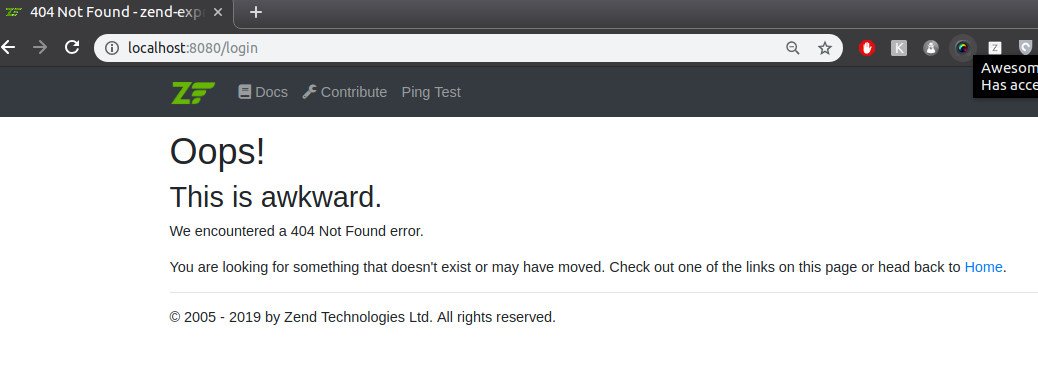
comment the default home route then add a new route like above. If we refresh our browser for the homepage, it’d show this error:

we need to register ‘Zend\Expressive\Authentication\AuthenticationInterface’ under ‘factories’ config in config/autoload/dependencies.global.php.:

If we refresh our browser again, it’d show another error:

So I modify again config/autoload/dependencies.global.php to add ‘Zend\Expressive\Authentication\UserRepositoryInterface’ class in ‘aliases’ config:

When I refresh the browser again. This error would be appear:

So I need to put my database credentials to connect zend expressive to mysql database in config/autoload/local.php file (if this file not exist, please create one):

Please create a new database ‘expressive’ and a new table ‘users’ first. The users table consist of only two fields now. There are username (varchar 100) and password (varchar 100). I put ‘redirect’ value to ‘/login’ so it’d redirect the homepage to login page. Make sure the credentials is correct. If not you’d get an error like this:

Then I refresh my browser again. Another error is coming up:

Here we need ‘Zend\Expressive\Session\SessionMiddleware’ class before routing middleware. So add it in config/pipeline.php:

We fixed those errors until here. When we refresh our browser, we’d get the login page. But the content is showing 404 because we haven’t defined the login page!Create the login form. Add a new file ‘LoginForm.php’ in ‘src/App/Form’ directory. The login form will show username and password fields. The post the form, I’ll put a submit button:

then create a login page handler with inject it with login form with the following factory in src/App/Handler/LoginPageFactory.php:

The LoginPageHandler itself can be initialized in src/App/Handler/LoginPageHandler.php:

Above, we redirect to ‘/’ page when there is a session data as it already authenticated check. We are going to add authentication process next.

The Login form can be as simple as the following in templates/app/login-page.phtml

We can register the LoginPageHandler at App\ConfigProvider::getDependencies() config in src/App/ConfigProvider.php

The routing can be registered as follows with add \Zend\Expressive\Authentication\AuthenticationMiddleware::class for next middleware in config/routes.php:

Until this, when I refresh the browser, I got this error and can’t continue anymore. I still dont know why the error is happened:

I need learn Zend Expressive more!

Install Vue Storefront On Ubuntu 16.04

Ref: https://docs.vuestorefront.io/guide/installation/linux-mac.html#requirements
https://medium.com/the-vue-storefront-journal/vue-storefront-how-to-install-and-integrate-with-magento2-227767dd65b2

Requirements
– Docker (with docker-compose installed).
Already included in vue-storefront and vue-storefront-api Docker images (required locally, if you do not use containerization):
– Node.js Active LTS (>=8.0.0)

– Yarn (>=1.0.0)

– ImageMagick (to fit, resize and crop images)

First, Install Docker CE for ubuntu (https://docs.docker.com/install/linux/docker-ce/ubuntu/#install-using-the-repository)

Install using the repository
Before you install Docker CE for the first time on a new host machine, you need to set up the Docker repository. Afterward, you can install and update Docker from the repository.

SET UP THE REPOSITORY
Update the apt package index:

Install packages to allow apt to use a repository over HTTPS:

Add Docker’s official GPG key:

Verify that you now have the key with the fingerprint9DC8 5822 9FC7 DD38 854A E2D8 8D81 803C 0EBF CD88, by searching for the last 8 characters of the fingerprint.

Use the following command to set up the stable repository.

INSTALL DOCKER CE
Update the apt package index.

Install the latest version of Docker CE and containerd, or go to the next step to install a specific version:

Verify that Docker CE is installed correctly by running the hello-world image.

This command downloads a test image and runs it in a container. When the container runs, it prints an informational message and exits.
Check docker version: (https://docs.docker.com/engine/reference/commandline/cli/)

Docker CE is installed and running. The docker group is created but no users are added to it. You need to use sudo to run Docker commands. Continue to Linux postinstall to allow non-privileged users to run Docker commands and for other optional configuration steps.

It’s important to manage docker for non-root user (https://docs.docker.com/install/linux/linux-postinstall/)
Create the docker group.

Add your user to the docker group.

Logout and re-login  so that your group membership is re-evaluated.
Verify that you can run docker commands without sudo.


Install Docker Compose
https://docs.docker.com/compose/install/
On Linux, you can download the Docker Compose binary from the Compose repository release page on GitHub. Follow the instructions from the link, which involve running the curl command in your terminal to download the binaries. These step by step instructions are also included below. To ensure you have the latest version, check the Compose repository release page on GitHub.

Apply executable permissions to the binary:

Test the installation.

For installing ImageMagic for Ubuntu 16.04, PHP7.2-FPM and NGINX. pls see http://www.mariorodriguez.co/2018/01/17/install-enable-imagick-on-ubuntu-16.04.html and https://askubuntu.com/questions/769396/how-to-install-imagemagick-for-php7-on-ubuntu

In /etc/php/7.0/fpm/php.ini file, insert ‘extension=imagick.so’ line. then save.
Restart php7.2-fpm and nginx

Check the extension in phpinfo (http://localhost:8080/phpinfo.php)

Installation Vue StoreFront

To get started — first of all we need to install all projects on your local machine. Fortunately it’s very simple step because we do have CLI installer which installs vue-storefront and vue-storefront-api altogether.

First step is to get the VS from our github:

git clone https://github.com/DivanteLtd/vue-storefront.git vue-storefront

Go to the ‘vue-storefront’ directory

MAKE SURE YOU CHECK PORT 8080 (USUALLY IT BEING USED BY NGINX) BY ‘sudo netstat -plntu’. IF THE PORT IS BEING USED BY NGINX, PLS STOP IT FIRST ‘sudo service nginx stop’. PORT 8080 WOULD BE USED BY MAGENTO 2 BACKEND???
MAKE SURE YOU ALREADY ADD USER FOR DOCKER
<ERROR_YARN_INSTALLER_DOCKER_NON_ROOT>

SOLUTION: ADD USER FOR DOCKER. SEE THE ABOVE REVISED DOCKER INSTALL!
</ERROR_YARN_INSTALLER_DOCKER_NON_ROOT>
RUN ‘yarn build’ BEFORE ‘yarn installer’. DONT FORGET REMOVE ‘vue-storefront-api’ DIRECTORY

<ERROR_YARN_INSTALLER_STOREFRONT_NPM>

SOLUTION: https://docs.vuestorefront.io/guide/basics/recipes.html#how-to-prevent-an-error-can%E2%80%99t-build-storefront-npm
RUN: ‘yarn build’ BEFORE ‘yarn installer’.
</ERROR_YARN_INSTALLER_STOREFRONT_NPM>
WORKING!

IF THE NODE JS SERVER IS STOPPED, START/RESTART IT AGAIN BY RUNNING: ‘yarn dev’ in ‘vue-storefront’ directory and ‘vue-storefront-api’ directory. Make sure nginx that use port 8080 is stopped (check port : sudo netstat -plntu)

Then to open the frontend (vue-storefront): http://localhost:3000/ –> OK. BUT WHEN I CLICK ANY LINK ON THE PRODUCT, I GOT ‘The product, category or CMS page is not available in Offline mode. Redirecting to Home.’
to open the backend (vue-storefront-api): http://localhost:8080/ –> NOT OK! I got this printed: Cannot GET /
http://localhost:8080/api –> printed: {“version”:”0.1.0″}

Install Magento 2.3 PWA Studio On Ubuntu 16.04

Ref: https://magento-research.github.io/pwa-studio/venia-pwa-concept/setup/

Magento2.3 PWA Studio Setup

Are you prepared to try all benefits of Magento PWA Studio?


https://hackernoon.com/getting-started-with-magento-pwa-studio-with-poc-c54c33f8d038

Check Requirements:
It say my working environment need:
NodeJS >=10.14.1 LTS
Yarn >=1.13.0
Another source say: ‘You must have a version of node.js >= 8.0.0, and a version of npm >= 5.0.0. The latest LTS versions of both are recommended.’
Check my current:

I use NVM (http://myprojects.advchaweb.com/index.php/2018/01/24/ubuntu-16-04-3-installation-problem-and-solution/) to install node js. It seems my current didn’t fit the requirements. I need to install node js version 10.x.x and update yarn and npm.
CHECK INSTALLED NODE VERSION:

or use ‘nvm ls-remote’ to see all the node js list and version.
Use nvm to install node js v10..15.1. it’s a latest LTS version for v10.x.

It also make it the new version as an active node js version!

or use ‘nvm use 10.15.1’

but npm version now is v6.4.1. Yarn already installed for the previous node js version but not yet for the current v10.15.1 version. I need to install it again. NOTE: Yarn is more recommended than npm!
Install Yarn (https://yarnpkg.com/en/docs/install#debian-stable)
NOTE: I need to uninstall ‘cmdtest’ first (https://github.com/yarnpkg/yarn/issues/2821).

Check yarn version

INSTALL Magento 2.3 Backend
or INSTALL PWA Studio First??? –> I prefer to install the backend first!
NOTE: I need to use composer to install the backend.
check the composer version

When I use this composer version to download and install magento

it can’t download from repo. it’s did nothing after I supplied the repo.magento.com account for a long time! I NEED TO UPDATE COMPOSER!
But when I want to update the composer, I got an error ‘SHA384 is not supported by your openssl extension, could not verify the phar file integrity’

Based on this link https://github.com/composer/composer/issues/7669, to fix this problem I need to manually download and install composer. Follow this https://getcomposer.org/download/ to download and install composer. It’s almost same. But to install composer system wide, use ‘sudo php composer-setup.php –install-dir=/usr/local/bin –filename=composer’ instead of ‘php composer-setup.php’

To avoid warning like this:

so do like this:

NOTE: Also it recommended to install prestissimo (composer plugin) from https://github.com/hirak/prestissimo

I tried to install magento 2.3 via composer but failed for some reasons. Like the packages can’t be downloaded or it took a long time so I had to cancel it. Probably my slow internet speed and/or the magento repo problems affected the installation as well. I tried to download and install on the afternoon without no progress. The last time I successfully installed it when I tried it on the evening! So here is the working command:

Anyway it took almost 3 hours to complete the command!
Note: I stripped ‘magento/project-community-edition:2.3.0’ from the above command to make sure I got the latest version! It’s not mean it’d not work if I put the version back!
SO ‘/home/teddy/Documents/works/mce230-pwa’ is a Magento installation directory.

The next step is to install Magento by Command Line
First, go to the magento 2.3.0 root directory

Then run this command like this: Use https url like ‘https://mce230-pwa.test/’ for PWA because PWA only works with SSL???

SORRY, ONLY ADMIN CAN SHOW THIS!
Make sure you already create a new database ‘mce230_pwa’. Also match the database credential!
SORRY, ONLY ADMIN CAN SHOW THIS!
SO I completed the installation of magento 2.3 backend. Can I open it on the browser http://localhost/mce230-pwa ??? Should I set it on the web server like nginx or apache? Or it only can be run via node js server??? –> I’m gonna setup nginx for running it. But I need to create self-signed certificate first for enabling ssl (http://myprojects.advchaweb.com/index.php/2019/02/09/create-self-signed-certificate-with-nginx-on-ubuntu-16-04/)
Create a new file

Here is the file content:

Create the Certificate using OpenSSL

It’ll create two new files. There are mce230-pwa.test.crt and mce230-pwa.test.key. Then Copy those files to the Certificates folder on Ubuntu

OK. Now setup the nginx config. Create the config file

Here is the content:

NOTE: I set $MAGE_ROOT TO ‘pub’ DIR LIKE ‘set $MAGE_ROOT /home/teddy/Documents/works/mce230-pwa/pub’ INSTEAD OF JUST ‘set $MAGE_ROOT /home/teddy/Documents/works/mce230-pwa’. SO PWA THEME CAN DISPLAY THE CATEGORY & PRODUCTS IMAGE!
Enable file config

Register the host on my system

Like this:

CHECK THE NGINX SETTING AND RESTART IT:

Set file permission and owner:

Because the installation is already done by composer, then compile!

Give it a try! the frontend: https://mce230-pwa.test/ –> No product displayed because I didn’t install the sample data!
and the backend: https://mce230-pwa.test/admin_magento
user: admin
password: admin123

Now is the steps for installing PWA Studio.
clone it from the repository on current magento 2.3.0 root directory

You will see the pwa-studio directory in /mce230-pwa
Enter into this directoy:

Then run ‘yarn install’. It recommended to use it than ‘npm install’

Then Specify the Magento backend server in .env file. you can see the .env.dist file in
/mce230-wa/pwa-studio/packages/venia-concept/ directory. If you are not
able see, enable show hidden files. Now create .env file from this env.dist

Open this .env file and find MAGENTO_BACKEND_URL. Here configure your local Magento 2.3 instance, my case it is:

Now install sample data for venia-theme to make it good looking. Find the deployVeniaSampleData.sh file in
/mce230-pwa/pwa-studio/packages/venia-concept/ directory. and copy this file in your Magento root directory. Now it must look like
/mce230-pwa/deployVeniaSampleData.sh Now run:

This was tricky because I need several times to make it works. I also need to create a new file ‘auth.json’ and put it in the mce230-pwa directory because I got this error : ‘Could not authenticate against github.com’. ref is here https://www.bountysource.com/issues/64327845-add-shell-script-to-install-venia-sample-data-modules-via-composer. This error can be fixed with providing the github personal api token (https://github.blog/2013-05-16-personal-api-tokens/). So to get the token, go to your github account (https://github.com/settings/tokens) then generate ‘personal access token’. For the scopes, I think I need to select one or all of the options. At first, I didn’t select any scope and the bash script didn’t work. Then I selected all of them and the bash script worked again!. After you got the token, put it in auth.json file. Here is auth.json file content:

Replace “xxxxx” with your github personal access token!
SORRY, ONLY ADMIN CAN SHOW THIS!

<ERROR_I_GOT_PREVIOUSLY>
The problem when I forgot to provide the magento 2.3 root directory

The problem when I should create auth.json (https://www.bountysource.com/issues/64327845-add-shell-script-to-install-venia-sample-data-modules-via-composer)

</ERROR_I_GOT_PREVIOUSLY>

OK. After successful installation compile again:

Then I opened the frontend https://mce230-pwa.test –> No product on the homepage
Then I found some venia products on the links like on https://mce230-pwa.test/venia-accessories.html
But the products image CAN’T BE DISPLAYED!
The images refer to the cache directory in /mce230-pwa/pub/media/catalog/product/cache
I can fix this problem by regenerating the images (https://magento.stackexchange.com/questions/175224/regenerate-catalog-cache-images-issues). So I run

WARNING: It’d take a long time to complete it depend on how many the images and the computer resource. To regenerate the images in the sample venia theme on my pc, it took almost 30 minutes for 1287 products!

But I can’t find ‘venia’ theme on the admin page! I tried to create the symlink like

or just copied ‘/pwa-studio/packages/venia-concept’ into ‘app/design/frontend/Magento’ then rename ‘venia-concept’ to ‘venia’. But none of them display the venia theme in the admin themes content! –> NEED TO LEARN THIS LATER!

Then go back to pwa-studio directory /mce230-pwa/pwa-studio and
start Server. I run ‘yarn run build’ instead of ‘npm run build’. But before running this command, make sure the magento mode is developer.

Then run ‘yarn run build’

Need to recompile again if needed (NO NEED!)

Run server, Use any of the following commands from the project root directory to start: yarn run watch:venia

OR run ‘yarn run watch:all’

Then open it on your browser: https://magento-venia-concept-2hrkd.local.pwadev:8328/
OK. But it can’t show the products image!!!
Temporary solution for this problem is COPY THE CATEGORY AND PRODUCT IMAGES IN CATALOG DIR FROM pub/media/catalog TO the magento root directory –> NOT GOOD IF THERE IS NEW PRODUCT AND IMAGE! SO HERE IS THE BETTER WAY! SET MAGENTO ROOT DIRECTORY TO ‘pub’ DIR. MODIFY nginx CONFIG FILE

THEN MODIFY $MAGE_ROOT FROM

TO

I THINK IT NEED TO RECOMPILE!

<ERROR_IF_PWA_NOT_SSL>

It need SSL!
</ERROR_IF_PWA_NOT_SSL>

Install Redis and Combine With Varnish and Nginx for M2 On Ubuntu 16.04

Ref: https://www.digitalocean.com/community/tutorials/how-to-install-and-configure-redis-on-ubuntu-16-04
https://www.digitalocean.com/community/tutorials/how-to-install-and-secure-redis-on-ubuntu-18-04

Install Redis Server

Then modify /etc/redis/redis.conf file. In the file, find the supervised directive. Currently, this is set to no. Since we are running an operating system that uses the systemd init system, we can change this to systemd:

Next, find the dir directory. This option specifies the directory that Redis will use to dump persistent data. We need to pick a location that Redis will have write permission and that isn’t viewable by normal users.

We will use the /var/lib/redis directory for this, which we will create in a moment:

Save and close the file when you are finished.

Create a Redis systemd Unit File
Next, we can create a systemd unit file so that the init system can manage the Redis process.

Create and open the /etc/systemd/system/redis.service file to get started:

Inside, we can begin the [Unit] section by adding a description and defining a requirement that networking be available before starting this service. In the [Service] section, we need to specify the service’s behavior. For security purposes, we should not run our service as root. We should use a dedicated user and group, which we will call redis for simplicity. We will create these momentarily.

To start the service, we just need to call the redis-server binary, pointed at our configuration. To stop it, we can use the Redis shutdown command, which can be executed with the redis-cli binary. Also, since we want Redis to recover from failures when possible, we will set the Restart directive to “always”. Finally, in the [Install] section, we can define the systemd target that the service should attach to if enabled (configured to start at boot):
<DONT USE THIS SETTING>

</DONT USE THIS SETTING>

<USE THIS SETTING>

</USE THIS SETTING>
Save and close the file when you are finished. After saving and closing the file, I reloaded the systemd manager configuration:

Create the Redis User, Group and Directories
Now, we just have to create the user, group, and directory that we referenced in the previous two files.

Begin by creating the redis user and group. This can be done in a single command by typing:

Now, we can create the /var/lib/redis directory by typing:

We should give the redis user and group ownership over this directory:

Adjust the permissions so that regular users cannot access this location:

Start and Test Redis
Now, we are ready to start the Redis server.

Start the Redis Service

Check that the service had no errors by running:

I got the below error previously because the wrong setting in the redis.service file.

Check it on the terminal

Or make sure port 6379 only be using by redis

Test the Redis Instance Functionality
To test that your service is functioning correctly, connect to the Redis server with the command-line client:

Check that you can set keys by typing:

Enable Redis to Start at Boot
If all of your tests worked, and you would like to start Redis automatically when your server boots, you can enable the systemd service.

To do so, type:

Go to your magento root directory and open app/etc/env.php and add the below codes just before the last line.

Restart the Redis server

Check whether Redis server is working or not. Open your website and view some pages then  run the command

If you see this  keyspace. Then your Redis is configured properly. If you do not see anything below Keyspace then Redis have not cached anything. In this case check your configuration

To flush the Redis cache run the following command

Now your site is optimized with Varnish and Redis.

Benchmark
When I open https://fontaineind.test/ for the first time (varnish after fresh restart still caching so the page load still slower and redis also after first restart and flushdb command executed). I got this from redis-cli info:

Then I refresh the same page (varnish cache is kicking off and redis as well). I noticed the page load faster than only from varnish. But not much. Probably from 10-12 seconds to 8-9 seconds. Here is the output from redis-cli info:

I need to analyze these later.