Upgraded PHP on Sierra

<OLD>
The PHP version on my Sierra was 5.6. I want to upgrade it to PHP 7.0 version. I followed a tutorial from https://coolestguidesontheplanet.com/upgrade-php-on-osx/.

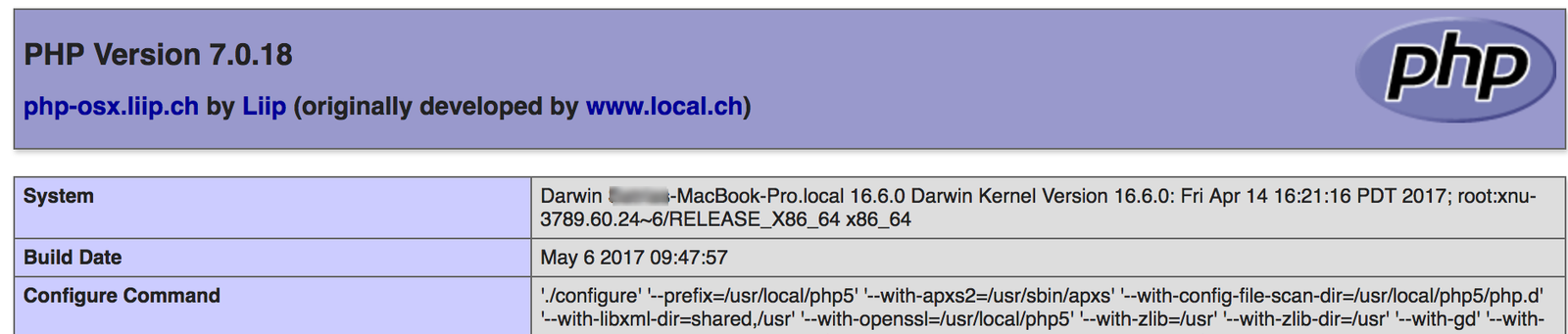
PHP 7 would be installed in ‘/usr/local/php5/’ directory. Actually this is a symlink directory from ‘/usr/local/php5-7.0.18-20170506-095200/’ directory. Now I can use PHP 7.0 on my mac

But the php version on the terminal still show the old version. I need to change the $PATH like on this tutorial: https://stackoverflow.com/questions/25731145/mac-upgraded-php-to-5-6-but-cli-php-v-get-5-3-28:
Open Terminal, then run

Then add these 2 lines at the bottom of the file:

Save and reopen the terminal. Here is the new version:

</OLD>
NOW USE brew
REF: https://stackoverflow.com/questions/54207030/what-are-the-options-to-upgrade-php-on-macos-mojave-10-14-2
SEARCH PHP

INSTALL PHP 7.2

START SERVICE

ADD PATH

PHP.INI

MUST CLOSE THE TERMINAL THEN OPEN IT BACK TO CHECK THE PHP VERSION

PHP-FPM

CHANGE PHP SETTING


Installation of PHP 7.0 FPM and NGINX

Ref: https://www.ma-no.org/en/content/index_php7-install-php7-with-nginx-and-memcache-in-ubuntu-14-04_2137.php

  1. Install php7.0-fpm: sudo apt-get install php7.0-fpm

     
  2. CHANGE THE PHP VERSION FOR CLI TO 7.0

    CHECK THE PHP VERSION:

     
  3. TO ENABLE PHP 7.0 ON NGINX SERVER, PLS DO (MAKE SURE APACHE2 IS STOPPED IF IT’S RUNNING AND START NGINX):

    THE NGINX MAIN CONFIG IN /etc/nginx/nginx.conf
    THE DEFAULT VIRTUALHOST IN /etc/nginx/sites-available/default
    EDIT IT TO ENABLE PARSING PHP FILE:


    CHANGE THE CONTENT TO ENABLE PHP 7.0 FPM:

    THEN CHANGE PHP7.0-FPM SETTING:

    CHANGE THE CONTENT:

    THEN RESTART PHP7.0-FPM SERVICE:

    CHECK NGINX SYNTAX: sudo nginx -t
    RESTART NGINX: sudo systemctl restart nginx
    OPEN IT: http://localhost/phpinfo.php (NEED TO CLEAR THE BROWSER CACHE FIRST)

Magento CE 2.1.5 (With Sample Data) Installation

I want to install Magento CE 2.1.5 (with sample data) in my machine Ubuntu 14.04 and PHP 7.0.
Ref: http://devdocs.magento.com/guides/v2.1/install-gde/prereq/zip_install.html

  1. Download the installation file from magento website. Here I downloaded the file with sample data in tar.bz2 format
  2. Extract the compressed file into your web root. I extract them in ‘magentoce215’ directory.
  3. Modify the files permission of ‘magentoce215’ directory. Here I used this command to make it easier for me to deal with the many security issues.
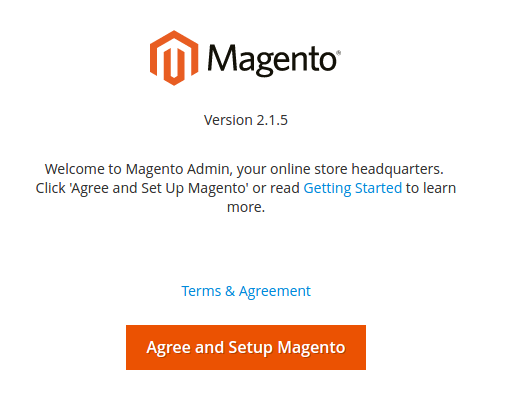
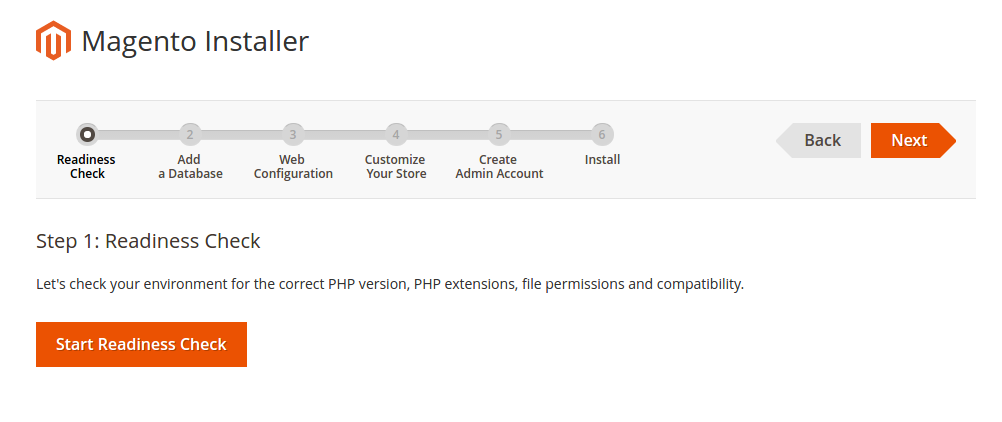
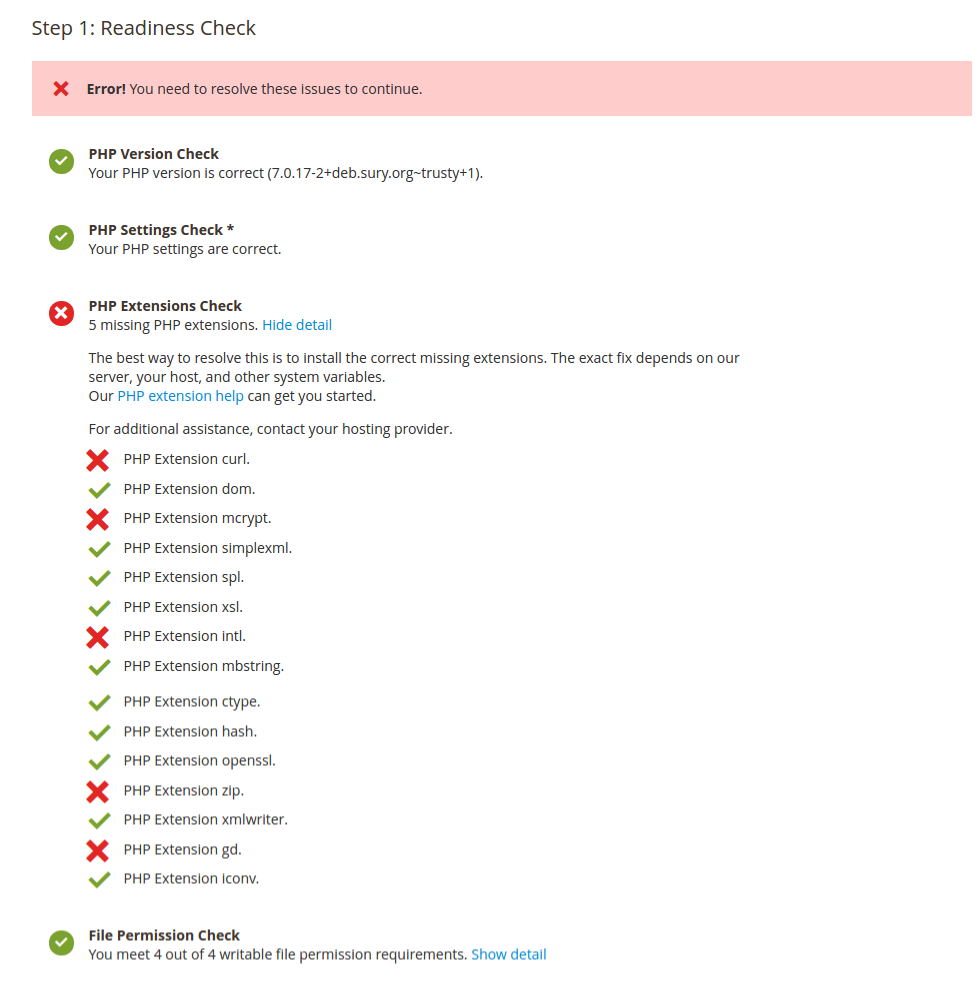
  4. Open it the first time on your browser: http://localhost/works/magentoce215. It’d setup magento for the first time.Click ‘Agree and Setup Magento’ button. It’d bring us to next step, the check install page. Here is the looksI want to make sure anything would be okay so I click ‘Start Readiness Check’ button. It’d check my php version and the php extension I have. It seemed I miss some extensions. Here is the result.I need to sort its out first. Install the missing php extensions.

    Then don’t forget to restart apache server

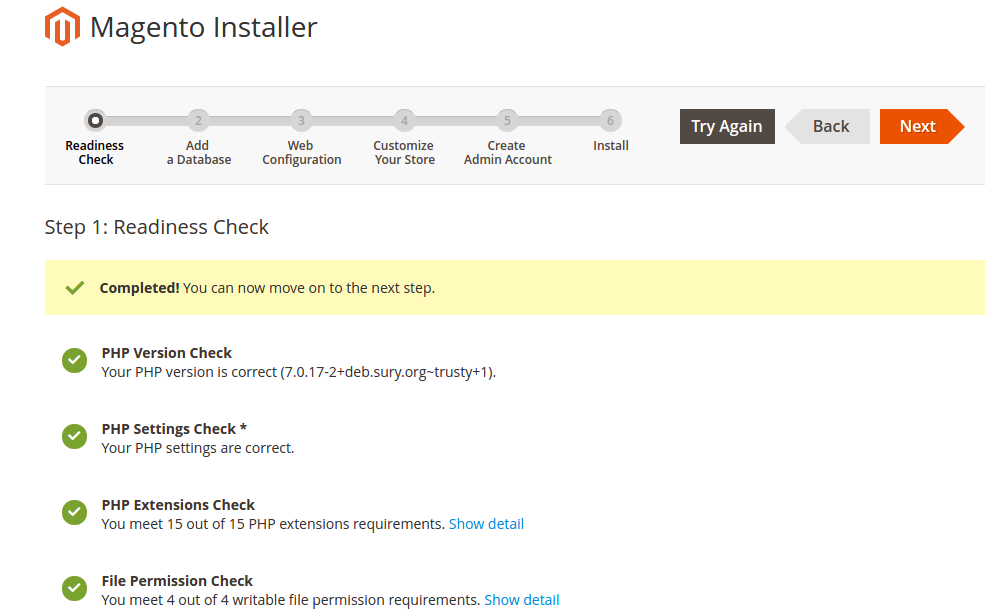
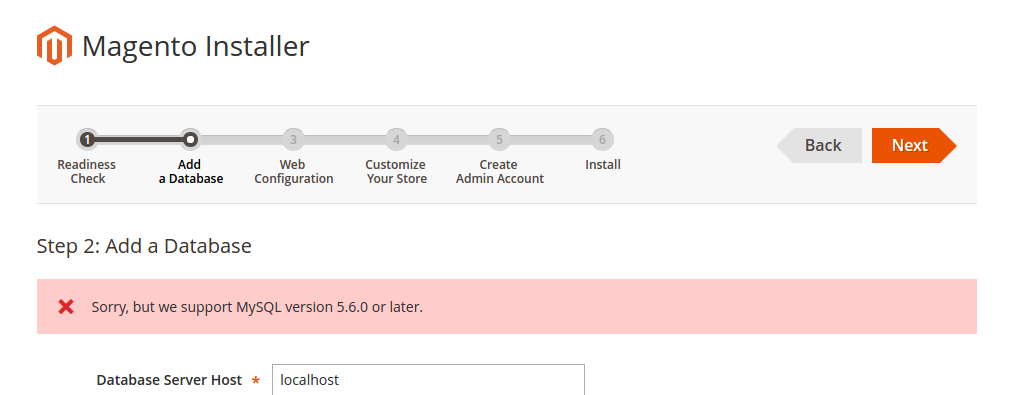
    Back to the browser then click ‘Try Again’ button at the top of the page. If everything okay, I’ll get this page.Then click ‘Next’ button. It’d bring you to the database setting page. That is my database setting. I already created a new database ‘magentoce215’ (utf8-general-ci) via phpmyadmin. Make sure the setting is correct! Then click ‘Next’ button. Oops! I have MySQL Server 5.5.54 that not supported by magento ce 2.1.5. It recommended to use MySQL 5.6.0 or later!SO I NEED TO UPGRADE THE MYSQL VERSION TO MYSQL 5.6.0 OR LATER? OK. I upgraded my MySQL server to 5.7 version. Now everything is fine. Then I got this screen about my local magento web configuration.magento url: http://localhost/works/magentoce215/
    magento admin url: http://localhost/works/magentoce215/admin_dgj2ff
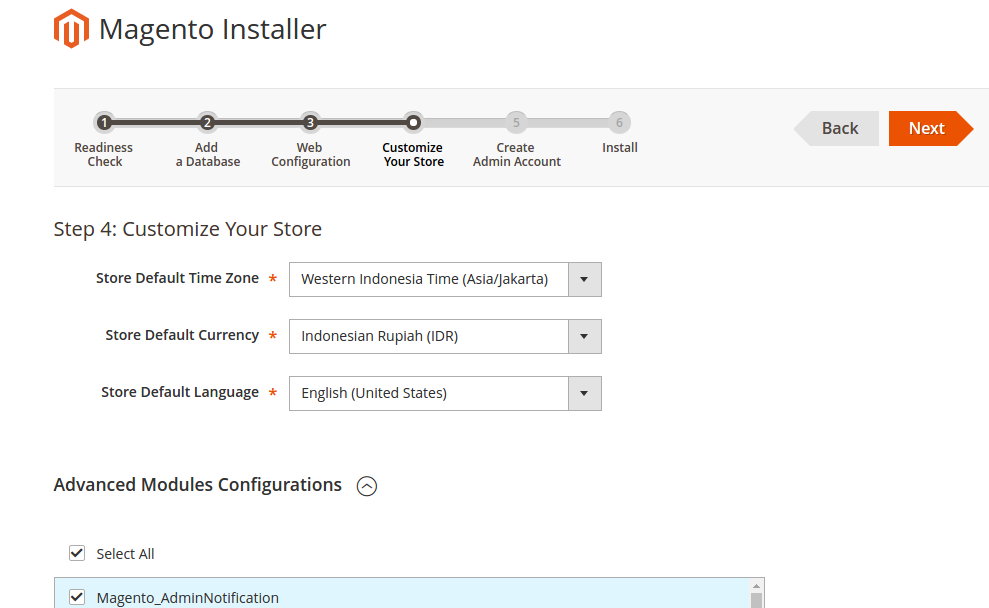
    Then click ‘Next’. Then I modify my store setting like this:I checked ‘Select All’ for ‘Advanced Modules Configuration’ because I want to use the samples data. Then click ‘Next’. Then fill out the admin form.SORRY, ONLY ADMIN CAN SHOW THIS!
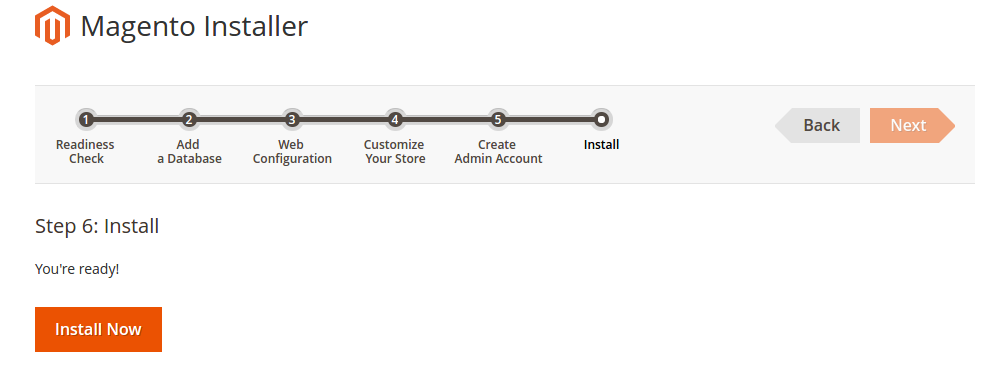
    Then click ‘Next’. This is the last page to install magento.Click ‘Install Now’ button. Wait until installation completed and you get the success page.SORRY, ONLY ADMIN CAN SHOW THIS!
    It’s recommended for security, remove write permissions from these directories: ‘/home/teddy/Documents/works/magentoce215/app/etc’.
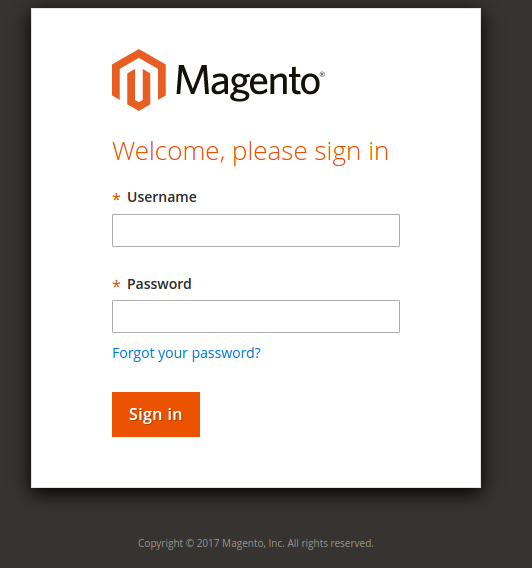
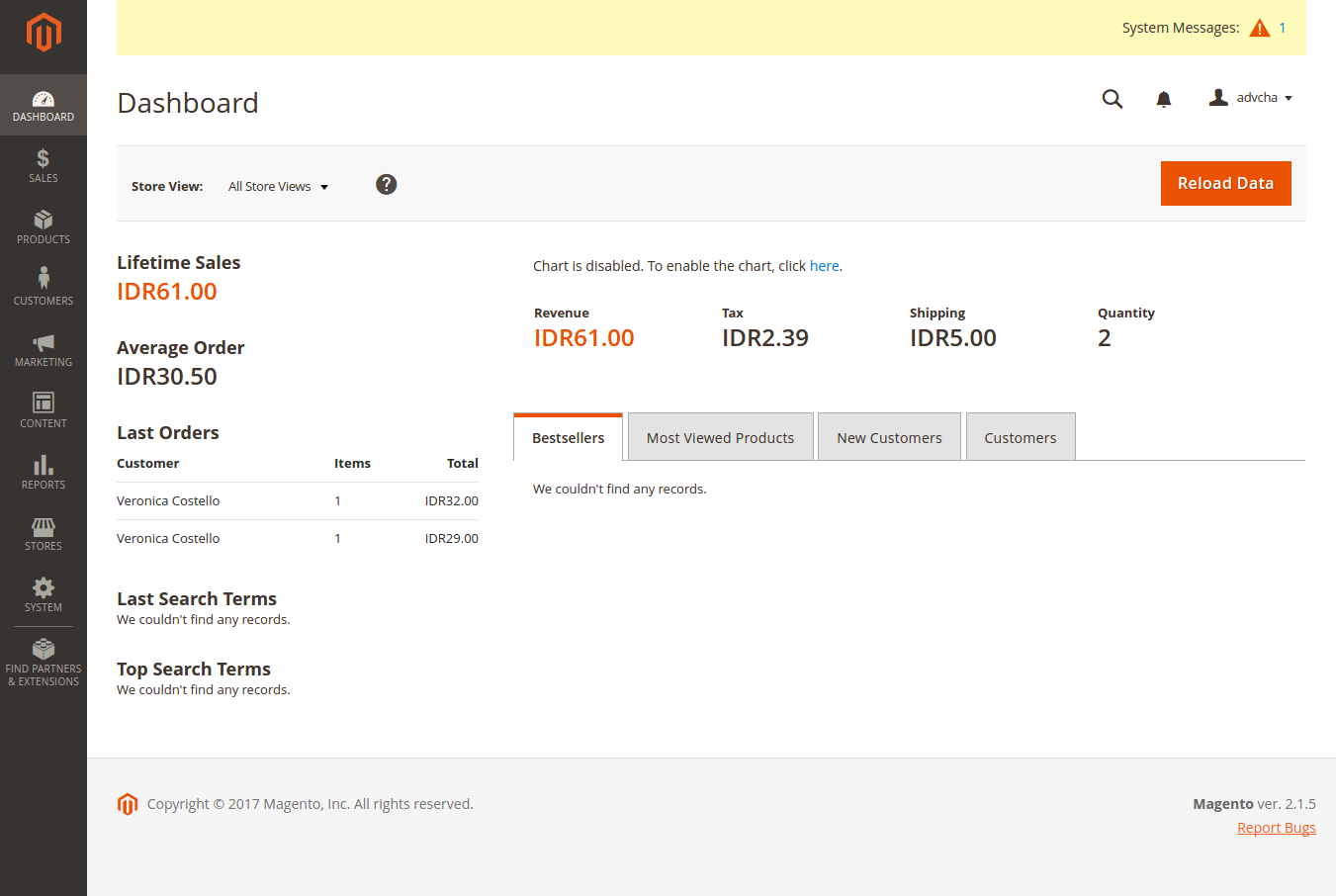
    When ‘Launch Magento Admin’ button is clicked, it’d go to the admin page (http://localhost/works/magentoce215/admin_dgj2ff).Use your correct username and password to sign in. Here is the main admin page.Somehow I got an error like this:“One or more indexers are invalid. Make sure your Magento cron job is running.”. I think no need to worry right now.
    Here is the main page (http://localhost/works/magentoce215/) looks:
  5. Use VirtualHost
    I prefer to use virtualhost so I can open this magento with more pleasing url like http://magentoce215.dev. Here is the step:
    Create an apache file configuration:

    Here is the file content:

    Enable the site:

    Put the url in hosts file

    Here is the line:

    Restart apache server

    We need to clean and flush the cache and build and deploy the static files:

    Test it on your browser: http://magentoce215.dev
    If there is no change on the url and still use the url:  http://localhost/works/magentoce215, we need to update ‘base-url’ and ‘base-url-secure’ (ref: http://blog.netgloo.com/2016/05/13/magento-2-change-base-url-using-the-command-line/) like this:

    Test it again on your browser: http://magentoce215.dev and the admin url is http://magentoce215.dev/admin_dgj2ff
  6. The looks are different with the version 1.X. Please read https://www.atwix.com/magento-2/magento-1-vs-magento-2/, https://www.shopping-cart-migration.com/blog/42-magento/43708-the-key-differences-between-magento-1x-and-20, https://www.apptha.com/blog/magento-1-vs-magento-2-for-building-multi-vendor-marketplace/, etc.
  7. Create a setup for nginx and php7.0-fpm
    Create the config file

    Here is the content:

    Enable file config

    Register the host on my system

    Like this:

    CHECK THE NGINX SETTING AND RESTART IT:


    Set file permission and owner:

    Test: http://magentoce215.test –> IT’S WORKING

Phalcon CMF: Yona E-commerce

Source: https://github.com/oleksandr-torosh/yona-ecommerce

Yona E-commerce
E-commerce CMF based on Phalcon PHP Framework

Installation:

  1. clone the github repository

    Note: The description on the github said to clone with ‘git clone git@githubcom:oleksandr-torosh/yona-ecommerce.git’ BUT IT GAVE ME ERROR (ALSO the git url IS WRONG! it is supposed to ‘@github.com…’ NOT ‘@githucom…’
  2. Go into ‘yona-ecommerce/’ directory then use composer to install the dependencies
  3. Use ‘bower install’

    I got an error “Error: Cannot find module ‘internal/fs'”. From this https://github.com/bower/bower/issues/2393, I tried to run bower locally ‘npm install bower’

    Then run ‘node_modules/bower/bin/bower install’

    But when I tried to run again ‘bower install’, the error still persist!
    Actually I continued to execute #4 and #5 below but I still curious about the bower!
    I checked my current node (7.2.1) and npm (3.10.10) version

    BUT I CAN’T CHECK BOWER VERSION. IT SHOWED THE SAME ERROR LIKE ABOVE!

    I read some clue like install node earlier version (downgrade) like version 4.1.1

    Now my node version is 4.1.1

    Update npm

    But ‘bower install’ still showed the same error!
    THE WORKING SOLUTION IS DOWNGRADE NODE TO VERSION 6.9.1! First clean npm cache and remove ‘node_modules’ directory!

    Install node v 6.9.1

    Install bower (locally???)

    Check bower version (bower -v) is working now

    Now ‘bower install’ run well (SAME WITH ‘node_modules/bower/bin/bower install’ ABOVE!)

    from ‘bower.json’. It’s a list of packages that required. ‘.bowerrc’ is a file to put the bower setting like where to put the downloaded packages. From the content of .bowerrc

    SO ‘bower install’ would download the packages and put its into /public/components/ directory of this website!
  4. Next, run ‘npm install -g less’

     
  5. Then run ‘npm install -g less-plugin-clean-css’

     
  6. Set the file permission (it may be not good but i have to set all files in ‘yona-ecommerce’ to 777)

     
  7. Run it on your browser (http://localhost/works/phalcon/yona-ecommerce/public/).
    OK. This yona-ecommerce still in early version (version 0.0.1???) so no much can be displayed. It only showed
    ‘Frontend
    index’
    The website setting in /config/.env file
    I can modify the frontend text in /app/views/frontend/index/index.volt file
    Also there is still no database (there is a migration file in /storage/migrations/ but I dont know how to do it. https://docs.phalconphp.com/en/latest/reference/migrations.html???)
    No much to learn from this BUT I THINK I CAN LEARN IT FROM YONA-CMS (The developer is same though)

Phalcon CMS: Yona CMS

Source: https://github.com/oleksandr-torosh/yona-cms
Installation:

  1. Use composer
  2. Go into ‘yona-cms’ dir then modify the files permission
  3. Create a new database ‘yona-cms’ via PHPMyAdmin
  4. Import the tables from ‘yona-cms.sql’ file (available in root yona-cms)
  5. Modify /app/config/environment/development.php file for the database name, password and change the ‘base_path’ that suit with my local environment

    It worth also to modify ‘phinx.yml’ file in the root of yona-cms
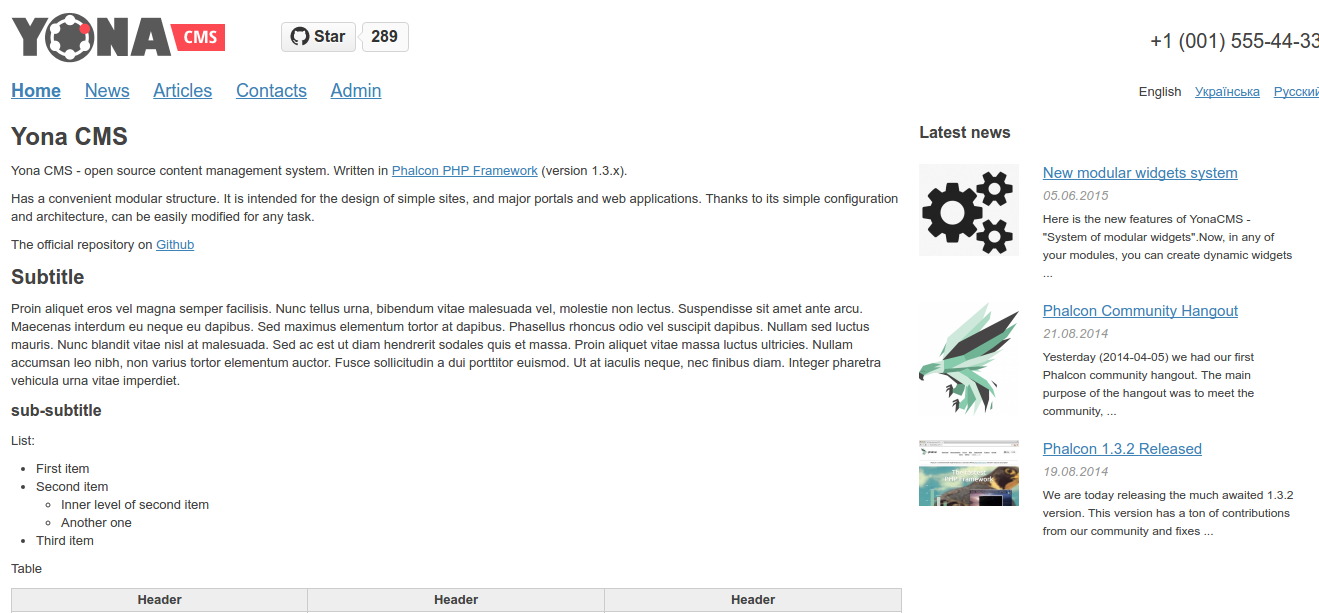
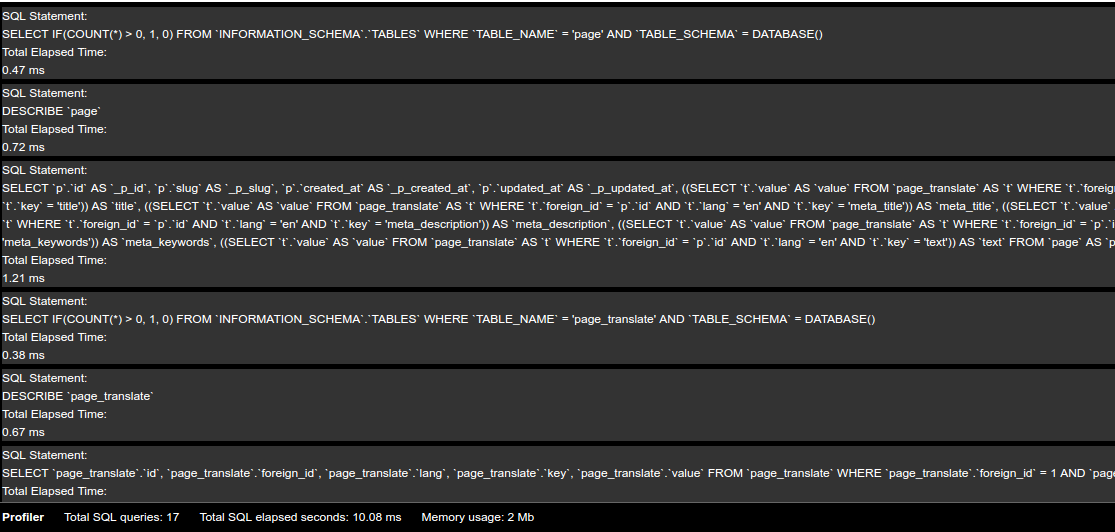
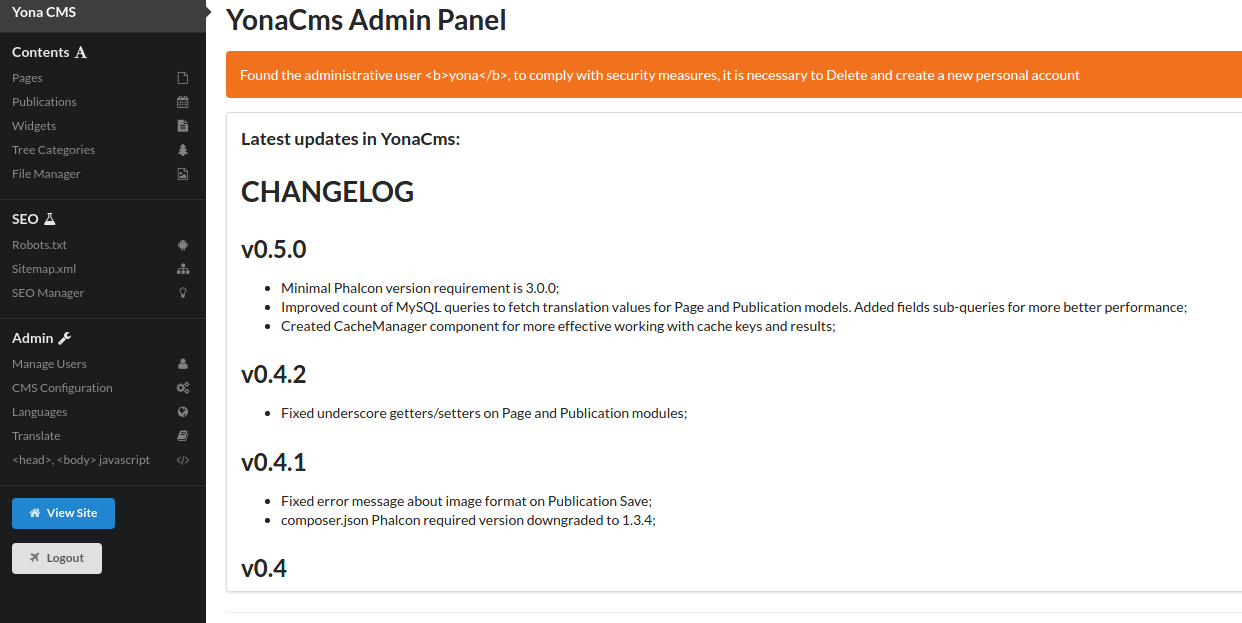
  6. Run it on your web browser (Mine: http://localhost/works/phalcon/yona-cms/public/)The good thing is it’d also display the profiler bar (for development mode) at the bottom of the websiteFor the admin page (user login: yona, password:yonacmsphalcon), http://localhost/works/phalcon/yona-cms/public/admin. Here is the looksI STILL DIDN’T UNDERSTAND WHERE IS THE FILE FOR SETTING $_SERVER[‘APPLICATION_ENV’]. THE DEFAULT VALUE IS ‘development’. I DEBUGGED IT IN /public/index.php FILE. I HAVE SEARCHED ALL IN THE PHP, YML AND DATABASE FILE BUT DIDN’T FIND IT. AT LAST I FOUND IT IN /public/.htaccess FILE!!! IT USE APACHE AND IT’S UNEXPECTED. HERE IS THE LINE

    CAN READ ALSO http://stackoverflow.com/questions/13784116/setting-environment-variables-with-the-built-in-php-web-server.

Phalcon Developer Tools on Linux

Reference: https://docs.phalconphp.com/en/latest/reference/linuxtools.html

Developer Tools
These tools are a collection of useful scripts to generate skeleton code. Core components of your application can be generated with a simple command, allowing you to easily develop applications using Phalcon.
Make sure the phalcon module already installed.

Installation of Phalcon Developer Tools for Linux:

  1. Clone the tools
  2. Go into the directory then execute ”. ./phalcon.sh”, (don’t forget the dot at beginning of the command):

    At the end I got an error “ERROR: Phalcon extension isn’t installed…”. This is may be because my php cli version (php version 7) is different with my default php (php version 5.6). From the previous article, I only install phalcon for php 5.6. So change the php version for cli (read again http://myprojects.advchaweb.com/index.php/2016/09/16/update-ppa-for-php/) like this:

    When I did the last error command, it’s working now

     
  3. Create a symbolink link to the phalcon.php script:

    I think ‘phalcon’ can be used from everywhere now. even I don’t need to execute this command anymore

    Here is the ‘phalcon’ command running at home directory:


Use Phalcon Developer Tools for Projects (ref: https://docs.phalconphp.com/en/latest/reference/tools.html):

  1. Create a project
    Note: To enable the web tools (for web GUI) , add the ‘–enable-webtools’ after the project name

    SO it just not ‘phalcon create-project store’
  2. Open it on your browser (http://localhost/works/phalcon/store/). But I got this error:

    From this forum: https://forum.phalconphp.com/discussion/15389/volt-directory-cant-be-written, I tried to modify the files permission to ‘664’

    Then refresh, got another error:

    Now try to modify to ‘777’.

    Then refresh again AND IT’S WORKING NOW (http://localhost/works/phalcon/store/)

    The web tools (make sure you create your project with the webtools enabled)
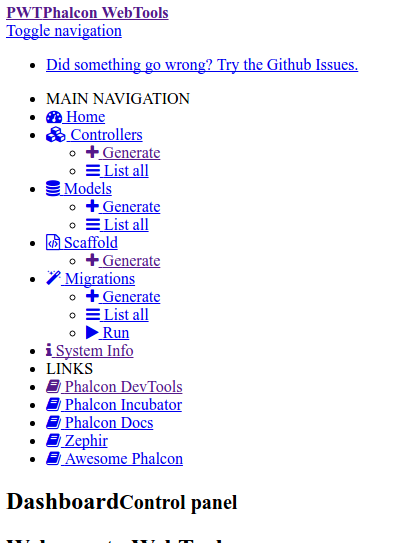
    Open it on your browser http://localhost/works/phalcon/store/public/webtools.php. If you get the display like thisIt means the css and js file can’t be loaded properly. From this link: https://forum.phalconphp.com/discussion/15111/webtools-can-not-load-css-if-using-different-baseuri, I need to modify /app/config/config.php and add ‘staticUri’ like this:

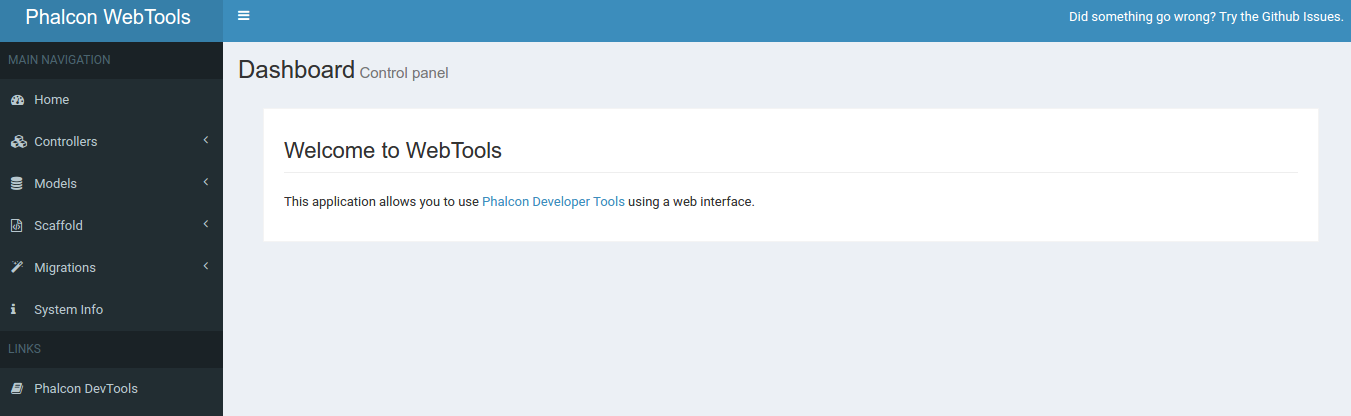
    Then refresh again your browser (http://localhost/works/phalcon/store/public/webtools.php), Here is the displayNOTE: I FOUND ONLY ‘controller’ COMMAND IS WORKING, BUT ‘model’ and ‘scaffold’ COMMANDS IS NOT WORKING! I ALSO TRIED THE COMMAND LIKE ‘phalcon model products’ AND IT DON’T WORK. I THINK THE PROBLEM IN THE DEV TOOLS! I put this issue in phalcon github (https://github.com/phalcon/phalcon-devtools/issues/976): Cannot create model via devtools but can create controller
    “I can create controller via the devtools (and webtools) but I can’t create model. Here is the command:

    $ phalcon model products

    The result:

    Phalcon DevTools (3.0.4)
    Error: Table “products” does not exist.

    I also can’t do it via webtools. I fill the form like the table name and click ‘Generate’. The weird thing happened. it said ‘Models were created successfully’ but I see nothing.

    I also found the url for the webtools is a bit weird (it’s working though). when I opened it the first time, the url is like this: http://localhost/works/phalcon/store/public/webtools.php
    but after i clicked the others links (do some stuff on controllers, models, system info, etc), the ‘/webtools.php/’ keep added and make the url longer, so it’d be like this: http://localhost/works/phalcon/store/public/webtools.php/webtools.php/webtools.php/webtools.php/webtools.php?_url=/controllers/list.

    Info:
    Phalcon DevTools Version: 3.0.4
    Phalcon Version: 3.0.3
    AdminLTE Version: 2.3.6
    OS: Linux teddy-K43SJ 4.4.0-62-generic #83 14.04.1-Ubuntu SMP Wed Jan 18 18:10:30 UTC 2017 x86_64
    PHP Version: 5.6.30-1+deb.sury.org~trusty+1
    PHP SAPI: apache2handler”
    I’M WAITING THE ANSWER!!!

    Test Phalcon (https://docs.phalconphp.com/en/latest/reference/tools.html)
    Generating Controllers

    The command “create-controller” generates controller skeleton structures. It’s important to invoke this command inside a directory that already has a Phalcon project.

    This is the content of /store/app/controllers/TestController.php

    Modify the above controller like this:

    Then open it on your browser: http://localhost/works/phalcon/store/test
    Result of the test controller:
    Create a new database ‘phalcon_store’ (via phpmyadmin)
    Preparing Database Settings
    When a project is generated using developer tools. A configuration file can be found in app/config/config.php (NOT config.ini file).

    To generate models or scaffold, you will need to change the settings used to connect to your database. I CAN’T USE DEVTOOL FOR CREATING MODEL LIKE I SAID ABOVE, SO I’LL DO IT MANUALLY! SO create a new file ‘Products.php’ in /app/models/ directory. I also added setter/getter methods

    SCAFFOLD ALSO SEEMS DONT WORK VIA DEVTOOLS!

    SO FOR SAVING TIME, I DOWNLOAD THE WORKING CODE FROM https://github.com/gsokolowski/ph-store. –> THE LOOKS STILL SAME WITH MINE. NO DIFFERENT. ONLY SHOW ‘Congratulation.
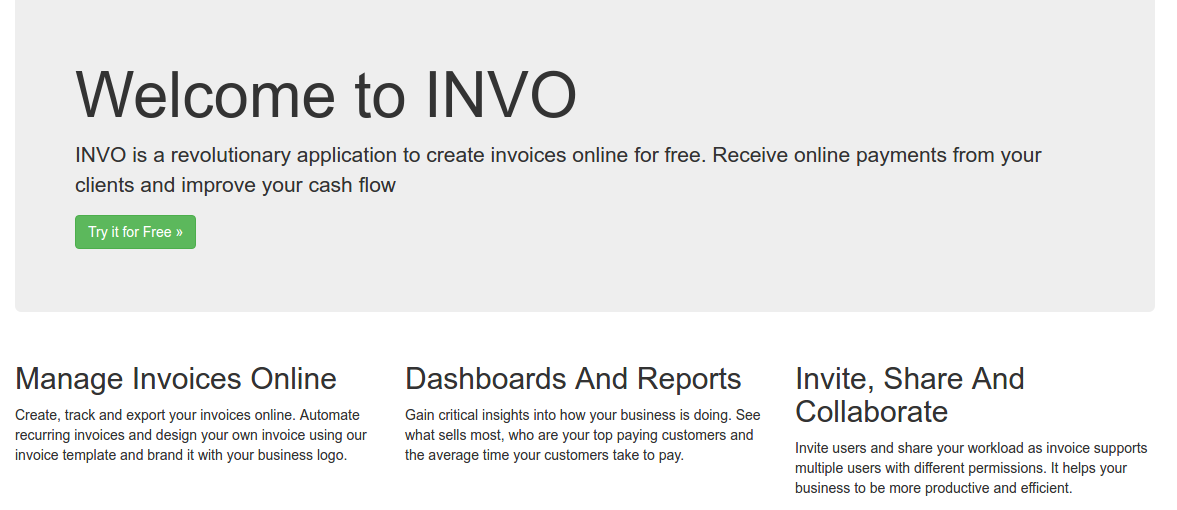
    HERE IS LOCAL PHALCON PROJECT WORKING: http://localhost/works/phalcon/invo. –>LEARN THIS!

    NOTES:
    I found when the first time the page is loaded (index.php in /public/ dir), it’d be referred to /app/views/index.volt. then content “{{ content }}” would be picked up from /app/views/index/index.volt. We can modify this file to change the frontend content

    Here is the looks (http://localhost/works/phalcon/store/)


Phalcon Compilation and Installation on Ubuntu 14.04

Reference: https://phalconphp.com/en/download
How To Install Phalcon PHP Framework on Ubuntu 14.10, 14.04 & 12.04
Phalcon is a C extension, so you need to download a binary for your platform or compile it from source code (SO INSTALL THE BINARY OR COMPILE! CHOOSE ONLY OF THEM!).
Installation on Ubuntu 14.04:

Install the binary (the easiest way but it don’t mean it’d be working!)

Install the package

SO the installation is failed! I got the above error. May be because Ubuntu 14.04 has not been supported yet (https://forum.phalconphp.com/discussion/6217/ubuntu-cant-install-phalcon). SO IT’S TIME TO COMPILE THE SOURCE!
But before installing the source, we need some required packages. Check those packages if they haven’t been installed in your machine. My ubuntu 14.04 already has ‘python-software-properties’, ‘software-properties-common’, ‘php5-dev’, ‘php5-mysql’, ‘gcc’ and ‘libpcre3-dev’. So now I just need to compile the phalcon source code:

  1. Clone the phalcon code
  2. Go into the ‘cphalcon/build’ directory

     
  3. then install

    OK. It takes a while to install it. It recommended to install apache web server.
  4. Then Create phalcon.ini file in /etc/php/5.6/mods-available/ directory (because I use php 5.6)

    Then type ‘extension=phalcon.so’ (WITHOUT QUOTE!)
    That mean we can use ‘phalcon’ in PHP 5.6 ONLY! TO enable the mod in the others php version, we can use the same method!
    No need to use command ‘sudo phpenmod phalcon’ anymore!
    NOTE: Somehow I can’t use this command instead of the above

    I also tried to write the extension directly in ‘/etc/php/5.6/apache2/php.ini’ but apache showed error when trying to restart it!
  5. Then restart the apache web server

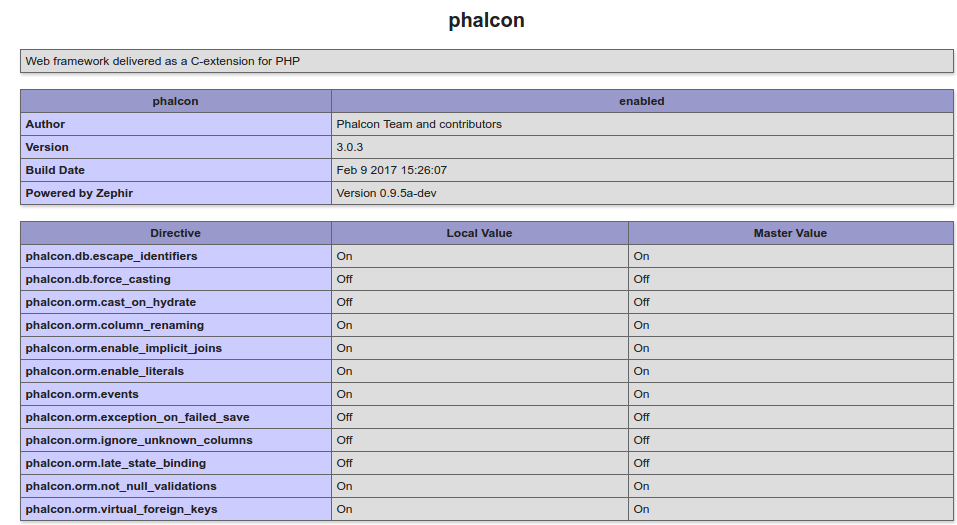
    If there is no error, then check it on php_info()I CAN ALSO CHECK THE MODULES INSTALLED FROM COMMAND TERMINAL:

    SO COMPILATION AND INSTALLATION SUCCESS!
    TO TRY AND LEARN PHALCON DEEPER (CMS, BLOG, LOGIN, ETC), THIS IS A GOOD COMPILATION: https://github.com/sergeyklay/awesome-phalcon.

REST API OAuth PHP Client Best Practice and Dissection

  1. WooCommerce REST API PHP Client Library
    “A PHP wrapper for the WooCommerce REST API. Easily interact with the WooCommerce REST API using this library.”
    PHP Client: https://github.com/kloon/WooCommerce-REST-API-Client-Library
    It still supports the OAuth 1 one-legged (use consumer key and secret for the authentication), limited OOP, no test
    Tutorial: https://www.skyverge.com/blog/using-woocommerce-rest-api-introduction/
    https://www.skyverge.com/blog/using-woocommerce-rest-api-orders-endpoint/ (complete with curl and Http implementations and samples result)
    Great tutorial to use/extend woocommerce: https://www.skyverge.com/blog/category/tutorials/woocommerce-tutorials/.

PDF TO TEXT CONVERTER

Reference: http://okfnlabs.org/blog/2016/04/19/pdf-tools-extract-text-and-data-from-pdfs.html

I already tested and installed a few good open source code, like pdfparser, pdfbox and pdfminer.

PDFPARSER:


  1. clone from https://github.com/smalot/pdfparser
  2. composer install
  3. test by creating a new file index.php in /works/pdfparser/index.php

    NOT GOOD!


PDFBOX:

  1. clone from https://github.com/schmengler/PdfBox
  2. composer install
  3. download jarfile  from http://pdfbox.apache.org/index.html (pdfbox-app-2.4.0.jar)
    then move it to /usr/bin
  4. test by creating a new file index.php in /works/PdfBox/index.php

    BUT NEVER WORKS BECAUSE ALWAYS COMPLAIN ABOUT ‘RUNTIME ERROR CANNOT ACCESS JARFILE’. ALREADY SET PERMISSION BUT THE ERROR STILL PERSIST. SO I RUN THE JAR VIA TERMINAL (READ: http://pdfbox.apache.org/2.0/commandline.html)

    BUT NOT GOOD!

PDFMINER INSTALLATION:
It use python 2.7

  1. clone from the source (https://github.com/euske/pdfminer/)
  2. Run setup.py

    Here I have to use ‘sudo’ to install because I got permission problem without it
  3. Test

    BEST OF THE OTHERS BUT STILL NOT GOOD! SELECT ALL THE TEXT THEN COPY PASTE STILL BETTER!

I TRIED TO INSTALL TESSERACT BUT EVEN WORSE THEN ABOVE!!!