Source: https://github.com/oleksandr-torosh/yona-ecommerce
Yona E-commerce
E-commerce CMF based on Phalcon PHP Framework
Installation:
- clone the github repository
12345678teddy@teddy-K43SJ:~/Documents/works/phalcon$ git clone https://github.com/oleksandr-torosh/yona-ecommerce.gitCloning into 'yona-ecommerce'...remote: Counting objects: 197, done.remote: Compressing objects: 100% (95/95), done.remote: Total 197 (delta 58), reused 197 (delta 58), pack-reused 0Receiving objects: 100% (197/197), 36.59 KiB | 0 bytes/s, done.Resolving deltas: 100% (58/58), done.Checking connectivity... done.
Note: The description on the github said to clone with ‘git clone git@githubcom:oleksandr-torosh/yona-ecommerce.git’ BUT IT GAVE ME ERROR (ALSO the git url IS WRONG! it is supposed to ‘@github.com…’ NOT ‘@githucom…’
12345678teddy@teddy-K43SJ:~/Documents/works/phalcon$ git clone git@github.com:oleksandr-torosh/yona-ecommerce.gitCloning into 'yona-ecommerce'...Warning: Permanently added the RSA host key for IP address '192.30.253.113' to the list of known hosts.Permission denied (publickey).fatal: Could not read from remote repository.Please make sure you have the correct access rightsand the repository exists. - Go into ‘yona-ecommerce/’ directory then use composer to install the dependencies
12345678910111213141516171819202122232425262728293031323334353637383940414243444546474849505152535455565758596061teddy@teddy-K43SJ:~/Documents/works/phalcon/yona-ecommerce$ composer installYou are running composer with xdebug enabled. This has a major impact on runtime performance. See https://getcomposer.org/xdebugLoading composer repositories with package informationUpdating dependencies (including require-dev)- Installing symfony/yaml (v3.2.3)Loading from cache- Installing psr/log (1.0.2)Loading from cache- Installing symfony/debug (v3.2.3)Loading from cache- Installing symfony/polyfill-mbstring (v1.3.0)Loading from cache- Installing symfony/console (v3.2.3)Loading from cache- Installing symfony/filesystem (v3.2.3)Loading from cache- Installing symfony/config (v3.2.3)Loading from cache- Installing robmorgan/phinx (dev-master d575d4c)Cloning d575d4c6c4685be1213673be314d1b15d56f51be- Installing league/flysystem (dev-master dda7f3a)Cloning dda7f3ab94158a002d9846a97dc18ebfb7acc062- Installing vlucas/phpdotenv (v2.4.0)Loading from cache- Installing guzzlehttp/promises (v1.3.1)Loading from cache- Installing psr/http-message (1.0.1)Loading from cache- Installing guzzlehttp/psr7 (1.3.1)Loading from cache- Installing guzzlehttp/guzzle (6.2.2)Loading from cachesymfony/console suggests installing symfony/event-dispatcher ()symfony/console suggests installing symfony/process ()league/flysystem suggests installing league/flysystem-aws-s3-v2 (Allows you to use S3 storage with AWS SDK v2)league/flysystem suggests installing league/flysystem-aws-s3-v3 (Allows you to use S3 storage with AWS SDK v3)league/flysystem suggests installing league/flysystem-azure (Allows you to use Windows Azure Blob storage)league/flysystem suggests installing league/flysystem-cached-adapter (Flysystem adapter decorator for metadata caching)league/flysystem suggests installing league/flysystem-copy (Allows you to use Copy.com storage)league/flysystem suggests installing league/flysystem-dropbox (Allows you to use Dropbox storage)league/flysystem suggests installing league/flysystem-eventable-filesystem (Allows you to use EventableFilesystem)league/flysystem suggests installing league/flysystem-rackspace (Allows you to use Rackspace Cloud Files)league/flysystem suggests installing league/flysystem-sftp (Allows you to use SFTP server storage via phpseclib)league/flysystem suggests installing league/flysystem-webdav (Allows you to use WebDAV storage)league/flysystem suggests installing league/flysystem-ziparchive (Allows you to use ZipArchive adapter)Writing lock fileGenerating autoload files - Use ‘bower install’
12345678910111213141516teddy@teddy-K43SJ:~/Documents/works/phalcon/yona-ecommerce$ bower installmodule.js:472throw err;^Error: Cannot find module 'internal/fs'at Function.Module._resolveFilename (module.js:470:15)at Function.Module._load (module.js:418:25)at Module.require (module.js:498:17)at require (internal/module.js:20:19)at evalmachine.<anonymous>:17:20at Object.<anonymous> (/usr/lib/node_modules/bower/node_modules/graceful-fs/fs.js:11:1)at Module._compile (module.js:571:32)at Object.Module._extensions..js (module.js:580:10)at Module.load (module.js:488:32)at tryModuleLoad (module.js:447:12)
I got an error “Error: Cannot find module ‘internal/fs'”. From this https://github.com/bower/bower/issues/2393, I tried to run bower locally ‘npm install bower’
123456789teddy@teddy-K43SJ:~/Documents/works/phalcon/yona-ecommerce$ npm install bower/home/teddy/Documents/works/phalcon/yona-ecommerce└── bower@1.8.0npm WARN enoent ENOENT: no such file or directory, open '/home/teddy/Documents/works/phalcon/yona-ecommerce/package.json'npm WARN yona-ecommerce No descriptionnpm WARN yona-ecommerce No repository field.npm WARN yona-ecommerce No README datanpm WARN yona-ecommerce No license field.
Then run ‘node_modules/bower/bin/bower install’
123456789101112131415161718192021222324252627282930313233343536373839404142434445464748495051525354555657585960616263646566676869707172737475767778798081828384858687888990919293949596979899100101teddy@teddy-K43SJ:~/Documents/works/phalcon/yona-ecommerce$ node_modules/bower/bin/bower installbower not-cached https://github.com/cloudfour/hideShowPassword.git#*bower resolve https://github.com/cloudfour/hideShowPassword.git#*bower not-cached https://github.com/browserstate/history.js.git#*bower resolve https://github.com/browserstate/history.js.git#*bower not-cached https://github.com/FortAwesome/Font-Awesome.git#*bower resolve https://github.com/FortAwesome/Font-Awesome.git#*bower not-cached https://github.com/lodash/lodash.git#*bower resolve https://github.com/lodash/lodash.git#*bower not-cached https://github.com/aFarkas/html5shiv.git#*bower resolve https://github.com/aFarkas/html5shiv.git#*bower not-cached https://github.com/zeroclipboard/zeroclipboard.git#*bower resolve https://github.com/zeroclipboard/zeroclipboard.git#*bower not-cached https://github.com/jquery/jquery-dist.git#*bower resolve https://github.com/jquery/jquery-dist.git#*bower not-cached https://github.com/johnpapa/toastr-bower.git#*bower resolve https://github.com/johnpapa/toastr-bower.git#*bower not-cached https://github.com/less/less.git#*bower resolve https://github.com/less/less.git#*bower not-cached https://github.com/scottjehl/Respond.git#*bower resolve https://github.com/scottjehl/Respond.git#*bower not-cached https://github.com/Semantic-Org/Semantic-UI.git#2.*bower resolve https://github.com/Semantic-Org/Semantic-UI.git#2.*bower download https://github.com/browserstate/history.js/archive/1.8.0.tar.gzbower download https://github.com/aFarkas/html5shiv/archive/3.7.3.tar.gzbower download https://github.com/FortAwesome/Font-Awesome/archive/v4.7.0.tar.gzbower download https://github.com/lodash/lodash/archive/4.17.4.tar.gzbower download https://github.com/jquery/jquery-dist/archive/3.1.1.tar.gzbower download https://github.com/zeroclipboard/zeroclipboard/archive/v2.3.0.tar.gzbower download https://github.com/johnpapa/toastr-bower/archive/2.1.3.tar.gzbower download https://github.com/less/less/archive/v2.7.2.tar.gzbower extract html5shiv#* archive.tar.gzbower resolved https://github.com/aFarkas/html5shiv.git#3.7.3bower download https://github.com/Semantic-Org/Semantic-UI/archive/2.2.7.tar.gzbower extract toastr#* archive.tar.gzbower resolved https://github.com/johnpapa/toastr-bower.git#2.1.3bower not-cached https://github.com/jquery/jquery-dist.git#>=1.6.3 <3bower resolve https://github.com/jquery/jquery-dist.git#>=1.6.3 <3bower download https://github.com/jquery/jquery-dist/archive/2.2.4.tar.gzbower extract lodash#* archive.tar.gzbower extract zeroclipboard#* archive.tar.gzbower extract history.js#* archive.tar.gzbower resolved https://github.com/zeroclipboard/zeroclipboard.git#2.3.0bower extract jquery#* archive.tar.gzbower resolved https://github.com/lodash/lodash.git#4.17.4bower resolved https://github.com/browserstate/history.js.git#1.8.0bower resolved https://github.com/jquery/jquery-dist.git#3.1.1bower extract jquery#>=1.6.3 <3 archive.tar.gzbower resolved https://github.com/jquery/jquery-dist.git#2.2.4bower extract semantic#2.* archive.tar.gzbower resolved https://github.com/Semantic-Org/Semantic-UI.git#2.2.7bower retry Download of https://github.com/FortAwesome/Font-Awesome/archive/v4.7.0.tar.gz failed with ETIMEDOUT, retrying in 1.1sbower retry Download of https://github.com/less/less/archive/v2.7.2.tar.gz failed with ETIMEDOUT, retrying in 1.3sbower extract less#* archive.tar.gzbower resolved https://github.com/less/less.git#2.7.2bower retry Download of https://github.com/FortAwesome/Font-Awesome/archive/v4.7.0.tar.gz failed with ETIMEDOUT, retrying in 2.7sbower retry Download of https://github.com/FortAwesome/Font-Awesome/archive/v4.7.0.tar.gz failed with ETIMEDOUT, retrying in 7.2sbower extract font-awesome#* archive.tar.gzbower resolved https://github.com/FortAwesome/Font-Awesome.git#4.7.0bower download https://github.com/cloudfour/hideShowPassword/archive/v2.0.11.tar.gzbower extract hideshowpassword#* archive.tar.gzbower resolved https://github.com/cloudfour/hideShowPassword.git#2.0.11bower download https://github.com/scottjehl/Respond/archive/1.4.2.tar.gzbower extract respond#* archive.tar.gzbower resolved https://github.com/scottjehl/Respond.git#1.4.2bower install html5shiv#3.7.3bower install toastr#2.1.3bower install zeroclipboard#2.3.0bower install lodash#4.17.4bower install history.js#1.8.0bower install jquery#2.2.4bower install semantic#2.2.7bower install less#2.7.2bower install font-awesome#4.7.0bower install hideshowpassword#2.0.11bower install respond#1.4.2html5shiv#3.7.3 public/components/html5shivtoastr#2.1.3 public/components/toastr└── jquery#2.2.4zeroclipboard#2.3.0 public/components/zeroclipboardlodash#4.17.4 public/components/lodashhistory.js#1.8.0 public/components/history.jsjquery#2.2.4 public/components/jquerysemantic#2.2.7 public/components/semantic└── jquery#2.2.4less#2.7.2 public/components/lessfont-awesome#4.7.0 public/components/font-awesomehideshowpassword#2.0.11 public/components/hideshowpassword└── jquery#2.2.4respond#1.4.2 public/components/respond
But when I tried to run again ‘bower install’, the error still persist!
Actually I continued to execute #4 and #5 below but I still curious about the bower!
I checked my current node (7.2.1) and npm (3.10.10) version
1234teddy@teddy-K43SJ:~/Documents/works/phalcon/yona-ecommerce$ node -vv7.2.1teddy@teddy-K43SJ:~/Documents/works/phalcon/yona-ecommerce$ npm -v3.10.10
BUT I CAN’T CHECK BOWER VERSION. IT SHOWED THE SAME ERROR LIKE ABOVE!
1234567teddy@teddy-K43SJ:~/Documents/works/phalcon/yona-ecommerce$ bower -vmodule.js:472throw err;^Error: Cannot find module 'internal/fs'...
I read some clue like install node earlier version (downgrade) like version 4.1.1
1234567teddy@teddy-K43SJ:~/Documents/works/phalcon/yona-ecommerce$ sudo n 4.1.1install : node-v4.1.1mkdir : /usr/local/n/versions/node/4.1.1fetch : https://nodejs.org/dist/v4.1.1/node-v4.1.1-linux-x64.tar.gz# ... 9######################################################################## 100,0%installed : v4.1.1
Now my node version is 4.1.1
12teddy@teddy-K43SJ:~/Documents/works/phalcon/yona-ecommerce$ node -vv4.1.1
Update npm
12teddy@teddy-K43SJ:~/Documents/works/phalcon/yona-ecommerce$ sudo npm update -g/usr/local/bin/npm -> /usr/local/lib/node_modules/npm/bin/npm-cli.js
But ‘bower install’ still showed the same error!
THE WORKING SOLUTION IS DOWNGRADE NODE TO VERSION 6.9.1! First clean npm cache and remove ‘node_modules’ directory!
12teddy@teddy-K43SJ:~/Documents/works/phalcon/yona-ecommerce$ npm cache cleanteddy@teddy-K43SJ:~/Documents/works/phalcon/yona-ecommerce$ rm -rf node_modules
Install node v 6.9.1
1234567teddy@teddy-K43SJ:~/Documents/works/phalcon/yona-ecommerce$ sudo n 6.9.1install : node-v6.9.1mkdir : /usr/local/n/versions/node/6.9.1fetch : https://nodejs.org/dist/v6.9.1/node-v6.9.1-linux-x64.tar.gz# ... 9######################################################################## 100,0%installed : v6.9.1
Install bower (locally???)
1234teddy@teddy-K43SJ:~/Documents/works/phalcon/yona-ecommerce$ sudo npm install -g bower/usr/local/bin/bower -> /usr/local/lib/node_modules/bower/bin/bower/usr/local/lib└── bower@1.8.0
Check bower version (bower -v) is working now
12teddy@teddy-K43SJ:~/Documents/works/phalcon/yona-ecommerce$ bower -v1.7.2
Now ‘bower install’ run well (SAME WITH ‘node_modules/bower/bin/bower install’ ABOVE!)
12345678910111213141516171819202122232425262728293031323334353637383940414243444546474849505152535455565758596061teddy@teddy-K43SJ:~/Documents/works/phalcon/yona-ecommerce$ bower installbower cached https://github.com/aFarkas/html5shiv.git#3.7.3bower validate 3.7.3 against https://github.com/aFarkas/html5shiv.git#*bower cached https://github.com/jquery/jquery-dist.git#3.1.1bower validate 3.1.1 against https://github.com/jquery/jquery-dist.git#*bower cached https://github.com/less/less.git#2.7.2bower validate 2.7.2 against https://github.com/less/less.git#*bower cached https://github.com/Semantic-Org/Semantic-UI.git#2.2.7bower validate 2.2.7 against https://github.com/Semantic-Org/Semantic-UI.git#2.*bower cached https://github.com/scottjehl/Respond.git#1.4.2bower validate 1.4.2 against https://github.com/scottjehl/Respond.git#*bower cached https://github.com/lodash/lodash.git#4.17.4bower validate 4.17.4 against https://github.com/lodash/lodash.git#*bower cached https://github.com/FortAwesome/Font-Awesome.git#4.7.0bower validate 4.7.0 against https://github.com/FortAwesome/Font-Awesome.git#*bower cached https://github.com/johnpapa/toastr-bower.git#2.1.3bower validate 2.1.3 against https://github.com/johnpapa/toastr-bower.git#*bower cached https://github.com/zeroclipboard/zeroclipboard.git#2.3.0bower validate 2.3.0 against https://github.com/zeroclipboard/zeroclipboard.git#*bower cached https://github.com/browserstate/history.js.git#1.8.0bower validate 1.8.0 against https://github.com/browserstate/history.js.git#*bower cached https://github.com/cloudfour/hideShowPassword.git#2.0.11bower validate 2.0.11 against https://github.com/cloudfour/hideShowPassword.git#*bower cached https://github.com/jquery/jquery-dist.git#2.2.4bower validate 2.2.4 against https://github.com/jquery/jquery-dist.git#>=1.6.3 <3bower install respond#1.4.2bower install html5shiv#3.7.3bower install jquery#2.2.4bower install semantic#2.2.7bower install less#2.7.2bower install toastr#2.1.3bower install zeroclipboard#2.3.0bower install font-awesome#4.7.0bower install history.js#1.8.0bower install lodash#4.17.4bower install hideshowpassword#2.0.11respond#1.4.2 public/components/respondhtml5shiv#3.7.3 public/components/html5shivjquery#2.2.4 public/components/jquerysemantic#2.2.7 public/components/semantic└── jquery#2.2.4less#2.7.2 public/components/lesstoastr#2.1.3 public/components/toastr└── jquery#2.2.4zeroclipboard#2.3.0 public/components/zeroclipboardfont-awesome#4.7.0 public/components/font-awesomehistory.js#1.8.0 public/components/history.jslodash#4.17.4 public/components/lodashhideshowpassword#2.0.11 public/components/hideshowpassword└── jquery#2.2.4
from ‘bower.json’. It’s a list of packages that required. ‘.bowerrc’ is a file to put the bower setting like where to put the downloaded packages. From the content of .bowerrc
123{"directory": "public/components/"}
SO ‘bower install’ would download the packages and put its into /public/components/ directory of this website! - Next, run ‘npm install -g less’
123456789101112131415161718192021222324252627282930313233343536373839404142434445464748495051525354555657585960616263646566676869707172737475767778teddy@teddy-K43SJ:~/Documents/works/phalcon/yona-ecommerce$ sudo npm install -g less[sudo] password for teddy:/usr/local/bin/lessc -> /usr/local/lib/node_modules/less/bin/lessc/usr/local/lib└─┬ less@2.7.2├─┬ errno@0.1.4│ └── prr@0.0.0├── graceful-fs@4.1.11├── image-size@0.5.1├── mime@1.3.4├─┬ mkdirp@0.5.1│ └── minimist@0.0.8├─┬ promise@7.1.1│ └── asap@2.0.5├─┬ request@2.79.0│ ├── aws-sign2@0.6.0│ ├── aws4@1.6.0│ ├── caseless@0.11.0│ ├─┬ combined-stream@1.0.5│ │ └── delayed-stream@1.0.0│ ├── extend@3.0.0│ ├── forever-agent@0.6.1│ ├─┬ form-data@2.1.2│ │ └── asynckit@0.4.0│ ├─┬ har-validator@2.0.6│ │ ├─┬ chalk@1.1.3│ │ │ ├── ansi-styles@2.2.1│ │ │ ├── escape-string-regexp@1.0.5│ │ │ ├─┬ has-ansi@2.0.0│ │ │ │ └── ansi-regex@2.1.1│ │ │ ├── strip-ansi@3.0.1│ │ │ └── supports-color@2.0.0│ │ ├─┬ commander@2.9.0│ │ │ └── graceful-readlink@1.0.1│ │ ├─┬ is-my-json-valid@2.15.0│ │ │ ├── generate-function@2.0.0│ │ │ ├─┬ generate-object-property@1.2.0│ │ │ │ └── is-property@1.0.2│ │ │ ├── jsonpointer@4.0.1│ │ │ └── xtend@4.0.1│ │ └─┬ pinkie-promise@2.0.1│ │ └── pinkie@2.0.4│ ├─┬ hawk@3.1.3│ │ ├── boom@2.10.1│ │ ├── cryptiles@2.0.5│ │ ├── hoek@2.16.3│ │ └── sntp@1.0.9│ ├─┬ http-signature@1.1.1│ │ ├── assert-plus@0.2.0│ │ ├─┬ jsprim@1.3.1│ │ │ ├── extsprintf@1.0.2│ │ │ ├── json-schema@0.2.3│ │ │ └── verror@1.3.6│ │ └─┬ sshpk@1.10.2│ │ ├── asn1@0.2.3│ │ ├── assert-plus@1.0.0│ │ ├── bcrypt-pbkdf@1.0.1│ │ ├─┬ dashdash@1.14.1│ │ │ └── assert-plus@1.0.0│ │ ├── ecc-jsbn@0.1.1│ │ ├─┬ getpass@0.1.6│ │ │ └── assert-plus@1.0.0│ │ ├── jodid25519@1.0.2│ │ ├── jsbn@0.1.0│ │ └── tweetnacl@0.14.5│ ├── is-typedarray@1.0.0│ ├── isstream@0.1.2│ ├── json-stringify-safe@5.0.1│ ├─┬ mime-types@2.1.14│ │ └── mime-db@1.26.0│ ├── oauth-sign@0.8.2│ ├── qs@6.3.0│ ├── stringstream@0.0.5│ ├─┬ tough-cookie@2.3.2│ │ └── punycode@1.4.1│ ├── tunnel-agent@0.4.3│ └── uuid@3.0.1└── source-map@0.5.6
- Then run ‘npm install -g less-plugin-clean-css’
12345678teddy@teddy-K43SJ:~/Documents/works/phalcon/yona-ecommerce$ sudo npm install -g less-plugin-clean-css/usr/local/lib└─┬ less-plugin-clean-css@1.5.1└─┬ clean-css@3.4.24├─┬ commander@2.8.1│ └── graceful-readlink@1.0.1└─┬ source-map@0.4.4└── amdefine@1.0.1
- Set the file permission (it may be not good but i have to set all files in ‘yona-ecommerce’ to 777)
1teddy@teddy-K43SJ:~/Documents/works/phalcon$ sudo chmod -R 777 yona-ecommerce/
- Run it on your browser (http://localhost/works/phalcon/yona-ecommerce/public/).
OK. This yona-ecommerce still in early version (version 0.0.1???) so no much can be displayed. It only showed
‘Frontend
index’
The website setting in /config/.env file
I can modify the frontend text in /app/views/frontend/index/index.volt file
Also there is still no database (there is a migration file in /storage/migrations/ but I dont know how to do it. https://docs.phalconphp.com/en/latest/reference/migrations.html???)
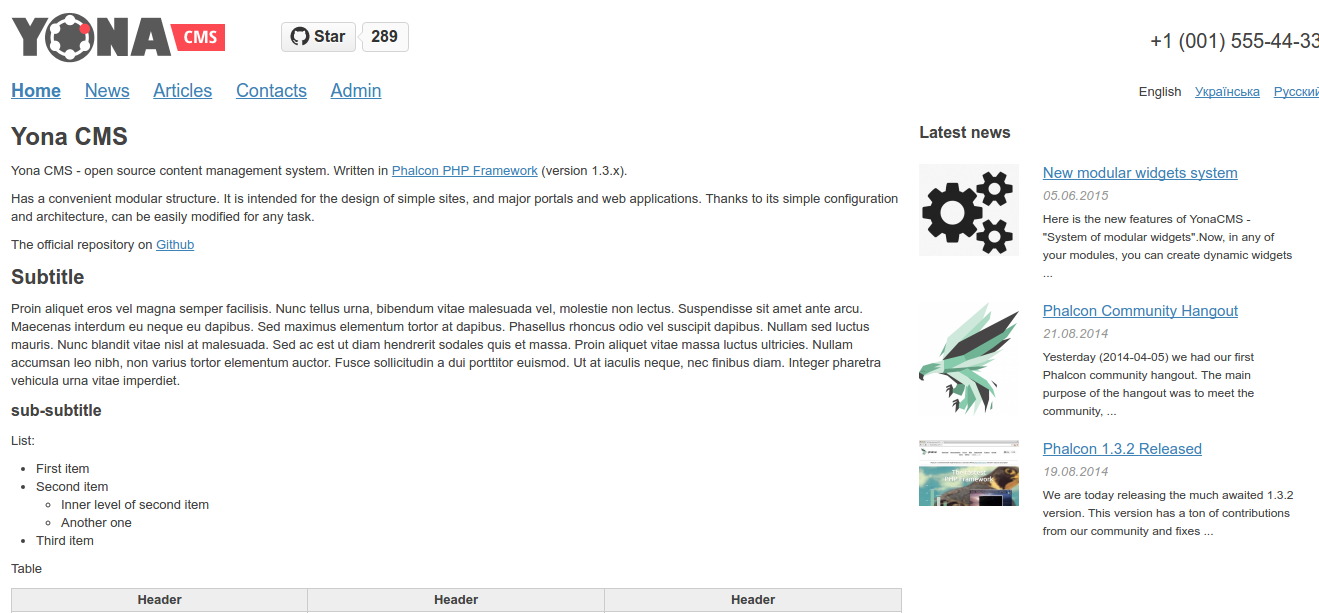
No much to learn from this BUT I THINK I CAN LEARN IT FROM YONA-CMS (The developer is same though)