Ref: https://learn.microsoft.com/en-us/sql/linux/quickstart-install-connect-ubuntu?view=sql-server-ver16&tabs=ubuntu2204
1. Update and upgrade the packages on ubuntu 22.04
[codesyntax lang=”bash”]
|
1 2 |
sudo apt update sudo apt upgrade -y |
[/codesyntax]
2. Download the public key, convert from ASCII to GPG format, and write it to the required location:
[codesyntax lang=”bash”]
|
1 |
curl -fsSL https://packages.microsoft.com/keys/microsoft.asc | sudo gpg --dearmor -o /usr/share/keyrings/microsoft-prod.gpg |
[/codesyntax]
3. Manually download and register the SQL Server Ubuntu repository:
[codesyntax lang=”bash”]
|
1 |
curl -fsSL https://packages.microsoft.com/config/ubuntu/22.04/mssql-server-2022.list | sudo tee /etc/apt/sources.list.d/mssql-server-2022.list |
[/codesyntax]
4. Run the following commands to install SQL Server:
[codesyntax lang=”bash”]
|
1 2 3 4 5 6 7 8 9 10 11 12 13 14 15 |
sudo apt-get update sudo apt-get install -y mssql-server ... Setting up libc++abi1-14:amd64 (1:14.0.0-1ubuntu1.1) ... Setting up libc++1-14:amd64 (1:14.0.0-1ubuntu1.1) ... Setting up libc++1:amd64 (1:14.0-55~exp2) ... Setting up mssql-server (16.0.4175.1-3) ... +--------------------------------------------------------------+ Please run 'sudo /opt/mssql/bin/mssql-conf setup' to complete the setup of Microsoft SQL Server +--------------------------------------------------------------+ Processing triggers for man-db (2.10.2-1) ... Processing triggers for libc-bin (2.35-0ubuntu3.8) ... |
[/codesyntax]
5. After the package installation finishes, run mssql-conf setup and follow the prompts to set the sa password and choose your edition.
Just choose ‘Developer’ version. type 2. My local sa password is {my-nick-name-first-uppercase}@123
[codesyntax lang=”bash”]
|
1 2 3 4 5 6 7 8 9 10 11 12 13 14 15 16 17 18 19 20 21 22 23 24 25 26 27 28 29 30 31 32 33 34 35 36 37 38 39 40 41 |
satria@teddy:~$ sudo /opt/mssql/bin/mssql-conf setup Choose an edition of SQL Server: 1) Evaluation (free, no production use rights, 180-day limit) 2) Developer (free, no production use rights) 3) Express (free) 4) Web (PAID) 5) Standard (PAID) 6) Enterprise (PAID) - CPU core utilization restricted to 20 physical/40 hyperthreaded 7) Enterprise Core (PAID) - CPU core utilization up to Operating System Maximum 8) I bought a license through a retail sales channel and have a product key to enter. 9) Standard (Billed through Azure) - Use pay-as-you-go billing through Azure. 10) Enterprise Core (Billed through Azure) - Use pay-as-you-go billing through Azure. Details about editions can be found at https://go.microsoft.com/fwlink/?LinkId=2109348&clcid=0x409 Use of PAID editions of this software requires separate licensing through a Microsoft Volume Licensing program. By choosing a PAID edition, you are verifying that you have the appropriate number of licenses in place to install and run this software. By choosing an edition billed Pay-As-You-Go through Azure, you are verifying that the server and SQL Server will be connected to Azure by installing the management agent and Azure extension for SQL Server. Enter your edition(1-10): 2 The license terms for this product can be found in /usr/share/doc/mssql-server or downloaded from: https://aka.ms/useterms The privacy statement can be viewed at: https://go.microsoft.com/fwlink/?LinkId=853010&clcid=0x409 Do you accept the license terms? [Yes/No]:yes Enter the SQL Server system administrator password: Confirm the SQL Server system administrator password: Configuring SQL Server... ForceFlush is enabled for this instance. ForceFlush feature is enabled for log durability. Created symlink /etc/systemd/system/multi-user.target.wants/mssql-server.service → /lib/systemd/system/mssql-server.service. Setup has completed successfully. SQL Server is now starting. |
[/codesyntax]
6. Once the configuration is done, verify that the service is running:
[codesyntax lang=”bash”]
|
1 |
systemctl status mssql-server --no-pager |
[/codesyntax]
Install the SQL Server command-line tools (sqlcmd)
1. Import the public repository GPG keys.
[codesyntax lang=”bash”]
|
1 |
curl https://packages.microsoft.com/keys/microsoft.asc | sudo tee /etc/apt/trusted.gpg.d/microsoft.asc |
[/codesyntax]
2. Register the Microsoft Ubuntu repository. For Ubuntu 22.04, use the following command:
[codesyntax lang=”bash”]
|
1 |
curl https://packages.microsoft.com/config/ubuntu/22.04/prod.list | sudo tee /etc/apt/sources.list.d/mssql-release.list |
[/codesyntax]
3. Update the sources list and run the installation command with the unixODBC developer package.
[codesyntax lang=”bash”]
|
1 2 |
sudo apt-get update sudo apt-get install mssql-tools18 unixodbc-dev |
[/codesyntax]
To update to the latest version of mssql-tools, run the following commands:
[codesyntax lang=”bash”]
|
1 2 |
sudo apt-get update sudo apt-get install mssql-tools18 |
[/codesyntax]
4. Add /opt/mssql-tools18/bin/ to your PATH environment variable in a bash shell.
To make sqlcmd and bcp accessible from the bash shell for login sessions, modify your PATH in the ~/.bash_profile file with the following command:
[codesyntax lang=”bash”]
|
1 2 |
echo 'export PATH="$PATH:/opt/mssql-tools18/bin"' >> ~/.bash_profile source ~/.bash_profile |
[/codesyntax]
5. Test sqlcmd with ‘sqlcmd -?’
[codesyntax lang=”bash”]
|
1 2 3 4 5 6 7 8 9 10 11 |
satria@teddy:~$ sqlcmd -? Microsoft (R) SQL Server Command Line Tool Version 18.4.0001.1 Linux Copyright (C) 2017 Microsoft Corporation. All rights reserved. usage: sqlcmd [-U login id] [-P password] [-S server or Dsn if -D is provided] [-H hostname] [-E trusted connection] ... [-G use Microsoft Entra ID for authentication] [-? show syntax summary] |
[/codesyntax]
Connect locally. I tried to use : sqlcmd -S localhost -U sa -P your_password
but it showed up this error
[codesyntax lang=”bash”]
|
1 2 3 |
satria@teddy:~$ sqlcmd -S localhost -U sa -P your_password Sqlcmd: Error: Microsoft ODBC Driver 18 for SQL Server : SSL Provider: [error:0A000086:SSL routines::certificate verify failed:self-signed certificate]. Sqlcmd: Error: Microsoft ODBC Driver 18 for SQL Server : Client unable to establish connection. For solutions related to encryption errors, see https://go.microsoft.com/fwlink/?linkid=2226722. |
[/codesyntax]
it turned out I need to add -C parameter at the end like this
[codesyntax lang=”bash”]
|
1 2 3 4 5 6 7 8 9 10 11 12 |
satria@teddy:~$ sqlcmd -S localhost -U sa -P Teddy@123 -C 1> SELECT Name from sys.databases; 2> GO Name -------------------------------------------------------------------------------------------------------------------------------- master tempdb model msdb (4 rows affected) 1> quit |
[/codesyntax]
Create a new database
For example create a new database TestDB from sqlcmd
[codesyntax lang=”bash”]
|
1 2 |
1> CREATE DATABASE TestDB; 2> GO |
[/codesyntax]
Create a new table dbo.Inventory and Insert data
[codesyntax lang=”bash”]
|
1 2 3 4 5 6 7 8 9 10 11 12 13 14 15 16 17 18 19 20 21 22 23 24 25 26 27 28 29 30 31 32 33 34 35 |
1> USE TestDB; 2> GO 1> CREATE TABLE dbo.Inventory 2> ( 3> id INT, 4> name NVARCHAR (50), 5> quantity INT, 6> PRIMARY KEY (id) 7> ); 8> GO 1> INSERT INTO dbo.Inventory VALUES (1, 'banana', 150); 2> GO (1 rows affected) 1> INSERT INTO dbo.Inventory VALUES (2, 'orange', 154); 2> GO (1 rows affected) 1> SELECT * FROM dbo.Inventory; 2> GO id name quantity ----------- -------------------------------------------------- ----------- 1 banana 150 2 orange 154 (2 rows affected) 1> SELECT * FROM dbo.Inventory; 2> GO id name quantity ----------- -------------------------------------------------- ----------- 1 banana 150 2 orange 154 (2 rows affected) 1> quit |
[/codesyntax]
Install DBeaver (https://dbeaver.io/)
This is Database GUI for many databases including MS SQL Server
Download it https://dbeaver.io/download/
I used Ubuntu PPA
[codesyntax lang=”bash”]
|
1 2 3 |
sudo add-apt-repository ppa:serge-rider/dbeaver-ce sudo apt-get update sudo apt-get install dbeaver-ce |
[/codesyntax]
Open DBeaver CE and select to the MS SQL Server
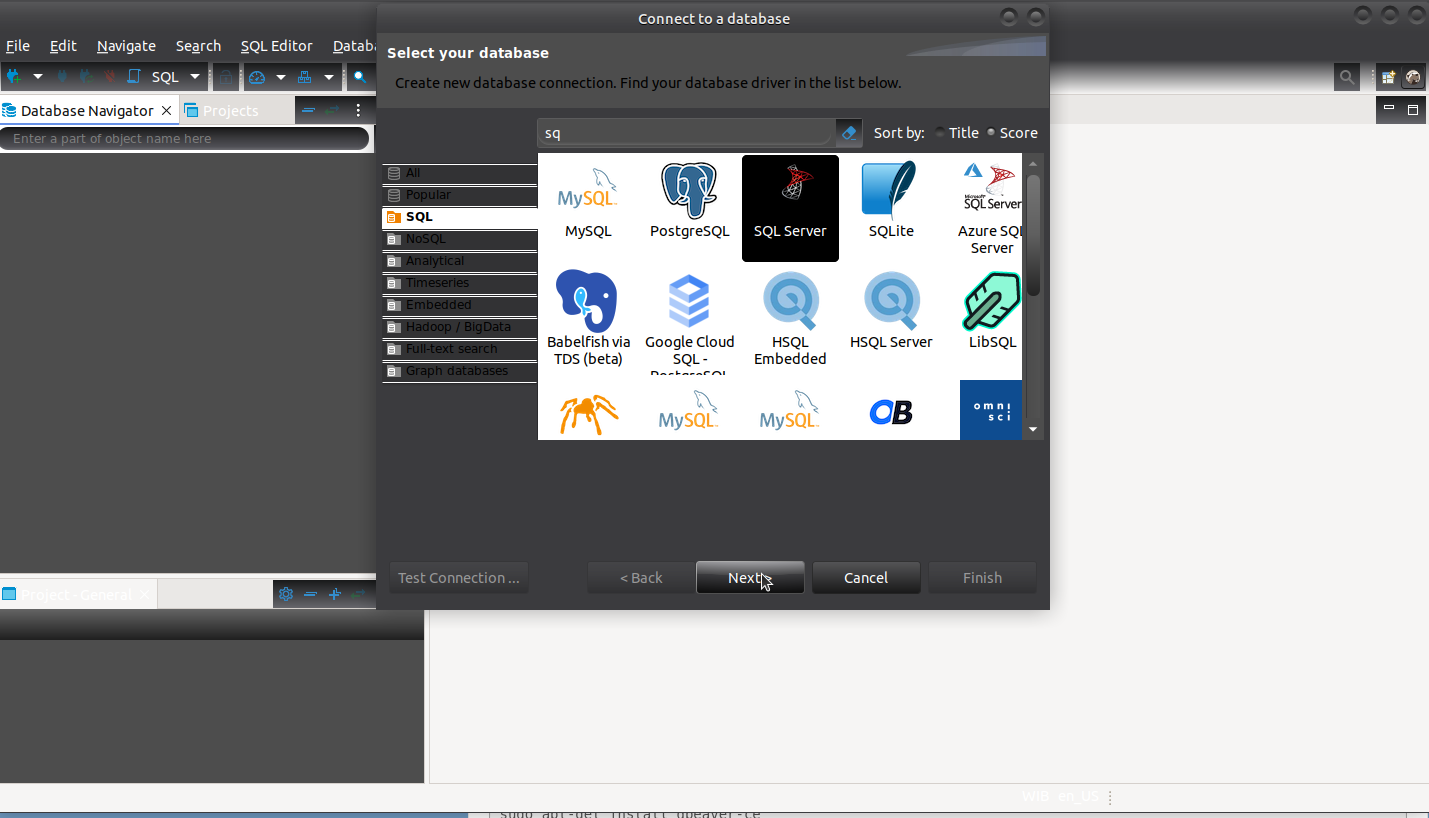
Connect to the MS SQL Server but it needs to use JDBC driver. Install it directly from the DBeaver
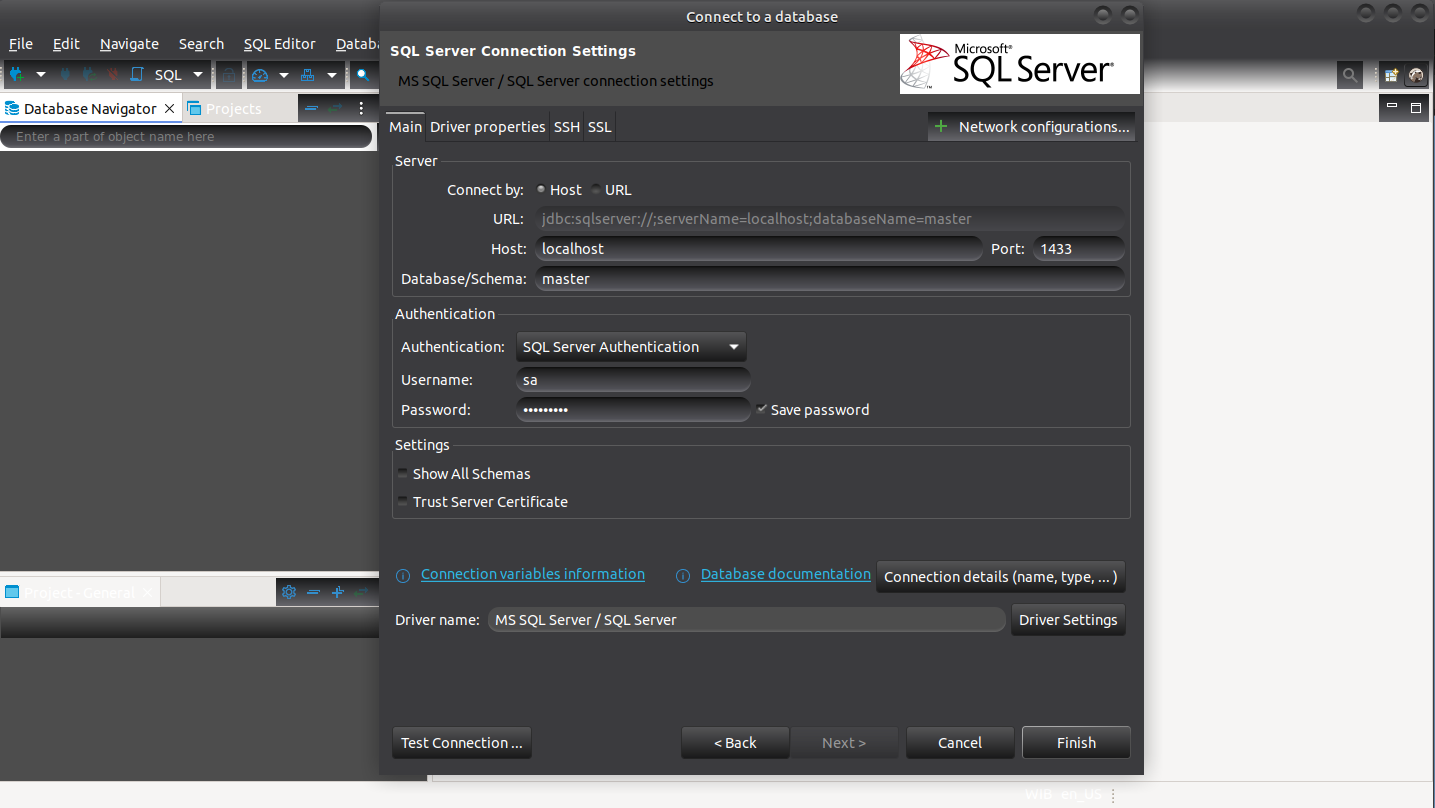
If everything is okay, it’ll look like this
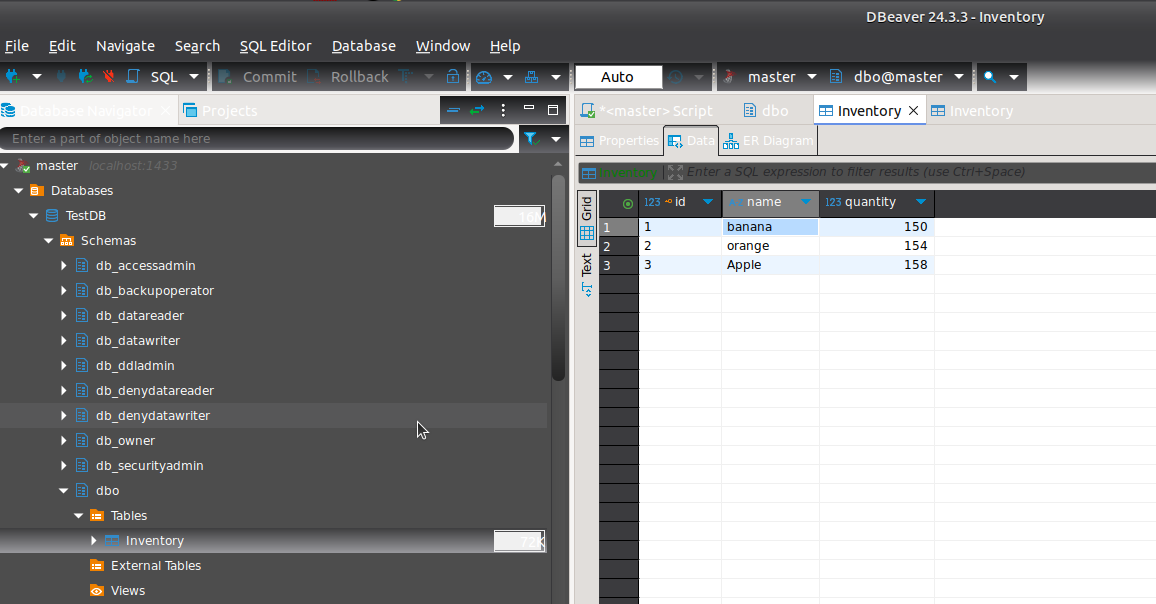
on the DBeaver GUI you can add a new row. for example add a new row
ID: 3
Name: Apple
Quantity: 158
Then save
on the sqlcmd should reflect the changes
[codesyntax lang=”bash”]
|
1 2 3 4 5 6 7 8 9 10 11 12 |
1> USE TestDB; 2> GO Changed database context to 'TestDB'. 1> SELECT * FROM dbo.Inventory; 2> GO id name quantity ----------- -------------------------------------------------- ----------- 1 banana 150 2 orange 154 3 Apple 158 (3 rows affected) |
[/codesyntax]