Install Printer HP Deskjet 2135 on Ubuntu 16.04

REF: https://martianuswb.com/?p=5378
AT FIRST I TRIED TO USE AUTOMATIC INSTALLATION INSTEAD OF THE CUSTOM ONE AND IT FAILED:

Running ‘sudo apt-get install –assume-yes libcupsimage2-dev’
Please wait, this may take several minutes…
error: Package install command failed with error code 100

error: A required dependency ‘cups (CUPS – Common Unix Printing System)’ is still missing.
error: A required dependency ‘cups-image (CUPS image – CUPS image development files)’ is still missing.
error: Installation cannot continue without these dependencies.
error: Please manually install this dependency and re-run this installer.

sudo apt-get install –reinstall libpng12-0=1.2.54-1ubuntu1.1 libpng-dev libcupsimage2-dev

Running ‘sudo apt-get install –assume-yes libcups2’
Please wait, this may take several minutes…
|Gtk-Message: Failed to load module “topmenu-gtk-module”
error: A required dependency ‘cups (CUPS – Common Unix Printing System)’ is still missing.

error: A required dependency ‘pyqt5 (PyQt 5- Qt interface for Python (for Qt version 4.x))’ is still missing.
error: Installation cannot continue without this dependency.
error: Please manually install this dependency and re-run this installer.

SOLUTION: USE CUSTOM INSTALLATION:
ALSO TRIED TO ENABLE CUPS SERVICE ???
teddy@teddy:~/Documents/HP_deskjet_2135$ sh hplip-3.20.3.run
Creating directory hplip-3.20.3
Verifying archive integrity… All good.
Uncompressing HPLIP 3.20.3 Self Extracting Archive……………………………………………………………………………………………………………………………………………………………………………………………………………………………………………………………………………………………………………………………………………………………………………………………………………………………………………………………………………………………………………………………………………………………………………………………………………………………………………………………………………………………………………………………………………………………………………………………………………………………………………………………………………………………………………………………………………………………………………………………………………………………………………………………………………………………………………………………………………………………………………………………………………………………………………………………………………………………………………………………………………………………………………………………………………………………………………………………………………………………………………………………………………………………………………………………………………………………………………………………………………………………………………………………………………………………………………………………………………………………………………………………………………………………………………………………………………………………………………………………………………………………………………………………………………………………………………………………………………………………………………………………………………………………………………………………………………………………………………………………………………………………………………………………………………………

HP Linux Imaging and Printing System (ver. 3.20.3)
HPLIP Installer ver. 5.1

Copyright (c) 2001-18 HP Development Company, LP
This software comes with ABSOLUTELY NO WARRANTY.
This is free software, and you are welcome to distribute it
under certain conditions. See COPYING file for more details.

Installer log saved in: hplip-install_Sun-10-May-2020_14:43:23.log

\
note: Defaults for each question are maked with a ‘*’. Press <enter> to accept the default.
/Gtk-Message: Failed to load module “topmenu-gtk-module”
-Gtk-Message: Failed to load module “topmenu-gtk-module”

INSTALLATION MODE
—————–
Automatic mode will install the full HPLIP solution with the most common options.
Custom mode allows you to choose installation options to fit specific requirements.

Please choose the installation mode (a=automatic*, c=custom, q=quit) : c

INTRODUCTION
————
This installer will install HPLIP version 3.20.3 on your computer.
Please close any running package management systems now (YaST, Adept, Synaptic, Up2date, etc).

DISTRO/OS CONFIRMATION
———————-
Distro appears to be Ubuntu 16.04.

Is “Ubuntu 16.04” your correct distro/OS and version (y=yes*, n=no, q=quit) ? y

DRIVER OPTIONS
————–
Would you like to install Custom Discrete Drivers or Class Drivers ( ‘d’= Discrete Drivers*,’c’= Class Drivers,’q’= Quit)? : d

Initializing. Please wait…

SELECT HPLIP OPTIONS
——————–
You can select which HPLIP options to enable. Some options require extra dependencies.

Do you wish to enable ‘Network/JetDirect I/O’ (y=yes*, n=no, q=quit) ? y
Do you wish to enable ‘Graphical User Interfaces (Qt4)’ (y=yes*, n=no, q=quit) ? y
Do you wish to enable ‘Graphical User Interfaces (Qt5)’ (y=yes, n=no*, q=quit) ? n
Do you wish to enable ‘PC Send Fax support’ (y=yes*, n=no, q=quit) ? n
Do you wish to enable ‘Scanning support’ (y=yes*, n=no, q=quit) ? y
Do you wish to enable ‘HPLIP documentation (HTML)’ (y=yes*, n=no, q=quit) ? y

ENTER USER PASSWORD
——————-
Please enter the sudoer (teddy)’s password:

INSTALLATION NOTES
——————
Enable the universe/multiverse repositories. Also be sure you are using the Ubuntu “Main” Repositories. See: https://help.ubuntu.com/community/Repositories/Ubuntu for more information. Disable the CD-ROM/DVD source if you do not have the Ubuntu installation media inserted in the drive.

Please read the installation notes. Press <enter> to continue or ‘q’ to quit:

SECURITY PACKAGES
—————–
AppArmor is installed.
AppArmor protects the application from external intrusion attempts making the application secure

Would you like to have this installer install the hplip specific policy/profile (y=yes*, n=no, q=quit) ? y

RUNNING PRE-INSTALL COMMANDS
—————————-
OK

CHECKING FOR NETWORK CONNECTION
——————————-
Network connection present.

RUNNING PRE-PACKAGE COMMANDS
—————————-
sudo dpkg –configure -a (Pre-depend step 1)
sudo apt-get install –yes –force-yes -f (Pre-depend step 2)
warning: An error occurred running ‘sudo apt-get update’
sudo apt-get update (Pre-depend step 3)
OK

DEPENDENCY AND CONFLICT RESOLUTION
———————————-
\Gtk-Message: Failed to load module “topmenu-gtk-module”
HPLIP-3.16.3 exists, this may conflict with the new one being installed.
Do you want to (‘i’= Remove and Install*, ‘q’= Quit)? :i
Starting uninstallation…
HPLIP uninstallation is completed

RUNNING POST-PACKAGE COMMANDS
—————————–
OK

RE-CHECKING DEPENDENCIES
————————
/Gtk-Message: Failed to load module “topmenu-gtk-module”
OK

RUNNING SCANJET DEPENDENCY COMMANDS
———————————–
sudo apt-get install –assume-yes python-pip (Scanjet-depend step 1)
sudo pip install –upgrade pip (Scanjet-depend step 2)
sudo apt-get install –assume-yes libleptonica-dev (Scanjet-depend step 3)
sudo apt-get install –assume-yes tesseract-ocr (Scanjet-depend step 4)
sudo apt-get install –assume-yes libtesseract-dev (Scanjet-depend step 5)
sudo -H pip install tesserocr (Scanjet-depend step 6)
sudo apt-get install –assume-yes libzbar-dev (Scanjet-depend step 7)
warning: Failed to install this Scanjet dependency package. Some Scanjet features will not work.
sudo apt-get install –assume-yes python-zbar (Scanjet-depend step 8)
sudo apt-get install –assume-yes python-opencv (Scanjet-depend step 9)
sudo apt-get install –assume-yes python-pypdf2 (Scanjet-depend step 10)
sudo -H pip install imutils (Scanjet-depend step 11)
sudo -H pip install pypdfocr (Scanjet-depend step 12)
warning: Failed to install this Scanjet dependency package. Some Scanjet features will not work.
sudo -H pip install scikit-image (Scanjet-depend step 13)
/
sudo -H pip install scipy (Scanjet-depend step 14)
OK

READY TO BUILD AND INSTALL
————————–
Ready to perform build and install. Press <enter> to continue or ‘q’ to quit:

PRE-BUILD COMMANDS
——————
OK

BUILD AND INSTALL
—————–
Running ‘./configure –with-hpppddir=/usr/share/ppd/HP –libdir=/usr/lib –prefix=/usr –enable-qt4 –disable-qt5 –enable-doc-build –disable-cups-ppd-install –disable-foomatic-drv-install –disable-libusb01_build –disable-foomatic-ppd-install –disable-hpijs-install –disable-class-driver –disable-udev_sysfs_rules –disable-policykit –enable-cups-drv-install –enable-hpcups-install –enable-network-build –enable-dbus-build –enable-scan-build –disable-fax-build –enable-apparmor_build’
Please wait, this may take several minutes…
Command completed successfully.

Running ‘make clean’
Please wait, this may take several minutes…
Command completed successfully.

Running ‘make’
Please wait, this may take several minutes…
Command completed successfully.

Running ‘sudo make install’
Please wait, this may take several minutes…
Command completed successfully.

Build complete.

POST-BUILD COMMANDS
——————-

CLOSE HP_SYSTRAY
—————-
Sending close message to hp-systray (if it is currently running)…
OK

HPLIP UPDATE NOTIFICATION
————————-
Do you want to check for HPLIP updates?. (y=yes*, n=no) : y

RESTART OR RE-PLUG IS REQUIRED
——————————
If you are installing a USB connected printer, and the printer was plugged in
when you started this installer, you will need to either restart your PC or
unplug and re-plug in your printer (USB cable only). If you choose to restart,
run this command after restarting: hp-setup (Note: If you are using a parallel
connection, you will have to restart your PC. If you are using network/wireless,
you can ignore and continue).

Restart or re-plug in your printer (r=restart, p=re-plug in*, i=ignore/continue, q=quit) : i

PRINTER SETUP
————-
Would you like to setup a printer now (y=yes*, n=no, q=quit) ? y
Please make sure your printer is connected and powered on at this time.
Do you want to setup printer in GUI mode? (u=GUI mode*, i=Interactive mode) : u

HP Linux Imaging and Printing System (ver. 3.20.3)
Printer/Fax Setup Utility ver. 9.0

Copyright (c) 2001-18 HP Development Company, LP
This software comes with ABSOLUTELY NO WARRANTY.
This is free software, and you are welcome to distribute it
under certain conditions. See COPYING file for more details.

warning: Fax setup disabled – Python 2.3+ required.
Gtk-Message: Failed to load module “topmenu-gtk-module”
Searching… (bus=usb, search=(None), desc=0)

Done.

RE-STARTING HP_SYSTRAY
———————-

HP Linux Imaging and Printing System (ver. 3.20.3)
System Tray Status Service ver. 2.0

Copyright (c) 2001-18 HP Development Company, LP
This software comes with ABSOLUTELY NO WARRANTY.
This is free software, and you are welcome to distribute it
under certain conditions. See COPYING file for more details.

Gtk-Message: Failed to load module “topmenu-gtk-module”
/usr/lib/python2.7/dist-packages/gtk-2.0/gtk/__init__.py:127: RuntimeWarning: PyOS_InputHook is not available for interactive use of PyGTK
set_interactive(1)
“sni-qt/11952” WARN 15:11:38.490 void StatusNotifierItemFactory::connectToSnw() Invalid interface to SNW_SERVICE
teddy@teddy:~/Documents/HP_deskjet_2135$
HP Linux Imaging and Printing System (ver. 3.20.3)
HP Device Manager ver. 15.0

Copyright (c) 2001-18 HP Development Company, LP
This software comes with ABSOLUTELY NO WARRANTY.
This is free software, and you are welcome to distribute it
under certain conditions. See COPYING file for more details.

warning: Fax disabled.
warning: Please install version 2.0+ of Reportlab for coverpage support.
error: Fax address book disabled – Python 2.3+ required.
Gtk-Message: Failed to load module “topmenu-gtk-module”
\warning: Supplies information not available for this device.
warning: Supplies information not available for this device.
Gtk-Message: Failed to load module “topmenu-gtk-module”

WHEN COMPUTER IS RESTARTED, I NEED TO START CUPS SERVICE

SO COMPUTER CAN RECOGNIZE THE PRINTER!!!
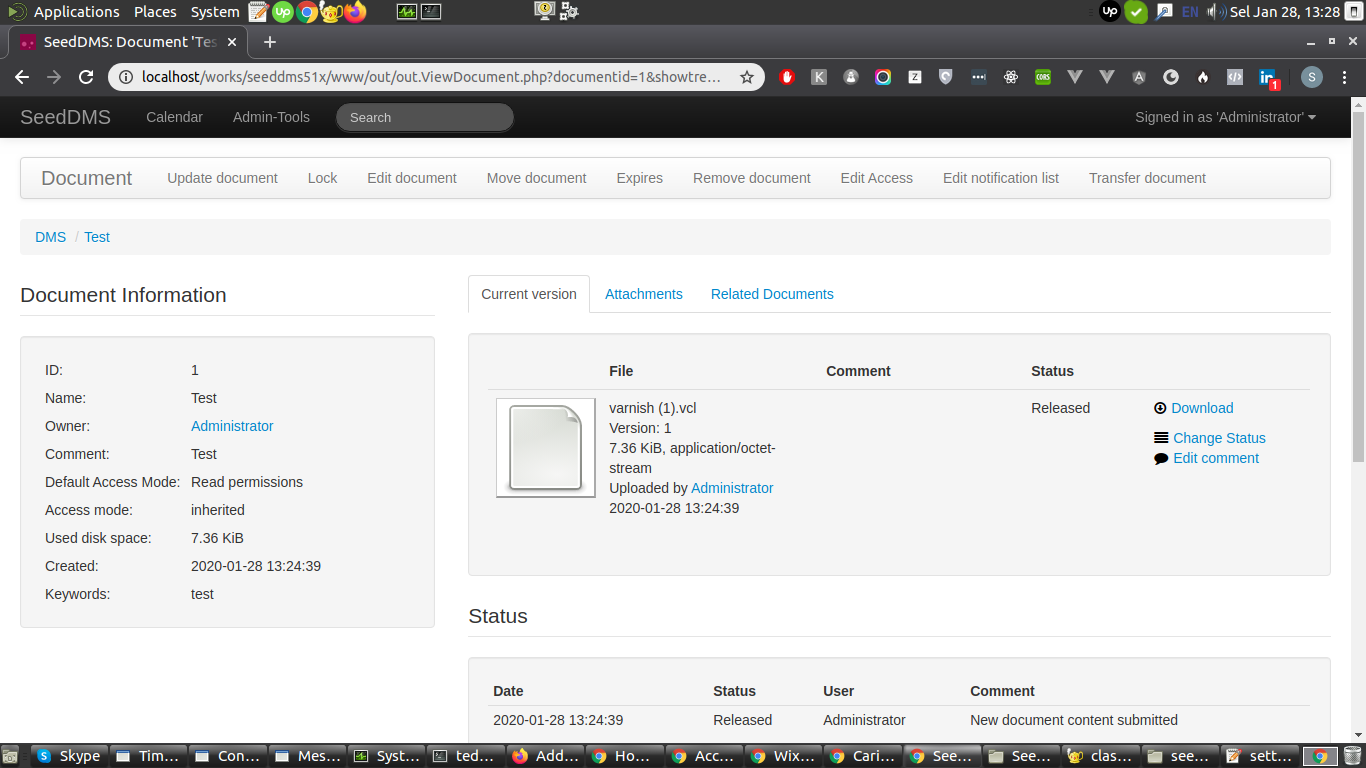
SeedDMS

Ref: https://www.seeddms.org/
Download
NOTE: Don’t download version 5.1.13 because it has a problem with the login but download 5.1.10 (then upgrade to 5.1.13???)
Then modify /home/teddy/Documents/works/seeddms51x/conf/settings.xml

Open via browser and apache2 : http://localhost/works/seeddms51x/seeddms-5.1.10/
user ID: admin
password: admin

Install OpenLiteSpeed on Ubuntu 16.04

Ref: https://openlitespeed.org/kb/install-from-binary/
https://www.vultr.com/docs/how-to-install-openlitespeed-on-ubuntu-16-04
https://www.howtoforge.com/tutorial/how-to-install-and-configure-openlitespeed-server-on-ubuntu-1804-along-with-mariadb/

Step 1: Update your server

Step 2: Install OpenLiteSpeed
Install dependencies

Download the latest stable from https://openlitespeed.org/downloads/

Extract the downloaded file

Go to ‘openlitespeed’ directory that newly created

XXXConfigure and compile OpenLiteSpeed with the following command. This will install OpenLiteSpeed inside of the ‘/usr/local/lsws/’ directory.XXX
I don’t find ‘configure’ but I found ‘install.sh’. SO use the file to install it.

Here is the verbose

NOTE: IT’S ALSO INSTALLED PHP FOR LITESPEED (lsphp) 7.1 IN /usr/local/lsws/lsphp71/

Now you can start the web server, like so: (USE ‘sudo’ BECAUSE I INSTALLED WITH ‘sudo’???)

Check status (USE ‘sudo’)

Open it on your browser: http://localhost:8088/The admin page on https://localhost:7080/SORRY, ONLY ADMIN CAN SHOW THIS!

Currently it’s using PHP 7.1 (SEE http://localhost:8088/phpinfo.php)
I want to install PHP 7.2.
Pls se the available PHP 7.2 packages for litespeed

Then install some of them


Configure VSCode with XDebug

Check if xdebug is already installed: http://localhost:8080/phpinfo.php
Find the config file (ini file) on the above page then open it
<XDEBUG 2.X>

Make sure it’s enabled

Then restart php7.3-fpm service

Check the xdebug properties on the page above: http://localhost:8080/phpinfo.php

Open VSCode then find and install ‘PHP Debug’ extension
</XDEBUG 2.X>

<XDEBUG 3.X>

ALSO FOR THE OTHERS PHP (7.4, 8.0, 8.1, 8.2)

Make sure it’s enabled

Then restart apache2 service

Check the xdebug properties on the page above: http://localhost:8080/phpinfo.php

</XDEBUG 3.X>

Install Shopware 5

Ref: https://github.com/shopware/shopware (Shopware 5)
https://github.com/shopware/platform (Shopware 6)

Install Shopware 5:
Clone the git to ‘shopware5’ dir:

Go to the dir

Change the files permission

Go to ‘build’dir and use ‘ant’ to build the configuration and database.

If not exist, install it first:

configure:

Build:

Download the test images and extract them. Go to the root directory of your shopware system and download the test images:

BEWARE: the file size about 285MB !!!
Then unzip the file

RUN PHP CLI — OR USE NGINX ??? BECAUSE IT’D REDIRECT TO http://shopware5.test/

THEN OPEN IT ON YOUR BROWSER: http://localhost:8090/shopware.php
NOTE: MUST USE PHP7.2. IF LOWER THAN THAT, IT’D DISPLAY THIS ERROR:

If so, change the php version to 7.2 (min)

Then run the php cli again

NGINX SETUP:

CONTENT: (DONT USE THIS)

USE THIS: (READ: https://websiteforstudents.com/setup-shopware-on-ubuntu-16-04-18-04-lts-with-nginx-mariadb-and-php-7-1-fpm/)


Enable file config


Register the host on my system

Like this:

CHECK THE NGINX SETTING AND RESTART IT:

CHANGE FILE PERMISSIONS

OPEN IT ON YOUR BROWSER: http://shopware5.test/
IT SHOULD WORK! IF NOT CHECK /var/log/nginx/error.log
AND THE ADMIN PAGE ON http://shopware5.test/backend/
username: demo
password: demo

Frontend users in demo data
Customer: test@example.com / shopware
B2B: mustermann@b2b.de / mustermann

Install Open Journal System (OJS) 3.1.1.4 On Ubuntu 16.04

Download from https://pkp.sfu.ca/ojs/ojs_download/
Extract then run PHP Server to Install.
Make sure all the requirements is fulfilled (PHP, MySQL, Apache, etc)

Fill Administrator Account
username: admin
password: Admin@123

Directory for uploads:/home/teddy/Documents/works/ojs_files
Create the dir : /home/teddy/Documents/works/ojs_files

MySQL Settings
db driver: MySQLi (NOT MySQL)
username: root
password: teddy
dbname: ojs3114

NOTE: Must use db driver MySQLi NOT MySQL. if not I’d get this error:

Install success!
Open http://localhost:8089/index.php/index
or login in http://localhost:8089/index.php/index/login
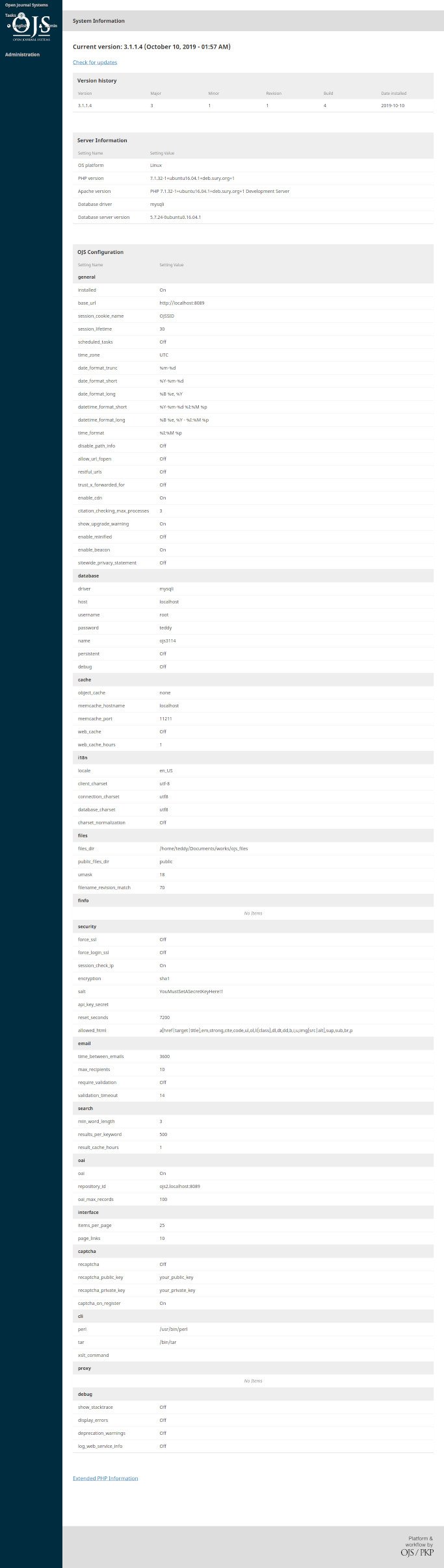
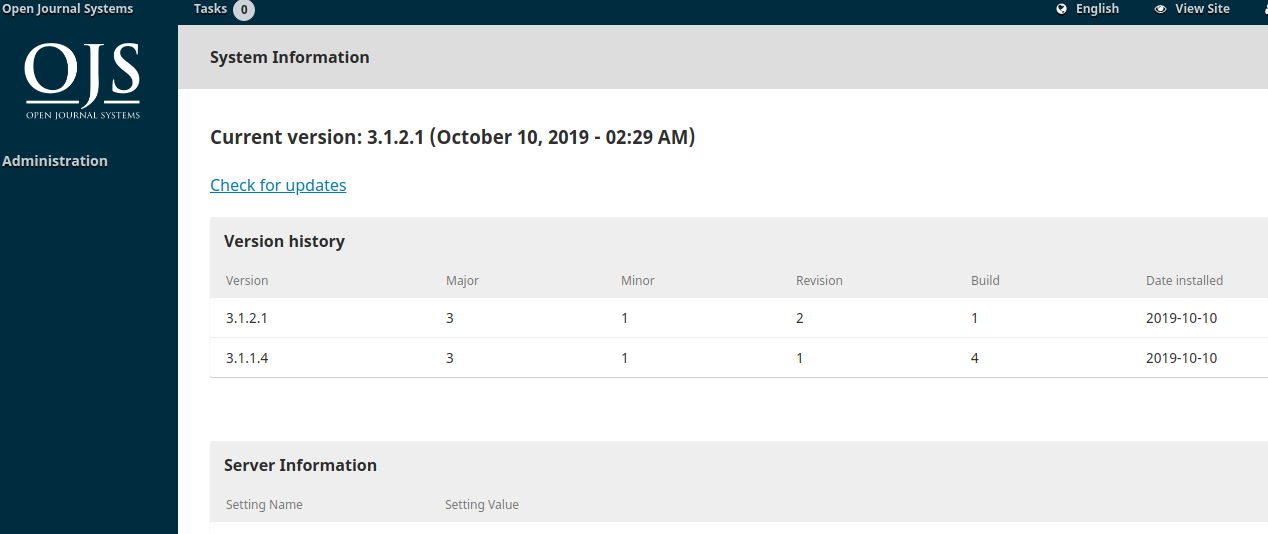
System info: http://localhost:8089/index.php/index/admin/systemInfoTo upgrade OJS to version 3.1.2.1, pls read https://openjournaltheme.com/how-to-upgrade-ojs-version-3-1-1-to-3-1-2/ then implement its.
Here is the upgraded OJSUser
username: advcha
password: Teddy@123

<FAILED>
NGINX SETUP:

CONTENT:


Enable file config


Register the host on my system

Like this:


CHECK THE NGINX SETTING AND RESTART IT:

Open it on your browser : http://ojs-3121.test
Admin: http://ojs-3121.test/wp-admin
username: admin
password: LF3#F@OPz8
</FAILED>

Install Sharetribe Go on Ubuntu 16.04

Ref: https://github.com/sharetribe/sharetribe

Make sure ruby already installed.
Install Sphinx:
download it from http://sphinxsearch.com/ then extract it. Pls read: http://sphinxsearch.com/docs/sphinx3.html#getting-started-on-linux-and-macos
Here is the extracted path: /home/teddy/Documents/sphinx-3.1.1/
And the ‘program’ (searchd, indexer, etc) in ‘bin’ dir: /home/teddy/Documents/sphinx-3.1.1/bin
check :

NOTE: TO MAKE THE EXECUTABLE CAN RUN GLOBALLY, PLS DO:

THEN RUN FROM ANYWHERE

Creating ‘test’ database (no problem if the database is already exist)

I need to create the sphinx.conf file (read: https://www.digitalocean.com/community/tutorials/how-to-install-and-configure-sphinx-on-ubuntu-16-04#step-6-%E2%80%94-testing)
First I need to remove/move ‘sphinxdata’ dir in ‘bin’ dir because I got this message ‘No config file, using ‘sphinxdata’ folder.’ (read: https://stackoverflow.com/questions/50837676/sphinx-3-0-3-searchd-dont-see-my-config)
Create a new file ‘sphinx.conf’ in /home/teddy/Documents/sphinx-3.1.1/sphinxsearch/ dir:

RUN:

IF I GOT ‘bind() failed on 0.0.0.0, retrying’ THEN IT MEANS ‘searchd’ ALREADY RUNNING ON THE BACKGROUND (REF: http://sphinxsearch.com/forum/view.html?id=5542). CHECK

KILL THEM WITH ‘killall searchd’ THEN CHECK AGAIN:

RE RUN ‘searchd’

MODIFY sphinx.conf

BUT

OK. HERE IS THE WORKING sphinx.conf. USE ‘type=rt’ (READ: https://sphinxsearch.com/forum/view.html?id=16238)

PLS REMOVE ALL FILE IN /home/teddy/Documents/sphinx-3.1.1/sphinxsearch/data FIRST! ALSO RUN ‘killall searchd’ THEN

NO ERROR!


Imagemagick
Check

INSTALL SHARETRIBE

CURRENTLY HAVE TO USE ruby 2.6.2

SO USE rbenv TO INSTALL 2.6.2 AND MAKE IT DEFAULT WITH ‘global’

THEN CONTINUE WITH

Install node modules:

Create a database.yml file by copying the example database configuration:

Add your database configuration details to config/database.yml. You will probably only need to fill in the password for the database(s). Pls set the right config for ‘development’ and ‘test’:

Create a config.yml file by copying the example configuration file:

Create and initialize the database:

Run Sphinx index:

Output:

Start the Sphinx daemon:

Output:

Start the development server:

But Install ‘foreman’ FIRST (READ: https://github.com/ddollar/foreman)

But to run ‘foreman’, it need node js v10.15.3 and npm 6.4.1

current node version is v8.9.4

So use ‘nvm’ to install node v10.15.3

RE RUN ‘foreman’ BUT GOT ANOTHER ERROR ABOUT node-sass


Then open your browser: http://localhost:5000
The first time will go to http://localhost:5000/communities/new?locale=en
Setting:
admin email: advcha@yahoo.com
admin pass: Admin@123
Admin user first name: Satria
Admin user last name; Faestha
Marketplace name: Web Devs Service
Marketplace type: Service marketplace
Marketplace country: Australia
Marketplace language: English
Save
Then it’ll go to http://web-devs-service.lvh.me:3000/?auth=IETnn4GA1Nc
BUT I GOT

IT SHOULD OPEN http://localhost:5000ALSO OPEN ANOTHER TERMINAL THEN RUN:

ADMIN: http://localhost:5000/en/login
admin email: advcha@yahoo.com
admin pass: Admin@123

JS ERROR

I did : nvm alias default 10.15.3
also nvm use 10.15.3

also
npm -g uninstall node-sass
npm -g i node-sass

BUT STILL EXIST

npm install node-sass

teddy@teddy:~/Documents/ruby/sharetribe$ npm rebuild node-sass

> node-sass@4.12.0 install /home/teddy/Documents/ruby/sharetribe/node_modules/node-sass
> node scripts/install.js

node-sass build Binary found at /home/teddy/Documents/ruby/sharetribe/node_modules/node-sass/vendor/linux-x64-64/binding.node

> node-sass@4.12.0 postinstall /home/teddy/Documents/ruby/sharetribe/node_modules/node-sass
> node scripts/build.js

Binary found at /home/teddy/Documents/ruby/sharetribe/node_modules/node-sass/vendor/linux-x64-64/binding.node
Testing binary
Binary is fine
node-sass@4.12.0 /home/teddy/Documents/ruby/sharetribe/node_modules/node-sass

teddy@teddy:~/Documents/ruby/sharetribe$ npm ls node-sass
/home/teddy/Documents/ruby/sharetribe
└── node-sass@4.12.0
SOLUTION: REMOVE ‘node_modules’ DIR IN SHARETRIBE ROOT AND IN client/ DIR
THEN RUN IN SHARETRIBE ROOT ‘npm install –no-cache’
NO MORE ERROR!

Install Ruby, ROR and RBENV on Ubuntu 16.04

Ref:
https://gorails.com/setup/ubuntu/16.04

Install Ruby on Rails on Ubuntu 16.04


https://medium.com/@rgdev/how-to-install-ruby-rails-on-ubuntu-16-04-from-scratch-quickly-4da73c67daa3

I think I already installed many packages needed like curl, nodejs and yarn. so just install this:

Use rbenv to install ruby 2.6.3 at home:

output:

NOTE: Instal ruby 2.6.2 AND make it default:

CHECK:

Then install ‘bundler’

I already setup git, so no need to set it up again. check

Install Rails (v6.0.0.rc1)

If you’re using rbenv, you’ll need to run the following command to make the rails executable available:

check:

SETUP MYSQL
Install libmysqlclient-dev gives you the necessary files to compile the mysql2 gem which is what Rails will use to connect to MySQL when you setup your Rails app.

Let’s create your first Rails application (with mysql):

then modify /home/teddy/Documents/ruby/first-app-mysql/config/database.yml. Modify the database username, password and db name:
SORRY, ONLY ADMIN CAN SHOW THIS!
Create the database manually or run ‘rake db:create’

Then run ‘rails server’

Then open on your browser: http://localhost:3000/

Install Flarum on Ubuntu 16.04

Ref: https://flarum.org/
https://flarum.org/docs/install.html

Install via composer:

SETUP NGINX

NGINX SETUP:

CONTENT:


Enable file config


Register the host on my system

Like this:


CHECK THE NGINX SETTING AND RESTART IT:

Change the file permissions

CREATE A NEW DATABASE: flarum COLLATION utf8mb4_unicode_ci
Open it on your browser then install : http://flarum.test
Setting admin:
username: admin
password: Admin@123

User
username: teddy
password: teddy123

Install VTiger 7 Open Source On Ubuntu 16.04

Download from https://sourceforge.net/projects/vtigercrm/
Extract the downloaded file.

My environment: PHP 7.3 FPM, MySQL 5.7, Nginx

SETUP LOCAL WITH NGINX

content:

  • Enable file config
  • Register the host on my system

    Like this:
  • CHECK THE NGINX SETTING AND RESTART IT:


  • Set file permission and owner:

    CREATE A NEW DATABASE: vtigercrm COLLATION utf8mb4_general_ci

    Test: http://vtigercrm.test/ –> INSTALLATION WORKING. THE INSTALLATION TOOK SAME TIME

    Admin
    username: admin
    password: Admtiger

    BUT I GOT THIS ERROR:


    DEBUG STEP:
    /vtigercrm/languages/en_us/Install.php:

    /vtigercrm/modules/Install/models/Utils.php:

    SOLUTION: MODIFY THE MYSQL SETTING IN /etc/mysql/my.cnf

    MODIFY THE ‘sql_mode’ VALUES: –> PLS READ: https://www.percona.com/blog/2016/10/18/upgrading-to-mysql-5-7-beware-of-the-new-strict-mode/

    SAVE AND THE RESTART MYSQL SERVICE