Install PHP 8.1 On Ubuntu 20.04 (Apache and Nginx)

REF: https://computingforgeeks.com/how-to-install-php-on-ubuntu-linux-system/

I already added Ondřej Surý PPA repository. So Just install php8.1

The apache module and cli for php8.1 is included

Check it on CLI Terminal

Then install the extensions.

Install XDebug

Check

PHP8.1 On Apache2
Disable the old PHP

Enable PHP8.1

Also need to run

Restart Apache server

Check on the browser

Should show like PHP Version 8.1.6

CHANGE THE PHP8.1 SETTING
MODIFY SOME INI FILES IN:
/etc/php/8.1/fpm/php.ini  –> PHP-FPM  AS MAIN
/etc/php/8.1/apache/php.ini  –>APACHE
/etc/php/8.1/cli/php.ini –> CLI

RESTART

FOR PHP FPM

TO USE PHP8.1 WITHOUT FPM, PLS STOP PHP8.1 FPM

ALSO DISABLE SOME FPM MODULES (mpm_event)

IF NEEDED

THEN ENABLE mpm_prefork

RELOAD

NOW IT’D BE RUNNING

USE NGINX and PHP8.1-FPM
STOP APACHE2

INSTALL NGINX

MODIFY THE DEFAULT CONF

THEN ADD ‘index.php’ SO THE PHP FILE WOULD BE EXECUTED NOT DOWNLOADED.
ALSO UNCOMMENT ‘include snippets/fastcgi-php.conf;’ AND ‘fastcgi_pass unix:/var/run/php/php8.1-fpm.sock;’ AND ‘location ~ /\.ht{…}’

CHECK SETTING: sudo nginx -t
RELOAD NGINX

SOMETIMES IT’D NEED TO RESTART/LOGOFF THE COMPUTER!!!
CHECK ON

CONFIGURE PHPMYADMIN WITH NGINX
MODIFY /etc/nginx/sites-available/default

THEN ADD:

RELOAD NGINX
OPEN PHPMYADMIN: http://localhost/phpmyadmin
Mate Ubuntu Tips and Tricks

1. The mate menu is freeze on the toolbar bottom. Can’t click the menu
Solution:
Read: https://www.addictivetips.com/ubuntu-linux-tips/fix-a-frozen-mate-linux-desktop/
RUN TERMINAL THEN

it’d SHOW THE PID. FOR EXAMPLE 3004

THEN KILL THE PROCESS LIKE THIS

THEN THE MENU WOULD BE CLICKABLE AGAIN

GRsynch

Before run this software, need to enable read-write mode for the backup directory. if not i’d get the error message: ‘Read-only file system’ and we can’t read and write the files.

SO on the terminal, run this :
sudo mount -o rw,remount /media/satria/Backup/

Then run the backup.
ALSO IF FOUND ANY ERROR ON THE BACKUP. PLS RUN THE ABOVE COMMAND THEN RUN THE BACKUP AGAIN!

Moodle 3.11.5 Installation

  1. Download the latest version from https://download.moodle.org/
  2. Extract the zip file to your webroot directory
  3. APACHE SETUP:

    CONTENT

    ENABLE THE VIRTUALHOST

    RELOAD APACHE2

    CREATE THE HOST

    INSERT:

    SET THE FILE PERMISSIONS & RELOAD APACHE2

    Create a moodle data directory in /home/satria/Documents/projects/moodledata then set the permission to 777

    OPEN: http://moodle-3-11-5.test/  (INSTALL FIRST!)
    Select the database ‘mariadb’ then create the db
    CHECK THE PHP CONFIG IN http://localhost/phpinfo.php
    OR IN /etc/php/7.4/apache2/php.ini
    CHANGE ‘max_input_vars’ TO at least 5000 (I made it 10000)

Create an username and password

OPEN: http://moodle-3-11-5.test/
ADMIN: http://moodle-3-11-5.test/my/

Install Windows 10 and Ubuntu 20.04 on Macbook Pro 2014 (Problems and Solutions)

Ref: https://www.youtube.com/watch?v=B0EuYHFeLAA&ab_channel=CodeOnBy
Ref: https://robpickering.com/triple-boot-macbook-pro-macos-windows-10-linux/
Ref: https://support.apple.com/en-jo/HT201468
The steps are pretty same like
Update macbook pro to the latest OSX (Big Sur)
Then backup using time machine
Download the latest Windows 10 ISO to avoid the drivers problem.
Use bootcamp to install windows 10

Every run fine until I got to the middle of the Windows 10 installation and I got this error like this: https://answers.microsoft.com/en-us/windows/forum/all/windows-10-in-bootloop-issue-with-bootcamp/cd9a9e62-27b0-4210-bc0e-fd81fe94e6d6
The solution is to use ‘regedit’. Pls read the solution on the above link.
Note: Before I got this solution, I tried to continue the installation but the installation keep restarted. if you keep getting the error like this https://discussions.apple.com/thread/250445334, it’s probably some drivers (like wifi/wireless adapter broadcom) are missing. so make sure you download the latest Windows 10 ISO. the when you can’t go back to Mac OSX, you need to reset SMC/NVRAM. Press Command-Option-P-R when power on the macbook (https://www.macworld.com/article/224955/how-to-reset-a-macs-nvram-pram-and-smc.html). Then you would can go back to OSX (big sur) again.

Then the installation run fine again. Becarefull with keyboard language selection. If you choose ‘English United Kingdom’ keyboard instead US keyboard, some keys probably show different output like @ would show ” and ” would show @. I got this problem when I chosed ‘English United Kingdom’ keyboard and trying to connect my wifi and the password contain @ character but it refused because the password were wrong (it showed ” instead of @)

Then after the succesfull windows 10 installation, I need to install the windows drivers manually. somehow they were not installed on the main windows installation. Then in the thumb drive bootcamp windows installation, find setup.exe in ‘WinInstall/BootCamp/’ not setup.exe in the root directory. It’d install the windows drivers (wireless driver, etc). Wait until it finished. Restarted. If there is nothing wrong, you can use the wifi (watch out the default keyboard layout. use US keyboard instead of UK keyboard).

<NO – DONT USE APPLE SOFTWARE UPDATE & WINDOWS UPDATE>
Then I need to update the bootcamp on this windows. Go to Start -> Find and run ‘Apple Software Update’. Check and install if there is any available update’. Restarted again.
Note: I need to run ‘Apple Software Update’ because when I run bootcamp to select the MacOSX, it said it can’t find the Startup Disk. Now it’s working fine. I can select ‘MacOSX’ to run as a Startup.
BUT IT’D THROW OUT THE BSOD AGAIN!
</NO – DONT USE APPLE SOFTWARE UPDATE & WINDOWS UPDATE>

DON’T RESTART IT BUT STRAIGHT AWAY CREATE THE RESTORE POINT MANUALLY AND CREATE THE RECOVERY DRIVE.
CREATE RESTORE POINT:
FIND IT ON THE SEARCH BOX.
SYSTEM PROPERTIES -> SYSTEM PROTECTION TAB -> SELECT C: THEN CONFIGURE -> TURN ON SYSTEM PROTECTION -> CHANGE MAX USAGE TO 10% (37.2 GB) ->OK
OK. THEN CLICK ‘Create…’ BUTTON. ALSO MAKE SURE THE RECOVERY DRIVE IS WORKING (SEE BELOW)

CREATE A RECOVERY DRIVE:
FIND IT ON THE SEARCH BOX.
RUN CMD AS ADMIN THEN TYPE: reagentc /info
IF THE STATUS IS DISABLED, THEN SEE :
https://www.kapilarya.com/we-cant-create-system-recovery-drive-on-this-pc
https://www.kapilarya.com/fix-copy-the-recovery-partition-from-the-pc-to-the-recovery-drive-disabled-windows-10

TO AVOID THE BSOD ON MY MBP 2014 WITH SAMSUNG SSD 970 EVO PLUS NVME WHEN THE MBP ON BATTERY POWER, SEE https://answers.microsoft.com/en-us/windows/forum/all/blue-screen-error-in-windows-10-1903-with-bootcamp/be6ccf7e-7aa7-4d76-a307-628ba44b1cd2
https://discussions.apple.com/thread/251015122
In the Control Panel >> Power Options >> Advanced Settings, in PCI Express Link State Power Management set the “On Battery” on “Moderate Power Savings” ( The default setting for On Battery in Balanced is “Maximum Power Savings”

Can’t access the BootCamp control panel on my Windows System.
Unable to launch Boot Camp Control Panel –> STILL CAN’T RESTART TO MACOSX!
REF: https://www.transcend-info.com/Support/FAQ-1179
https://discussions.apple.com/thread/250479180
TRY:
1. Open cmd.exe
2. Type runas /trustlevel:0x20000 “C:\Windows\System32\AppleControlPanel.exe”.
OR
C:\Windows\System32\runas.exe /trustlevel:0x20000 AppleControlPanel.exe
BUT –> STILL CAN’T RESTART TO MACOSX!
INSTALL REFIND (https://www.rodsbooks.com/refind/index.html)
SO DOWNLOAD REFIND (FROM MAC) THEN COPY IT TO A USB FLASH DISK
RESTART THEN GO TO THE MACOSX RECOVERY (PRESS OPTION KEY)
NEED TO DISABLE SIP. GO TO TERMINAL THEN TYPE:

CHECK THE STATUS WITH : csrutil status
THEN FOLLOW (THE YOUTUBE LINK ABOVE ABOUT TRIPLE BOOT) TO INSTALL THE REFIND.
IT SHOULD WORK AND THE REFIND MENUS WOULD APPEAR. NEED TO TRY WHICH ONE THE CORRECT BOOT!
ASSUME I ALREADY SHRINK AND ALLOCATE FREESPACE FOR INSTALLING UBUNTU 20.04-3 ALSO I ALREADY CREATED THE UBUNTU INSTALLER ON THE USB FLASH DISK (FOLLOW THE YOUTUBE LINK ABOVE –>INSTALL UBUNTU ON THE FREESPACE AS BOOT AND SELECT THE BOOT MANAGER ON THE UBUNTU PARTITION). OK. DONE.
THE PROBLEM AFTER THAT IS THE REFIND MENUS IS MISSING (I CAN BOOT TO UBUNTU) BUT I STILL BOOT TO MACOSX WITH OPTION KEY PRESSED.

I NEED TO SHOW THE REFIND MENU BACK!
GO TO MACOSX (MAKE SURE SIP STILL DISABLED) THEN DOWNLOAD REFIND.
OPEN IT ON THE TERMINAL THEN FOLLOW http://www.rodsbooks.com/refind/installing.html#osx
CHECK EFI VERSION:

RUN :

(IGNORE ANY DISK BUSY)
THEN USE BLESS:

THEN RESTART. THE REFIND MENUS SHOULD BE BACK!

ANOTHER PROBLEM. I CAN’T GO TO WINDOWS (I CAN BOOT TO MACOSX AND UBUNTU –> SLOW)
BOOT ON WINDOWS STUCK
SOLUTION: https://apple.stackexchange.com/questions/323461/triple-boot-macos-high-sierra-linux-mint-and-windows-with-refind
ON MACOSX DOWNLOAD gdisk (https://sourceforge.net/projects/gptfdisk/)
INSTALL IT (MAKE SURE SIP IS DISABLED)
THEN:

  • Create a new Protective MBR for your disk using gdisk (IGNORE ERROR 2), start by running on the terminal: sudo gdisk /dev/disk0
  • (Optional) Choose “p” to have a look at your current GPT partitions, and potentially create a backup of them. Also look here for better ways of backing up the partition table.
  • Choose option “x”, then option “n” to request the creation of a fresh Protective MBR, then option “w” to write the requested changes to the disk, confirm with Y and exit the tool with “q”.
    THE WINDOWS BOOT SHOULD BE BACK AGAIN!


Install Open Journal System (OJS) 3.3.0.6 On Ubuntu 20.04

Download it from https://pkp.sfu.ca/ojs/download/ojs-3.3.0-6.tar.gz
Then extract it on your web root directory.

LOCAL SETUP APACHE2 VIRTUAL HOST

CREATE A CONF

EDIT

CONTENT

ENABLE THE VIRTUALHOST

RELOAD APACHE2

CREATE THE HOST

Provide write permission to the following directories and file

OPEN: http://ojs-3.3.0-6.test/

FIRST, IT’D GO TO http://ojs-3.3.0-6.test/index.php/index/install
BEFORE INSTALLING, PLS CHECK ALL REQUIREMENTS THERE (THE SYSTEM/SERVER, DATABASE, FILE/DIRECTORY PERMISSION, DIRECTORY TO STORE THE UPLOAD FILE, ETC)
Create a new Administrator Account
username: admin
password: Admin@123
email: (your email)

CHECK THE PART ‘Directory for uploads’
CHANGE IT FROM: /home/satria/Documents/projects/files
TO: /home/satria/Documents/projects/ojs-3.3.0-6_files

CREATE THE NEW DIRECTORY ‘ojs-3.3.0-6_files’ AND SET THE PERMISSION

MATCH THE DATABASE SETTING WITH YOUR LOCAL DB SETTING.
CREATE A NEW DATABASE ‘ojs_3_3_0_6’ (utf8mb4_general_ci)

THEN CLICK ‘Install Open Journal Systems’ BUTTON AT THE RIGHT BOTTOM

IF SUCCESS, HERE IS THE LOGIN LINK: http://ojs-3.3.0-6.test/index.php/index/login
FILL IT WITH YOUR PREVIOUS SETTING (admin)

Install Shopware 6

Read: https://websiteforstudents.com/install-shopware-on-ubuntu-16-04-18-04-with-apache2-mariadb-and-php-7-1/
https://docs.shopware.com/en/shopware-6-en/tutorials-and-faq/virtual-box-setup#configuration-of-apache

Download the software (community edition) on https://www.shopware.com/en/download/#shopware-6
Extract it on the web root in ‘shopware6’ directory

Create Apache2 Setting
CREATE A CONF

CONTENT

ENABLE THE VIRTUALHOST

RELOAD APACHE2

CREATE THE HOST

SET THE FILE PERMISSIONS & RELOAD APACHE2

OPEN IT ON YOUR BROWSER: http://shopware6.test/
For the first time, It’d be redirected to http://shopware6.test/recovery/install/index.php THEN Continue and Check if the server requirements are met. If not change php.ini file –> check it on http://localhost/phpinfo.php
it’s at /etc/php/7.4/apache2/php.ini

THEN CHANGE PHP7.4 APACHE2 SETTING:

CHANGE THE CONTENT:

THEN RESTART APACHE2 SERVICE:

CREATE A DATABASE ‘shopware6’ WITH utf8mb4_unicode_520_ci
CREATE A NEW ADMIN USER:
User: admin
Pass: Admin123

RESULT:
STORE URL: http://shopware6.test/
ADMIN URL: http://shopware6.test/admin#/

Magento 2.3.5 Install With Apache2

Download the code (with the sample data) at https://magento.com/tech-resources/download#archive-releases
Then extract it on your web directory

Create Apache2 Setting
CREATE A CONF

CONTENT

ENABLE THE VIRTUALHOST

RELOAD APACHE2

CREATE THE HOST

SET THE FILE PERMISSIONS & RELOAD APACHE2

THEN

ENABLE AND START ELASTICSEARCH SERVICE

OPEN IT ON YOUR BROWSER: http://magento235.test/
For the first time, It’d be redirected to http://magento235.test/setup/#/landing-install
CREATE A DATABASE ‘magento235’ WITH utf8mb4_unicode_520_ci

RESULT:
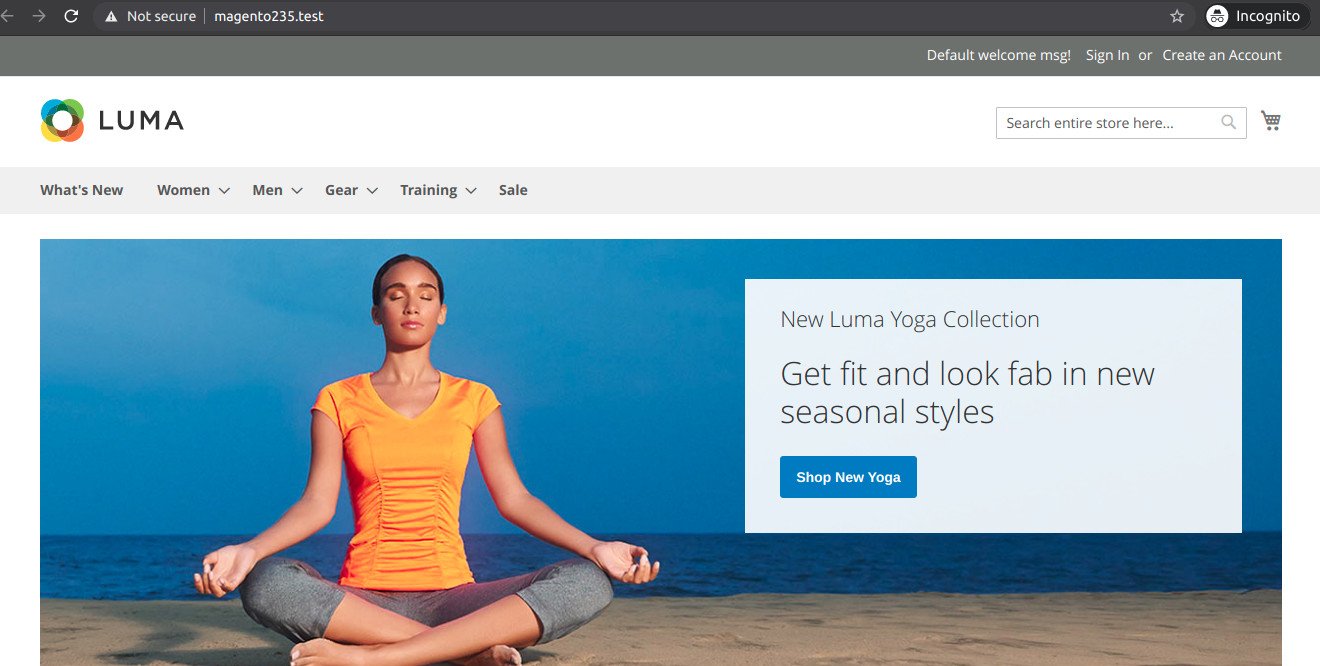
STORE URL: http://magento235.test/
ADMIN URL: http://magento235.test/admin_pgk0rv
User: advcha
Pass: M@gent0

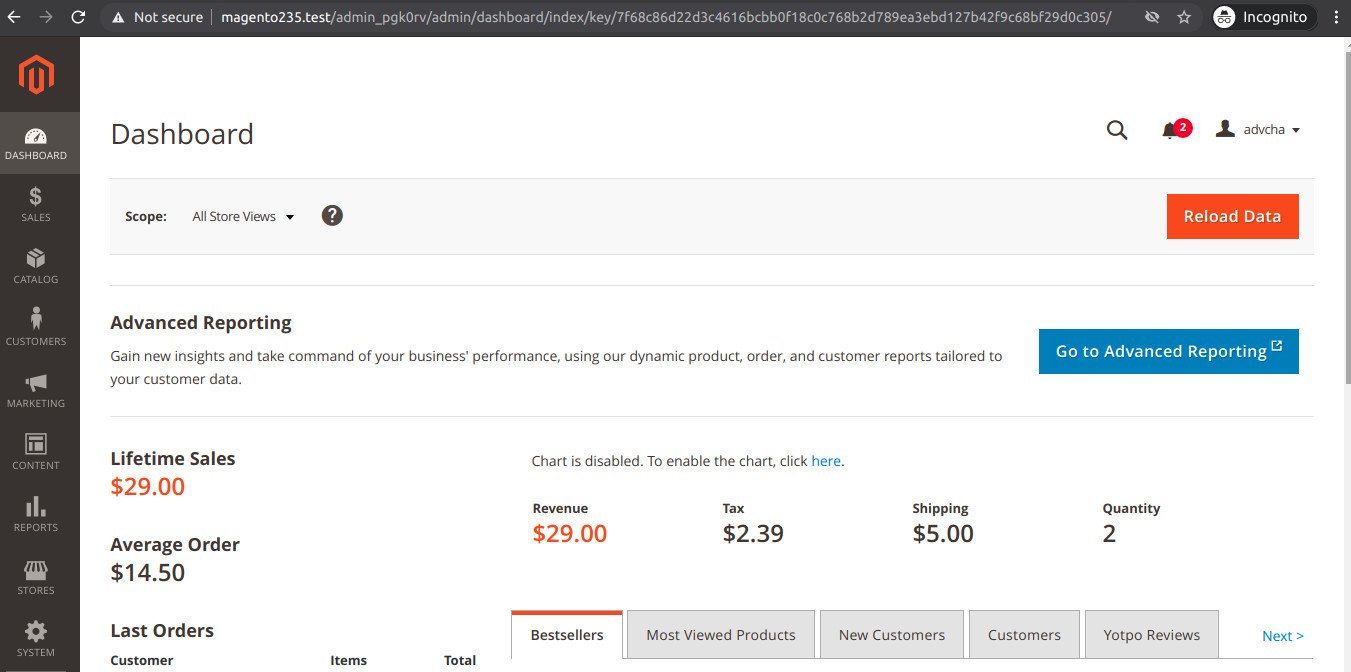
SUCCESS!The admin page

Install Magento 2.4.0 on Ubuntu 18.04

Ref: https://www.rosehosting.com/blog/how-to-install-magento-2-4-with-lemp-stack-on-ubuntu-20-04/

Requirements: PHP7.4, Nginx/Apache2, MySQL, ElasticSearch

CHECK PHP VERSION. IF NOT PHP7.4, INSTALL/CHANGE IT TO 7.4

FIND OUT IF THERE IS PHP7.4 INSTALLED OR NOT

IT SEEMS I HAVEN’T INSTALLED PHP7.4 YET (BUT I FOUND IT ON /etc/php/7.4). IT MEANS IT ALREADY INSTALLED BUT IT DIDN’T HAVE THE OTHERS MODULES (PHP-FPM, ETC). SO INSTALL THEM

NOTE: I HAVE TO INSTALL THEM VIA TELKOMSEL FLASH BECAUSE INDIHOME CAN’T INSTALL THEM!
CHECK AGAIN THE AVAILABLE PHP AND MAKE SURE PHP7.4 IS INSTALLED THEN SELECT IT

NOW

THEN CHANGE PHP7.4-FPM SETTING:

CHANGE THE CONTENT:

THEN RESTART PHP7.4-FPM SERVICE:

CHECK NGINX SYNTAX: sudo nginx -t
RESTART NGINX: sudo systemctl restart nginx
OPEN IT: http://localhost/phpinfo.php (NEED TO CLEAR THE BROWSER CACHE FIRST)
IF YOU CAN’T OPEN http://localhost/phpinfo.php PROPERLY, PLS MAKE SURE THE NGINX CONFIGURATION FILE IS CORRECT

MAKE SURE THE ‘DEFAULT’ PORT IS 80 NOT 8080 AND THE PHP-FPM POINT TO PHP7.4

OKAY. DON’T FORGET TO RESTART NGINX SERVICE

THE CURRENT PHP VERSION FOR FPM IS 7.4.12

CHECK STATUS ELASTICSEARCH

IF IT’S NOT ACTIVE OR DISABLED, THE START THE SERVICE

THEN CHECK THE ELASTICSEARCH VERSION BY OPENING THE PORT 9200 ON THE BROWSER: http://localhost:9200/
HERE IS THE FINE RESULT

INSTALL MAGENTO 2.4 VIA COMMAND LINE — AVOID THIS BECAUSE SOMEHOW I GOT THE ‘DEV’ VERSION NOT STABLE VERSION. SO IT’D BE BETTER TO DOWNLOAD THE ARCHIVE HERE https://magento.com/tech-resources/download
CREATE A NEW DIR ‘magento24’ THEN USE GIT CLONE TO GET THE MAGENTO CODE (NOTE: IT TOOK A WHILE)

RUN ‘composer install’

BUT I GOT THIS ERROR

IT SEEMED I FORGOT TO INSTALL php-soap (THERE IS NO php7.4-soap). INSTALL IT

THEN ENABLE IT IN ‘/etc/php/7.4/cli/php.ini’ AND ‘/etc/php/7.4/fpm/php.ini’. FOR EXAMPLE

THEN UNCOMMENT

DON’T FORGET TO RESTART NGINX
CHECK IT

ALSO CHECK IT ON http://localhost/phpinfo.php
IF EVERYTHING ALRIGHT, RERUN ‘composer install’
IF EVERYTHING ALRIGHT, THEN CREATE A NEW DATABASE ‘magento24’ WITH COLLATION ‘utf8mb4_unicode_520_ci’ THEN RUN THIS:

MAKE SURE EVEYTHING IS FINE

Change the ownership of the magento2 directory to www-data with the following command:

THEN CREATE NGINX CONFIG FILE

The content:

Then

Then

Then insert

CHECK THE NGINX AND RESTART

IF NEEDED SET THE FILE PERMISSION and ownership

COMPILE

BUT WHEN I OPENED IT ON THE BROWSER http://magento24.test/
I GOT 404 ERROR.
FROM THE /var/log/nginx/error, I FOUND

I TRIED TO COPY index.php FILE INTO THE magento24 DIR. IT’S WORKING BUT IT FAILED TO LOAD THE STATIC FILES (CSS, JS, ETC) SO I THINK I’LL INSTALL IT VIA FILE DOWNLOADED ON https://magento.com/tech-resources/download
IT SEEMS THE COMMAND LINE INSTALLED THE DEV VERSION


INSTALL FROM THE DOWNLOADED FILE (ALSO READ http://myprojects.advchaweb.com/index.php/2019/02/26/install-magento-2-3-on-ubuntu-16-04-and-nginx/)
BUT STUCK ON http://magento24.test/setup/#/landing
CAN’T FIND ANY BUTTON TO CONTINUE!!!

Laravel and Apache 2 Setup

  • LARAVEL APACHE SETUP
    CREATE A CONF

    EDIT

    CONTENT

    ENABLE THE VIRTUALHOST


    RELOAD APACHE2


    CREATE THE HOST

    SET THE FILE PERMISSIONS & RELOAD APACHE2

    MODIFY .env FILE

    CHECK /home/teddy/Documents/works/abilik-laravel/app/Providers/AppServiceProvider.php
    TO DISABLE HTTPS ON MY LOCAL

    MODIFY .htaccess (DEFAULT FROM /public/ DIR)


    CLEAR THE PREVIOUS CACHE & ROUTE ON THE WEB ROOT (FOR EXAMPLE teddy@teddy:~/Documents/works/abilik-laravel$ php artisan route:clear)


    OPEN: http://abilik-laravel.test/
    http://abilik-laravel.test/oc-admin