Install Payload CMS

Ref: https://payloadcms.com/docs/getting-started/installation

Check current node version
[codesyntax lang=”bash”]

[/codesyntax]

Use node version 20.9.0+
Check available node version
[codesyntax lang=”bash”]

[/codesyntax]

So use node stable 20.15.1
[codesyntax lang=”bash”]

[/codesyntax]

Create a new dir ‘PayloadCMS’
[codesyntax lang=”bash”]

[/codesyntax]
Install the Payload CMS (blank)
[codesyntax lang=”bash”]

[/codesyntax]

Launch the App
[codesyntax lang=”bash”]

[/codesyntax]

Open it on the browser: http://localhost:3000/
Because it’s blank, so it’ll display a message

404

This page could not be found.

Go to the admin page http://localhost:3000/admin
Note: Make sure the mongod service is already started. If not, pls start it
[codesyntax lang=”bash”]

[/codesyntax]

For the first/empty user, it’ll be redirected to http://localhost:3000/admin/create-first-user
with this form
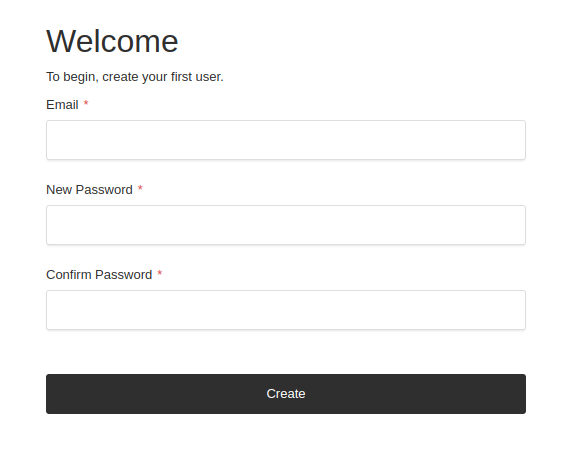
So fill the form with your user.
for example:
email: advcha@yahoo.com
password: Admin@123

So the admin dashboard will be like this
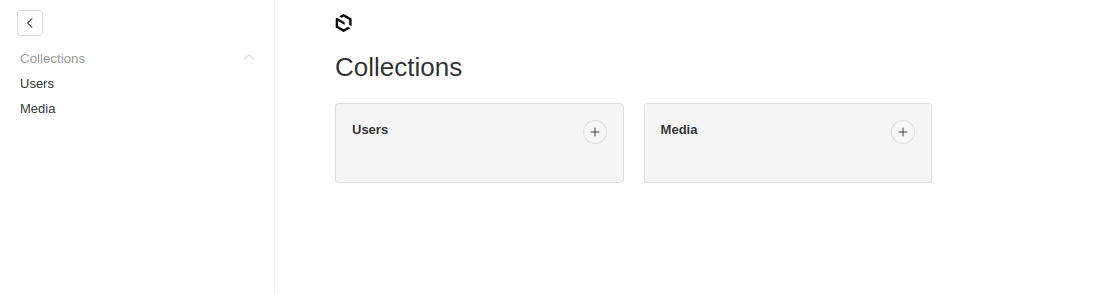
You can add any new user and media

The Code
The config in src/payload.config.ts

Add Payload Visual Editor –> DO THIS ON THE PAYLOAD WEB TEMPLATE
Ref: https://www.npmjs.com/package/payload-visual-editor

Payload Web Template
The same steps:
[codesyntax lang=”bash”]

[/codesyntax]

Go to the dir ‘payload-web’ then run!
[codesyntax lang=”bash”]

[/codesyntax]

Open it in your browser: http://localhost:3000

The admin : http://localhost:3000/admin
For the first/empty user, it’ll be redirected to http://localhost:3000/admin/create-first-user
So fill the form with your user.
for example:
email: advcha@yahoo.com
password: Admin@123
Name: Admin

So it’ll be like this
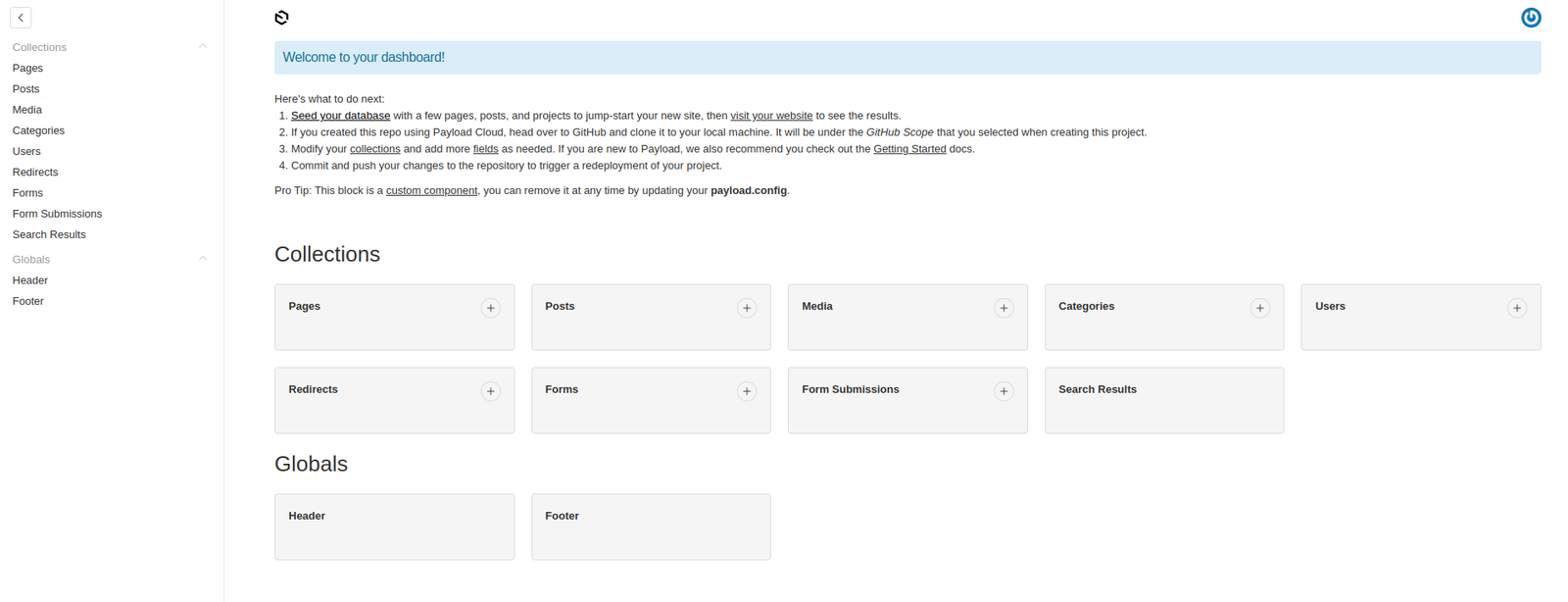
We can generate the example content by clicking ‘Seed your database’ –> ONLY ONCE
on the admin dashboard http://localhost:3000/admin
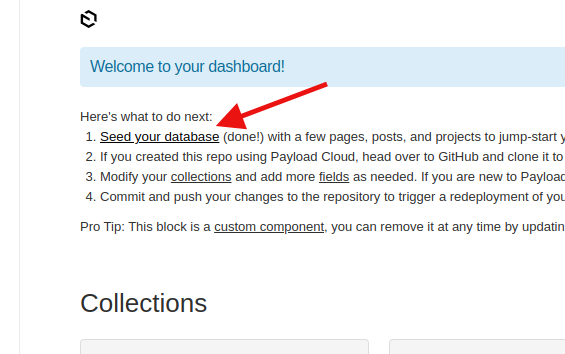
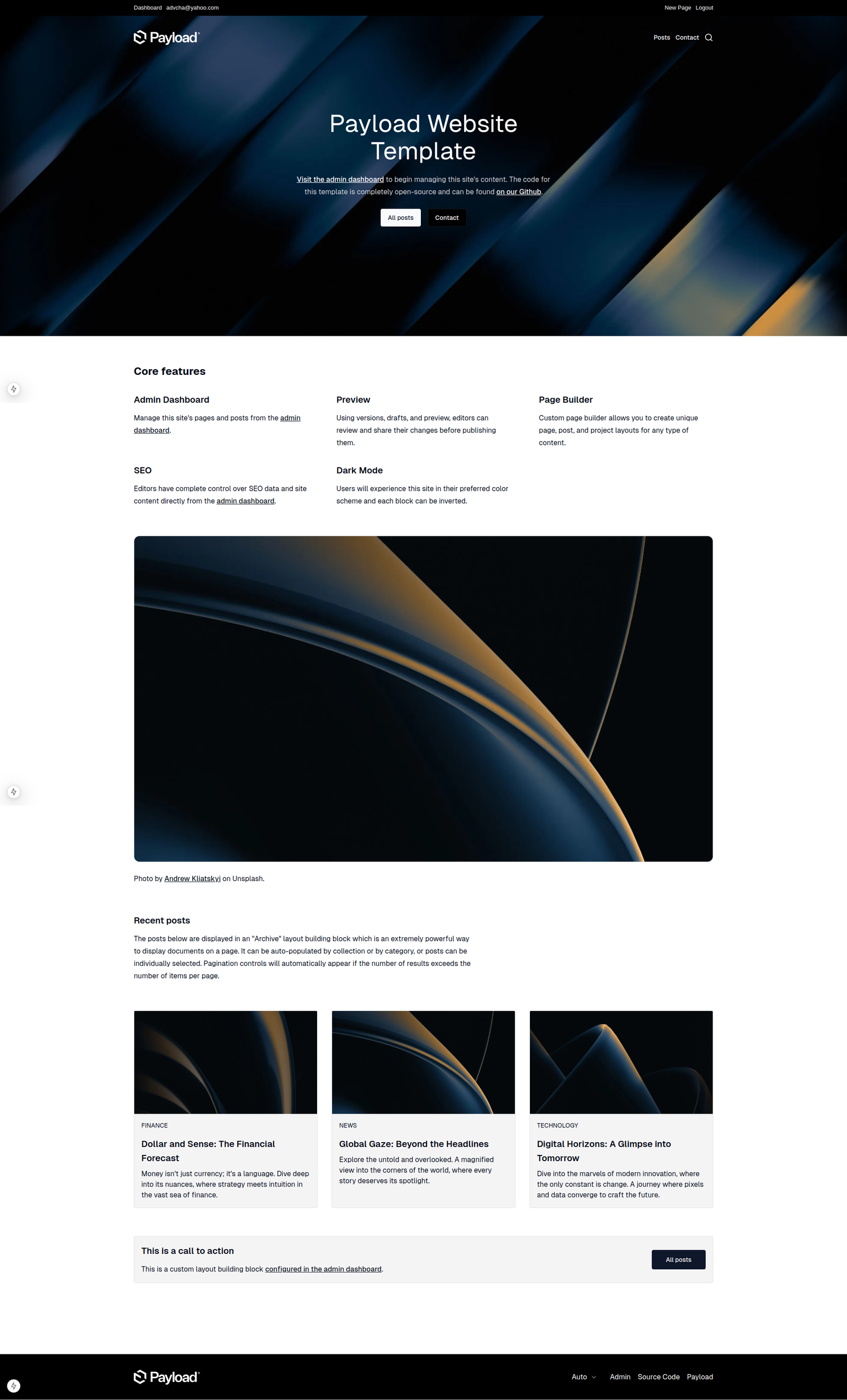
So the homepage will be like this
 

Add Payload Visual Editor
Ref: https://www.npmjs.com/package/payload-visual-editor
Install
[codesyntax lang=”bash”]

[/codesyntax]
then modify the plugin config (NOT IN src/payload.config.ts BECAUSE IT’S ALREADY LINKED TO src/plugins/index.ts
like this:
[codesyntax lang=”javascript”]

[/codesyntax]

But when I opened http://localhost:3000/admin, it showed this error
Failed to compile
[codesyntax lang=”text”]

[/codesyntax]

it seems visual editor can’t work with payload cms version 3.x

INSTALL Payload CMS version 2
Ref: https://payloadcms.com/docs/v2/getting-started/installation
To find out the payload cms package for npx, pls see https://www.npmjs.com/package/create-payload-app?activeTab=versions
actually there is no the package written for 2.x but there is a another package not 3.x. it’s 1.1.0. So use this
[codesyntax lang=”bash”]

[/codesyntax]

note: this is actually payload cms version 2. you can see it in the dependencies in  package.json file
[codesyntax lang=”javascript”]

[/codesyntax]

then go to the dir and run!
Note: don’t forget to start mongod service if it’s not a;ready started!
sudo service mongod start
if you need pnpm instead of npm, install it like this
npm install -g pnpm

[codesyntax lang=”bash”]

[/codesyntax]

We can generate the example content by clicking ‘Seed your database’ –> ONLY ONCE
on the admin dashboard http://localhost:3000/admin

Add Payload Visual Editor
Ref: https://www.npmjs.com/package/payload-visual-editor
[codesyntax lang=”bash”]

[/codesyntax]

modify src/payload/payload.config.ts
[codesyntax lang=”javascript”]

[/codesyntax]
note: can’t use [COLLECTION_SLUG] and [GLOBAL_SLUG] because they are defined. So add ‘pages’ and ‘posts’ (probably ‘projects’ as well)
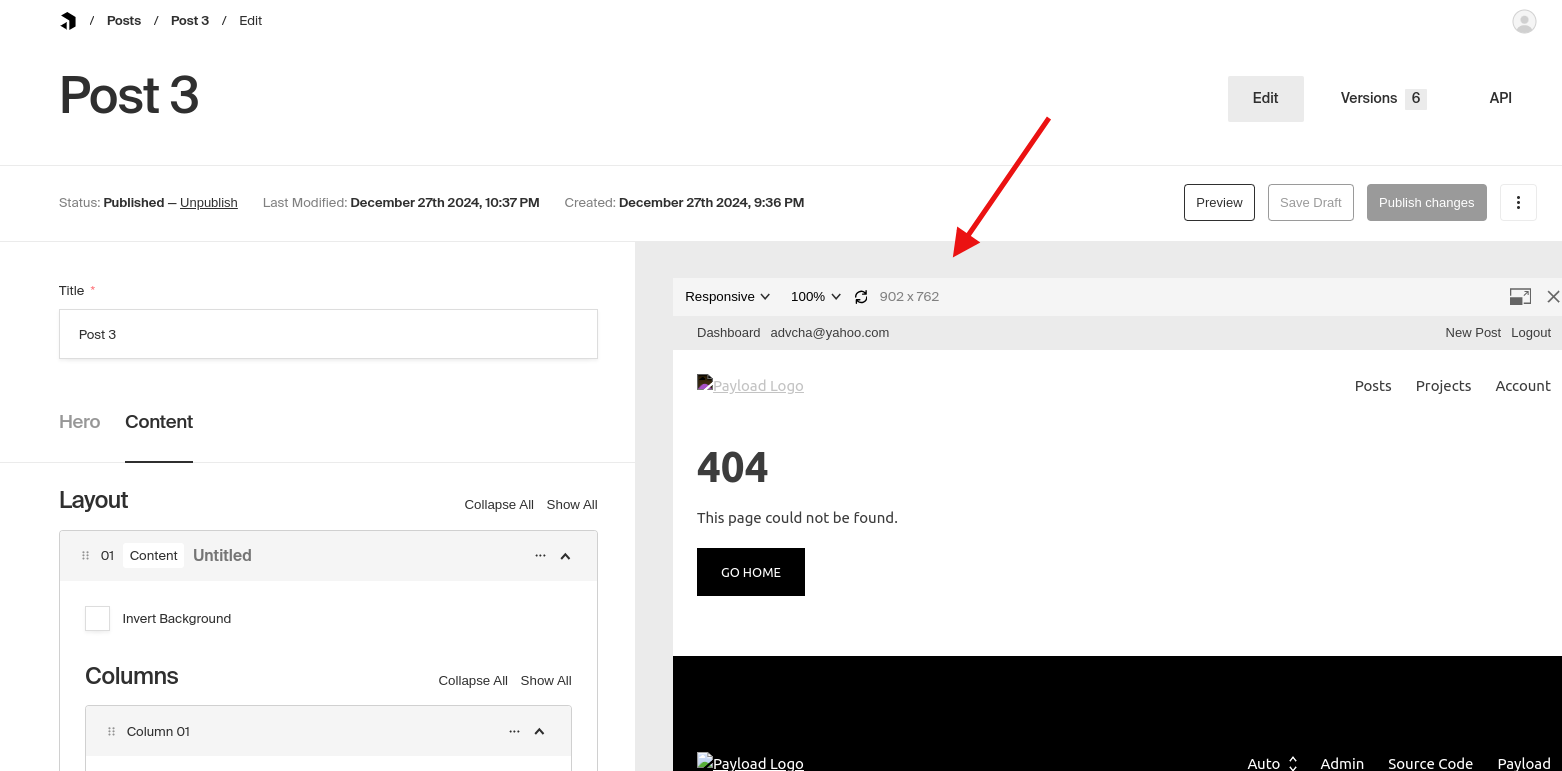
but the previewUrl() still show 404 on the admin visual editor
Create a Self-Signed SSL Certificate for Apache in Ubuntu 22.04

Ref: https://www.digitalocean.com/community/tutorials/how-to-create-a-self-signed-ssl-certificate-for-apache-in-ubuntu-22-04

1. open up the firewall ufw for the http and https ports:
[codesyntax lang=”bash”]

[/codesyntax]

2. enable mod_ssl
[codesyntax lang=”bash”]

[/codesyntax]

3. Creating the TLS Certificate
[codesyntax lang=”bash”]

[/codesyntax]

4. Configuring Apache to Use TLS
[codesyntax lang=”bash”]

[/codesyntax]

the config file like this
[codesyntax lang=”php”]

[/codesyntax]
don’t forget to reload/restart apache2 service

5. Now load your site in a browser, being sure to use https:// at the beginning.

You should see an error. This is normal for a self-signed certificate! The browser is warning you that it can’t verify the identity of the server, because our certificate is not signed by any of its known certificate authorities. For testing purposes and personal use this can be fine. You should be able to click through to advanced or more information and choose to proceed.

Install xdebug with PHP 8.2 on Ubuntu 22.04

<OLD>Ref: https://gist.github.com/henryonsoftware/066d8282daaf8c2ae281ce010e3e5404

1. Download xdebug source code from https://github.com/xdebug/xdebug/releases
for example the xdebug 3.3.2 from https://github.com/xdebug/xdebug/archive/refs/tags/3.3.2.tar.gz

2. extract the downloaded file
satria@teddy:~$ cd Downloads/
satria@teddy:~/Downloads$ tar -xvzf xdebug-3.3.2.tar.gz

3. run ‘phpize’
satria@teddy:~/Downloads$ cd xdebug-3.3.2/
satria@teddy:~/Downloads/xdebug-3.3.2$ phpize
Configuring for:
PHP Api Version: 20210902
Zend Module Api No: 20210902
Zend Extension Api No: 420210902
configure.ac:165: warning: The macro `AC_PROG_LIBTOOL’ is obsolete.
configure.ac:165: You should run autoupdate.
build/libtool.m4:99: AC_PROG_LIBTOOL is expanded from…
configure.ac:165: the top level

4. run ‘./configure’
satria@teddy:~/Downloads/xdebug-3.3.2$ ./configure

5. run ‘make’
satria@teddy:~/Downloads/xdebug-3.3.2$ make

6. copy the module xdebug.so to php lib 20210902
</OLD>
<NEW>

Use php from repository ppa:ondrej/php
then install php8.2-dev
[codesyntax lang=”php”]

[/codesyntax]

then install php8.2-xdebug
[codesyntax lang=”php”]

[/codesyntax]

check the php version
[codesyntax lang=”php”]

[/codesyntax]

if not php8.2, you can select it by using
[codesyntax lang=”php”]

[/codesyntax]

CONFIG XDEBUG

SETTING


Install Flutter and Android Studio on Ubuntu 22.04

Ref: https://docs.flutter.dev/get-started/install/linux/android

Development tools

To develop Flutter on Linux:

1. Verify that you have the following tools installed: bash, file, mkdir, rm, which

2. Install the following packages: curl, git, unzip, xz-utils, zip, libglu1-mesa

3. To develop Android apps:
a. Install the following prerequisite packages for Android Studio.

b. Install Android Studio 2023.3.1 (Jellyfish) or later to debug and compile Java or Kotlin code for Android. Flutter requires the full version of Android Studio.
download and install the latest android studio from https://developer.android.com/studio

If you are running a 64-bit version of Ubuntu, you need to install some 32-bit libraries with the following command:

read the installation note on https://developer.android.com/studio/install#linux

Extract the downloaded file:

Move to the android-studio directory:

Run Android Studio:
Navigate to the bin directory and run the installer:

Use VS Code to install Flutter

To install Flutter using these instructions, verify that you have installed Visual Studio Code 1.77 or later and the Flutter extension for VS Code.

Prompt VS Code to install Flutter
#
Launch VS Code.
To open the Command Palette, press Control + Shift + P.
In the Command Palette, type flutter.
Select Flutter: New Project.
VS Code prompts you to locate the Flutter SDK on your computer.


If you have the Flutter SDK installed, click Locate SDK.
If you do not have the Flutter SDK installed, click Download SDK.

This option sends you the Flutter install page if you have not installed Git as directed in the development tools prerequisites.
When prompted Which Flutter template?, ignore it. Press Esc. You can create a test project after checking your development setup.

INSTALL CMAKE (ALSO FOR LINUX APP)
sudo apt install cmake

Launching lib/main.dart on Linux in debug mode…

CMake Error: CMake was unable to find a build program corresponding to “Ninja”. CMAKE_MAKE_PROGRAM is not set. You probably need to select a different build tool.

CMake Error: CMAKE_CXX_COMPILER not set, after EnableLanguage

Error: Unable to generate build files

INSTALL NINJA BUILD
sudo apt install ninja-build

Launching lib/main.dart on Linux in debug mode…

CMake Error at /usr/share/cmake-3.22/Modules/CMakeDetermineCXXCompiler.cmake:48 (message):

Could not find compiler set in environment variable CXX:

clang++.

Call Stack (most recent call first):

CMakeLists.txt:3 (project)

2

CMake Error: CMAKE_CXX_COMPILER not set, after EnableLanguage

Error: Unable to generate build files

ALSO
satria@teddy:/opt/android-studio/bin$ sudo apt-get install \
clang cmake git \
ninja-build pkg-config \
libgtk-3-dev liblzma-dev \
libstdc++-12-dev
BUT GOT

libbrotli-dev : Depends: libbrotli1 (= 1.0.9-2build6)
SOLUTION:

THEN RE-RUN:
satria@teddy:/opt/android-studio/bin$ sudo apt-get install \
clang cmake git \
ninja-build pkg-config \
libgtk-3-dev liblzma-dev \
libstdc++-12-dev

Motherboard Tutorial

VCC Core on the PC Motherboard: https://www.youtube.com/watch?v=uKybCG1SxyM
how to understand the VCC core from the 12V to the processor
0:02
assalamualaikum friends
0:08
, this time we will show
0:13
something on the PC motherboard, what is in front of us is a
0:19
Gigabyte PC motherboard
0:24
, this time we are not troubleshooting, we will just inform you
0:32
about VCC Core,
0:36
we often know this on a laptop,
0:41
how about a PC
0:44
, so VCC The core also
0:49
shows the voltage supply line to the processor,
0:55
we can see here some inductors, this is the
1:03
bridge between the power source from the
1:10
12V PSU
1:13
to the processor through the regulator
1:22
whose switching is done by this mosfet then
1:33
this controller,
1:38
this ic controller
1:43
is Motherbaord H61
1:48
the processor is a core i3
1:51
VGA so one here, the processor is
1:57
so here there is a VCC Core and here there is a VCC GFx
2:01
after 12V enters the mosfet
2:13
after the voltage is adjusted, then it enters the inductor filter
2:21
whose voltage is further smoothed by these elco.
2:26
If on our laptop motherbaord we see more there is an SMD Capacitor
2:40
there is a 330 uF, 470uF
2:42
if here using an Elco
2:50
560uF with a voltage rating of 6.3V
2:57
means that the voltage that appears here will be below.
3:00
Likewise, we see the VCC GFx
3:05
here, there is a 16V elco,
3:10
which smooths the voltage from the source, 12V
3:17
as we already know that the elco’s voltage rating must be
3:22
above the voltage that will enter
3:27
because the source is 12V so this is enough 16V
3:31
voltage then goes into the mosfet, which is controlled by the IC this.
3:35
Then the voltage needed by the chipset is
3:41
filtered using an inductor or the coil is
3:46
smoothed again using Elco, as the VCC Core
3:51
Elco functions to stabilize the voltage, reduce the voltage ripple. so later the voltage that goes
4:01
into this processor can be smooth. We know that the voltage on this processor fluctuates
4:06
, so if it’s not soft, the voltage is
4:09
rough, then the computer must be dumping, bluescreen.
4:13
problems caused by problems with the VCC Core are
4:21
bluescreen or dumping
4:27
or it could be a warning computer and can’t turn on the
4:31
black screen

Start Analysis of PC Motherboard Damage (https://www.youtube.com/watch?v=kkODZfwDRKE)
how to read and trace the PC mobo schematic
Also watch ANALISA KOMPUTER MATI TOTAL YANG SANGAT AKURAT – SECARA STEP BY STEP POWER YANG DIUKUR (https://www.youtube.com/watch?v=HWh7CJndCQY)
0:07
Assalamualaikum, in this video we will discuss about the PC motherboard
0:14
we will show the difference in reading the PC motherboard scheme
0:23
with the laptop motherboard
0:27
because we know on a PC some voltage
0:32
appears from the power supply unit (PSU),
0:37
different from laptops whose voltage source is one,
0:41
meaning the voltage level from the power source. only one
0:45
of the chargers is only 19V, from the battery it is only 10V
0:53
but on the PC
1:00
from the power supply several voltages appear,
1:10
especially 5V and 12V,
1:15
we can see in the schematic
1:20
we see at ATX
1:24
here we can see there are several voltage sources
1:33
from the PSU 3.3 V-
1:37
12V , -5V, + 5V, +12 V
1:47
so there is 3.3 V there is 5 V
1:54
12 V
1:57
there are three voltages that all appear from the PSU
2:03
so it’s not on the motherboard
2:07
so there are some differences in analysis
2:12
if we are repairing the CPU motherboard
2:16
then which we discuss where the
2:21
powersquence is from the CPU motherboard performance process starts
2:33
what we see here is the schematic of the ACER
2:46
motherboard, the ACER motherboard type H61H2 AM3 Version 1. 0
2:59
but here we only have a scheme that is almost similar to the LM3 model,
3:07
no problem,
3:12
by chance, this scheme has powersquency.In
3:17
this scheme, we can see the sequence of voltage emergence
3:21
and the work process from the start
3:25
here we can see shown in numbers
3:28
1 3 10 this is the sequence of voltage emergence
3:33
Of course starting from one, what voltage appears the earliest and works the earliest
3:44
on this motherboard. The ECSH61H2 used by ACER
3:51
is the build-up of ACER
3:54
ACER using the ECS motherboard
3:58
so the first voltage that appears is
4:05
1 PS_3VSB
4:09
so if we are analyzing the motherboard,
4:13
for example the motherboard cannot
4:15
we turn on according to the
4:18
voltage from 1 (PS_3VSB)
4:20
we can check here, where does the voltage appear?
4:25
Of course, from the power supply, where are all the sources from the power supply
4:27
points? in this line, to 5VSB,
4:36
we can check on the ATX port
4:44
on this port where the voltage appears or not
4:50
on what pin number we see first in the
4:54
5VSB
4:58
ATX power 5VSB scheme
5:48
here there is a 5V AUX code, appears on pin Number 9
5:57
this must appear the earliest
6:01
so if we look at the port,
6:09
then we can check the purple cable, the
6:14
AUX is 5V
6:26
on this cable, the voltage must be 3V or 5V first.
6:37
If we look at this scheme, it says 5VSB,
6:44
of course the appearance of 5 V
6:51
but why goes into 3 11
6:55
maybe this there is a certain process that can reduce the 5V voltage from the PSU to 3V
7:04
before going to the Super I / O IT8775E-EX
7:11
for details later, please look for it in the schematic
7:16
we don’t discuss there,
7:18
we only discuss the sequence
7:19
so the first thing
7:23
that must appear is the
7:25
voltage on the purple wire
7:30
here the voltage must appear first
7:37
then
7:41
the second one, so this voltage (No.1) goes to the Super I / O
7:50
IT8775E
7:53
chipset, which is the small chipset,
8:05
pin what number can we look for a discema
8:10
then after entering the I / O chips
8:12
we are looking for sequence number 2
8:18
RSMRST_L
8:22
so from this super I / O IC
8:26
the code
8:29
signal is RSMRST_L,
8:32
we have to find this on pin number 43
8:36
of IC Chips I / O
8:40
from this, pin Number 43
8:47
comes out the RSMRST code signal
8:51
must come out
8:55
then the third one
8:59
just enters This power Button
9:05
is connected to the I / O chipset
9:11
pin number 33
9:25
so in this scheme we can read at a glance, there are conditions that must be conditionally
9:34
conditioned first
9:41
before the Power Button button can be turned on
9:45
, first the voltage on this cable must appear
9:51
then on pin number 11 3VSB on the I / O chipset
9:57
which is a standard voltage, the voltage is approximately 3 V
10:00
then on pin number 43
10:05
of this chip the
10:06
voltage must also appear, the voltage will be sent to the PCH chipset
10:13
where the cooler is
10:16
sent here the signal
10:23
then pin number 33 of these chips must have voltage too
10:30
that is before the power button is turned on
10:33
so first this cable must have a voltage of 5V
10:37
pin number 11 of this chipset
10:41
there must be a voltage too
10:44
then pin number 43 and
10:47
then pin n Number 33 there must be a voltage
10:50
before the power button is pressed,
10:53
then everyone, of
10:57
course, next we do is press the power button,
11:02
how the power button works
11:05
from this signal, this diagram shows that
11:08
there is a downward signal, the box goes down again,
11:11
this shows that when the power button is pressed the
11:15
voltage is down (drops 0) the
11:17
voltage at pin 33 chips I / O is 0
11:22
when the power button is pressed
11:24
but when it is released it returns to approximately 3V
11:31
so if at pin number 33 when the power button is pressed the voltage drops 0 then it is released again 0
11:40
this indicates the power button it works
11:42
and the power button has to do with the I / O chipset, this is good, it
11:46
means that when the power button is pressed the I / O chipset knows that if there is a power button that has been pressed,
11:53
this is a command that must be responded to by the I / O Chipset
11:59
so that it
12:01
works next how, the sequence is number
12:05
PWRON 4 in this scheme
12:08
is the pin number 31 is visible signal
12:13
SIO’s Power Button down too
12:16
so after the power button is pressed, pin number 31 must decrease the voltage
12:24
this signal is sent to the PCH too (PCH chipset) and
12:31
so next,
12:33
so if this motherboard can’t be turned on,
12:36
it’s pressed it doesn’t respond
12:38
we check on pin number 33 of the I / O chipset
12:42
if when the power button is pressed there is no response here,
12:48
maybe the connection between the power button and the I / O chipset is problematic
12:57
, we can do this we can do the jumper, of course we will explore in more detail in this scheme,
13:02
but if the power button can be detected on the I / O chipset
13:07
but the laptop does not turn on, of
13:08
course we will Do further checking to step number 4, namely
13:13
pin number 31 of this I / O chipset
13:16
if pin number 31 does not respond
13:20
when the power button is pressed
13:21
even though pin number 33 responds
13:25
then it could be one of the causes is this I / O chipset is damaged
13:30
, friend all of
13:34
this is just the beginning we are starting to learn to detect damage to the PC motherboard. We will
13:41
meet again in an upcoming video
13:44
Assalamualaikum Wr. Wb.

Analisa VCC Core Yang Hilang (https://www.youtube.com/watch?v=wRVCIwauMqo)
trace VCC core from the 12 v source to processor. read the schematic
0:00
Assalamualaikum warahmatullahi
0:02
wabarakatuh sobat semuanya yang kita
0:05
akan ceritakan di sini adalah sebuah
0:08
kasus black screen yang terjadi pada
0:12
motherboard Asus
0:14
x42d dan ini Teknik ini bisa kita
0:17
terapkan pada motherboard model apapun
0:20
ya penyebab daripada black screen pada
0:23
motherboard ini adalah tidak munculnya
0:25
tegangan VCC Core yaitu tegangan yang
0:28
mensuplai prosesor kita biasa sebut vcc
0:33
core atau V Core
0:35
ya V Core yang pada motherboard ini e
0:39
tegangannya melewati coil ini dan
0:42
ini kita sering lihat ada dua coil pada
0:46
for Walaupun ada juga yang menggunakan
0:49
satu coil kemudian menggunakan filter
0:51
kapasitor kapasitor SMD ini ini dan ini
0:55
ada juga di
0:56
baliknya jadi setelah motherboard dinyala
1:00
kan kita cek dengan di coil ini enggak
1:02
ada di coil ini juga enggak ada coil ini
1:05
enggak ada coil ini enggak ada tidak
1:07
muncul tegangan jadi tidak tampil apapun
1:10
pada layar monitor baik internal maupun
1:13
eksternal lalu apa yang kita lakukan
1:15
tentu kita pastikan dulu bahwa jalur
1:18
vcc core ini tidak short sirkuit caranya
1:21
gimana caranya tentu prosesor kita Lepas
1:24
dulu kemudian kita cek resistansi di
1:27
coil ini dan coil ini juga tentu pada
1:30
kondisi normal kalau kita menggunakan
1:33
multitester analog tidak bergerak sama
1:35
sekali ya kalaupun bergerak sangat kecil
1:37
sekali atau kalaupun bergerak dia balik
1:39
lagi ke posisi nol karena di sana ada
1:42
kapasitor kapasitor yang agak gede
1:44
kemudian kita yakin bahwa jalurnya tidak
1:46
short eh maka kita langsung menuju ke IC
1:51
controller yang mengontrol smps daripada
1:56
blok vcc Core jadi ini adalah IC
1:59
controller
2:01
vcc core pada motherboard ini dari mana
2:04
kita bisa tahu tentu dari skema atau
2:07
kalau sudah hafal biasanya langsung bisa
2:09
deteksi ya kalau enggak ada skema kita
2:11
bisa lihat e data daripada IC modelnya
2:16
bisa kita lihat di
2:17
bodinya kita lihat data seet-nya nanti
2:19
kita bisa tahu IC itu fungsinya apa lalu
2:23
kita menuju IC titik mana yang paling
2:27
pertama kita cek tentu yang pertama kita
2:29
cek adalah titik vcc daripada IC ini
2:34
yaitu PIN yang eh terhubung dengan
2:39
sumber tegangan yang mensuplai IC ini
2:43
Nah setelah kita cek ternyata Eh pada
2:47
pada PIN vcc ini tidak muncul tegangan
2:50
vcc ada di PIN nomor 32 yang terhubung
2:54
langsung dengan Pin nomor dua kita bisa
2:56
tahu ini
2:57
di data seet pada data seet daripada IC
3:01
Maxim 17480g ini kita bisa tahu bahwa
3:05
PIN vcc ada di PIN nomor
3:08
32 jadi kita cek di PIN nomor 32 ini PIN
3:13
nomor 32 di sini tidak muncul tegangan
3:16
lalu dari mana tegangan ini bisa diambil
3:20
maksudnya sumber tegangan vcc ini PIN
3:24
nomor 32 ini dari mana kita bisa lihat
3:26
di boot view ini nah PIN ini terhubung
3:29
ke mana saja ya Nah ternyata PIN ini
3:31
terhubung ke ini ya
3:34
r8008
3:36
pc806
3:37
pr8021 kita lihat R ini terhubung ke
3:40
mana kita mulai dari sini nah Ternyata
3:44
kita tahu bahwa ini terhubung ke + 5 vs
3:48
kalau tadi yang
3:50
r1-nya ini terhubung ke vcc core option ini
3:53
kembali ke IC ya
3:55
jadi kita bisa lihat di sini ada
3:57
tegangan level tegangan Plus 5 volt
4:01
kodenya plus 5
4:03
vs inilah sumber tegangan yang menjadi
4:07
supply IC control vcc Core kemudian kita
4:10
cek di sini kalau di motherboard nya 10 20
4:15
30 di sini ya di sini PIN nomor 32
4:18
Ternyata kita cek di sini enggak ada
4:21
tegangan kemudian kita cek pada
4:24
resistor ini di sini plus 5 vs ini
4:29
muncul plus 5 vs ini ada tegangan 5 volt
4:33
ni di PIN satunya ini yang terhubung
4:36
langsung ke vcc pada IC control vcc Core
4:40
tadi tidak muncul tegangan di sini
4:43
muncul hanya 0 ohm sekian ini
4:46
menunjukkan bahwa ada masalah pada R ini
4:48
maka setelah kita cek kemudian kita
4:52
lepas eh resistor ini kita lepas
4:54
ternyata ada ada apa masalah pada pada
4:59
motherboard-nya ya pada apa
5:03
E di
5:06
pin-pin pada resistor tadi pada resistor
5:11
ini jalur-jalur yang di motherboardnya
5:14
kelihatan
5:16
seperti berkerak kayak gosong gitu
5:19
jadi posisinya di sini seperti di f view
5:22
tadi resistornya ini kecil sekali Nah
5:26
resistor ini kita cek di titik ini ada t
5:30
5 volt namun di sini tidak ada maka kita
5:34
lihat ternyata E solderannya yang
5:38
dimotherboard itu
5:41
berkerak maka kita lepas resistornya
5:44
kemudian kita bersihkan kita solder
5:46
ulang ulang kakinya demikian juga
5:48
resistor ini kita lepas kita ganti
5:51
ukurannya sesuai dengan eh di tadi dibat
5:56
view tadi ditunjukkan ukurannya resistor
5:59
ini 2,2 Ohm ya kita kita
6:05
ganti dengan resistor 2,2 Ohm kita
6:10
solder dengan baik kemudian kita cek
6:12
motherboard ini bisa kembali bekerja
6:14
dengan dengan baik kemudian kita cek vcc
6:17
core nya juga keluar kita cek pakai
6:20
pakai monitor juga normal muncul
6:24
gambarnya jadi pekerjaan selesai kita
6:27
coba simpulkan
6:28
ya J salah satu penyebab motherboard black
6:31
screen atau no display bisa dinyalakan
6:35
tapi pada tampilan enggak muncul apa-apa
6:37
dan laptop enggak bisa booting tidak ada
6:40
suara apa-apa itu salah satunya adalah
6:41
tidak munculnya vcc Core yaitu tegangan
6:45
yang mensupplay e prosesor setelah kita
6:48
cek jalur vcc core ini tidak short maka
6:52
kita langsung menuju IC controller vcc
6:54
Core setelah kita cek
6:56
ternyata PIN vcc pada IC VC core
7:00
controler vcc core ini tidak ada
7:02
tegangannya jadi IC ini tidak
7:04
mendapatkan tegangan kerja kemudian kita
7:08
telusuri akhirnya kita temukan bahwa
7:11
tegangan suplai IC ini 5 volt dengan
7:15
kode 5 vs itu tidak muncul gara-gara
7:19
resistornya rusak kita ganti
7:21
resistornya beres baik demikian sobat
7:23
semuanya semoga
7:26
bermanfaat ketemu lagi di video
7:28
selanjutnya nya wasalamualaikum
7:30
warahmatullahi wabarakatuh

Julia On Ubuntu 22.04

Ref: https://julialang.org/downloads/

Download the latest binary for Ubuntu 22.04

Update the system

Check it out


jQuery Deferred and Promise

Tutorial
Read: https://www.sitepoint.com/introduction-jquery-deferred-objects/
https://www.geeksforgeeks.org/what-are-deferred-and-promise-object-in-jquery/
Deferred samples
Find the file in /home/satria/Documents/jquery/deferred.html

Deferred for the recursive sample
find the sample at /home/satria/Documents/jquery/deferred-recursive.html


Local Install SMF (Simple Machines Forum)

Download the latest file on https://download.simplemachines.org/

CREATE LOCAL SETUP

CREATE A CONF

CONTENT

ENABLE THE VIRTUALHOST

RELOAD APACHE2

CREATE THE HOST

RELOAD APACHE2 AGAIN

SET THE FILE PERMISSION

OPEN: http://smf_2-1-4.test/

Admin
user: admin
pass: Teddy@123

WordPress Headless with Vercel

Create a vercel account if you don’t have any.
Then create a new project with CMS WordPress
Connect it with your github
It’d create the project like this: https://github.com/advcha/isr-blog-nextjs-wordpress
A WordPress backend with NextJS frontend
Read the github project README

PREPARE THE WP BACKEND
Prepare your local WP site. Mine is http://wp-commerce.test/
Then on the WP admin, install a new plugin WPGraphQL
Then on GraphQL settings, look at the GraphQL Endpoint value. The default value is http://wp-commerce.test/graphql
THIS WOULD BE THE ‘WORDPRESS_API_URL’ VALUE

PREPARE THE NEXTJS FRONTEND
Clone the above github (https://github.com/advcha/isr-blog-nextjs-wordpress) to your computer
Then copy .env.local.example to .env.local
Modify WORDPRESS_API_URL value TO http://wp-commerce.test/
Also need to modify next.config.js file TO add a domain ‘0.gravatar.com’ like this

I need to do this (add the domain for showing up the images above), because previously I got this error on the frontend

Also I need to update my ‘node’ to > 18… version. I update it to version 20…
Run the npm or yarn on the project root (/home/satria/Documents/projects/isr-blog-nextjs-wordpress/). I prefer yarn

If there is no error, open it on the browser: http://localhost:3000/

DEPLOY IT VIA VERCEL
Login to your vercel account then go to your project. Mine is isr-blog-nextjs-wordpress
Then go to Settings -> Environment Variables -> Create a new one ‘WORDPRESS_API_URL’ or modify it
The value should be http://wp-commerce.test/graphql
Then Save

Push the changes on the github. but when you want to deploy on the vercel (https://vercel.com/satria-faesthas-projects/isr-blog-nextjs-wordpress/deployments), you’d get this error and deploy is failed

Make sure the variable WORDPRESS_API_URL value in .env.local file is same with in the vercel project setting.
That’s because my WordPress is still on my local computer. So use your live WordPress site and install again WPGraphQL plugin !
Another error on build deploy via vercel

THIS IS BECAUSE THE NEXT JS (FRONTEND) NOT LIVE YET?
READ: https://github.com/vercel/next.js/issues/47554

Install Java and Tomcat on Ubuntu 22.04

READ: https://tecadmin.net/how-to-install-tomcat-on-ubuntu-22-04/
ALSO READ: https://myprojects.advchaweb.com/index.php/2021/09/27/install-tomcat-on-ubuntu-20-04/

INSTALL OPENJDK 11

CHECK JAVA VERSION

CREATE A TOMCAT USER

DOWNLOAD TOMCAT 10
AT THE TIME, THE LATEST STABLE VERSION IS 10.1.19. DOWNLOAD THE BINARY (https://dlcdn.apache.org/tomcat/tomcat-10/v10.1.19/bin/apache-tomcat-10.1.19.tar.gz)

EXTRACT IT TO /opt/tomcat DIR

SET THE PERMISSION
First, we’ll change the directory ownership to tomcat.

Next, make all scripts within the bin directory executable.

Create Tomcat Application Accounts
Now, configure your tomcat with user accounts to secure access of admin/manager pages. To do this, edit conf/tomcat-users.xml file in your editor and paste the following code inside <tomcat-users> </tomcat-users> tags. We recommend changing the password in the below configuration with high secured password.

ADD THE ROLES

Allow Remote Hosts to Access Tomcat
The default Tomcat manager and host-manager applications are accessible for localhost only. To allow access to these pages from the remote system, you need to modify the following configuration files.

You can either allow a specific remote system or allow all. Edit the context.xml file for manager and host manager application:

Comment out the section added for IP address restriction to allow connections from anywhere.

Similarly edit context.xml for host manager application in text editor:

Create a Systemd Service File
We’ll now create a systemd service file to manage the Tomcat service. Open a new service file in a text editor:

Paste in the following configuration:

Start and Enable Tomcat
After creating the service file, reload the systemd daemon to read the new file:

Next, start the Tomcat service with:

CHECK Tomcat service status

If everything went well, enable Tomcat to start on boot:

Open the Firewall
You also need to check if the firewall is not blocking the incoming connections to Tomcat’s port (default is 8080). This depends on what firewall you are using:

For UFW (Uncomplicated Firewall) in Ubuntu:

Test the Installation
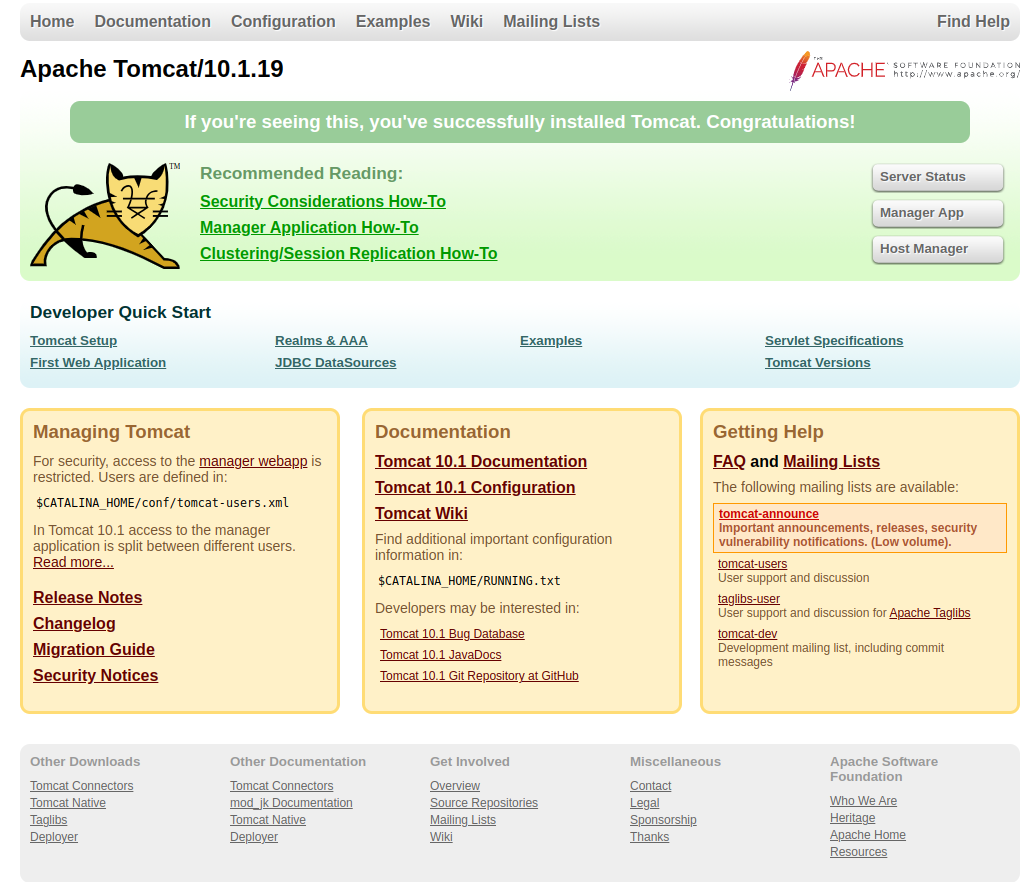
The default Tomcat server runs on port 8080. As you have configured Tomcat on your system, you can access web interface from your system. You can access tomcat interfaces by entering your server’s IP address or a domain name pointed to that server, followed by port 8080 in your browser:

http://localhost:8080/

Tomcat Manager App is a web application packaged with the Tomcat server application. The Manager interface provides us with the basic functionality we need to manage our deployed web applications.

Click the Manager App button home page or directly type /manager in the browser URL of the main Tomcat server to access it.
http://localhost:8080/manager/html
user: admin
pass: Admin@123

TOMCAT LOG
THE DEFAULT LOG FILE IS IN /opt/tomcat/apache-tomcat-10.1.19/logs/ DIR!
THE LOG FILE IS /opt/tomcat/apache-tomcat-10.1.19/logs/catalina.out
To change the default location of the log file, edit the startup.sh file and locate the entry: