Install osTicket

Ref: https://www.rosehosting.com/blog/how-to-install-osticket-on-ubuntu-22-04/

Download

Install osTicket 1.10

LOCAL SETUP (I uses PHP 7.4)

I tried to setup a virtualhost:

sudo gedit /etc/apache2/sites-available/osticket-v1.10.test.conf

Here is the file osticket-v1.10.test.conf:

[codesyntax lang=”text”]

[/codesyntax]

activate it:

sudo a2ensite osticket-v1.10.test

Restart/reload the server:

sudo systemctl reload apache2

Insert osticket-v1.10.test in my local host:

sudo gedit /etc/hosts

Here is the entry that need to be put in:

127.0.0.1 osticket-v1.10.test

Restart/reload the server:

sudo systemctl reload apache2

Change the files & dir permission:
satria@teddy:~/Documents/projects/osticket-v1.10$ sudo chmod -R 777 .

I need to install some php 7.4 extensions missing:
sudo apt install php7.4-imap && sudo apt install php7.4-apcu

Now the site is http://osticket-v1.10.test
SETUP:
rename/copy
from:
/home/satria/Documents/projects/osticket-v1.10/upload/include/ost-sampleconfig.php
to:
/home/satria/Documents/projects/osticket-v1.10/upload/include/ost-config.php

create a new database : osticket_110

set user account
username: adminOT
password: adminOT

after the successful installation:
satria@teddy:~/Documents/projects/osticket-v1.10$ sudo chmod 0644 upload/include/ost-config.php

Your osTicket URL:
http://osticket-v1.10.test/

Your Staff Control Panel or admin:
http://osticket-v1.10.test/scp

after the admin login, I got ‘Valid CSRF Token Required’
SOLUTION:
REF: https://stackoverflow.com/questions/41542268/valid-csrf-token-required-in-osticket-after-login
in include/class.ostsession.php

Just add this line:

$this->data->session_data = “”;
After:

catch (DoesNotExist $e) {
$this->data = new SessionData([‘session_id’ => $id]);
}

So it will be:

catch (DoesNotExist $e) {
$this->data = new SessionData([‘session_id’ => $id]);
$this->data->session_data = “”;
}

Then try to login from scratch, don’t just refresh the submission.
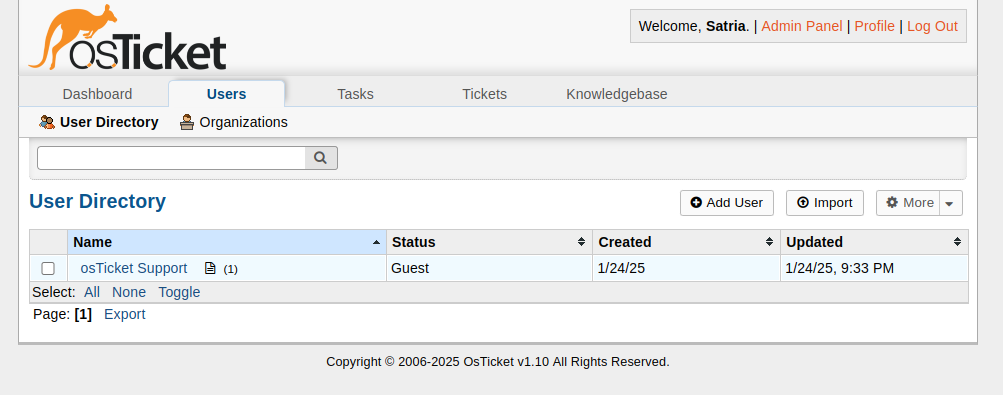
Install osTicket 1.18.1

LOCAL SETUP (I uses PHP 8.2)
[codesyntax lang=”bash”]

[/codesyntax]

I tried to setup a virtualhost:

sudo gedit /etc/apache2/sites-available/osticket-v1.18.1.test.conf

Here is the file osticket-v1.18.1.test.conf:

[codesyntax lang=”text”]

[/codesyntax]

activate it:

sudo a2ensite osticket-v1.18.1.test

Restart/reload the server:

sudo systemctl reload apache2

Insert osticket-v1.18.1.test in my local host:

sudo gedit /etc/hosts

Here is the entry that need to be put in:

127.0.0.1 osticket-v1.18.1.test

Restart/reload the server:

sudo systemctl reload apache2

Change the files & dir permission:
satria@teddy:~/Documents/projects/osticket-v1.18.1$ sudo chmod -R 777 .

I need to install some php 8.2 extensions missing (if not exist):
sudo apt install php8.2-imap && sudo apt install php8.2-apcu

Now the site is http://osticket-v1.18.1.test
SETUP:
rename/copy
from:
/home/satria/Documents/projects/osticket-v1.18.1/osticket-v1.18.1/upload/include/ost-sampleconfig.php
to:
/home/satria/Documents/projects/osticket-v1.18.1/osticket-v1.18.1/upload/include/ost-config.php

create a new database : osticket_1181

set user account
username: adminOT
password: adminOT

after the successful installation:
satria@teddy:~/Documents/projects/osticket-v1.18.1/osticket-v1.18.1/$ sudo chmod 0644 upload/include/ost-config.php

Your osTicket URL:
http://osticket-v1.18.1.test/

Your Staff Control Panel or admin:
http://osticket-v1.18.1.test/scp
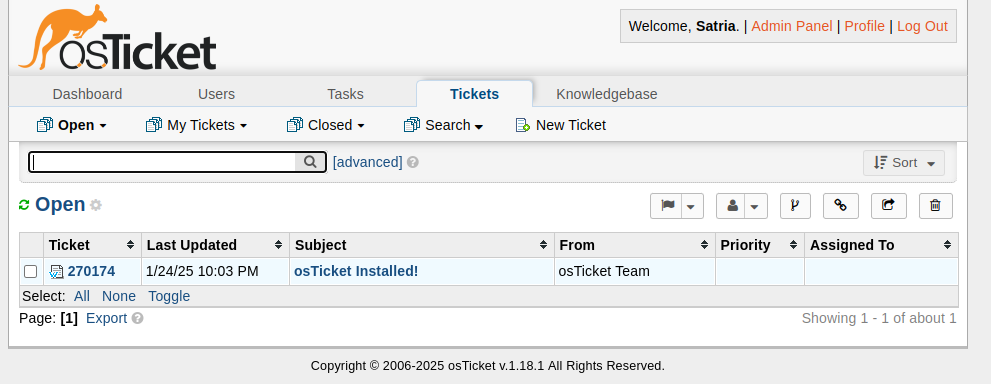
THE EMAIL SETTING:

configure emails setting (http://osticket-v1.18.1.test/scp/emails.php)
Note: Create a few emails alias for satria@advchaweb.com on the hostinger like osticket1@advchaweb.com, osticket2@advchaweb.com, osticket3@advchaweb.com

Create a new email ->

Account Tab:
Email Address: osticket1@advchaweb.com
Email Name: osticket1@advchaweb.com
Department:
Priority: Normal
Help Topic:
Auto Response: (unchecked)

Remote Mailbox Tab:
Mailbox Setting:
Hostname: imap.hostinger.com
Port Number: 993
Mail Folder: INBOX
Protocol: IMAP
Authentication: Basic Authentication -> Click ‘Config’ button
–>
Email Address: satria@advchaweb.com
password: +PL5x8mQ

Email Fetching:
Status: Enable  –> to fetch the incoming email
Fetch Frequency: 15 minutes
Emails Per Fetch: 50
Fetched Emails: Archive – move to folder -> 2023OstFetched

Outgoing (SMTP) Tab:
Status: Enable –> MUST BE
Hostname: smtp.hostinger.com –> NO. USE THE smtp-relay.brevo.com SETTING BELOW
Port Number: 465
Authentication: Same as Remote Mailbox
Header Spoofing: (checked) Allow for this email
SORRY, ONLY ADMIN CAN SHOW THIS!

Create a Login App with ASP.NET on Ubuntu 22.04

Here’s a step-by-step guide to create a simple login form using ASP.NET Core (C#) and MS SQL Server with VS Code and Linux:

  1. Install .NET SDK If you haven’t already, install the .NET SDK for your Linux distribution. You can find instructions on the official Microsoft website.check your dotnet version
    [codesyntax lang=”bash”]

    [/codesyntax]
  2. Create a new ASP.NET Core project Open a terminal and run:

    [codesyntax lang=”bash”]

    [/codesyntax]

    Go to the project directory ‘LoginApp’ with ‘cd LoginApp’

  3. Install required NuGet packages Run the following commands:
    [codesyntax lang=”bash”]

    [/codesyntax]

    Make sure the version is match in LoginApp.csproj
    [codesyntax lang=”csharp”]

    [/codesyntax]

  4. Set up the database connection Open appsettings.json and add the connection string:
    [codesyntax lang=”text”]

    [/codesyntax]
    Note: I need to add ‘TrustServerCertificate=True;’

  5. Create ApplicationDbContext Create a new file ApplicationDbContext.cs
    [codesyntax lang=”csharp”]

    [/codesyntax]

  6. Update Program.cs Replace the content of Program.cs:
    [codesyntax lang=”csharp”]

    [/codesyntax]

  7. Create Login Model Create Models/LoginModel.cs:
    [codesyntax lang=”csharp”]

    [/codesyntax]

  8. Create Account Controller Create Controllers/AccountController.cs:
    [codesyntax lang=”csharp”]

    [/codesyntax]

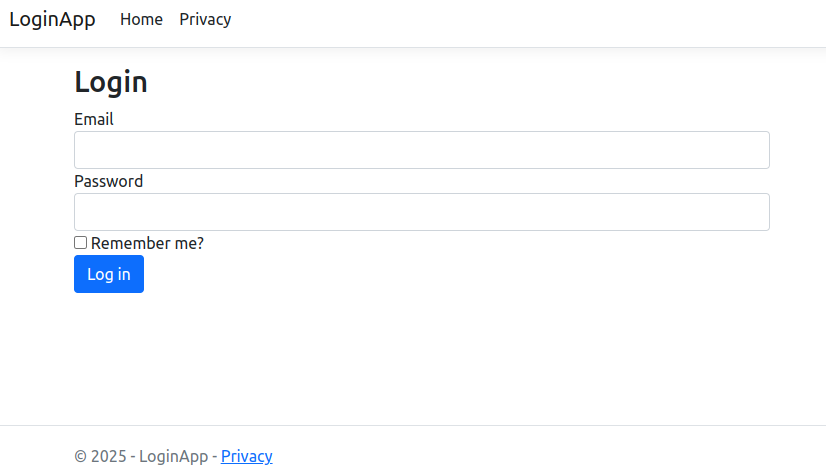
  9. Create Login View Create Views/Account/Login.cshtml:
    [codesyntax lang=”html4strict”]

    [/codesyntax]

  10. Set up the database. Create a new database ‘LoginApp’
  11. Add a test user Create DbInitializer.cs:
    [codesyntax lang=”csharp”]

    [/codesyntax]
    Note: it’ll create a new dummy user with
    email: admin@example.com
    password: Admin123!

  12. Run the application Execute:

  13. Navigate to http://localhost:5000/Account/Login in your browser.
  14. create some navigation menus (login, logout, etc) on the homepage
    Create a new file called _NavBar.cshtml in the Views/Shared folder with the following content:
    [codesyntax lang=”html4strict”]

    [/codesyntax]

    Now, let’s include this partial view in your layout file. Open the Views/Shared/_Layout.cshtml file and add the following line just after the opening <body> tag:
    [codesyntax lang=”html4strict”]

    [/codesyntax]
    Note: I need to remove the default <header> tag to use the new partial navbar

  15. create controller for account logout
    modify Controllers/AccountController.cs
    [codesyntax lang=”csharp”]

    [/codesyntax]

    Now, let’s update the _NavBar.cshtml partial view to use a form for the logout action, as it should be a POST request. Update the logout link in the _NavBar.cshtml file like this:
    [codesyntax lang=”html4strict”]


    [/codesyntax]
    at the end of this file, add this javascript
    [codesyntax lang=”html4strict”]

    [/codesyntax]
  16. Add controller for registration and forgot password?

Install Microsoft SQL Server 2022 On Ubuntu 22.04

Ref: https://learn.microsoft.com/en-us/sql/linux/quickstart-install-connect-ubuntu?view=sql-server-ver16&tabs=ubuntu2204

1. Update and upgrade the packages on ubuntu 22.04
[codesyntax lang=”bash”]

[/codesyntax]

2. Download the public key, convert from ASCII to GPG format, and write it to the required location:
[codesyntax lang=”bash”]

[/codesyntax]

3. Manually download and register the SQL Server Ubuntu repository:
[codesyntax lang=”bash”]

[/codesyntax]

4. Run the following commands to install SQL Server:
[codesyntax lang=”bash”]

[/codesyntax]

5. After the package installation finishes, run mssql-conf setup and follow the prompts to set the sa password and choose your edition.
Just choose ‘Developer’ version. type 2. My local sa password is {my-nick-name-first-uppercase}@123
[codesyntax lang=”bash”]

[/codesyntax]

6. Once the configuration is done, verify that the service is running:
[codesyntax lang=”bash”]

[/codesyntax]

Install the SQL Server command-line tools (sqlcmd)

1. Import the public repository GPG keys.
[codesyntax lang=”bash”]

[/codesyntax]

2. Register the Microsoft Ubuntu repository. For Ubuntu 22.04, use the following command:
[codesyntax lang=”bash”]

[/codesyntax]

3. Update the sources list and run the installation command with the unixODBC developer package.
[codesyntax lang=”bash”]

[/codesyntax]

To update to the latest version of mssql-tools, run the following commands:
[codesyntax lang=”bash”]

[/codesyntax]

4. Add /opt/mssql-tools18/bin/ to your PATH environment variable in a bash shell.

To make sqlcmd and bcp accessible from the bash shell for login sessions, modify your PATH in the ~/.bash_profile file with the following command:
[codesyntax lang=”bash”]

[/codesyntax]

5. Test sqlcmd with ‘sqlcmd -?’
[codesyntax lang=”bash”]

[/codesyntax]

Connect locally. I tried to use : sqlcmd -S localhost -U sa -P your_password
but it showed up this error
[codesyntax lang=”bash”]

[/codesyntax]

it turned out I need to add -C parameter at the end like this
[codesyntax lang=”bash”]

[/codesyntax]

Create a new database

For example create a new database TestDB from sqlcmd
[codesyntax lang=”bash”]

[/codesyntax]

Create a new table dbo.Inventory and Insert data
[codesyntax lang=”bash”]

[/codesyntax]

Install DBeaver (https://dbeaver.io/)
This is Database GUI for many databases including MS SQL Server

Download it https://dbeaver.io/download/
I used Ubuntu PPA
[codesyntax lang=”bash”]

[/codesyntax]

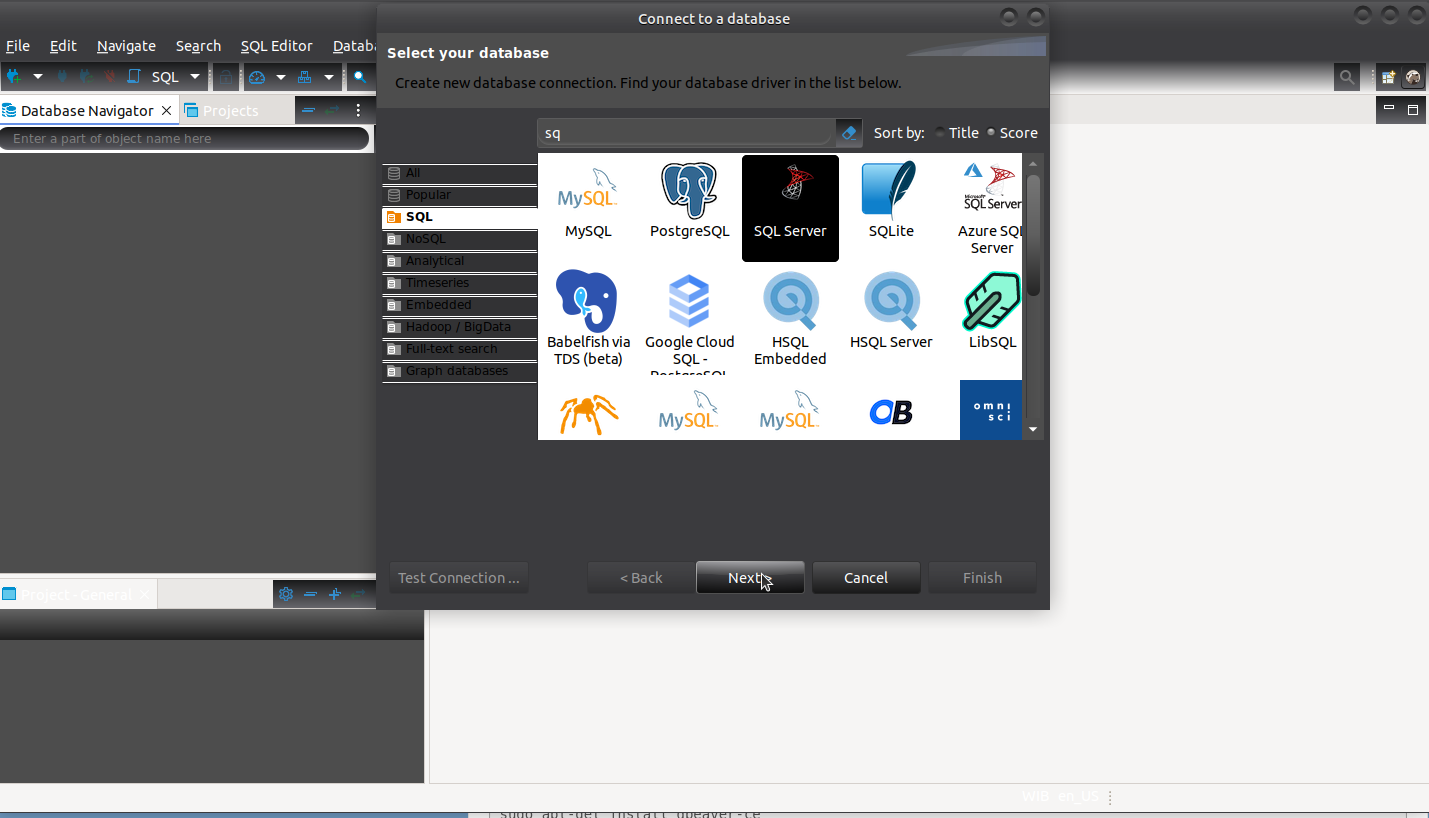
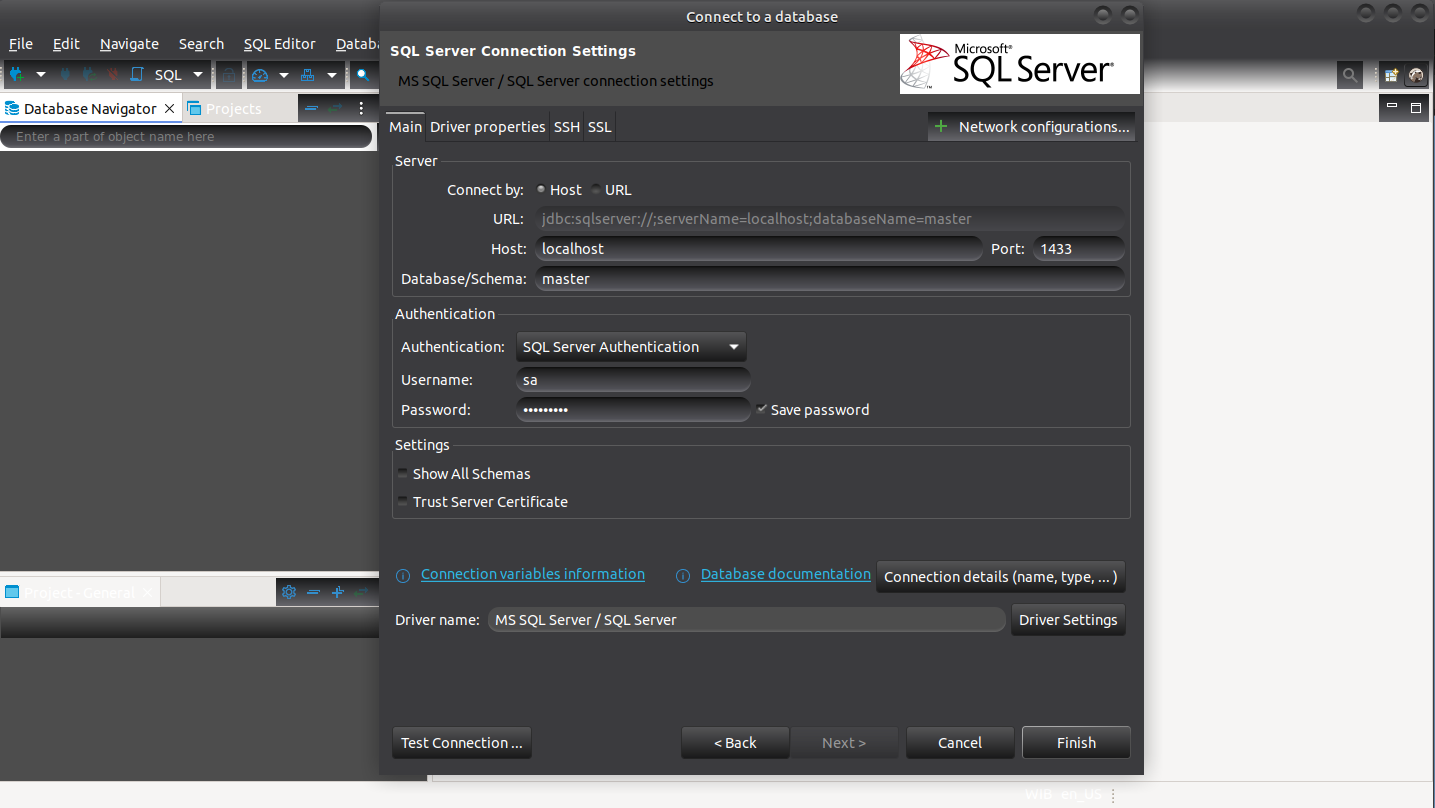
Open DBeaver CE and select to the MS SQL Server

Connect to the MS SQL Server but it needs to use JDBC driver. Install it directly from the DBeaver

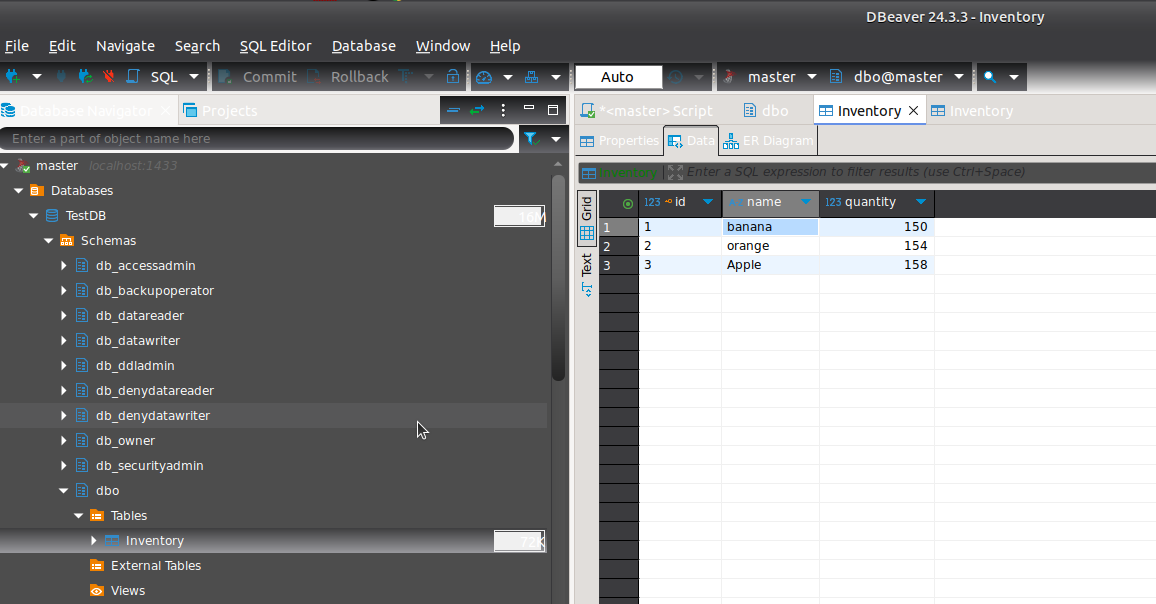
If everything is okay, it’ll look like this

on the DBeaver GUI you can add a new row. for example add a new row
ID: 3
Name: Apple
Quantity: 158
Then save

on the sqlcmd should reflect the changes
[codesyntax lang=”bash”]

[/codesyntax]

Python and Streamlit on Ubuntu 22.04

Check the installed python

satria@teddy:~$ pip -V
pip 22.0.2 from /usr/lib/python3/dist-packages/pip (python 3.10)

it seems I already installed python 3. but when I want to find out the location with ‘whereis python’, it showed up nothing

satria@teddy:~$ whereis python
python:

so use ‘whereis python3’ instead

satria@teddy:~$ whereis python3
python3: /usr/bin/python3 /usr/lib/python3 /etc/python3 /usr/share/python3 /usr/share/man/man1/python3.1.gz

I need to symlink python 3 to use just ‘python’ like this
satria@teddy:~$ sudo ln -s /usr/bin/python3 /usr/bin/python

then I can use like this
satria@teddy:~$ whereis python
python: /usr/bin/python

Install streamlit with python3 virtual environment (venv)
ref: https://docs.streamlit.io/get-started/installation/command-line

create a new directory.  for  example ‘streamlit’
satria@teddy:~$ cd Documents/projects/python/streamlit/

then go into the dir. make sure you already have python3-venv package. if not install it
satria@teddy:~/Documents/projects/python/streamlit$ sudo apt install python3.10-venv

then use python3-venv like this:
satria@teddy:~/Documents/projects/python/streamlit$ python -m venv .venv

Activate the virtual environment
satria@teddy:~/Documents/projects/python/streamlit$ source .venv/bin/activate
(.venv) satria@teddy:~/Documents/projects/python/streamlit$

install streamlit with pip in the venv
(.venv) satria@teddy:~/Documents/projects/python/streamlit$ pip install streamlit
Collecting streamlit
Using cached streamlit-1.41.1-py2.py3-none-any.whl (9.1 MB)
Collecting click<9,>=7.0
Downloading click-8.1.8-py3-none-any.whl (98 kB)
━━━━━━━━━━━━━━━━━━━━━━━━━━━━━━━━━━━━━ 98.2/98.2 KB 915.4 kB/s eta 0:00:00
Collecting tornado<7,>=6.0.3
Using cached tornado-6.4.2-cp38-abi3-manylinux_2_5_x86_64.manylinux1_x86_64.manylinux_2_17_x86_64.manylinux2014_x86_64.whl (437 kB)
Collecting packaging<25,>=20
Using cached packaging-24.2-py3-none-any.whl (65 kB)
Collecting requests<3,>=2.27
Using cached requests-2.32.3-py3-none-any.whl (64 kB)
Collecting pydeck<1,>=0.8.0b4
Using cached pydeck-0.9.1-py2.py3-none-any.whl (6.9 MB)
Collecting numpy<3,>=1.23
Using cached numpy-2.2.2-cp310-cp310-manylinux_2_17_x86_64.manylinux2014_x86_64.whl (16.4 MB)
Collecting gitpython!=3.1.19,<4,>=3.0.7
Using cached GitPython-3.1.44-py3-none-any.whl (207 kB)
Collecting toml<2,>=0.10.1
Using cached toml-0.10.2-py2.py3-none-any.whl (16 kB)
Collecting cachetools<6,>=4.0
Using cached cachetools-5.5.0-py3-none-any.whl (9.5 kB)
Collecting pandas<3,>=1.4.0
Using cached pandas-2.2.3-cp310-cp310-manylinux_2_17_x86_64.manylinux2014_x86_64.whl (13.1 MB)
Collecting blinker<2,>=1.0.0
Downloading blinker-1.9.0-py3-none-any.whl (8.5 kB)
Collecting altair<6,>=4.0
Using cached altair-5.5.0-py3-none-any.whl (731 kB)
Collecting watchdog<7,>=2.1.5
Using cached watchdog-6.0.0-py3-none-manylinux2014_x86_64.whl (79 kB)
Collecting pyarrow>=7.0
Using cached pyarrow-19.0.0-cp310-cp310-manylinux_2_28_x86_64.whl (42.1 MB)
Collecting typing-extensions<5,>=4.3.0
Using cached typing_extensions-4.12.2-py3-none-any.whl (37 kB)
Collecting pillow<12,>=7.1.0
Downloading pillow-11.1.0-cp310-cp310-manylinux_2_28_x86_64.whl (4.5 MB)
━━━━━━━━━━━━━━━━━━━━━━━━━━━━━━━━━━━━━━━━ 4.5/4.5 MB 14.1 MB/s eta 0:00:00
Collecting protobuf<6,>=3.20
Using cached protobuf-5.29.3-cp38-abi3-manylinux2014_x86_64.whl (319 kB)
Collecting rich<14,>=10.14.0
Using cached rich-13.9.4-py3-none-any.whl (242 kB)
Collecting tenacity<10,>=8.1.0
Using cached tenacity-9.0.0-py3-none-any.whl (28 kB)
Collecting jsonschema>=3.0
Using cached jsonschema-4.23.0-py3-none-any.whl (88 kB)
Collecting narwhals>=1.14.2
Using cached narwhals-1.22.0-py3-none-any.whl (297 kB)
Collecting jinja2
Using cached jinja2-3.1.5-py3-none-any.whl (134 kB)
Collecting gitdb<5,>=4.0.1
Using cached gitdb-4.0.12-py3-none-any.whl (62 kB)
Collecting pytz>=2020.1
Downloading pytz-2024.2-py2.py3-none-any.whl (508 kB)
━━━━━━━━━━━━━━━━━━━━━━━━━━━━━━━━━━━━━ 508.0/508.0 KB 5.5 MB/s eta 0:00:00
Collecting tzdata>=2022.7
Using cached tzdata-2024.2-py2.py3-none-any.whl (346 kB)
Collecting python-dateutil>=2.8.2
Using cached python_dateutil-2.9.0.post0-py2.py3-none-any.whl (229 kB)
Collecting certifi>=2017.4.17
Downloading certifi-2024.12.14-py3-none-any.whl (164 kB)
━━━━━━━━━━━━━━━━━━━━━━━━━━━━━━━━━━━━ 164.9/164.9 KB 12.2 MB/s eta 0:00:00
Collecting urllib3<3,>=1.21.1
Downloading urllib3-2.3.0-py3-none-any.whl (128 kB)
━━━━━━━━━━━━━━━━━━━━━━━━━━━━━━━━━━━━ 128.4/128.4 KB 12.5 MB/s eta 0:00:00
Collecting idna<4,>=2.5
Downloading idna-3.10-py3-none-any.whl (70 kB)
━━━━━━━━━━━━━━━━━━━━━━━━━━━━━━━━━━━━━━ 70.4/70.4 KB 14.6 MB/s eta 0:00:00
Collecting charset-normalizer<4,>=2
Using cached charset_normalizer-3.4.1-cp310-cp310-manylinux_2_17_x86_64.manylinux2014_x86_64.whl (146 kB)
Collecting pygments<3.0.0,>=2.13.0
Using cached pygments-2.19.1-py3-none-any.whl (1.2 MB)
Collecting markdown-it-py>=2.2.0
Using cached markdown_it_py-3.0.0-py3-none-any.whl (87 kB)
Collecting smmap<6,>=3.0.1
Using cached smmap-5.0.2-py3-none-any.whl (24 kB)
Collecting MarkupSafe>=2.0
Downloading MarkupSafe-3.0.2-cp310-cp310-manylinux_2_17_x86_64.manylinux2014_x86_64.whl (20 kB)
Collecting referencing>=0.28.4
Using cached referencing-0.36.1-py3-none-any.whl (26 kB)
Collecting jsonschema-specifications>=2023.03.6
Using cached jsonschema_specifications-2024.10.1-py3-none-any.whl (18 kB)
Collecting rpds-py>=0.7.1
Using cached rpds_py-0.22.3-cp310-cp310-manylinux_2_17_x86_64.manylinux2014_x86_64.whl (381 kB)
Collecting attrs>=22.2.0
Using cached attrs-24.3.0-py3-none-any.whl (63 kB)
Collecting mdurl~=0.1
Using cached mdurl-0.1.2-py3-none-any.whl (10.0 kB)
Collecting six>=1.5
Downloading six-1.17.0-py2.py3-none-any.whl (11 kB)
Installing collected packages: pytz, watchdog, urllib3, tzdata, typing-extensions, tornado, toml, tenacity, smmap, six, rpds-py, pygments, pyarrow, protobuf, pillow, packaging, numpy, narwhals, mdurl, MarkupSafe, idna, click, charset-normalizer, certifi, cachetools, blinker, attrs, requests, referencing, python-dateutil, markdown-it-py, jinja2, gitdb, rich, pydeck, pandas, jsonschema-specifications, gitpython, jsonschema, altair, streamlit
Successfully installed MarkupSafe-3.0.2 altair-5.5.0 attrs-24.3.0 blinker-1.9.0 cachetools-5.5.0 certifi-2024.12.14 charset-normalizer-3.4.1 click-8.1.8 gitdb-4.0.12 gitpython-3.1.44 idna-3.10 jinja2-3.1.5 jsonschema-4.23.0 jsonschema-specifications-2024.10.1 markdown-it-py-3.0.0 mdurl-0.1.2 narwhals-1.22.0 numpy-2.2.2 packaging-24.2 pandas-2.2.3 pillow-11.1.0 protobuf-5.29.3 pyarrow-19.0.0 pydeck-0.9.1 pygments-2.19.1 python-dateutil-2.9.0.post0 pytz-2024.2 referencing-0.36.1 requests-2.32.3 rich-13.9.4 rpds-py-0.22.3 six-1.17.0 smmap-5.0.2 streamlit-1.41.1 tenacity-9.0.0 toml-0.10.2 tornado-6.4.2 typing-extensions-4.12.2 tzdata-2024.2 urllib3-2.3.0 watchdog-6.0.0

test it by typing ‘streamlit hello’

(.venv) satria@teddy:~/Documents/projects/python/streamlit$ streamlit hello

👋 Welcome to Streamlit!

If you’d like to receive helpful onboarding emails, news, offers, promotions,
and the occasional swag, please enter your email address below. Otherwise,
leave this field blank.

Email: your_email@yahoo.com

You can find our privacy policy at https://streamlit.io/privacy-policy

Summary:
– This open source library collects usage statistics.
– We cannot see and do not store information contained inside Streamlit apps,
such as text, charts, images, etc.
– Telemetry data is stored in servers in the United States.
– If you’d like to opt out, add the following to ~/.streamlit/config.toml,
creating that file if necessary:

[browser]
gatherUsageStats = false

Welcome to Streamlit. Check out our demo in your browser.

Local URL: http://localhost:8501
Network URL: http://192.168.1.23:8501

Ready to create your own Python apps super quickly?
Head over to https://docs.streamlit.io

May you create awesome apps!

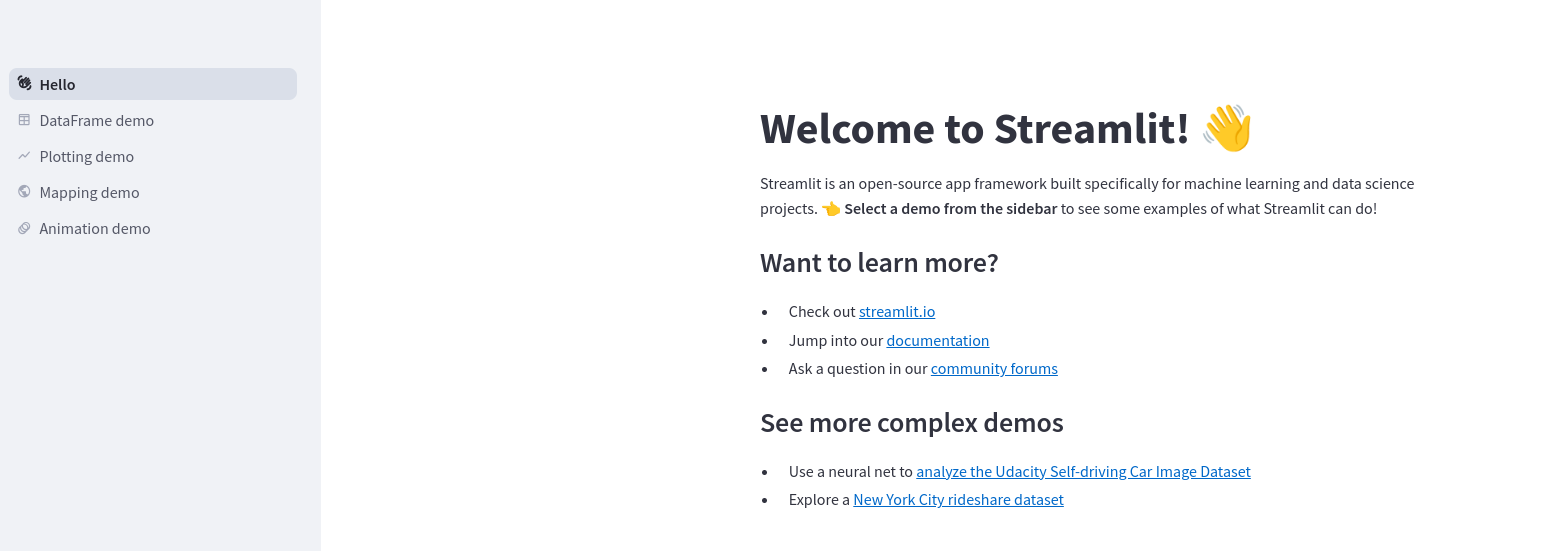
it’d open http://localhost:8501 on the browser.

Create new app and run it
In your project directory (/home/satria/Documents/projects/python/streamlit) that exist .venv file, create a new file ‘app.py’

[codesyntax lang=”python”]

[/codesyntax]
then run it.
note: pls make sure you’re already in the virtual environment (venv). if not type ‘source .venv/bin/activate’ to activate it. then run it by typing ‘streamlit run app.py’:
satria@teddy:~/Documents/projects/python/streamlit$ source .venv/bin/activate
(.venv) satria@teddy:~/Documents/projects/python/streamlit$ streamlit run app.py

You can now view your Streamlit app in your browser.

Local URL: http://localhost:8501
Network URL: http://192.168.1.23:8501

it’ll open it on your browser and printed ‘Hello World’

….

if you already finished, you can stop the streamlit app with ctrl+c and deactivated the venv
^C Stopping…
(.venv) satria@teddy:~/Documents/projects/python/streamlit$ deactivate
satria@teddy:~/Documents/projects/python/streamlit$

Golang and Gin Restful API

Ref: https://santrikoding.com/tutorial-restful-api-golang-1-membuat-project-golang

Note: Make sure golang is already installed by checking with ‘go version’ on your linux terminal
[codesyntax lang=”bash”]

[/codesyntax]
Note: it’ll be better to use the newest go version. I already installed go version 1.23.4
[codesyntax lang=”bash”]

[/codesyntax]

Note: don’t forget to run ‘go mod tidy’ on your go project

1. Create a new directory for this project named ‘go-restful-api’ then go into the directory
[codesyntax lang=”bash”]

[/codesyntax]

then type this to create a new module ‘advcha/backend-api’
[codesyntax lang=”bash”]

[/codesyntax]

2. Install ‘Gin’ and the libraries. Gin is a go-based web framework
[codesyntax lang=”bash”]

[/codesyntax]

3. Create a ‘Hello World’ with Gin
create a new file ‘main.go’ then here is the content
[codesyntax lang=”text”]

[/codesyntax]

4. Run it with ‘go run main.go’
[codesyntax lang=”bash”]

[/codesyntax]

5. open it on your browser with http://localhost:3000/
it should print

Install GORM (Go ORM). it’s a Object Relational Mapping (ORM) for Golang
1. Install GORM with MySQL driver
[codesyntax lang=”bash”]

[/codesyntax]

2. Create a new .env file to store the variables like the database name, password, etc.
[codesyntax lang=”text”]

[/codesyntax]
Note: rename ‘your_mysql_username’ and ‘your_mysql_password’ for your mysql account
‘db_go_restful_api’ is the database name we will create later

We need to install a package ‘github.com/joho/godotenv’ on the terminal ‘go get github.com/joho/godotenv’ to read the .env file
Note: run ‘go mod tidy’ to install any missing packages if exist

2. Create a Post model
create a new directory ‘models’ then create a new file ‘post.go’ in it. here is the file content
[codesyntax lang=”text”]


[/codesyntax]

3. create a database connection
create a new file ‘setup.go’ in the ‘models’ directory. here is the file content
[codesyntax lang=”text”]

[/codesyntax]

4. create a new mysql database ‘db_go_restful_api’

5. Create a new Post controller ‘postController.go’ in ‘controllers’ directory
[codesyntax lang=”text”]

[/codesyntax]

6. Create a route API Post
edit main.go to import the models and controllers. Also put the route in it. so it’ll be like this
[codesyntax lang=”text”]

[/codesyntax]


7. Run it and open it on your browser
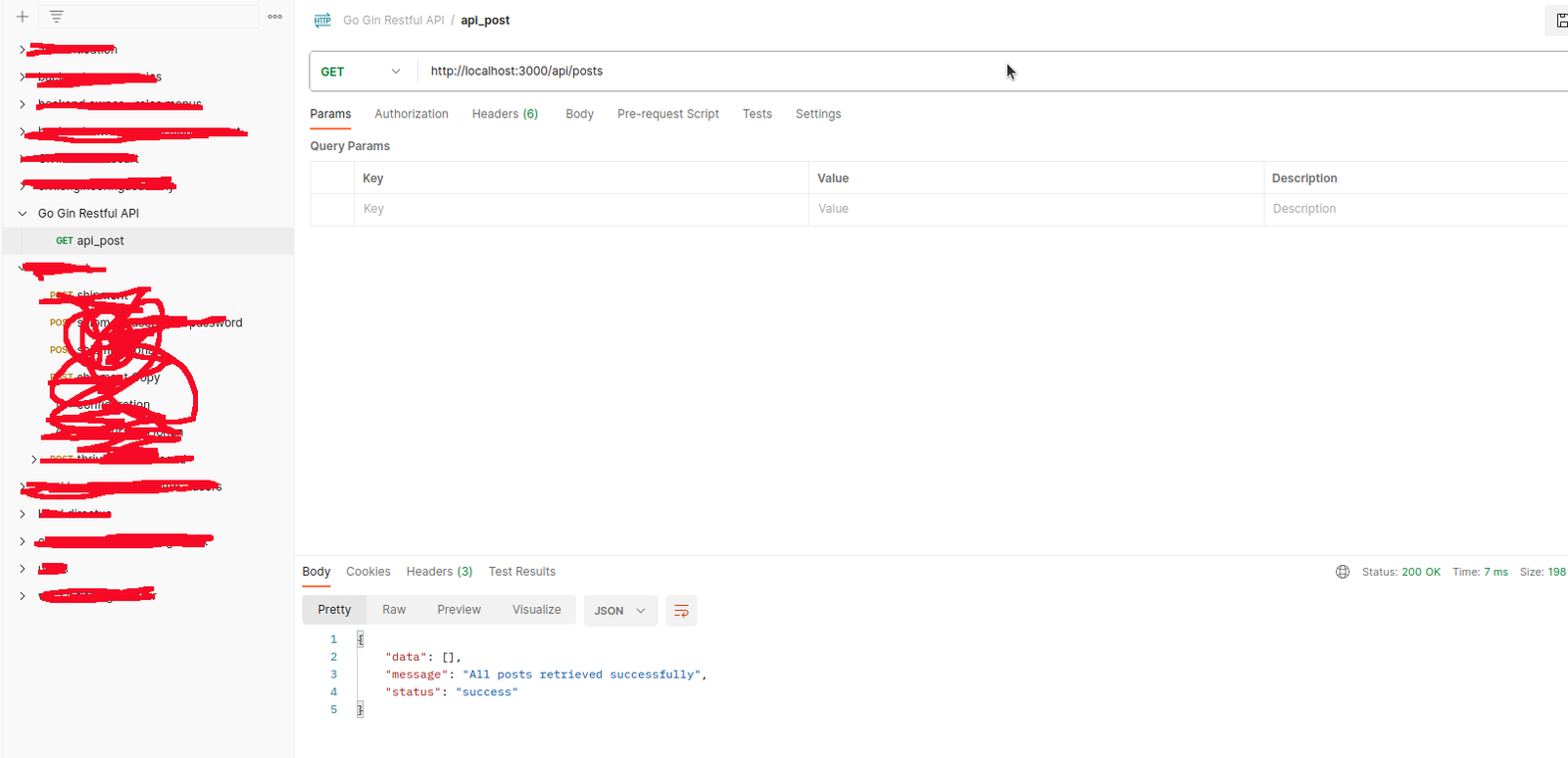
If everything okay, the url http://localhost:3000/api/posts will show

Note: Also we can check it via Postman
create a new collection ‘Go Gin Restful API’ then create a new GET request ‘api_posts’ with url http://localhost:3000/api/posts

Insert data into the database
1. Create a new function ‘InsertPost’ in postController.go
note: first, we need to install a package ‘github.com/go-playground/validator/v10′[codesyntax lang=”bash”]

[/codesyntax]

[codesyntax lang=”text”]

[/codesyntax]

2. Then add a route in main.go to insert the post like this
[codesyntax lang=”text”]

[/codesyntax]

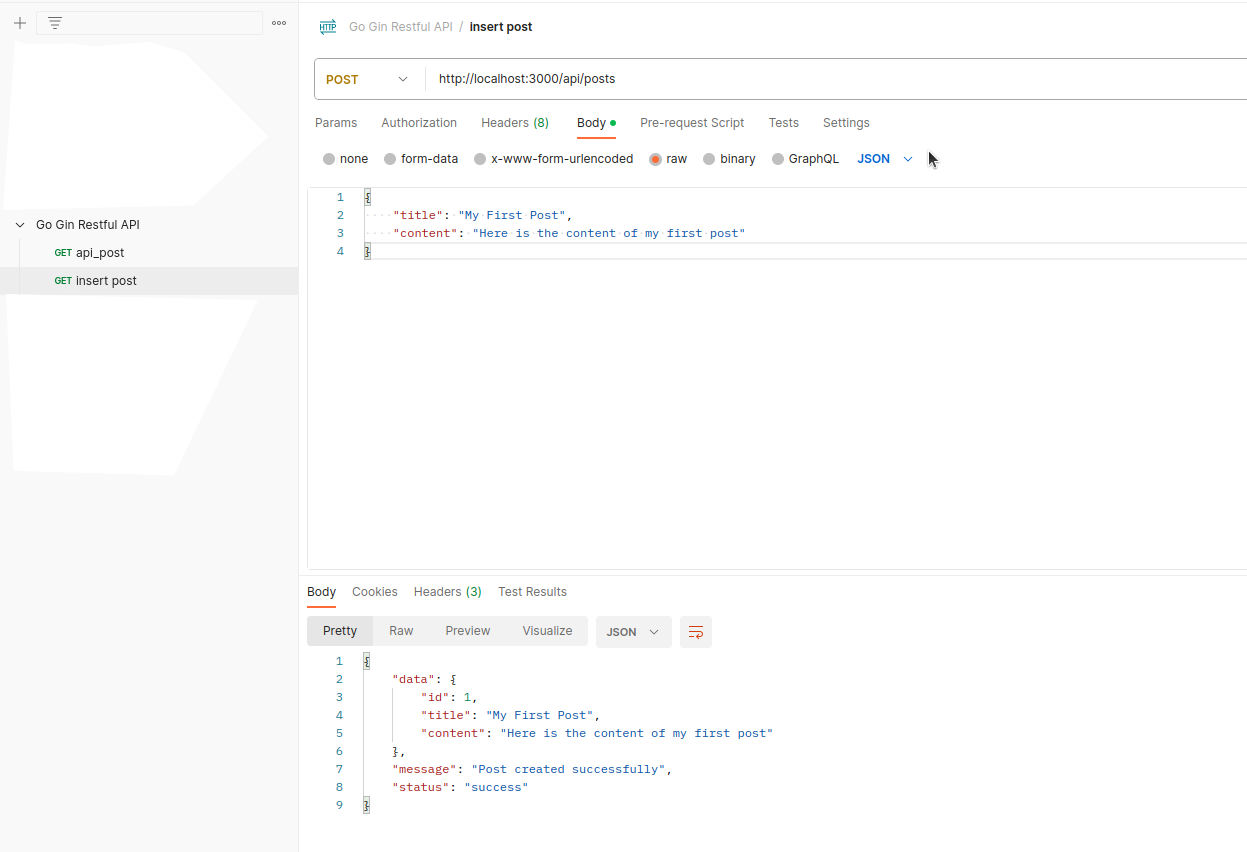
3. Run and test with Postman

Note: also need to test the validation with a json for empty title and content to make sure the validation is working.
the above screen showed the json with title and content and the success result
the output on http://localhost:3000/api/posts will be like this: