READ: https://tecadmin.net/how-to-install-tomcat-on-ubuntu-22-04/
ALSO READ: https://myprojects.advchaweb.com/index.php/2021/09/27/install-tomcat-on-ubuntu-20-04/
INSTALL OPENJDK 11
|
1 |
sudo apt install openjdk-11-jdk |
CHECK JAVA VERSION
|
1 2 3 4 |
satria@teddy:~$ java --version openjdk 11.0.22 2024-01-16 OpenJDK Runtime Environment (build 11.0.22+7-post-Ubuntu-0ubuntu222.04.1) OpenJDK 64-Bit Server VM (build 11.0.22+7-post-Ubuntu-0ubuntu222.04.1, mixed mode, sharing) |
CREATE A TOMCAT USER
|
1 |
sudo useradd -r -m -U -d /opt/tomcat -s /bin/false tomcat |
DOWNLOAD TOMCAT 10
AT THE TIME, THE LATEST STABLE VERSION IS 10.1.19. DOWNLOAD THE BINARY (https://dlcdn.apache.org/tomcat/tomcat-10/v10.1.19/bin/apache-tomcat-10.1.19.tar.gz)
EXTRACT IT TO /opt/tomcat DIR
|
1 |
satria@teddy:~/Downloads$ sudo tar xzf apache-tomcat-10.1.19.tar.gz -C /opt/tomcat |
SET THE PERMISSION
First, we’ll change the directory ownership to tomcat.
|
1 |
satria@teddy:~/Downloads$ sudo chown -R tomcat: /opt/tomcat |
Next, make all scripts within the bin directory executable.
|
1 |
satria@teddy:~/Downloads$ sudo sh -c 'chmod +x /opt/tomcat/apache-tomcat-10.1.19/bin/*.sh' |
Create Tomcat Application Accounts
Now, configure your tomcat with user accounts to secure access of admin/manager pages. To do this, edit conf/tomcat-users.xml file in your editor and paste the following code inside <tomcat-users> </tomcat-users> tags. We recommend changing the password in the below configuration with high secured password.
|
1 |
sudo gedit /opt/tomcat/apache-tomcat-10.1.19/conf/tomcat-users.xml |
ADD THE ROLES
|
1 2 3 4 5 6 7 8 9 10 11 12 13 14 15 |
<?xml version="1.0" encoding="UTF-8"?> ... <tomcat-users xmlns="http://tomcat.apache.org/xml" xmlns:xsi="http://www.w3.org/2001/XMLSchema-instance" xsi:schemaLocation="http://tomcat.apache.org/xml tomcat-users.xsd" version="1.0"> ... <!-- user manager can access only the manager section --> <role rolename="manager-gui" /> <user username="manager" password="Admin@123" roles="manager-gui" /> <!-- user admin can access manager and admin section both --> <role rolename="admin-gui" /> <user username="admin" password="Admin@123" roles="manager-gui,admin-gui" /> </tomcat-users> |
Allow Remote Hosts to Access Tomcat
The default Tomcat manager and host-manager applications are accessible for localhost only. To allow access to these pages from the remote system, you need to modify the following configuration files.
You can either allow a specific remote system or allow all. Edit the context.xml file for manager and host manager application:
|
1 |
sudo gedit /opt/tomcat/apache-tomcat-10.1.19/conf/tomcat-users.xml |
Comment out the section added for IP address restriction to allow connections from anywhere.
|
1 2 3 4 5 6 7 8 9 |
<?xml version="1.0" encoding="UTF-8"?> ... <Context antiResourceLocking="false" privileged="true" > <CookieProcessor className="org.apache.tomcat.util.http.Rfc6265CookieProcessor" sameSiteCookies="strict" /> <!--<Valve className="org.apache.catalina.valves.RemoteAddrValve" allow="127\.\d+\.\d+\.\d+|::1|0:0:0:0:0:0:0:1" />--> <Manager sessionAttributeValueClassNameFilter="java\.lang\.(?:Boolean|Integer|Long|Number|String)|org\.apache\.catalina\.filters\.CsrfPreventionFilter\$LruCache(?:\$1)?|java\.util\.(?:Linked)?HashMap"/> </Context> |
Similarly edit context.xml for host manager application in text editor:
|
1 |
sudo gedit /opt/tomcat/apache-tomcat-10.1.19/webapps/manager/META-INF/context.xml |
Create a Systemd Service File
We’ll now create a systemd service file to manage the Tomcat service. Open a new service file in a text editor:
|
1 |
sudo gedit /etc/systemd/system/tomcat.service |
Paste in the following configuration:
|
1 2 3 4 5 6 7 8 9 10 11 12 13 14 15 16 17 18 19 20 21 |
[Unit] Description=Apache Tomcat 10 Web Application Server After=network.target [Service] Type=forking User=tomcat Group=tomcat Environment="JAVA_HOME=/usr/lib/jvm/java-11-openjdk-amd64" Environment="CATALINA_HOME=/opt/tomcat/apache-tomcat-10.1.19" Environment="CATALINA_BASE=/opt/tomcat/apache-tomcat-10.1.19" Environment="CATALINA_PID=/opt/tomcat/apache-tomcat-10.1.19/temp/tomcat.pid" Environment="CATALINA_OPTS=-Xms512M -Xmx1024M -server -XX:+UseParallelGC" ExecStart=/opt/tomcat/apache-tomcat-10.1.19/bin/startup.sh ExecStop=/opt/tomcat/bin/apache-tomcat-10.1.19/shutdown.sh [Install] WantedBy=multi-user.target |
Start and Enable Tomcat
After creating the service file, reload the systemd daemon to read the new file:
|
1 |
sudo systemctl daemon-reload |
Next, start the Tomcat service with:
|
1 |
sudo systemctl start tomcat |
CHECK Tomcat service status
|
1 2 3 4 5 6 7 8 9 10 11 12 13 14 15 16 |
sudo systemctl status tomcat ● tomcat.service - Apache Tomcat 10 Web Application Server Loaded: loaded (/etc/systemd/system/tomcat.service; disabled; vendor prese> Active: active (running) since Tue 2024-02-27 22:00:28 WIB; 12s ago Process: 20153 ExecStart=/opt/tomcat/apache-tomcat-10.1.19/bin/startup.sh (> Main PID: 20160 (java) Tasks: 29 (limit: 57572) Memory: 138.3M CPU: 3.931s CGroup: /system.slice/tomcat.service └─20160 /usr/lib/jvm/java-11-openjdk-amd64/bin/java -Djava.util.lo> Feb 27 22:00:28 teddy systemd[1]: Starting Apache Tomcat 10 Web Application Ser> Feb 27 22:00:28 teddy startup.sh[20153]: Tomcat started. Feb 27 22:00:28 teddy systemd[1]: Started Apache Tomcat 10 Web Application Serv> lines 1-14/14 (END) |
If everything went well, enable Tomcat to start on boot:
|
1 |
sudo systemctl enable tomcat |
Open the Firewall
You also need to check if the firewall is not blocking the incoming connections to Tomcat’s port (default is 8080). This depends on what firewall you are using:
For UFW (Uncomplicated Firewall) in Ubuntu:
|
1 2 3 |
satria@teddy:~/Downloads$ sudo ufw allow 8080 Rules updated Rules updated (v6) |
Test the Installation
The default Tomcat server runs on port 8080. As you have configured Tomcat on your system, you can access web interface from your system. You can access tomcat interfaces by entering your server’s IP address or a domain name pointed to that server, followed by port 8080 in your browser:
http://localhost:8080/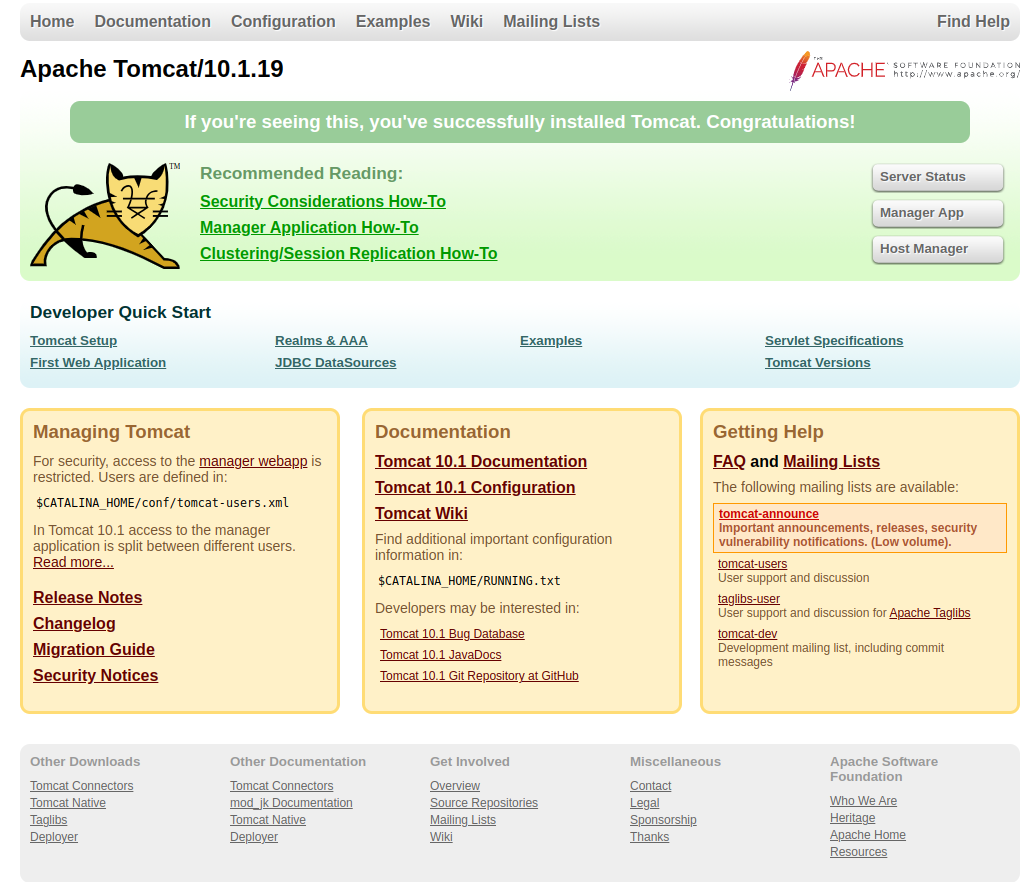
Tomcat Manager App is a web application packaged with the Tomcat server application. The Manager interface provides us with the basic functionality we need to manage our deployed web applications.
Click the Manager App button home page or directly type /manager in the browser URL of the main Tomcat server to access it.
http://localhost:8080/manager/html
user: admin
pass: Admin@123
TOMCAT LOG
THE DEFAULT LOG FILE IS IN /opt/tomcat/apache-tomcat-10.1.19/logs/ DIR!
THE LOG FILE IS /opt/tomcat/apache-tomcat-10.1.19/logs/catalina.out
To change the default location of the log file, edit the startup.sh file and locate the entry: