Local Install SMF (Simple Machines Forum)

Download the latest file on https://download.simplemachines.org/

CREATE LOCAL SETUP

CREATE A CONF

CONTENT

ENABLE THE VIRTUALHOST

RELOAD APACHE2

CREATE THE HOST

RELOAD APACHE2 AGAIN

SET THE FILE PERMISSION

OPEN: http://smf_2-1-4.test/

Admin
user: admin
pass: Teddy@123

WordPress Headless with Vercel

Create a vercel account if you don’t have any.
Then create a new project with CMS WordPress
Connect it with your github
It’d create the project like this: https://github.com/advcha/isr-blog-nextjs-wordpress
A WordPress backend with NextJS frontend
Read the github project README

PREPARE THE WP BACKEND
Prepare your local WP site. Mine is http://wp-commerce.test/
Then on the WP admin, install a new plugin WPGraphQL
Then on GraphQL settings, look at the GraphQL Endpoint value. The default value is http://wp-commerce.test/graphql
THIS WOULD BE THE ‘WORDPRESS_API_URL’ VALUE

PREPARE THE NEXTJS FRONTEND
Clone the above github (https://github.com/advcha/isr-blog-nextjs-wordpress) to your computer
Then copy .env.local.example to .env.local
Modify WORDPRESS_API_URL value TO http://wp-commerce.test/
Also need to modify next.config.js file TO add a domain ‘0.gravatar.com’ like this

I need to do this (add the domain for showing up the images above), because previously I got this error on the frontend

Also I need to update my ‘node’ to > 18… version. I update it to version 20…
Run the npm or yarn on the project root (/home/satria/Documents/projects/isr-blog-nextjs-wordpress/). I prefer yarn

If there is no error, open it on the browser: http://localhost:3000/

DEPLOY IT VIA VERCEL
Login to your vercel account then go to your project. Mine is isr-blog-nextjs-wordpress
Then go to Settings -> Environment Variables -> Create a new one ‘WORDPRESS_API_URL’ or modify it
The value should be http://wp-commerce.test/graphql
Then Save

Push the changes on the github. but when you want to deploy on the vercel (https://vercel.com/satria-faesthas-projects/isr-blog-nextjs-wordpress/deployments), you’d get this error and deploy is failed

Make sure the variable WORDPRESS_API_URL value in .env.local file is same with in the vercel project setting.
That’s because my WordPress is still on my local computer. So use your live WordPress site and install again WPGraphQL plugin !
Another error on build deploy via vercel

THIS IS BECAUSE THE NEXT JS (FRONTEND) NOT LIVE YET?
READ: https://github.com/vercel/next.js/issues/47554

Install Java and Tomcat on Ubuntu 22.04

READ: https://tecadmin.net/how-to-install-tomcat-on-ubuntu-22-04/
ALSO READ: https://myprojects.advchaweb.com/index.php/2021/09/27/install-tomcat-on-ubuntu-20-04/

INSTALL OPENJDK 11

CHECK JAVA VERSION

CREATE A TOMCAT USER

DOWNLOAD TOMCAT 10
AT THE TIME, THE LATEST STABLE VERSION IS 10.1.19. DOWNLOAD THE BINARY (https://dlcdn.apache.org/tomcat/tomcat-10/v10.1.19/bin/apache-tomcat-10.1.19.tar.gz)

EXTRACT IT TO /opt/tomcat DIR

SET THE PERMISSION
First, we’ll change the directory ownership to tomcat.

Next, make all scripts within the bin directory executable.

Create Tomcat Application Accounts
Now, configure your tomcat with user accounts to secure access of admin/manager pages. To do this, editĀ conf/tomcat-users.xmlĀ file in your editor and paste the following code inside <tomcat-users> </tomcat-users> tags. We recommend changing the password in the below configuration with high secured password.

ADD THE ROLES

Allow Remote Hosts to Access Tomcat
The default Tomcat manager and host-manager applications are accessible for localhost only. To allow access to these pages from the remote system, you need to modify the following configuration files.

You can either allow a specific remote system or allow all. Edit theĀ context.xmlĀ file for manager and host manager application:

Comment out the section added for IP address restriction to allow connections from anywhere.

Similarly editĀ context.xmlĀ for host manager application in text editor:

Create a Systemd Service File
We’ll now create a systemd service file to manage the Tomcat service. Open a new service file in a text editor:

Paste in the following configuration:

Start and Enable Tomcat
After creating the service file, reload the systemd daemon to read the new file:

Next, start the Tomcat service with:

CHECK Tomcat service status

If everything went well, enable Tomcat to start on boot:

Open the Firewall
You also need to check if the firewall is not blocking the incoming connections to Tomcat’s port (default is 8080). This depends on what firewall you are using:

For UFW (Uncomplicated Firewall) in Ubuntu:

Test the Installation
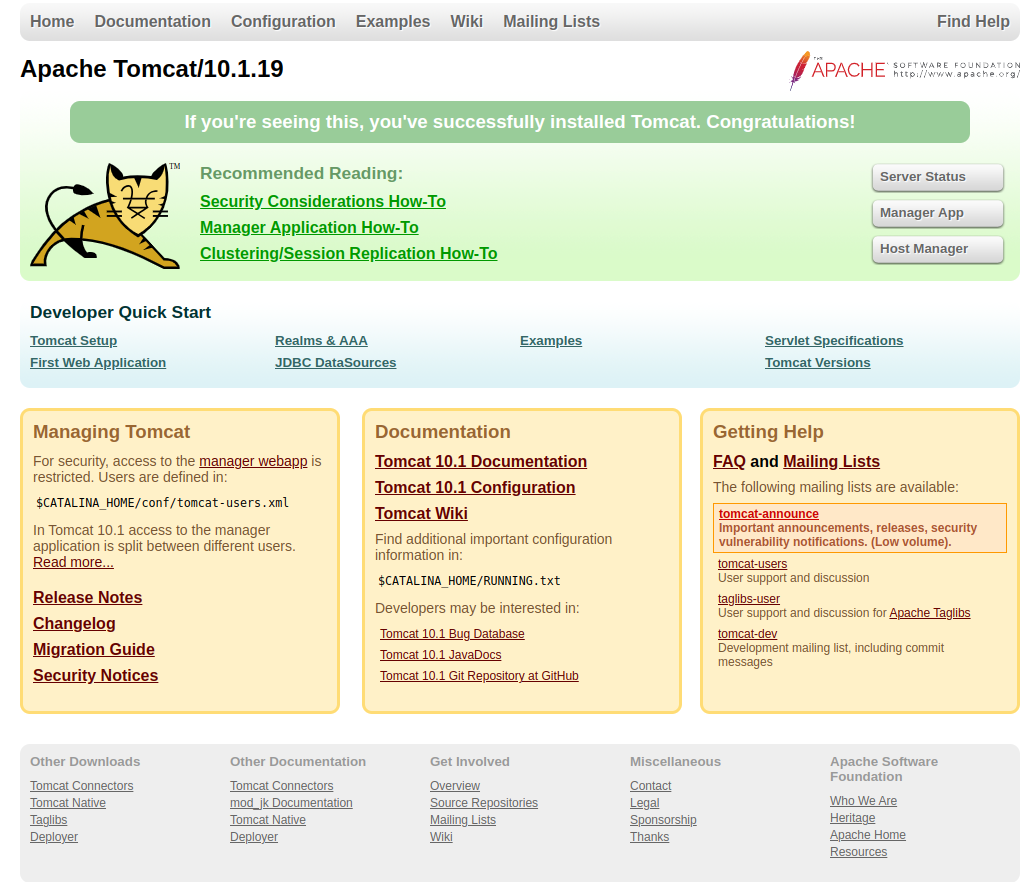
The default Tomcat server runs on port 8080. As you have configured Tomcat on your system, you can access web interface from your system. You can access tomcat interfaces by entering your server’s IP address or a domain name pointed to that server, followed by port 8080 in your browser:

http://localhost:8080/

Tomcat Manager App is a web application packaged with the Tomcat server application. The Manager interface provides us with the basic functionality we need to manage our deployed web applications.

Click theĀ Manager AppĀ button home page or directly typeĀ /managerĀ in the browser URL of the main Tomcat server to access it.
http://localhost:8080/manager/html
user: admin
pass: Admin@123

TOMCAT LOG
THE DEFAULT LOG FILE IS IN /opt/tomcat/apache-tomcat-10.1.19/logs/ DIR!
THE LOG FILE IS /opt/tomcat/apache-tomcat-10.1.19/logs/catalina.out
To change the default location of the log file, edit the startup.sh file and locate the entry:

OpenMage Install

INSTALL FROM COMPOSER
READ: https://www.openmage.org/magento-lts/install.html
INSTALL THE LTS VIA COMPOSER
STEP 1: COMPOSER INIT

STEP 2: CONFIGURE COMPOSER

STEP 3: INSTALL MAGENTO CORE FOR PHP7

STEP 4: INSTALL MAGENTO LTS 20


CREATE LOCAL SETUP

CREATE A CONF

CONTENT

ENABLE THE VIRTUALHOST

RELOAD APACHE2 SERVICE

CREATE THE HOST

RELOAD APACHE2 SERVICE AGAIN

SET THE FILE PERMISSION

OPEN: http://openmage.test/
THEN INSTALL

http://openmage.test/admin/ OR http://openmage.test/index.php/admin/
user: admin
pass: Teddy@123#333OK

encryption key: 210818adaf08ed11ea441dede910e33b

Local Install Typo3 Version 8

Download the file on https://get.typo3.org/version/8.7.32 (Typo3 Version 8.7.32). I downloaded the .tar.gz file
Uncompress the downloaded file then move to the web root and rename to ‘typo3-8.7.32’

CREATE LOCAL SETUP

CREATE A CONF

CONTENT

ENABLE THE VIRTUALHOST

RELOAD APACHE2

CREATE THE HOST

RELOAD APACHE2 AGAIN

SET THE FILE PERMISSION

ALSO MODIFY FILE _.htaccess TO .htaccess

OPEN: http://typo3-8.7.32.test/
INSTALL
FOR THE FIRST INSTALL, CREATE A NEW FILE WITH NAME ‘FIRST_INSTALL’ IN THE TYPO3 ROOT. SO THE FILE PATH WOULD BE LIKE THIS: ~/Documents/projects/typo3-8.7.32/FIRST_INSTALL
CREATE A NEW DATABASE ‘typo3_8_7_32’

http://typo3-8.7.32.test/typo3
ADMIN
user: admin
pass: Teddy@123

FIRST OPEN http://typo3-8.7.32.test/, I GOT THIS ERROR

ALSO ON THE ADMIN PAGE (LOG)
SOLUTION:
THAT’S BECAUSE I HAVEN’T INSTALLED ANY DISTRIBUTION PACKAGES. ON THE INSTALLATION, I CHOOSE EMPTY PACKAGE!
READ: https://hostarmada.com/tutorials/blog-cms/typo3/how-to-troubleshoot-the-no-pages-are-found-on-the-rootlevel-error-after-initial-typo3-installation/
SO I NEED TO INSTALL THE OFFICIAL DISTRIBUTION PACKAGE JUST TO SHOW ANY DATA ON THE WEBSITE
OPEN AGAIN: http://typo3-8.7.32.test/
NOW SHOULD BE NO ERROR

Ruby, RBENV, RAILS, ShareTribe on Ubuntu 22.04

READ: https://www.digitalocean.com/community/tutorials/how-to-install-ruby-on-rails-with-rbenv-on-ubuntu-22-04
INSTALL RUBY ENVIRONMENT MANAGER RBENV
NOTE: NEED TO REMOVE THE CURRENT DEFAULT INSTALLED RUBY BY UBUNTU 22.04

INSTALL RBENV

CHECK THE RBENV VERSION

INSTALL RUBY WITH RUBY BUILD
CHECK AVAILABLE VERSION

INSTALL RUBY 3.2.2 (ACCORDING SHARETRIBE https://github.com/sharetribe/sharetribe)

MAKE IT GLOBAL

RUBY VERSION

RUBY GEMS
INSTALL BUNDLER

GEM ENVIRONMENT TO FIND OUT WHERE THE GEMS ARE INSTALLED

INSTALL RAILS

REHASH AND CHECK RAILS VERSION

INSTALL SHARETRIBE
READ: https://github.com/sharetribe/sharetribe
https://sangram.hashnode.dev/self-hosted-sharetribe-go-community-edition-on-ubuntu
CLONE FROM GITHUB THEN GO TO THE DIR

NOTE: BEFORE INSTALLING THE BUNDLE, PLS INSTALL MYSQL LIB

IF NOT, YOU’D GET THIS ERROR

INSTALL THE BUNDLE

INSTALL NODE MODULES

CREATE database.yml

THEN FILL THE DB USER AND PASSWORD.
NOTE: DON’T CREATE THE DB MANUALLY VIA PHPMYADMIN!
CREATE config.yml

CREATE AND INITIALIZE DB

MAKE SURE THE SPHINX SEARCH ALREADY INSTALLED. IF NOT, INSTALL IT

THEN RUN SPHINX INDEX

START SPHINX DAEMON

INSTALL FOREMAN

START IT

ERROR: INSTALL NPM 9.5.1

START AGAIN

ERROR: INSTALL NVM 18.16.0

START AGAIN (OK)

OPEN IT ON THE BROWSER

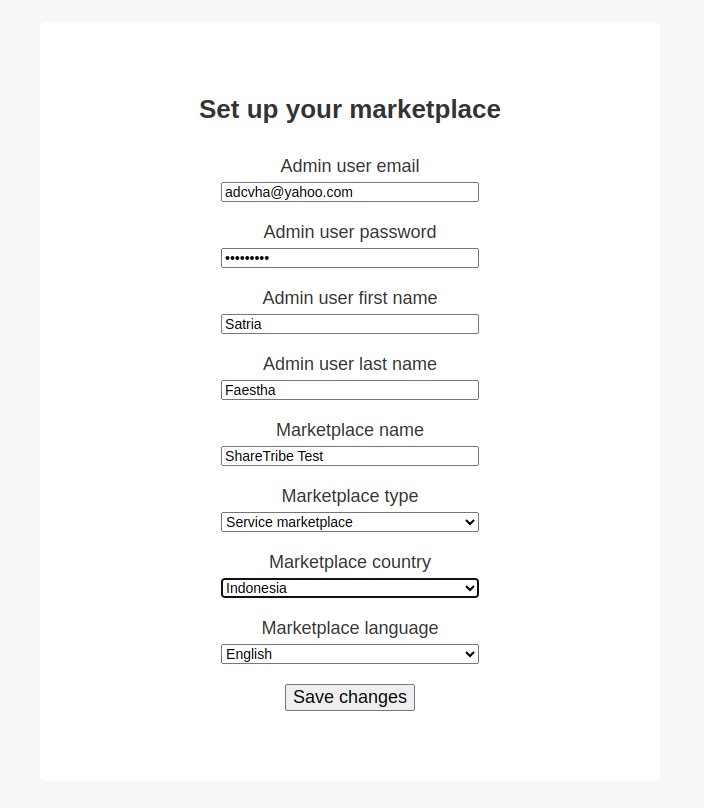
THEN SETUP

password: Teddy@123 XXX
THEN AFTER THE SAVE, OPEN AGAIN
http://0.0.0.0:5000/
OR
http://sharetribe-test.lvh.me:5000/

SOMEHOW I CAN’T LOGIN WITH THE ABOVE EMAIL. SO I NEED TO CREATE A NEW USER FROM THE SITE. THEN MANUALLY CHANGE ‘people’ TABLE AND SET IT AS ADMIN

SO THE ADMIN NOW:
user: satriaf@gmail.com
pass: Teddy123

NOTE: TO START THE RAILS SERVER, PLS GO TO THE sharetribe DIRECTORY THEN RUN IT (WITH PORT 5000)

THEN OPEN THE LOCAL SITE ABOVE (http://0.0.0.0:5000/ OR http://sharetribe-test.lvh.me:5000/)
IF YOU DON’T RUN THE RAILS SERVER, YOU’D GET MESSAGE ‘This site can’t be reached’ ON YOUR BROWSER

SET UP PAYMENT ON SHARETRIBE
https://publish.yexperiment.com/post/156715320289/sharetribe-with-paypal-payments-the-lost

Drupal 10

READ THE INSTALLATION STEPS: https://www.drupal.org/docs/getting-started/installing-drupal
USE PHP VERSION > 8.1.0 FOR THE TERMINAL AND THE APACHE

USE PHP8.2

ALSO

CHECK THE CURRENT PHP VERSION ON http://localhost/phpinfo.php. IT SHOULD SHOW PHP 8.2.4

INSTALL VIA COMPOSER

CREATE LOCAL SETUP

CREATE A CONF

CONTENT

ENABLE THE VIRTUALHOST

RELOAD APACHE2

CREATE THE HOST

RELOAD APACHE2

BUT DO THESE FIRST

1. CREATE A NEW DIRECTORY ‘sites/default/files’
THEN SET THE PERMISSION

2. COPY /web/sites/default/default.settings.php TO /web/sites/default/settings.php THEN ADD

THEN SET THE PERMISSION

REMEMBER. AFTER THE INSTALL IS FINISHED, CHANGE IT BACK TO 775

THEN CREATE A NEW DATABASE ‘drupal10’

OPEN: http://drupal-10.test/
THEN INSTALL THE DEMO ‘UMAMI FOOD MAGAZINE’

THE ADMIN user login
user: admin
pass: Teddy@123#890

INSTALL DRUSH
GO TO THE DRUPAL 10 ROOT

THEN RUN COMPOSER

TO CHECK THE DRUSH VERSION, CAN’T USE ‘drush –version’ BUT USE THIS

IFĀ  YOU GOT THIS ERROR

SOMEHOW MODIFY composer.json AND REMOVE

HERE IS THE DRUSH VERSION CHECK (IGNORE XDEBUG MESSAGE)

CHECK DRUPAL STATUS (IGNORE XDEBUG MESSAGE)


Drupal 7.23

READ: https://www.drupal.org/docs/7/install

CREATE LOCAL SETUP

CREATE A CONF

CONTENT

ENABLE THE VIRTUALHOST

RELOAD APACHE2

CREATE THE HOST

RELOAD APACHE2

OPEN: http://drupal723.test/
–> BUT ALMOST BLANK PAGE WITH THIS MESSAGE


INSTALL DRUSH
READ: https://drupalize.me/tutorial/install-drush-using-composer
USE COMPOSER

BUT WHEN I TRIED TO CHECK THE DRUSH VERSION ‘drush –version’, I GOT THIS ERROR

I ALSO TRIED TO INSTALL IT BY DOWNLOAD IT MANUALLY

THEN CHECK THE VERSION

THE DRUSH VERSION IS 0.10.2, BUT IT ALWAYS ASKED THE DRUPAL PATH
I TRIED TO USE DRUSH LAUNCHER

–> REMEMBER: AFTER RUN THE COMMAND, YOU NEED TO CLOSE THE TERMINAL AND OPEN IT AGAIN. IF NOT THE TERMINAL WOULD SHOW MANY REPEATED MESSAGES!!!
BUT STILL ASKED FOR THE DRUPAL PATH!
I MODIFIED composer.json LIKE THIS

THEN RUN ‘composer install’
THEN CHECK IT AGAIN

AND IT SHOWED ANOTHER ERROR –> OK. THE COMMAND SHOULD BE ‘sudo drush self-update’
BUT AFTER THAT, IT STILL ASKED THE PATH.
AFTER ‘composer install’

IT SHOWED THE ABOVE ERROR
SOLUTION:
RUN THIS

THEN IT SHOWED THE CORRECT OUTPUT

I TRIED TO CLEAR THE CACHE
READ: https://www.drupal.org/docs/7/administering-drupal-7-site/clearing-or-rebuilding-drupals-cache
BUT GOT THESE ERRORS

OR

EVEN

ONLY WORKED LIKE THIS???

BACK TO OPEN: http://drupal723.test/
–> BUT ALMOST BLANK PAGE WITH THIS MESSAGE

I NEED TO REINSTALL/UPDATE DRUPAL BY OPENING http://drupal723.test/update.php
THEN I GOT ACCESS DENIED AND ERROR MESSAGES
SO I NEED TO MODIFY sites/default/settings.php AND CHANGED THIS SETTING FROM ‘FALSE’ TO ‘TRUE’ LIKE THIS

THEN OPEN IT AGAIN http://drupal723.test/update.php
AND GOT THE OTHER ERRORS ABOUT php.ini, SO MODIFIED

AND SET :

THEN RESTART APACHE


Tiki Wiki

Download the package in https://tiki.org/Get-Tiki

INSTALL
1. extract the downloaded (at the time the file is tiki-24.6 (LTS) and tiki-26.2.tar.gz) cms in your web root directory
2. setup a local apache virtual host

CONFIG FILE

CONTENT

ENABLE THE VIRTUALHOST

RELOAD APACHE2

CREATE THE HOST

RELOAD APACHE2

CHANGE PERMISSION FORĀ  THESE FILES AND DIRECTORIES

OPEN http://tiki-24.6.test/
ADMIN
email: advcha@yahoo.com
username: admin
password: Teddy@123

Concrete CMS

Download the latest version from https://www.concretecms.org/download

INSTALL
1. extract the downloaded (at the time the file is concrete-cms-9.2.5.zip) cms in your web root directory
2. setup a local apache virtual host
Create a new database ‘concrete_cms’

CONFIG FILE

CONTENT

ENABLE THE VIRTUALHOST

RELOAD APACHE2

CREATE THE HOST

RELOAD APACHE2

CHANGE PERMISSION FORĀ  THESE FILES AND DIRECTORIES

OPEN http://concrete-cms-9.2.5.test/
ADMIN
email: advcha@yahoo.com
password: Teddy@123