BEWARE! THIS WOULD MAKE YOUR LOCALHOST NOT WORKING LIKE WEB APP, PHPMYADMIN, ETC. NEED TO BACKUP YOUR DATA FIRST!
I need to update the PPA for php from ppa:ondrej/php5-5.6 to ppa:ondrej/php because the earlier ppa already deprecated. Here is the step for PPA migration to ppa:ondrej php.
- Add the new repository ppa:ondrej/php
1234567891011121314151617181920212223242526teddy@teddy-K43SJ:~$ sudo add-apt-repository ppa:ondrej/php[sudo] password for teddy:Co-installable PHP versions: PHP 5.5, 5.6, PHP 7.0 and batteries included.You can get more information about the packages at https://deb.sury.orgFor PHP 5.4 on Ubuntu 12.04 use: ppa:ondrej/php5-oldstableBUGS&FEATURES: This PPA now has a issue tracker: https://deb.sury.org/#bug-reportingPLEASE READ: If you like my work and want to give me a little motivation, please consider donating regularly: https://donate.sury.org/WARNING: add-apt-repository is broken with non-UTF-8 locales, see https://github.com/oerdnj/deb.sury.org/issues/56 for workaround:# LC_ALL=C.UTF-8 add-apt-repository ppa:ondrej/phpMore info: https://launchpad.net/~ondrej/+archive/ubuntu/phpPress [ENTER] to continue or ctrl-c to cancel adding itgpg: keyring `/tmp/tmpn91i_14e/secring.gpg' createdgpg: keyring `/tmp/tmpn91i_14e/pubring.gpg' createdgpg: requesting key E5267A6C from hkp server keyserver.ubuntu.comgpg: /tmp/tmpn91i_14e/trustdb.gpg: trustdb createdgpg: key E5267A6C: public key "Launchpad PPA for Ondřej Surý" importedgpg: Total number processed: 1gpg: imported: 1 (RSA: 1)OK - Update the system
1sudo apt-get update - You need to install new libapache2-mod-phpX.Y packages and then disable the old php5, and enable new versioned module, f.e. for PHP 5.6:
1sudo apt-get install libapache2-mod-php5.6
The result:
123456789101112131415161718192021222324252627282930313233343536373839404142434445464748495051525354555657585960616263646566676869707172737475767778798081828384858687888990919293949596979899100101102103104105106107108109110111112113114115116117118119120121122123teddy@teddy-K43SJ:~$ sudo apt-get install libapache2-mod-php5.6Reading package lists... DoneBuilding dependency treeReading state information... DoneThe following packages were automatically installed and are no longer required:acpi gir1.2-gstreamer-0.10 gnome-desktop-data gnumeric-common gnumeric-doclibantlr-java libchamplain-0.12-0 libchamplain-gtk-0.12-0libcommons-validator-java libdoxia-sitetools-java libepoxy0 libevdev2libgegl-0.2-0 libgoffice-0.10-10-common libhdb9-heimdal libjdependency-javalibjtidy-java libkdc2-heimdal libmaven-archiver-javalibmaven-clean-plugin-java libmaven-compiler-plugin-javalibmaven-dependency-tree-java libmaven-filtering-javalibmaven-install-plugin-java libmaven-jar-plugin-javalibmaven-plugin-tools-java libmaven-reporting-impl-javalibmaven-resources-plugin-java libmaven-shade-plugin-java libming1libmono-c5-1.1-cil libmonoboehm-2.0-1 libmonoboehm-2.0-dev libntdb1libplexus-compiler-java libplexus-digest-java libplexus-velocity-javalibssl-dev libssl-doc libvncclient0 libvo-aacenc0 libvo-amrwbenc0libwerken.xpath-java libx265 libxml-xpathengine-perl libxvmc1linux-headers-3.13.0-76 linux-headers-3.13.0-76-generic-tuxonicelinux-headers-3.19.0-25 linux-headers-3.19.0-25-genericlinux-headers-4.4.0-34 linux-headers-4.4.0-34-genericlinux-image-3.13.0-76-generic-tuxonice linux-image-3.19.0-25-genericlinux-image-4.4.0-34-generic linux-image-extra-3.13.0-76-generic-tuxonicelinux-image-extra-3.19.0-25-generic linux-image-extra-4.4.0-34-genericlinux-tools-3.13.0-76 linux-tools-3.13.0-76-generic python-dateutilpython-feedparser python-ntdb python-utidylib qt-faststart remindor-commontclx8.4 velocityUse 'apt-get autoremove' to remove them.The following extra packages will be installed:php-common php5.6-cli php5.6-common php5.6-json php5.6-opcachephp5.6-readlineThe following NEW packages will be installed:libapache2-mod-php5.6 php-common php5.6-cli php5.6-common php5.6-jsonphp5.6-opcache php5.6-readline0 upgraded, 7 newly installed, 0 to remove and 16 not upgraded.Need to get 5.305 kB of archives.After this operation, 15,9 MB of additional disk space will be used.Do you want to continue? [Y/n] YGet:1 http://ppa.launchpad.net/ondrej/php/ubuntu/ trusty/main php-common all 1:44+deb.sury.org~trusty+1 [12,9 kB]Get:2 http://ppa.launchpad.net/ondrej/php/ubuntu/ trusty/main php5.6-common amd64 5.6.25-2+deb.sury.org~trusty+1 [2.737 kB]Get:3 http://ppa.launchpad.net/ondrej/php/ubuntu/ trusty/main php5.6-json amd64 5.6.25-2+deb.sury.org~trusty+1 [17,0 kB]Get:4 http://ppa.launchpad.net/ondrej/php/ubuntu/ trusty/main php5.6-opcache amd64 5.6.25-2+deb.sury.org~trusty+1 [62,2 kB]Get:5 http://ppa.launchpad.net/ondrej/php/ubuntu/ trusty/main php5.6-readline amd64 5.6.25-2+deb.sury.org~trusty+1 [12,6 kB]Get:6 http://ppa.launchpad.net/ondrej/php/ubuntu/ trusty/main php5.6-cli amd64 5.6.25-2+deb.sury.org~trusty+1 [1.255 kB]Get:7 http://ppa.launchpad.net/ondrej/php/ubuntu/ trusty/main libapache2-mod-php5.6 amd64 5.6.25-2+deb.sury.org~trusty+1 [1.208 kB]Fetched 5.305 kB in 14s (367 kB/s)Selecting previously unselected package php-common.(Reading database ... 1042745 files and directories currently installed.)Preparing to unpack .../php-common_1%3a44+deb.sury.org~trusty+1_all.deb ...Unpacking php-common (1:44+deb.sury.org~trusty+1) ...Selecting previously unselected package php5.6-common.Preparing to unpack .../php5.6-common_5.6.25-2+deb.sury.org~trusty+1_amd64.deb ...Unpacking php5.6-common (5.6.25-2+deb.sury.org~trusty+1) ...Selecting previously unselected package php5.6-json.Preparing to unpack .../php5.6-json_5.6.25-2+deb.sury.org~trusty+1_amd64.deb ...Unpacking php5.6-json (5.6.25-2+deb.sury.org~trusty+1) ...Selecting previously unselected package php5.6-opcache.Preparing to unpack .../php5.6-opcache_5.6.25-2+deb.sury.org~trusty+1_amd64.deb ...Unpacking php5.6-opcache (5.6.25-2+deb.sury.org~trusty+1) ...Selecting previously unselected package php5.6-readline.Preparing to unpack .../php5.6-readline_5.6.25-2+deb.sury.org~trusty+1_amd64.deb ...Unpacking php5.6-readline (5.6.25-2+deb.sury.org~trusty+1) ...Selecting previously unselected package php5.6-cli.Preparing to unpack .../php5.6-cli_5.6.25-2+deb.sury.org~trusty+1_amd64.deb ...Unpacking php5.6-cli (5.6.25-2+deb.sury.org~trusty+1) ...Selecting previously unselected package libapache2-mod-php5.6.Preparing to unpack .../libapache2-mod-php5.6_5.6.25-2+deb.sury.org~trusty+1_amd64.deb ...Unpacking libapache2-mod-php5.6 (5.6.25-2+deb.sury.org~trusty+1) ...Processing triggers for man-db (2.6.7.1-1ubuntu1) ...Setting up php-common (1:44+deb.sury.org~trusty+1) ...Setting up php5.6-common (5.6.25-2+deb.sury.org~trusty+1) ...Creating config file /etc/php/5.6/mods-available/calendar.ini with new versionCreating config file /etc/php/5.6/mods-available/ctype.ini with new versionCreating config file /etc/php/5.6/mods-available/exif.ini with new versionCreating config file /etc/php/5.6/mods-available/fileinfo.ini with new versionCreating config file /etc/php/5.6/mods-available/ftp.ini with new versionCreating config file /etc/php/5.6/mods-available/gettext.ini with new versionCreating config file /etc/php/5.6/mods-available/iconv.ini with new versionCreating config file /etc/php/5.6/mods-available/pdo.ini with new versionCreating config file /etc/php/5.6/mods-available/phar.ini with new versionCreating config file /etc/php/5.6/mods-available/posix.ini with new versionCreating config file /etc/php/5.6/mods-available/shmop.ini with new versionCreating config file /etc/php/5.6/mods-available/sockets.ini with new versionCreating config file /etc/php/5.6/mods-available/sysvmsg.ini with new versionCreating config file /etc/php/5.6/mods-available/sysvsem.ini with new versionCreating config file /etc/php/5.6/mods-available/sysvshm.ini with new versionCreating config file /etc/php/5.6/mods-available/tokenizer.ini with new versionSetting up php5.6-json (5.6.25-2+deb.sury.org~trusty+1) ...Creating config file /etc/php/5.6/mods-available/json.ini with new versionSetting up php5.6-opcache (5.6.25-2+deb.sury.org~trusty+1) ...Creating config file /etc/php/5.6/mods-available/opcache.ini with new versionSetting up php5.6-readline (5.6.25-2+deb.sury.org~trusty+1) ...Creating config file /etc/php/5.6/mods-available/readline.ini with new versionSetting up php5.6-cli (5.6.25-2+deb.sury.org~trusty+1) ...update-alternatives: using /usr/bin/php5.6 to provide /usr/bin/php (php) in auto modeupdate-alternatives: using /usr/bin/phar5.6 to provide /usr/bin/phar (phar) in auto modeupdate-alternatives: using /usr/bin/phar.phar5.6 to provide /usr/bin/phar.phar (phar.phar) in auto modeCreating config file /etc/php/5.6/cli/php.ini with new versionSetting up libapache2-mod-php5.6 (5.6.25-2+deb.sury.org~trusty+1) ...Creating config file /etc/php/5.6/apache2/php.ini with new versionlibapache2-mod-php5.6: php5 module already enabled, not enabling PHP 5.6
Disable old php5:
1234teddy@teddy-K43SJ:~$ sudo a2dismod php5Module php5 disabled.To activate the new configuration, you need to run:service apache2 restart
Enable php5.6 modules:
123456789teddy@teddy-K43SJ:~$ sudo a2enmod php5.6Considering dependency mpm_prefork for php5.6:Considering conflict mpm_event for mpm_prefork:Considering conflict mpm_worker for mpm_prefork:Module mpm_prefork already enabledConsidering conflict php5 for php5.6:Enabling module php5.6.To activate the new configuration, you need to run:service apache2 restart
Restart apache2 service
1sudo service apache2 restart - uninstall old php5 packages (optional)
123456789101112131415161718192021222324252627282930313233343536373839404142434445464748495051525354555657585960616263646566676869707172737475767778798081828384858687888990919293949596979899100101102103104105106107108109110111112113114115116117118119120121122123124125126127128129130131132133134135136137138139140141142143144145146147148149150151152153154155156157158159160161162163164165166167168169170171172173174175176177178179180181182183184185186187188189190191192193194195196197198199200201202203204205206207208209210211212213214215216217218219220teddy@teddy-K43SJ:~$ sudo apt-get --purge remove php5-commonReading package lists... DoneBuilding dependency treeReading state information... DoneThe following packages were automatically installed and are no longer required:acpi dbconfig-common gir1.2-gstreamer-0.10 gnome-desktop-datagnumeric-common gnumeric-doc libantlr-java libchamplain-0.12-0libchamplain-gtk-0.12-0 libcommons-validator-java libdoxia-sitetools-javalibepoxy0 libevdev2 libgegl-0.2-0 libgoffice-0.10-10-common libhdb9-heimdallibjdependency-java libjs-codemirror libjs-jquery-cookielibjs-jquery-event-drag libjs-jquery-metadata libjs-jquery-mousewheellibjs-jquery-tablesorter libjs-jquery-ui libjtidy-java libkdc2-heimdallibmaven-archiver-java libmaven-clean-plugin-javalibmaven-compiler-plugin-java libmaven-dependency-tree-javalibmaven-filtering-java libmaven-install-plugin-javalibmaven-jar-plugin-java libmaven-plugin-tools-javalibmaven-reporting-impl-java libmaven-resources-plugin-javalibmaven-shade-plugin-java libming1 libmono-c5-1.1-cil libmonoboehm-2.0-1libmonoboehm-2.0-dev libntdb1 libplexus-compiler-java libplexus-digest-javalibplexus-velocity-java libqdbm14 librecode0 libssl-dev libssl-doclibtidy-0.99-0 libvncclient0 libvo-aacenc0 libvo-amrwbenc0libwerken.xpath-java libx265 libxml-xpathengine-perl libxvmc1linux-headers-3.13.0-76 linux-headers-3.13.0-76-generic-tuxonicelinux-headers-3.19.0-25 linux-headers-3.19.0-25-genericlinux-headers-4.4.0-34 linux-headers-4.4.0-34-genericlinux-image-3.13.0-76-generic-tuxonice linux-image-3.19.0-25-genericlinux-image-4.4.0-34-generic linux-image-extra-3.13.0-76-generic-tuxonicelinux-image-extra-3.19.0-25-generic linux-image-extra-4.4.0-34-genericlinux-tools-3.13.0-76 linux-tools-3.13.0-76-generic php5-json pslib1python-dateutil python-feedparser python-ntdb python-utidylib qt-faststartremindor-common tclx8.4 velocityUse 'apt-get autoremove' to remove them.The following extra packages will be installed:php-pear php-xml php7.0-common php7.0-xmlThe following packages will be REMOVED:libapache2-mod-php5* php-gettext* php5* php5-cli* php5-common* php5-curl*php5-gd* php5-imagick* php5-imap* php5-intl* php5-mcrypt* php5-memcache*php5-mysql* php5-ps* php5-pspell* php5-readline* php5-recode* php5-sqlite*php5-tidy* php5-xmlrpc* php5-xsl* phpmyadmin*The following NEW packages will be installed:php-xml php7.0-common php7.0-xmlThe following packages will be upgraded:php-pear1 upgraded, 3 newly installed, 22 to remove and 14 not upgraded.Need to get 1.265 kB of archives.After this operation, 40,9 MB disk space will be freed.Do you want to continue? [Y/n] YGet:1 http://ppa.launchpad.net/ondrej/php/ubuntu/ trusty/main php7.0-common amd64 7.0.10-2+deb.sury.org~trusty+1 [864 kB]Get:2 http://ppa.launchpad.net/ondrej/php/ubuntu/ trusty/main php7.0-xml amd64 7.0.10-2+deb.sury.org~trusty+1 [113 kB]Get:3 http://ppa.launchpad.net/ondrej/php/ubuntu/ trusty/main php-xml all 1:7.0+44+deb.sury.org~trusty+1 [4.720 B]Get:4 http://ppa.launchpad.net/ondrej/php/ubuntu/ trusty/main php-pear all 1:1.10.1+submodules+notgz-8+donate.sury.org~trusty+2 [283 kB]Fetched 1.265 kB in 14s (89,4 kB/s)(Reading database ... 1042873 files and directories currently installed.)Removing phpmyadmin (4:4.0.10-1) ...Conf phpmyadmin disabled.apache2_invoke postrm: Disable configuration phpmyadmin* Reloading Apache httpd web server apache2 ** Reloading Apache httpd web server apache2 *Purging configuration files for phpmyadmin (4:4.0.10-1) ...apache2_invoke postrm: Purging state for phpmyadmin* Reloading Apache httpd web server apache2 *Removing php-gettext (1.0.11-1) ...Removing php5 (5.6.23+dfsg-1+deprecated+dontuse+deb.sury.org~trusty+1) ...Removing libapache2-mod-php5 (5.6.23+dfsg-1+deprecated+dontuse+deb.sury.org~trusty+1) ...php5_invoke prerm: Disable module opcache for apache2 SAPIphp5_invoke prerm: Disable module imap for apache2 SAPIphp5_invoke prerm: Disable module tidy for apache2 SAPIphp5_invoke prerm: Disable module mysqli for apache2 SAPIphp5_invoke prerm: Disable module pdo_sqlite for apache2 SAPIphp5_invoke prerm: Disable module xsl for apache2 SAPIphp5_invoke prerm: Disable module intl for apache2 SAPIphp5_invoke prerm: Disable module recode for apache2 SAPIphp5_invoke prerm: Disable module xdebug for apache2 SAPIphp5_invoke prerm: Disable module mcrypt for apache2 SAPIphp5_invoke prerm: Disable module xmlrpc for apache2 SAPIphp5_invoke prerm: Disable module readline for apache2 SAPIphp5_invoke prerm: Disable module imagick for apache2 SAPIphp5_invoke prerm: Disable module pspell for apache2 SAPIphp5_invoke prerm: Disable module curl for apache2 SAPIphp5_invoke prerm: Disable module sqlite3 for apache2 SAPIphp5_invoke prerm: Disable module memcache for apache2 SAPIphp5_invoke prerm: Disable module gd for apache2 SAPIphp5_invoke prerm: Disable module json for apache2 SAPIphp5_invoke prerm: Disable module pdo for apache2 SAPIphp5_invoke prerm: Disable module mysql for apache2 SAPIphp5_invoke prerm: Disable module pdo_mysql for apache2 SAPIapache2_invoke php5 prerm: No action requiredPurging configuration files for libapache2-mod-php5 (5.6.23+dfsg-1+deprecated+dontuse+deb.sury.org~trusty+1) ...apache2_invoke postrm: Purging state for php5Processing triggers for man-db (2.6.7.1-1ubuntu1) ...Processing triggers for doc-base (0.10.5) ...Processing 1 removed doc-base file...Processing triggers for hicolor-icon-theme (0.13-1) ...Selecting previously unselected package php7.0-common.(Reading database ... 1041583 files and directories currently installed.)Preparing to unpack .../php7.0-common_7.0.10-2+deb.sury.org~trusty+1_amd64.deb ...Unpacking php7.0-common (7.0.10-2+deb.sury.org~trusty+1) ...Selecting previously unselected package php7.0-xml.Preparing to unpack .../php7.0-xml_7.0.10-2+deb.sury.org~trusty+1_amd64.deb ...Unpacking php7.0-xml (7.0.10-2+deb.sury.org~trusty+1) ...Selecting previously unselected package php-xml.Preparing to unpack .../php-xml_1%3a7.0+44+deb.sury.org~trusty+1_all.deb ...Unpacking php-xml (1:7.0+44+deb.sury.org~trusty+1) ...Preparing to unpack .../php-pear_1%3a1.10.1+submodules+notgz-8+donate.sury.org~trusty+2_all.deb ...Unpacking php-pear (1:1.10.1+submodules+notgz-8+donate.sury.org~trusty+2) over (5.6.19+dfsg-1+deb.sury.org~trusty+1) ...dpkg: warning: unable to delete old directory '/etc/pear': Directory not emptyProcessing triggers for man-db (2.6.7.1-1ubuntu1) ...Processing triggers for doc-base (0.10.5) ...Processing 1 removed doc-base file...(Reading database ... 1041646 files and directories currently installed.)Removing php5-readline (5.6.23+dfsg-1+deprecated+dontuse+deb.sury.org~trusty+1) ...php5_invoke prerm: Disable module readline for cli SAPIPurging configuration files for php5-readline (5.6.23+dfsg-1+deprecated+dontuse+deb.sury.org~trusty+1) ...Removing php5-cli (5.6.23+dfsg-1+deprecated+dontuse+deb.sury.org~trusty+1) ...php5_invoke prerm: Disable module opcache for cli SAPIphp5_invoke prerm: Disable module imap for cli SAPIphp5_invoke prerm: Disable module tidy for cli SAPIphp5_invoke prerm: Disable module mysqli for cli SAPIphp5_invoke prerm: Disable module pdo_sqlite for cli SAPIphp5_invoke prerm: Disable module xsl for cli SAPIphp5_invoke prerm: Disable module intl for cli SAPIphp5_invoke prerm: Disable module recode for cli SAPIphp5_invoke prerm: Disable module xdebug for cli SAPIphp5_invoke prerm: Disable module mcrypt for cli SAPIphp5_invoke prerm: Disable module xmlrpc for cli SAPIphp5_invoke prerm: Disable module imagick for cli SAPIphp5_invoke prerm: Disable module pspell for cli SAPIphp5_invoke prerm: Disable module curl for cli SAPIphp5_invoke prerm: Disable module sqlite3 for cli SAPIphp5_invoke prerm: Disable module memcache for cli SAPIphp5_invoke prerm: Disable module gd for cli SAPIphp5_invoke prerm: Disable module json for cli SAPIphp5_invoke prerm: Disable module pdo for cli SAPIphp5_invoke prerm: Disable module mysql for cli SAPIphp5_invoke prerm: Disable module pdo_mysql for cli SAPIPurging configuration files for php5-cli (5.6.23+dfsg-1+deprecated+dontuse+deb.sury.org~trusty+1) ...dpkg: warning: while removing php5-cli, directory '/etc/php5/cli/conf.d' not empty so not removedRemoving php5-intl (5.6.23+dfsg-1+deprecated+dontuse+deb.sury.org~trusty+1) ...Purging configuration files for php5-intl (5.6.23+dfsg-1+deprecated+dontuse+deb.sury.org~trusty+1) ...Removing php5-tidy (5.6.23+dfsg-1+deprecated+dontuse+deb.sury.org~trusty+1) ...Purging configuration files for php5-tidy (5.6.23+dfsg-1+deprecated+dontuse+deb.sury.org~trusty+1) ...Removing php5-memcache (3.0.8-5+deb.sury.org~trusty+1) ...Purging configuration files for php5-memcache (3.0.8-5+deb.sury.org~trusty+1) ...Removing php5-ps (1.3.7-1+deb.sury.org~trusty+2) ...Purging configuration files for php5-ps (1.3.7-1+deb.sury.org~trusty+2) ...Removing php5-curl (5.6.23+dfsg-1+deprecated+dontuse+deb.sury.org~trusty+1) ...Purging configuration files for php5-curl (5.6.23+dfsg-1+deprecated+dontuse+deb.sury.org~trusty+1) ...Removing php5-gd (5.6.23+dfsg-1+deprecated+dontuse+deb.sury.org~trusty+1) ...Purging configuration files for php5-gd (5.6.23+dfsg-1+deprecated+dontuse+deb.sury.org~trusty+1) ...Removing php5-imagick (3.3.0-1+deb.sury.org~trusty+2) ...Purging configuration files for php5-imagick (3.3.0-1+deb.sury.org~trusty+2) ...Removing php5-imap (5.6.23+dfsg-1+deprecated+dontuse+deb.sury.org~trusty+1) ...Purging configuration files for php5-imap (5.6.23+dfsg-1+deprecated+dontuse+deb.sury.org~trusty+1) ...Removing php5-mcrypt (5.6.23+dfsg-1+deprecated+dontuse+deb.sury.org~trusty+1) ...Purging configuration files for php5-mcrypt (5.6.23+dfsg-1+deprecated+dontuse+deb.sury.org~trusty+1) ...Removing php5-mysql (5.6.23+dfsg-1+deprecated+dontuse+deb.sury.org~trusty+1) ...Purging configuration files for php5-mysql (5.6.23+dfsg-1+deprecated+dontuse+deb.sury.org~trusty+1) ...Removing php5-pspell (5.6.23+dfsg-1+deprecated+dontuse+deb.sury.org~trusty+1) ...Purging configuration files for php5-pspell (5.6.23+dfsg-1+deprecated+dontuse+deb.sury.org~trusty+1) ...Removing php5-recode (5.6.23+dfsg-1+deprecated+dontuse+deb.sury.org~trusty+1) ...Purging configuration files for php5-recode (5.6.23+dfsg-1+deprecated+dontuse+deb.sury.org~trusty+1) ...Removing php5-sqlite (5.6.23+dfsg-1+deprecated+dontuse+deb.sury.org~trusty+1) ...Purging configuration files for php5-sqlite (5.6.23+dfsg-1+deprecated+dontuse+deb.sury.org~trusty+1) ...Removing php5-xmlrpc (5.6.23+dfsg-1+deprecated+dontuse+deb.sury.org~trusty+1) ...Purging configuration files for php5-xmlrpc (5.6.23+dfsg-1+deprecated+dontuse+deb.sury.org~trusty+1) ...Removing php5-xsl (5.6.23+dfsg-1+deprecated+dontuse+deb.sury.org~trusty+1) ...Purging configuration files for php5-xsl (5.6.23+dfsg-1+deprecated+dontuse+deb.sury.org~trusty+1) ...Removing php5-common (5.6.23+dfsg-1+deprecated+dontuse+deb.sury.org~trusty+1) ...Purging configuration files for php5-common (5.6.23+dfsg-1+deprecated+dontuse+deb.sury.org~trusty+1) ...Processing triggers for man-db (2.6.7.1-1ubuntu1) ...Setting up php7.0-common (7.0.10-2+deb.sury.org~trusty+1) ...Creating config file /etc/php/7.0/mods-available/calendar.ini with new versionCreating config file /etc/php/7.0/mods-available/ctype.ini with new versionCreating config file /etc/php/7.0/mods-available/exif.ini with new versionCreating config file /etc/php/7.0/mods-available/fileinfo.ini with new versionCreating config file /etc/php/7.0/mods-available/ftp.ini with new versionCreating config file /etc/php/7.0/mods-available/gettext.ini with new versionCreating config file /etc/php/7.0/mods-available/iconv.ini with new versionCreating config file /etc/php/7.0/mods-available/pdo.ini with new versionCreating config file /etc/php/7.0/mods-available/phar.ini with new versionCreating config file /etc/php/7.0/mods-available/posix.ini with new versionCreating config file /etc/php/7.0/mods-available/shmop.ini with new versionCreating config file /etc/php/7.0/mods-available/sockets.ini with new versionCreating config file /etc/php/7.0/mods-available/sysvmsg.ini with new versionCreating config file /etc/php/7.0/mods-available/sysvsem.ini with new versionCreating config file /etc/php/7.0/mods-available/sysvshm.ini with new versionCreating config file /etc/php/7.0/mods-available/tokenizer.ini with new versionSetting up php7.0-xml (7.0.10-2+deb.sury.org~trusty+1) ...Creating config file /etc/php/7.0/mods-available/dom.ini with new versionCreating config file /etc/php/7.0/mods-available/simplexml.ini with new versionCreating config file /etc/php/7.0/mods-available/wddx.ini with new versionCreating config file /etc/php/7.0/mods-available/xml.ini with new versionCreating config file /etc/php/7.0/mods-available/xmlreader.ini with new versionCreating config file /etc/php/7.0/mods-available/xmlwriter.ini with new versionCreating config file /etc/php/7.0/mods-available/xsl.ini with new versionSetting up php-xml (1:7.0+44+deb.sury.org~trusty+1) ...Setting up php-pear (1:1.10.1+submodules+notgz-8+donate.sury.org~trusty+2) ...
- add ppa:ondrej/php5-compat that provide thin layer of compatibility packages that map php5-<foo> to php5.6-<foo> for main php5* packages:
12345678910111213teddy@teddy-K43SJ:~$ sudo add-apt-repository ppa:ondrej/php5-compatAdd this repository if you want to use new PHP packages from ppa:ondrej/php, but for dependency reasons you still need old php5* packages.More info: https://launchpad.net/~ondrej/+archive/ubuntu/php5-compatPress [ENTER] to continue or ctrl-c to cancel adding itgpg: keyring `/tmp/tmpt0reyehi/secring.gpg' createdgpg: keyring `/tmp/tmpt0reyehi/pubring.gpg' createdgpg: requesting key E5267A6C from hkp server keyserver.ubuntu.comgpg: /tmp/tmpt0reyehi/trustdb.gpg: trustdb createdgpg: key E5267A6C: public key "Launchpad PPA for Ondřej Surý" importedgpg: Total number processed: 1gpg: imported: 1 (RSA: 1)OK
Update:
1sudo apt-get update
Dist Upgrade:
1sudo apt-get dist-upgrade
Check the php5 packages remaining:
123456789teddy@teddy-K43SJ:~$ dpkg --get-selections | grep -v deinstall | grep php5libapache2-mod-php5.6 installphp5-json installphp5-xdebug installphp5.6-cli installphp5.6-common installphp5.6-json installphp5.6-opcache installphp5.6-readline install
Check the new php version:
12345teddy@teddy-K43SJ:~$ php -vPHP 5.6.25-2+deb.sury.org~trusty+1 (cli)Copyright (c) 1997-2016 The PHP GroupZend Engine v2.6.0, Copyright (c) 1998-2016 Zend Technologieswith Zend OPcache v7.0.6-dev, Copyright (c) 1999-2016, by Zend Technologies
‘deprecated’ text is already removed! - Install the php5-* equivalent packages
1sudo apt-get install php-gettext php-curl php-gd php-imagick php-imap php-intl php-mcrypt php-memcache php-mysql php-pspell php-readline php-recode php-tidy php-xmlrpc php-xsl php-mbstring phpmyadmin
For phpmyadmin installation steps, please follow it here. I found a few packages can’t be installed like php-ps, php-sqlite and php-xsl
123E: Unable to locate package php-psE: Unable to locate package php-sqliteE: Package 'php-xsl' has no installation candidate
That is not OVER YET! phpmyadmin DON’T WORK. When I open it on my browser: http://localhost/phpmyadmin/index.php, I got this error:
12phpMyAdmin - ErrorThe mbstring extension is missing. Please check your PHP configuration.
NEED TO FIND THE SOLUTION HERE!
I followed this askubuntu but the error still persist! When I did
1sudo phpenmod mbstring
I got the another error:
1WARNING: Module mbstring ini file doesn't exist under /etc/php/5.6/mods-available
I dont find mbstring extension on my php.ini file although I installed repeatedly (also installed php7.0-mbstring)
I got a weird php version on my terminal (php cli). On my apache2 webserver (http://localhost/info.php), I got PHP Version 5.6.25-2+deb.sury.org~trusty+1. but when I checked on terminal, I got php 7.0
12345teddy@teddy-K43SJ:~$ php -vPHP 7.0.10-2+deb.sury.org~trusty+1 (cli) ( NTS )Copyright (c) 1997-2016 The PHP GroupZend Engine v3.0.0, Copyright (c) 1998-2016 Zend Technologieswith Zend OPcache v7.0.10-2+deb.sury.org~trusty+1, Copyright (c) 1999-2016, by Zend Technologies
Here is the solution to downgrade php cli to version 5.6 (How can I downgrade from PHP 7 to PHP 5.6 on Ubuntu 16.04?):
123456teddy@teddy-K43SJ:~$ sudo ln -sfn /usr/bin/php5.6 /etc/alternatives/phpteddy@teddy-K43SJ:~$ php -vPHP 5.6.25-2+deb.sury.org~trusty+1 (cli)Copyright (c) 1997-2016 The PHP GroupZend Engine v2.6.0, Copyright (c) 1998-2016 Zend Technologieswith Zend OPcache v7.0.6-dev, Copyright (c) 1999-2016, by Zend Technologies
OK. SOLVED!! through this askubuntu (Installing PHP 5.6 on Xenial (16.04)), I should install php5.6-mbstring instead of just php-mbstring. Then dont forget to restart apache webserver. Now phpmyadmin is back to work. - Try to use php5.5 (ONLY DO THIS IF I WANT TO TRY AND SHIFT TO DIFFERENT PHP VERSION, IN THIS CASE PHP5.5)
Currently I used php5.6. (php 5.6.26-1)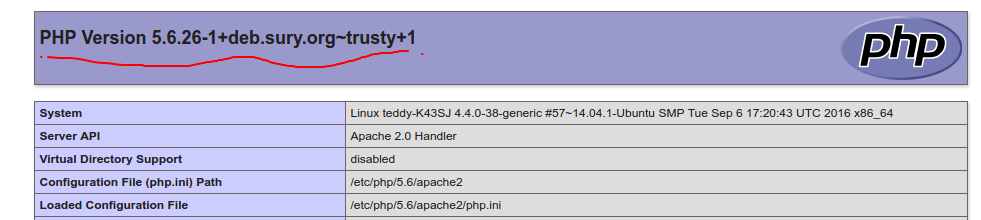 In order to use php5.5, I need to disable the apache2 module for php5.6 first
12345teddy@teddy-K43SJ:~/Downloads$ sudo a2dismod php5.6[sudo] password for teddy:Module php5.6 disabled.To activate the new configuration, you need to run:service apache2 restart
Then restart apache
1sudo service apache2 restart
Then enable the php5.5.
12teddy@teddy-K43SJ:~/Downloads$ sudo a2enmod php5.5ERROR: Module php5.5 does not exist!
Here I got an error “Module php5.5 does not exist!” because I haven’t install the apache2 module for php5.5. Install the module
12345678910111213141516171819202122232425262728293031323334353637383940414243444546474849505152535455565758596061626364656667686970717273747576teddy@teddy-K43SJ:~/Downloads$ sudo apt-get install libapache2-mod-php5.5Reading package lists... DoneBuilding dependency treeReading state information... DoneThe following packages were automatically installed and are no longer required:acpi gir1.2-gstreamer-0.10 gnome-desktop-data gnumeric-common gnumeric-doclibantlr-java libchamplain-0.12-0 libchamplain-gtk-0.12-0libcommons-validator-java libdoxia-sitetools-java libepoxy0 libevdev2libgegl-0.2-0 libgoffice-0.10-10-common libhdb9-heimdal libjdependency-javalibjtidy-java libkdc2-heimdal libmaven-archiver-javalibmaven-clean-plugin-java libmaven-compiler-plugin-javalibmaven-dependency-tree-java libmaven-filtering-javalibmaven-install-plugin-java libmaven-jar-plugin-javalibmaven-plugin-tools-java libmaven-reporting-impl-javalibmaven-resources-plugin-java libmaven-shade-plugin-java libming1libmono-c5-1.1-cil libntdb1 libplexus-compiler-java libplexus-digest-javalibplexus-velocity-java libssl-dev libssl-doc libtidy-0.99-0 libvncclient0libvo-aacenc0 libvo-amrwbenc0 libwerken.xpath-java libx265libxml-xpathengine-perl libxvmc1 linux-headers-3.13.0-76linux-headers-3.13.0-76-generic-tuxonice linux-headers-3.19.0-25linux-headers-3.19.0-25-generic linux-headers-4.4.0-34linux-headers-4.4.0-34-generic linux-image-3.13.0-76-generic-tuxonicelinux-image-3.19.0-25-generic linux-image-4.4.0-34-genericlinux-image-extra-3.13.0-76-generic-tuxonicelinux-image-extra-3.19.0-25-generic linux-image-extra-4.4.0-34-genericlinux-tools-3.13.0-76 linux-tools-3.13.0-76-generic pslib1 python-dateutilpython-feedparser python-ntdb python-utidylib qt-faststart remindor-commontclx8.4 velocityUse 'apt-get autoremove' to remove them.The following NEW packages will be installed:libapache2-mod-php5.50 upgraded, 1 newly installed, 0 to remove and 7 not upgraded.1 not fully installed or removed.Need to get 1.199 kB of archives.After this operation, 4.424 kB of additional disk space will be used.Get:1 http://ppa.launchpad.net/ondrej/php/ubuntu/ trusty/main libapache2-mod-php5.5 amd64 5.5.38-3+deb.sury.org~trusty+1 [1.199 kB]Fetched 1.199 kB in 3s (338 kB/s)Selecting previously unselected package libapache2-mod-php5.5.(Reading database ... 1135829 files and directories currently installed.)Preparing to unpack .../libapache2-mod-php5.5_5.5.38-3+deb.sury.org~trusty+1_amd64.deb ...Unpacking libapache2-mod-php5.5 (5.5.38-3+deb.sury.org~trusty+1) ...Setting up libapache2-mod-php5.5 (5.5.38-3+deb.sury.org~trusty+1) ...Creating config file /etc/php/5.5/apache2/php.ini with new versionphp_invoke: Enable module ctype for apache2 sapiphp_invoke: Enable module iconv for apache2 sapiphp_invoke: Enable module opcache for apache2 sapiphp_invoke: Enable module gettext for apache2 sapiphp_invoke: Enable module sysvshm for apache2 sapiphp_invoke: Enable module ftp for apache2 sapiphp_invoke: Enable module sockets for apache2 sapiphp_invoke: Enable module posix for apache2 sapiphp_invoke: Enable module sysvsem for apache2 sapiphp_invoke: Enable module fileinfo for apache2 sapiphp_invoke: Enable module readline for apache2 sapiphp_invoke: Enable module shmop for apache2 sapiphp_invoke: Enable module memcache for apache2 sapiphp_invoke: Enable module calendar for apache2 sapiphp_invoke: Enable module tokenizer for apache2 sapiphp_invoke: Enable module sysvmsg for apache2 sapiphp_invoke: Enable module json for apache2 sapiphp_invoke: Enable module pdo for apache2 sapiphp_invoke: Enable module exif for apache2 sapiphp_invoke: Enable module phar for apache2 sapiapache2_invoke: Enable module php5.5* Restarting Apache httpd web server apache2 AH00558: apache2: Could not reliably determine the server's fully qualified domain name, using 127.0.1.1. Set the 'ServerName' directive globally to suppress this message[ OK ]Setting up php5-mapscript (6.4.1-2) .../var/lib/dpkg/info/php5-mapscript.postinst: 11: /var/lib/dpkg/info/php5-mapscript.postinst: php5enmod: not founddpkg: error processing package php5-mapscript (--configure):subprocess installed post-installation script returned error exit status 127Errors were encountered while processing:php5-mapscriptE: Sub-process /usr/bin/dpkg returned an error code (1)teddy@teddy-K43SJ:~/Downloads/Upworks$ sudo service apache2 restart * Restarting Apache httpd web server apache2 AH00558: apache2: Could not reliably determine the server's fully qualified domain name, using 127.0.1.1. Set the 'ServerName' directive globally to suppress this message[ OK ]
Restart apache! then enable php5.5 module
1234567teddy@teddy-K43SJ:~/Downloads$ sudo a2enmod php5.5Considering dependency mpm_prefork for php5.5:Considering conflict mpm_event for mpm_prefork:Considering conflict mpm_worker for mpm_prefork:Module mpm_prefork already enabledConsidering conflict php5 for php5.5:Module php5.5 already enabled
When I refreshed the phpinfo, now I’m using php5.5 (php 5.5.38-3+deb.sury.org~trusty+1)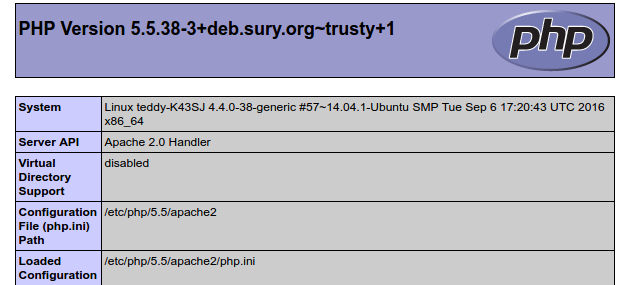 I also need to change the php cli on my terminal. It still use php5.6
12345teddy@teddy-K43SJ:~/Downloads$ php -vPHP 5.6.26-1+deb.sury.org~trusty+1 (cli)Copyright (c) 1997-2016 The PHP GroupZend Engine v2.6.0, Copyright (c) 1998-2016 Zend Technologieswith Zend OPcache v7.0.6-dev, Copyright (c) 1999-2016, by Zend Technologies
to shift to another php version, use like this:
1teddy@teddy-K43SJ:~/Downloads$ sudo ln -sfn /usr/bin/php5.5 /etc/alternatives/php
Here is my php cli version
12345teddy@teddy-K43SJ:~/Downloads$ php -vPHP 5.5.38-3+deb.sury.org~trusty+1 (cli)Copyright (c) 1997-2015 The PHP GroupZend Engine v2.5.0, Copyright (c) 1998-2015 Zend Technologieswith Zend OPcache v7.0.6-dev, Copyright (c) 1999-2015, by Zend Technologies
I need to install some php modules
1sudo apt-get install php-gettext php-curl php-gd php-imagick php-imap php-intl php-mcrypt php-memcache php-mysql php-pspell php-readline php-recode php-tidy php-xmlrpc php5.5-xsl php-mbstring phpmyadmin
I use explicitly ‘php5.5-xsl’ instead of just ‘php-xsl’ or I got this error
123456789...Package php-xsl is a virtual package provided by:php7.1-xml 7.1.0~rc2-1+deb.sury.org~trusty+1php5.5-xml 5.5.38-3+deb.sury.org~trusty+1php7.0-xml 7.0.11-1+deb.sury.org~trusty+1php5.6-xml 5.6.26-1+deb.sury.org~trusty+1You should explicitly select one to install.E: Package 'php-xsl' has no installation candidate
A few more packages need to be installed, like mbstring, mysqli and mcrypt to make phpmyadmin working!
123sudo apt-get install php5.5-mbstringsudo apt-get install php5.5-mysqlisudo apt-get install php5.5-mcrypt
DONT FORGET TO RESTART APACHE THEN
1sudo service apache2 restart
TO MOVE BACK TO PHP 5.6, DO THIS
1234sudo a2dismod php5.5sudo service apache2 restartsudo a2enmod php5.6sudo service apache2 restart
FOR PHP CLI
12sudo ln -sfn /usr/bin/php5.6 /etc/alternatives/phpphp -v
I found something useful to use different php version on the linux terminal like this
1234567891011121314151617181920212223teddy@teddy-K43SJ:~/Downloads$ php5.6 -vPHP 5.6.26-1+deb.sury.org~trusty+1 (cli)Copyright (c) 1997-2016 The PHP GroupZend Engine v2.6.0, Copyright (c) 1998-2016 Zend Technologieswith Zend OPcache v7.0.6-dev, Copyright (c) 1999-2016, by Zend Technologiesteddy@teddy-K43SJ:~/Downloads$ php5.5 -vPHP 5.5.38-3+deb.sury.org~trusty+1 (cli)Copyright (c) 1997-2015 The PHP GroupZend Engine v2.5.0, Copyright (c) 1998-2015 Zend Technologieswith Zend OPcache v7.0.6-dev, Copyright (c) 1999-2015, by Zend Technologiesteddy@teddy-K43SJ:~/Downloads/Upworks$ php -vPHP 5.6.26-1+deb.sury.org~trusty+1 (cli)Copyright (c) 1997-2016 The PHP GroupZend Engine v2.6.0, Copyright (c) 1998-2016 Zend Technologieswith Zend OPcache v7.0.6-dev, Copyright (c) 1999-2016, by Zend Technologiesteddy@teddy-K43SJ:~/Downloads$ php7.0 -vPHP 7.0.11-1+deb.sury.org~trusty+1 (cli) ( NTS )Copyright (c) 1997-2016 The PHP GroupZend Engine v3.0.0, Copyright (c) 1998-2016 Zend Technologieswith Zend OPcache v7.0.11-1+deb.sury.org~trusty+1, Copyright (c) 1999-2016, by Zend Technologies
the default php version now is php5.6 that showed the same result!
DON’T FORGET TO CONFIGURE PHP SETTING:
a. type :
1sudo gedit /etc/php/5.6/apache2/php.ini
b. edit php setting like :
123upload_max_filesize = 1000M -> (default 2M)post_max_size = 1000M -> (default 8M)max_execution_time = 600 -> (default 30) in second
c. restart apache :
1sudo service apache2 restart
d. Check the value in http://localhost/info.phpIt’d be same if I want to use PHP 7 (php7.0). First deactivate my default php5.6
1234teddy@teddy-K43SJ:~$ sudo a2dismod php5.6Module php5.6 disabled.To activate the new configuration, you need to run:service apache2 restartThen restart apache2 as recommended
123teddy@teddy-K43SJ:~$ sudo service apache2 restart* Restarting Apache httpd web server apache2 AH00558: apache2: Could not reliably determine the server's fully qualified domain name, using 127.0.1.1. Set the 'ServerName' directive globally to suppress this message[ OK ]Enable php 7 (here is php7.0)
123456789teddy@teddy-K43SJ:~$ sudo a2enmod php7.0Considering dependency mpm_prefork for php7.0:Considering conflict mpm_event for mpm_prefork:Considering conflict mpm_worker for mpm_prefork:Module mpm_prefork already enabledConsidering conflict php5 for php7.0:Enabling module php7.0.To activate the new configuration, you need to run:service apache2 restartThen restart the apache2 server again
1teddy@teddy-K43SJ:~$ sudo service apache2 restartCheck the current php version in http://localhost/info.php
 If I need to install more php7.0 extension like mysqli extension is needed by phpmyadmin, do like this:1teddy@teddy-K43SJ:~$ sudo apt-get install php7.0-mysqli
don’t forget to restart apache server!
To change the PHP setting, pls do like this:1sudo gedit /etc/php/7.0/apache2/php.iniModify the php.ini file:
123upload_max_filesize = 1000M -> (default 2M)post_max_size = 1000M -> (default 8M)max_execution_time = 600 -> (default 30) in secondThen restart apache server!
- Install xdebug for php5.6
Somehow I didn’t find xdebug installed for php 5.6. When I opened http://localhost/info.php, I couldn’t find xdebug. After some tries, I have to install it manually with ‘sudo apt-get install php5.6-xdebug’.
To write the xdebug setting, No need to write it in ‘/etc/php/5.6/apache2/php.ini’ but write it in ‘/etc/php/5.6/apache2/conf.d/20-xdebug.ini’.1sudo gedit /etc/php/5.6/apache2/conf.d/20-xdebug.iniHere is the setting (would use it with kcachegrind):
12345678zend_extension=xdebug.soxdebug.remote_autostart=0xdebug.remote_enable=0xdebug.profiler_enable=0xdebug.max_nesting_level=250xdebug.profiler_enable_trigger=1xdebug.profiler_output_dir="/media/data/MASTER/php/cachegrind"xdebug.profiler_output_name = "cachegrind.out.%p"Dont forget to restart apache after writing the setting.
The setting means I can only use xdebug with a trigger like this: http://localhost/works/thefootnotes/?XDEBUG_PROFILE=1
The xdebug output would be written in ‘/media/data/MASTER/php/cachegrind/’ directory. Use KCacheGrind to view the output - Next time if I want to use and install php 7 along side php 5.6, I can read these tutorials:
PHP 7.0 (and 5.6) on Ubuntu
Installing PHP 5.6.x and 7.0.x with Ubuntu 14.04 and Virtualmin 5.0gpl using a PPA - SOLUTION FOR THE ERROR
123456789101112Removing php5-mapscript (6.4.1-2ubuntu0.1) .../var/lib/dpkg/info/php5-mapscript.prerm: 8: /var/lib/dpkg/info/php5-mapscript.prerm: php5dismod: not founddpkg: error processing package php5-mapscript (--purge):subprocess installed pre-removal script returned error exit status 127Errors were encountered while processing:php5-mapscriptE: Sub-process /usr/bin/dpkg returned an error code (1)teddy@teddy-K43SJ:~$ sudo apt-get install php5dismodReading package lists... DoneBuilding dependency treeReading state information... DoneE: Unable to locate package php5dismod
Ref: https://askubuntu.com/questions/723775/cannot-uninstall-php-memcache-using-terminal
SO remove the files like this then update:123teddy@teddy-K43SJ:~$ sudo rm -rf /var/lib/dpkg/info/php5-mapscript.postinstteddy@teddy-K43SJ:~$ sudo rm -rf /var/lib/dpkg/info/php5-mapscript.prermteddy@teddy-K43SJ:~$ sudo apt-get update - Install PHP 7.1 and enable it:
12teddy@teddy-K43SJ:~$ sudo apt-get install libapache2-mod-php7.1teddy@teddy-K43SJ:~$ sudo a2enmod php7.1
Check the current php version on the teminal:
123456teddy@teddy-K43SJ:~$ php -vPHP 7.1.6-2~ubuntu14.04.1+deb.sury.org+1 (cli) (built: Jun 14 2017 05:58:40) ( NTS )Copyright (c) 1997-2017 The PHP GroupZend Engine v3.1.0, Copyright (c) 1998-2017 Zend Technologieswith Zend OPcache v7.1.6-2~ubuntu14.04.1+deb.sury.org+1, Copyright (c) 1999-2017, by Zend Technologieswith Xdebug v2.5.4, Copyright (c) 2002-2017, by Derick RethansBUT I GOT A FAIL WHEN TRYING TO RESTART APACHE2 SERVICE:
123456789101112teddy@teddy-K43SJ:~$ sudo service apache2 restart* Restarting Apache httpd web server apache2 [Thu Jun 15 21:57:23.850941 2017] [so:warn] [pid 18832] AH01574: module php7_module is already loaded, skippingAH00112: Warning: DocumentRoot [/home/teddy/Documents/works/symfony/myproj/web] does not existAH00112: Warning: DocumentRoot [/home/teddy/Documents/works/theflyingfork] does not existAH00558: apache2: Could not reliably determine the server's fully qualified domain name, using 127.0.1.1. Set the 'ServerName' directive globally to suppress this message(98)Address already in use: AH00072: make_sock: could not bind to address [::]:80(98)Address already in use: AH00072: make_sock: could not bind to address 0.0.0.0:80no listening sockets available, shutting downAH00015: Unable to open logsAction 'start' failed.The Apache error log may have more information.[fail]SOLUTION: I NEED TO STOP NGINX SERVICE FIRST:
1teddy@teddy-K43SJ:~$ sudo service nginx stopALSO CHECK THE PHP VERSION ON THE BROWSER: http://localhost/info.php.
I also need to install a few php7.1 extension needed like zip extension (ref: https://laracasts.com/discuss/channels/laravel/zip-php-extension-problem-in-ubuntu-php7):1teddy@teddy-K43SJ:~$ sudo apt-get install php7.1-zipDON’T FORGET TO CONFIGURE PHP SETTING:
a. type :1sudo gedit /etc/php/7.1/apache2/php.inib. edit php setting like :
1234upload_max_filesize = 2000M -> (default 2M)post_max_size = 2560M -> (default 8M)max_execution_time = 600 -> (default 30) in secondmemory_limit = 2560M -> (default 128M)c. restart apache :
1sudo service apache2 restartd. Check the value in http://localhost/info.php