I want to change the background color of my wordpress visual editor from white to black. I like black color for my wordpress background because I think it is easier to read (for me), energy-saving and it don’t make my eye irritated if I am reading for a long time. I am using the twenty sixteen theme and I already changed the background color to black (the font is white, of course). My articles mostly about the technical IT like programming, new tecnology and tutorial. When I am dealing with some phrases that I need to be emphasized, I like to make them colorful so I can read easier and make it different with the others. The problem I encountered was the WordPress visual editor. The default color was white. So when I changed the color of some words on the white background visual editor, I felt different when I saw it on the black wordpress page. It was not easy to change it like the wordpress page did. I can’t mess style.css to do this job. From this stackoverflow link http://wordpress.stackexchange.com/questions/25355/how-do-you-change-the-visual-editors-background-color, I know how to accomplish my goal. Here are the steps:
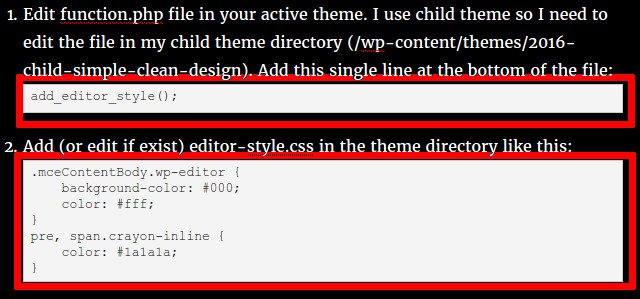
- Edit function.php file in your active theme. I use child theme so I need to edit the file in my child theme directory (/wp-content/themes/2016-child-simple-clean-design). Add this single line at the bottom of the file:
1add_editor_style(); - Add (or edit if exist) editor-style.css in the theme directory like this:
1234567.mceContentBody.wp-editor {background-color: #000;color: #fff;}pre, span.crayon-inline {color: #1a1a1a;}
The first four lines is enough to change the background of the visual editor to black. The last three lines is about the change the color on the crayon syntax highlighting plugin. We need to change the default color on the plugin from white to black (#1a1a1a) because the plugin use white background and we already change the font color to white also! at this case we would not see our code!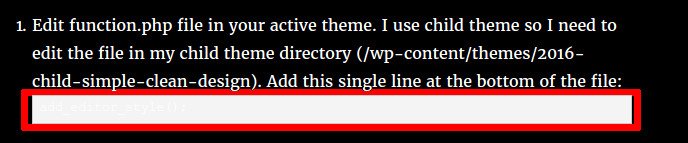 so change the font color to black.
  OK. that is it! Enjoy.