Source: Installing Ruby on Rails on Ubuntu 14.04 – 15.10 and Install Ruby on Rails · Ubuntu Linux.
Installation:
- Install Ruby Version Manager (RVM). I already had ‘curl’, so import the rvm.io public key in the server system.
12teddy@teddy-K43SJ:~$ curl -#LO https://rvm.io/mpapis.asc######################################################################## 100,0%
1234teddy@teddy-K43SJ:~$ gpg --import mpapis.ascgpg: key D39DC0E3: public key "Michal Papis (RVM signing) <mpapis@gmail.com>" importedgpg: Total number processed: 1gpg: imported: 1 (RSA: 1)
- Then download the RVM installer with curl and execute it (by piping the curl output to bash):
12345678910111213141516171819202122232425262728teddy@teddy-K43SJ:~$ curl -sSL https://get.rvm.io | bash -s stableDownloading https://github.com/rvm/rvm/archive/1.28.0.tar.gzDownloading https://github.com/rvm/rvm/releases/download/1.28.0/1.28.0.tar.gz.ascgpg: Signature made Sel 20 Des 2016 01:50:13 WIB using RSA key ID BF04FF17gpg: Good signature from "Michal Papis (RVM signing) <mpapis@gmail.com>"gpg: Note: This key has expired!Primary key fingerprint: 409B 6B17 96C2 7546 2A17 0311 3804 BB82 D39D C0E3Subkey fingerprint: 62C9 E5F4 DA30 0D94 AC36 166B E206 C29F BF04 FF17GPG verified '/home/teddy/.rvm/archives/rvm-1.28.0.tgz'Installing RVM to /home/teddy/.rvm/stat: cannot stat ‘/<gconf>/ a<entry name='login_shell' mtime='1483934280' type='bool' value='true'/>’: No such file or directorystat: cannot stat ‘/<gconf>/ a<entry name='login_shell' mtime='1483934280' type='bool' value='true'/>’: No such file or directoryAdding rvm PATH line to /home/teddy/.profile /home/teddy/.mkshrc /home/teddy/.bashrc /home/teddy/.zshrc.Adding rvm loading line to /home/teddy/.profile /home/teddy/.bash_profile /home/teddy/.zlogin.Installation of RVM in /home/teddy/.rvm/ is almost complete:* To start using RVM you need to run `source /home/teddy/.rvm/scripts/rvm`in all your open shell windows, in rare cases you need to reopen all shell windows.# advcha,## Thank you for using RVM!# We sincerely hope that RVM helps to make your life easier and more enjoyable!!!## ~Wayne, Michal & team.In case of problems: https://rvm.io/help and https://twitter.com/rvm_io
KEEP IN MIND THIS LINE
1To start using RVM you need to run `source /home/teddy/.rvm/scripts/rvm
I need to execute ‘source /home/teddy/.rvm/scripts/rvm’ to build the RVM environment and to save the settings of this environment into current shell.
1teddy@teddy-K43SJ:~$ source /home/teddy/.rvm/scripts/rvm
NOT (ref: Error message: -bash: /etc/profile.d/rvm.sh: No such file or directory)
12teddy@teddy-K43SJ:~$ source /etc/profile.d/rvm.shbash: /etc/profile.d/rvm.sh: No such file or directory
- Install the Ruby dependencies with the RVM command below:
1teddy@teddy-K43SJ:~$ rvm requirements
For the first time, I got some errors like this:
123456789101112131415161718192021222324teddy@teddy-K43SJ:~$ rvm requirementsChecking requirements for ubuntu.Installing requirements for ubuntu.Updating systemteddy password required for 'apt-get --quiet --yes update':teddy password required for 'apt-get --quiet --yes update':..................................Error running 'requirements_debian_update_system ',showing last 15 lines of /home/teddy/.rvm/log/1483934510/update_system.log+ case "${TERM:-dumb}" in+ case "$1" in+ [[ -t 2 ]]+ return 1+ printf %b 'There has been error while updating '\''apt-get'\'', please give it some time and try again later.404 errors should be fixed for rvm to proceed. Check your sources configured in:/etc/apt/sources.list/etc/apt/sources.list.d/*.list\n'There has been error while updating 'apt-get', please give it some time and try again later.404 errors should be fixed for rvm to proceed. Check your sources configured in:/etc/apt/sources.list/etc/apt/sources.list.d/*.list+ return 100Requirements installation failed with status: 100.
SOLUTION: ref: Error installing Ruby on Ubuntu 14.04
I have to fix/remove some failed ubuntu repository. From ‘sudo apt-get update’, I got these repositories error:
12345678W: GPG error: https://apt.dockerproject.org ubuntu-trusty InRelease: The following signatures couldn't be verified because the public key is not available: NO_PUBKEY F76221572C52609DW: GPG error: http://download.opensuse.org Release: The following signatures were invalid: KEYEXPIRED 1460070962W: GPG error: http://ppa.launchpad.net trusty Release: The following signatures were invalid: BADSIG A9E15C2F2B944FEE Launchpad PPA for Alex MurrayW: Failed to fetch http://ppa.launchpad.net/ondrej/php5-5.6/ubuntu/dists/trusty/main/binary-amd64/Packages 404 Not FoundW: Failed to fetch http://ppa.launchpad.net/ondrej/php5-5.6/ubuntu/dists/trusty/main/binary-i386/Packages 404 Not FoundE: Some index files failed to download. They have been ignored, or old ones used instead.
After fixing them (see the above link), it’s working fine
123456teddy@teddy-K43SJ:~$ rvm requirementsChecking requirements for ubuntu.Installing requirements for ubuntu.Updating system...........................Installing required packages: gawk, libreadline6-dev, libyaml-dev, sqlite3, libgmp-dev, libgdbm-dev, libncurses5-dev, bison............Requirements installation successful.
- Check for available Ruby versions
The following command lists the available ruby versions:
123456789101112131415161718192021222324252627282930313233343536373839404142434445464748495051525354555657585960teddy@teddy-K43SJ:~$ rvm list known# MRI Rubies[ruby-]1.8.6[-p420][ruby-]1.8.7[-head] # security released on head[ruby-]1.9.1[-p431][ruby-]1.9.2[-p330][ruby-]1.9.3[-p551][ruby-]2.0.0[-p648][ruby-]2.1[.10][ruby-]2.2[.6][ruby-]2.3[.3][ruby-]2.4[.0-rc1]ruby-head# for forks use: rvm install ruby-head-<name> --url https://github.com/github/ruby.git --branch 2.2# JRubyjruby-1.6[.8]jruby-1.7[.26]jruby[-9.1.6.0]jruby-head# Rubiniusrbx-1[.4.3]rbx-2.3[.0]rbx-2.4[.1]rbx-2[.5.8]rbx[-3.69]rbx-head# Opalopal# Minimalistic ruby implementation - ISO 30170:2012mruby-1.0.0mruby-1.1.0mruby-1[.2.0]mruby[-head]# Ruby Enterprise Editionree-1.8.6ree[-1.8.7][-2012.02]# Topaztopaz# MagLevmaglev[-head]maglev-1.0.0# Mac OS X Snow Leopard Or Newermacruby-0.10macruby-0.11macruby[-0.12]macruby-nightlymacruby-head# IronRubyironruby[-1.1.3]ironruby-head
I’m going to install the latest stable ruby version 2.3.3 because ruby 2.4.0-rc1 still in release candidate. - Install Ruby Version
Using RVM makes the independent management of ruby versions an easy process. The command listed below installs the Ruby version 2.3.3.
12345678910111213141516171819202122teddy@teddy-K43SJ:~$ rvm install 2.3.3Searching for binary rubies, this might take some time.Found remote file https://rubies.travis-ci.org/ubuntu/14.04/x86_64/ruby-2.3.3.tar.bz2Checking requirements for ubuntu.Requirements installation successful.ruby-2.3.3 - #configureruby-2.3.3 - #download% Total % Received % Xferd Average Speed Time Time Time CurrentDload Upload Total Spent Left Speed0 0 0 0 0 0 0 0 --:--:-- 0:00:01 --:--:-- 0100 25.1M 100 25.1M 0 0 927k 0 0:00:27 0:00:27 --:--:-- 1196kNo checksum for downloaded archive, recording checksum in user configuration.ruby-2.3.3 - #validate archiveruby-2.3.3 - #extractruby-2.3.3 - #validate binaryruby-2.3.3 - #setupruby-2.3.3 - #gemset created /home/teddy/.rvm/gems/ruby-2.3.3@globalruby-2.3.3 - #importing gemset /home/teddy/.rvm/gemsets/global.gems...................................ruby-2.3.3 - #generating global wrappers........ruby-2.3.3 - #gemset created /home/teddy/.rvm/gems/ruby-2.3.3ruby-2.3.3 - #importing gemsetfile /home/teddy/.rvm/gemsets/default.gems evaluated to empty gem listruby-2.3.3 - #generating default wrappers........
- Default Ruby Version must be Set up
In order for the applications to use Ruby, the default ruby version needs to be set. The following command sets Ruby 2.3.3 as default version.
12teddy@teddy-K43SJ:~$ rvm use 2.3.3 --defaultUsing /home/teddy/.rvm/gems/ruby-2.3.3 - Confirm ruby version installed
12teddy@teddy-K43SJ:~$ ruby -vruby 2.3.3p222 (2016-11-21 revision 56859) [x86_64-linux]
We’ve just finished installing ‘Ruby’. Now we’re going to install ‘Rails’ - Installing Rails
Rails can be easily installed with the Ruby gem installer.
123456789101112131415161718192021222324252627282930313233343536373839404142434445464748495051525354555657585960616263646566676869707172737475767778798081828384858687888990919293949596979899100101102103104105106107108109110111112113114115116117118119120121122123124125126127128129130131132133134135136137138139140141142143144145146147148149150teddy@teddy-K43SJ:~$ gem install railsFetching: i18n-0.7.0.gem (100%)Successfully installed i18n-0.7.0Fetching: thread_safe-0.3.5.gem (100%)Successfully installed thread_safe-0.3.5Fetching: tzinfo-1.2.2.gem (100%)Successfully installed tzinfo-1.2.2Fetching: concurrent-ruby-1.0.4.gem (100%)Successfully installed concurrent-ruby-1.0.4Fetching: activesupport-5.0.1.gem (100%)Successfully installed activesupport-5.0.1Fetching: rack-2.0.1.gem (100%)Successfully installed rack-2.0.1Fetching: rack-test-0.6.3.gem (100%)Successfully installed rack-test-0.6.3Fetching: mini_portile2-2.1.0.gem (100%)Successfully installed mini_portile2-2.1.0Fetching: nokogiri-1.7.0.1.gem (100%)Building native extensions. This could take a while...Successfully installed nokogiri-1.7.0.1Fetching: loofah-2.0.3.gem (100%)Successfully installed loofah-2.0.3Fetching: rails-html-sanitizer-1.0.3.gem (100%)Successfully installed rails-html-sanitizer-1.0.3Fetching: rails-dom-testing-2.0.2.gem (100%)Successfully installed rails-dom-testing-2.0.2Fetching: builder-3.2.2.gem (100%)Successfully installed builder-3.2.2Fetching: erubis-2.7.0.gem (100%)Successfully installed erubis-2.7.0Fetching: actionview-5.0.1.gem (100%)Successfully installed actionview-5.0.1Fetching: actionpack-5.0.1.gem (100%)Successfully installed actionpack-5.0.1Fetching: activemodel-5.0.1.gem (100%)Successfully installed activemodel-5.0.1Fetching: arel-7.1.4.gem (100%)Successfully installed arel-7.1.4Fetching: activerecord-5.0.1.gem (100%)Successfully installed activerecord-5.0.1Fetching: globalid-0.3.7.gem (100%)Successfully installed globalid-0.3.7Fetching: activejob-5.0.1.gem (100%)Successfully installed activejob-5.0.1Fetching: mime-types-data-3.2016.0521.gem (100%)Successfully installed mime-types-data-3.2016.0521Fetching: mime-types-3.1.gem (100%)Successfully installed mime-types-3.1Fetching: mail-2.6.4.gem (100%)Successfully installed mail-2.6.4Fetching: actionmailer-5.0.1.gem (100%)Successfully installed actionmailer-5.0.1Fetching: nio4r-1.2.1.gem (100%)Building native extensions. This could take a while...Successfully installed nio4r-1.2.1Fetching: websocket-extensions-0.1.2.gem (100%)Successfully installed websocket-extensions-0.1.2Fetching: websocket-driver-0.6.4.gem (100%)Building native extensions. This could take a while...Successfully installed websocket-driver-0.6.4Fetching: actioncable-5.0.1.gem (100%)Successfully installed actioncable-5.0.1Fetching: thor-0.19.4.gem (100%)Successfully installed thor-0.19.4Fetching: method_source-0.8.2.gem (100%)Successfully installed method_source-0.8.2Fetching: railties-5.0.1.gem (100%)Successfully installed railties-5.0.1Fetching: bundler-1.13.7.gem (100%)Successfully installed bundler-1.13.7Fetching: sprockets-3.7.1.gem (100%)Successfully installed sprockets-3.7.1Fetching: sprockets-rails-3.2.0.gem (100%)Successfully installed sprockets-rails-3.2.0Fetching: rails-5.0.1.gem (100%)Successfully installed rails-5.0.1Parsing documentation for i18n-0.7.0Installing ri documentation for i18n-0.7.0Parsing documentation for thread_safe-0.3.5Installing ri documentation for thread_safe-0.3.5Parsing documentation for tzinfo-1.2.2Installing ri documentation for tzinfo-1.2.2Parsing documentation for concurrent-ruby-1.0.4Installing ri documentation for concurrent-ruby-1.0.4Parsing documentation for activesupport-5.0.1Installing ri documentation for activesupport-5.0.1Parsing documentation for rack-2.0.1Installing ri documentation for rack-2.0.1Parsing documentation for rack-test-0.6.3Installing ri documentation for rack-test-0.6.3Parsing documentation for mini_portile2-2.1.0Installing ri documentation for mini_portile2-2.1.0Parsing documentation for nokogiri-1.7.0.1Installing ri documentation for nokogiri-1.7.0.1Parsing documentation for loofah-2.0.3Installing ri documentation for loofah-2.0.3Parsing documentation for rails-html-sanitizer-1.0.3Installing ri documentation for rails-html-sanitizer-1.0.3Parsing documentation for rails-dom-testing-2.0.2Installing ri documentation for rails-dom-testing-2.0.2Parsing documentation for builder-3.2.2Installing ri documentation for builder-3.2.2Parsing documentation for erubis-2.7.0Installing ri documentation for erubis-2.7.0Parsing documentation for actionview-5.0.1Installing ri documentation for actionview-5.0.1Parsing documentation for actionpack-5.0.1Installing ri documentation for actionpack-5.0.1Parsing documentation for activemodel-5.0.1Installing ri documentation for activemodel-5.0.1Parsing documentation for arel-7.1.4Installing ri documentation for arel-7.1.4Parsing documentation for activerecord-5.0.1Installing ri documentation for activerecord-5.0.1Parsing documentation for globalid-0.3.7Installing ri documentation for globalid-0.3.7Parsing documentation for activejob-5.0.1Installing ri documentation for activejob-5.0.1Parsing documentation for mime-types-data-3.2016.0521Installing ri documentation for mime-types-data-3.2016.0521Parsing documentation for mime-types-3.1Installing ri documentation for mime-types-3.1Parsing documentation for mail-2.6.4Installing ri documentation for mail-2.6.4Parsing documentation for actionmailer-5.0.1Installing ri documentation for actionmailer-5.0.1Parsing documentation for nio4r-1.2.1Installing ri documentation for nio4r-1.2.1Parsing documentation for websocket-extensions-0.1.2Installing ri documentation for websocket-extensions-0.1.2Parsing documentation for websocket-driver-0.6.4Installing ri documentation for websocket-driver-0.6.4Parsing documentation for actioncable-5.0.1Installing ri documentation for actioncable-5.0.1Parsing documentation for thor-0.19.4Installing ri documentation for thor-0.19.4Parsing documentation for method_source-0.8.2Installing ri documentation for method_source-0.8.2Parsing documentation for railties-5.0.1Installing ri documentation for railties-5.0.1Parsing documentation for bundler-1.13.7Installing ri documentation for bundler-1.13.7Parsing documentation for sprockets-3.7.1Installing ri documentation for sprockets-3.7.1Parsing documentation for sprockets-rails-3.2.0Installing ri documentation for sprockets-rails-3.2.0Parsing documentation for rails-5.0.1Installing ri documentation for rails-5.0.1Done installing documentation for i18n, thread_safe, tzinfo, concurrent-ruby, activesupport, rack, rack-test, mini_portile2, nokogiri, loofah, rails-html-sanitizer, rails-dom-testing, builder, erubis, actionview, actionpack, activemodel, arel, activerecord, globalid, activejob, mime-types-data, mime-types, mail, actionmailer, nio4r, websocket-extensions, websocket-driver, actioncable, thor, method_source, railties, bundler, sprockets, sprockets-rails, rails after 107 seconds36 gems installed - Check the rails version
Execute the following command to check the rails version and to see if rails has been installed successfully.
12teddy@teddy-K43SJ:~$ rails -vRails 5.0.1
I just installed the latest rails (version 5.0.1). To install certain version (like version 4.2.5), install rails like this:
1gem install rails --version=4.2.5
- Create a test app ‘testapp’ in Document/rubyonrails/ directory
1teddy@teddy-K43SJ:~$ cd Documents/rubyonrails/
123456789101112131415161718192021222324252627282930313233343536373839404142434445464748495051525354555657585960616263646566676869707172737475767778798081828384858687888990919293949596979899100101102103104105106107108109110111112113114115116117118119120121122123124125126127128129130131132133134135136137138139140141142143144145146147148149150151152153154155156157158159160161162163164165166167168169170171172173174teddy@teddy-K43SJ:~/Documents/rubyonrails$ rails new testappcreatecreate README.mdcreate Rakefilecreate config.rucreate .gitignorecreate Gemfilecreate appcreate app/assets/config/manifest.jscreate app/assets/javascripts/application.jscreate app/assets/javascripts/cable.jscreate app/assets/stylesheets/application.csscreate app/channels/application_cable/channel.rbcreate app/channels/application_cable/connection.rbcreate app/controllers/application_controller.rbcreate app/helpers/application_helper.rbcreate app/jobs/application_job.rbcreate app/mailers/application_mailer.rbcreate app/models/application_record.rbcreate app/views/layouts/application.html.erbcreate app/views/layouts/mailer.html.erbcreate app/views/layouts/mailer.text.erbcreate app/assets/images/.keepcreate app/assets/javascripts/channelscreate app/assets/javascripts/channels/.keepcreate app/controllers/concerns/.keepcreate app/models/concerns/.keepcreate bincreate bin/bundlecreate bin/railscreate bin/rakecreate bin/setupcreate bin/updatecreate configcreate config/routes.rbcreate config/application.rbcreate config/environment.rbcreate config/secrets.ymlcreate config/cable.ymlcreate config/puma.rbcreate config/spring.rbcreate config/environmentscreate config/environments/development.rbcreate config/environments/production.rbcreate config/environments/test.rbcreate config/initializerscreate config/initializers/application_controller_renderer.rbcreate config/initializers/assets.rbcreate config/initializers/backtrace_silencers.rbcreate config/initializers/cookies_serializer.rbcreate config/initializers/cors.rbcreate config/initializers/filter_parameter_logging.rbcreate config/initializers/inflections.rbcreate config/initializers/mime_types.rbcreate config/initializers/new_framework_defaults.rbcreate config/initializers/session_store.rbcreate config/initializers/wrap_parameters.rbcreate config/localescreate config/locales/en.ymlcreate config/boot.rbcreate config/database.ymlcreate dbcreate db/seeds.rbcreate libcreate lib/taskscreate lib/tasks/.keepcreate lib/assetscreate lib/assets/.keepcreate logcreate log/.keepcreate publiccreate public/404.htmlcreate public/422.htmlcreate public/500.htmlcreate public/apple-touch-icon-precomposed.pngcreate public/apple-touch-icon.pngcreate public/favicon.icocreate public/robots.txtcreate test/fixturescreate test/fixtures/.keepcreate test/fixtures/filescreate test/fixtures/files/.keepcreate test/controllerscreate test/controllers/.keepcreate test/mailerscreate test/mailers/.keepcreate test/modelscreate test/models/.keepcreate test/helperscreate test/helpers/.keepcreate test/integrationcreate test/integration/.keepcreate test/test_helper.rbcreate tmpcreate tmp/.keepcreate tmp/cachecreate tmp/cache/assetscreate vendor/assets/javascriptscreate vendor/assets/javascripts/.keepcreate vendor/assets/stylesheetscreate vendor/assets/stylesheets/.keepremove config/initializers/cors.rbrun bundle installFetching gem metadata from https://rubygems.org/..........Fetching version metadata from https://rubygems.org/..Fetching dependency metadata from https://rubygems.org/.Resolving dependencies...Installing rake 12.0.0Using concurrent-ruby 1.0.4Using i18n 0.7.0Installing minitest 5.10.1Using thread_safe 0.3.5Using builder 3.2.2Using erubis 2.7.0Using mini_portile2 2.1.0Using rack 2.0.1Using nio4r 1.2.1Using websocket-extensions 0.1.2Using mime-types-data 3.2016.0521Using arel 7.1.4Using bundler 1.13.7Installing byebug 9.0.6 with native extensionsInstalling coffee-script-source 1.12.2Installing execjs 2.7.0Using method_source 0.8.2Using thor 0.19.4Installing debug_inspector 0.0.2 with native extensionsInstalling ffi 1.9.14 with native extensionsInstalling multi_json 1.12.1Installing rb-fsevent 0.9.8Installing puma 3.6.2 with native extensionsInstalling sass 3.4.23Installing tilt 2.0.5Installing sqlite3 1.3.13 with native extensionsInstalling turbolinks-source 5.0.0Using tzinfo 1.2.2Using nokogiri 1.7.0.1Using rack-test 0.6.3Using sprockets 3.7.1Using websocket-driver 0.6.4Using mime-types 3.1Installing coffee-script 2.4.1Installing uglifier 3.0.4Installing rb-inotify 0.9.7Installing turbolinks 5.0.1Using activesupport 5.0.1Using loofah 2.0.3Using mail 2.6.4Installing listen 3.0.8Using rails-dom-testing 2.0.2Using globalid 0.3.7Using activemodel 5.0.1Installing jbuilder 2.6.1Installing spring 2.0.0Using rails-html-sanitizer 1.0.3Using activejob 5.0.1Using activerecord 5.0.1Installing spring-watcher-listen 2.0.1Using actionview 5.0.1Using actionpack 5.0.1Using actioncable 5.0.1Using actionmailer 5.0.1Using railties 5.0.1Using sprockets-rails 3.2.0Installing coffee-rails 4.2.1Installing jquery-rails 4.2.2Installing web-console 3.4.0Using rails 5.0.1Installing sass-rails 5.0.6Bundle complete! 15 Gemfile dependencies, 62 gems now installed.Use `bundle show [gemname]` to see where a bundled gem is installed.run bundle exec spring binstub --all* bin/rake: spring inserted* bin/rails: spring inserted
- Go into the ‘testapp’ then start the rails server
1234567891011teddy@teddy-K43SJ:~/Documents/rubyonrails$ cd testapp/teddy@teddy-K43SJ:~/Documents/rubyonrails/testapp$ rails s=> Booting Puma=> Rails 5.0.1 application starting in development on http://localhost:3000=> Run `rails server -h` for more startup optionsPuma starting in single mode...* Version 3.6.2 (ruby 2.3.3-p222), codename: Sleepy Sunday Serenity* Min threads: 5, max threads: 5* Environment: development* Listening on tcp://localhost:3000Use Ctrl-C to stop
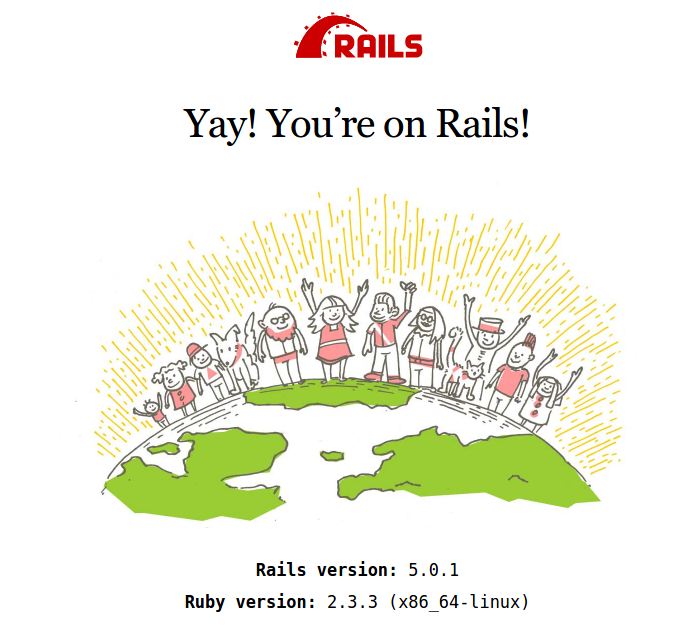
- Open it on your browser http://localhost:3000/. If nothing wrong, here is the looks